Why Wont My iPhone Connect to My Car via USB Cable
Why Won’t My iPhone Connect to My Car via USB Cable is a frustrating problem many drivers face every day. A loose cable, outdated software, or a dirty port can all stop your iPhone USB connection from working. This guide walks you through every fix step by step so you can get back to using Apple CarPlay or playing music through your car infotainment system. You will learn how to spot the real cause, test your cable, and prevent the problem from coming back.
Key Takeaways
- Dirty or damaged USB cables are the #1 reason your iPhone won’t connect to your car.
- iOS and car software updates often fix compatibility bugs that cause connection failures.
- Not all USB cables support data transfer — some only charge your phone.
- Restarting both devices is a simple but surprisingly effective fix.
- Lightning and USB-C cables require different adapters and may not work interchangeably.
- Car infotainment settings need to be set to the correct input source for your iPhone to show up.
- Regular cable and port cleaning can prevent most USB connection issues before they start.
[FEATURED_IMAGE_PLACEHOLDER]
📑 Table of Contents
- Why Won’t My iPhone Connect to My Car via USB Cable?
- Common Reasons Your iPhone Won’t Connect via USB
- How to Fix iPhone USB Connection Issues Step by Step
- Is Your USB Cable the Real Problem?
- Car Infotainment System Settings You Should Check
- When to Seek Professional Help
- Preventing USB Connection Problems in the Future
- Conclusion
Why Won’t My iPhone Connect to My Car via USB Cable?
You’re about to hit the road. You plug your iPhone into the car USB port, and… nothing happens. No music. No maps. No screen mirroring. It’s one of those small moments that can throw off your whole morning. The good news is that this problem is almost always fixable. You just need to know where to look.
The iPhone USB connection issue between phones and cars is incredibly common. It happens with older vehicles and brand-new models alike. Sometimes the fix takes five seconds. Other times, you need to dig a little deeper. This guide covers every likely cause and gives you clear steps to solve each one. By the end, you will know exactly what to check and how to get your iPhone syncing with your car again.
Let’s be honest — we all rely on our phones while driving now. Whether you use Apple CarPlay for navigation, stream podcasts, or just want to charge your phone during a long trip, a working USB link is essential. When that link breaks, it feels like the whole system falls apart. But it doesn’t have to stay broken. Keep reading to find your answer.
Common Reasons Your iPhone Won’t Connect via USB
Before you start trying random fixes, it helps to understand what could be going wrong. There are a handful of usual suspects that cause iPhone not connecting to car problems. Let’s go through them one by one.
1. A Damaged or Low-Quality USB Cable
This is the most common reason by far. USB cables wear out over time. The outer coating frays, the internal wires break, and the connector gets bent. If you’ve ever yanked your cable out of the port by pulling on the cord instead of the plug, you’ve probably shortened its lifespan.
Cheap cables are another big culprit. Many generic cables only support charging, not data transfer. So your phone gets power, but the car’s system can’t talk to it. If you’ve ever plugged in your iPhone and noticed it only charges but doesn’t show up on the car screen, the cable is likely the problem.
2. A Dirty or Clogged USB Port
Think about where that car USB port lives. It’s in your car, exposed to dust, crumbs, lint, and all kinds of debris. Over weeks and months, that gunk builds up inside the port. It blocks the tiny metal contacts from touching your cable properly.
The same thing can happen with your iPhone’s lightning port. Pocket lint is a real enemy here. A little compressed air or a soft brush can often clear things out. But be gentle — you don’t want to push debris deeper or damage the pins inside.
3. Outdated Software on Your iPhone or Car
Apple releases iOS updates regularly. These updates often include fixes for USB connection bugs. If your iPhone is running an older version of iOS, it might not communicate properly with your car’s system. The same goes for your car’s infotainment software.
Some newer cars need a software update from the dealership to stay compatible with the latest iPhone models. If you just got a new phone and it won’t connect to an older car, a software update might be all you need.
4. Wrong Cable Type or Adapter
Not every cable is created equal. Lightning cables work with most older iPhones. USB-C cables are needed for newer models like the iPhone 15 and 16. If you’re using the wrong type, the connection simply won’t work.
Adapters add another layer of complexity. A faulty USB adapter can prevent data from flowing between your phone and car. If you use an adapter to convert one port type to another, make sure it’s a high-quality, Apple-certified one.
5. The Car Infotainment System Isn’t Set to the Right Input
It sounds simple, but it’s easy to overlook. Some cars have multiple USB ports, and only one of them supports data transfer. Others require you to manually select the USB input on the dashboard screen. If your car is set to radio or Bluetooth, it won’t recognize your phone even if the cable is plugged in perfectly.
6. Your iPhone Is Locked or Not Trusted
When you plug in your iPhone to a new device, it asks if you trust that device. If you tap “Don’t Trust” or dismiss the prompt, the car can’t access your phone. This is a security feature, and it’s actually a good thing. But it can also block your iPhone car stereo connection until you go back and approve it.
How to Fix iPhone USB Connection Issues Step by Step
Now that you know the common causes, let’s walk through the fixes. Try them in order. Start with the simplest solutions and work your way down.
Step 1: Unplug and Replug the Cable
Sounds too simple, right? But it works more often than you’d think. Unplug your cable from both the iPhone and the car USB port. Wait about ten seconds. Then plug it back in firmly. Make sure the connector clicks in properly and isn’t loose.
While you’re at it, try a different USB port in your car if it has more than one. Some ports are only for charging and won’t support data. Switching ports can instantly solve the problem.
Step 2: Restart Both Devices
Restarting clears out temporary glitches in both your iPhone and your car’s system. To restart your iPhone, hold down the power button and slide to power off. Wait a few seconds, then turn it back on.
For your car, turn the ignition off, take the key out, and wait about thirty seconds. Then start the car again. This resets the car infotainment system and forces it to re-detect connected devices.
Step 3: Update Your iPhone Software
Go to Settings, then General, then Software Update. If there’s an update available, install it. Apple regularly patches bugs that affect USB connectivity. Keeping your iOS current is one of the easiest ways to prevent connection problems.
You should also check for car software updates. Some vehicles let you update the infotainment system through a USB drive. Others require a trip to the dealership. Check your car’s manual or contact the dealer for guidance.
Step 4: Try a Different Cable
This is where most people find the fix. Grab a different USB cable — ideally an original Apple cable or a high-quality MFi-certified one. Plug it in and see if your iPhone shows up on the car screen.
If the new cable works, you’ve found your answer. The old cable was damaged or didn’t support data transfer. It’s worth keeping a spare cable in your glove box for exactly this kind of situation.
Step 5: Clean the Ports
Get a flashlight and look inside both the car USB port and your iPhone’s lightning or USB-C port. If you see dust, lint, or debris, gently clean it out. A wooden toothpick works better than a metal pin because it’s softer and less likely to cause damage.
You can also use a can of compressed air to blow out particles. Just hold the can upright and use short bursts. Don’t shake the can or hold it upside down — that can spray liquid into the port.
Step 6: Reset Your iPhone’s Settings
If none of the above worked, try resetting your network settings. Go to Settings, then General, then Transfer or Reset iPhone, then Reset, and then Reset Network Settings. This clears saved Wi-Fi passwords and Bluetooth pairings, so make sure you know your Wi-Fi password before doing this.
This step won’t delete your photos, apps, or other data. It just resets connection-related settings back to their defaults. Many users find that this fixes stubborn iPhone USB connection problems that nothing else could solve.
Is Your USB Cable the Real Problem?
A lot of people don’t realize that not all USB cables are the same. There’s a big difference between a cable that just charges your phone and one that also transfers data. If your iPhone charges when you plug it into the car but the screen doesn’t light up or Apple CarPlay doesn’t launch, you probably have a charge-only cable.
Here’s a quick way to test your cable. Plug it into your iPhone and then into your computer. If your computer recognizes the phone and you can see your photos or files, the cable supports data. If your computer doesn’t notice anything, the cable is a charge-only one and won’t work with your car.
When shopping for a replacement, look for cables labeled MFi-certified, which means Apple has approved them for use with iPhones. These cables meet strict quality standards and are far less likely to cause connection issues. Avoid the cheapest cables you can find — they often use thin wires and poor-quality connectors that fail quickly.
Lightning vs USB-C: What You Need to Know
If you have an iPhone 14 or older, it uses a Lightning connector. If you have an iPhone 15 or newer, it uses USB-C. Your car needs to support the right type for the connection to work.
Some older cars only have USB-A ports, which are the rectangular ones you’ve seen for years. Newer cars often have USB-C ports. If your car has USB-A and your phone has USB-C, you’ll need a USB-C to USB-A cable. Make sure the cable is well-made and supports data transfer, not just charging.
Car Infotainment System Settings You Should Check
Your car’s computer system has settings that control how it interacts with connected devices. If these settings aren’t configured correctly, your iPhone might not show up even with a perfect cable and a fully updated phone.
First, check the input source on your car’s display. Most infotainment systems let you switch between Radio, Bluetooth, USB, Aux, and other inputs. Use the source or input button on your dashboard or steering wheel to select USB. Some systems automatically switch to USB when they detect a device, but others don’t.
Next, look for a setting called something like “USB Mode” or “Connection Type.” Some cars let you choose between different USB modes, such as charging only, data transfer, or Apple CarPlay. Make sure it’s set to the right mode for what you want to do.
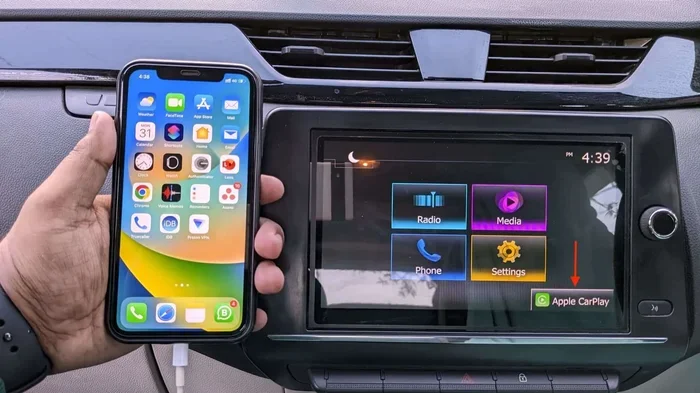
If your car supports Apple CarPlay, you may also need to enable it in the car’s settings menu. Look for a CarPlay icon or setting under the phone or connectivity section. Turn it on, plug in your iPhone, and grant permission when prompted.
Quick Tips for Better USB Connections in Your Car
- Always use a short cable when possible. Longer cables are more prone to signal loss.
- Avoid cable extensions or multi-port adapters unless they are high-quality and powered.
- Keep your iPhone’s case off when plugging in. Thick cases can prevent the connector from seating properly.
- Don’t use your phone heavily while it’s connected. Heavy usage can cause the connection to drop.
- Replace your cable every six to twelve months if you use it daily in your car.
When to Seek Professional Help
Most iPhone USB connection problems are easy to fix at home. But sometimes the issue is deeper than a bad cable or a dirty port. If you’ve tried every step in this guide and your phone still won’t connect, it might be time to call in the experts.
Take your car to a trusted mechanic or car audio specialist if you suspect the car USB port itself is faulty. The port could have a broken solder joint, a blown fuse, or damaged wiring. These are repairs that require professional tools and expertise.
Similarly, if your iPhone shows signs of hardware damage — like a bent lightning connector, a swollen battery, or water damage — see an Apple Store or authorized repair provider. A damaged phone can cause connection problems that no amount of cable swapping or software updates will fix.
Before you visit a repair shop, make sure to mention all the steps you’ve already tried. This saves time and helps the technician narrow down the problem faster. It also saves you money, since some shops charge diagnostic fees.
Preventing USB Connection Problems in the Future
The best fix is the one you never need. Once you get your iPhone connected to your car again, take a few simple steps to keep it working smoothly.
First, invest in a good quality cable. An MFi-certified lightning cable or a certified USB-C cable will last longer and perform better than cheap alternatives. Yes, they cost a bit more, but they save you from the frustration of a broken connection halfway through a road trip.
Second, keep your ports clean. Once a month, give your car USB port and your iPhone’s charging port a quick check. A few seconds with compressed air or a soft brush goes a long way in preventing buildup.
Third, keep your software up to date. Both your iPhone and your car’s infotainment system benefit from regular updates. These updates often include bug fixes that improve USB connectivity and overall performance.
Fourth, unplug your cable gently. Pull from the plug, not the cord. This might sound like a small thing, but it dramatically extends the life of your cable and the port it plugs into.
Key Takeaways
- Start with the cable — it’s the most common cause of iPhone not connecting to car issues.
- Clean both ports regularly to prevent dust and lint buildup.
- Keep software updated on both your iPhone and your car’s system.
- Use the right cable type for your iPhone model — Lightning or USB-C.
- Check car infotainment settings to make sure USB input and CarPlay are enabled.
- Seek professional help if you’ve exhausted all DIY troubleshooting steps.
Conclusion
Dealing with a Why Won’t My iPhone Connect to My Car via USB problem can be annoying, but it’s almost never permanent. In most cases, the fix is quick and free. A new cable, a clean port, or a simple restart gets everything working again. The key is to work through the possible causes one at a time, starting with the simplest explanations.
Remember that your iPhone USB connection depends on several things working together — the cable, the ports, the software, and the car’s settings. When one of those elements fails, the whole connection breaks down. But now you know how to check each one and fix it.
Take a few minutes to apply the tips in this guide. Clean your ports, test your cable, update your software, and check your car’s settings. You’ll be back to enjoying Apple CarPlay, streaming music, and navigating with confidence in no time. And once you’ve got it working, a little regular maintenance will help you avoid the problem ever coming back. Your drives will be smoother, your connection will be reliable, and you’ll never have to wonder why your phone won’t talk to your car again.
Frequently Asked Questions
Why does my iPhone connect to some USB ports but not others?
Some car USB ports are designed only for charging and don’t support data transfer. If your car has multiple ports, try a different one. The port labeled with a data icon or next to the media input is usually the one that supports iPhone connection for CarPlay or syncing.
Can a dirty USB port damage my iPhone?
A dirty port is unlikely to damage your iPhone directly, but it can cause connection issues and make your phone work harder to maintain a link. Over time, pushing debris further into the port with forceful plugging could potentially harm the internal pins. Keep both ports clean to avoid these problems.
Do I need an Apple-certified cable for my car?
You don’t absolutely need one, but Apple-certified cables are far more reliable. They meet strict quality standards for both charging and data transfer. Cheap, uncertified cables often fail to support data, which is why your iPhone charges but won’t connect to your car’s display. Spending a little extra on a quality cable saves a lot of frustration.
Why does my iPhone keep disconnecting from my car while driving?
Loose cable connections are the most common cause. Vibrations from driving can jiggle a cable that isn’t seated firmly. A damaged cable or a worn-out port can also cause intermittent disconnects. Try a different cable, clean the ports, and make sure the connector clicks in snugly each time.
Does iOS version affect USB connection with cars?
Yes, it absolutely can. Apple regularly updates how iOS handles USB connections, and older versions may have bugs that prevent proper communication with certain car models. Keeping your iPhone updated to the latest iOS version is one of the easiest ways to maintain a stable USB connection with your car’s infotainment system.
What should I do if my car’s USB port is physically damaged?
If the port is cracked, loose, or won’t hold a cable in place, it needs professional repair. Take your car to a qualified mechanic or car audio specialist. They can replace the port or repair the wiring. In the meantime, you can use a Bluetooth connection or a wireless CarPlay adapter as a temporary workaround until the port is fixed.