How to Connect a Phone to Mercedes Benz Step by Step
Connecting your phone to a Mercedes Benz is simple once you know the right steps. This guide walks you through Bluetooth pairing, Apple CarPlay, Android Auto, and wireless charging setup. You will also learn common troubleshooting tips to keep your Mercedes phone connection running smoothly every time you get behind the wheel.
Your Mercedes Benz is more than just a car. It is a smart, connected machine designed to work seamlessly with your phone. Whether you want to stream music, get directions, or make hands-free calls, connecting your phone to your Mercedes opens up a whole new driving experience.
But here is the thing. Not everyone knows exactly how to do it. The menus can feel confusing. The setup steps vary depending on your model year. And sometimes things just do not work the way they should. That is exactly why we put together this guide. We will walk you through every step of the process in plain, simple language.
By the time you finish reading, you will know how to connect a phone to Mercedes Benz using Bluetooth, Apple CarPlay, Android Auto, and even wireless charging. You will also learn how to fix the most common connection problems. Let us get started.
Key Takeaways
- Bluetooth pairing is the foundation: Most Mercedes models support wireless and wired Bluetooth for calls and music streaming.
- Apple CarPlay and Android Auto are essential: These smartphone integration tools give you navigation, messaging, and media right on your Mercedes screen.
- Wireless charging is a game changer: Many newer Mercedes models offer Qi wireless charging pads built into the center console.
- Troubleshooting is straightforward: Most connection issues can be resolved by restarting Bluetooth, updating software, or resetting the infotainment system.
- Phone-as-a-key features are expanding: Some Mercedes models let you use your phone to lock, unlock, and start the car.
- Multiple devices can be paired: Mercedes allows several phones to connect, making sharing the vehicle easy for families.
- Regular software updates keep things smooth: Keeping your Mercedes infotainment system updated ensures the best phone compatibility.
📑 Table of Contents
Understanding Your Mercedes Benz Infotainment System
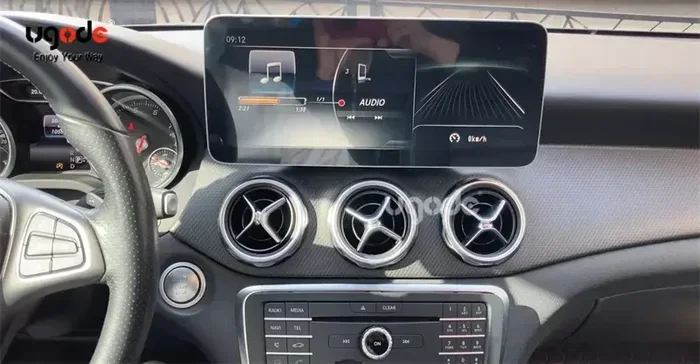
Before you connect anything, it helps to understand what you are working with. Every modern Mercedes comes with a built-in infotainment system. This is the big screen in the center of your dashboard. It controls your audio, navigation, phone calls, and more. The system goes by different names depending on the model year and trim level.
MBUX: The Mercedes-Benz User Experience
Newer Mercedes models use something called MBUX, which stands for Mercedes-Benz User Experience. This is the latest infotainment platform. It features a touchscreen display, voice controls, and smart phone integration. MBUX supports both Apple CarPlay and Android Auto wirelessly in most models. If your Mercedes was made after 2018, there is a good chance it has MBUX.
Older Infotainment Systems
If your Mercedes is a bit older, it may use a different system. Some models have a COMAND system, while others use the Audio 20 or Audio 15 system. These older systems may require a wired connection for Apple CarPlay or Android Auto. But they still support Bluetooth for calls and audio streaming. Knowing which system you have helps you understand what connection options are available.
The good news is that the basic process for connecting your phone to Mercedes is very similar across all systems. Whether you have the latest MBUX or an older setup, the steps we cover below will work for you.
How to Connect a Phone to Mercedes Benz Using Bluetooth
Bluetooth is the most common way to connect your phone to your Mercedes. It lets you make calls, stream music, and access contacts without taking your hands off the wheel. Best of all, most Mercedes models support wireless Bluetooth, so you do not even need a cable.
Step-by-Step Bluetooth Pairing
Here is how to pair your phone using Bluetooth. Follow these steps carefully and you will be connected in just a few minutes.
- Turn on your Mercedes. You do not need to start the engine. Just press the start button or turn the key to the ON position.
- Go to the Settings menu. On the center screen, tap the Settings icon. It usually looks like a gear.
- Select Bluetooth. Look for a Bluetooth option in the settings menu. Tap on it to open the Bluetooth settings.
- Turn on Bluetooth on your phone. Go to your phone settings and make sure Bluetooth is switched on.
- Search for devices. On your Mercedes screen, tap the option to search for new devices. Your Mercedes will start scanning.
- Select your phone. Your phone name should appear on the Mercedes screen. Tap on it.
- Confirm the pairing code. Both your phone and the Mercedes screen will show a pairing code. Make sure they match, then tap Pair or Confirm.
- Allow permissions. Your phone may ask you to allow access to contacts, calls, and media. Tap Allow for everything you want to share.
That is it. Your phone is now connected. You should see your phone name appear in the Bluetooth menu as a paired device. The next time you get in the car, your phone should connect automatically if Bluetooth is turned on.
Connecting Multiple Phones
Mercedes allows you to pair more than one phone. This is great for families or couples who share a car. Once your first phone is connected, you can repeat the same steps to add a second phone. The system will remember both devices and let you switch between them easily.
If you want to learn more about phone-based car features, check out this guide on can I unlock my Tundra with my phone for related phone-to-car connectivity tips.
Wired Bluetooth Connection
Some older Mercedes models do not support wireless Bluetooth. In that case, you will need a USB cable. Plug one end into your phone and the other into the USB port in your center console. The car should recognize your phone and prompt you to pair. Follow the on-screen instructions to complete the connection.
Setting Up Apple CarPlay and Android Auto in Your Mercedes
Apple CarPlay and Android Auto are two of the best features you can add to your Mercedes. They mirror your phone screen onto your car display. You get access to maps, music, messages, and more, all without touching your phone. Here is how to set each one up.
How to Set Up Apple CarPlay
If you have an iPhone, Apple CarPlay is a must-have. It works with most Mercedes models from the past several years. Here is how to get it running.
- Make sure your iPhone is updated. You need iOS 7.1 or later for CarPlay to work. Check for updates in your Settings app.
- Plug in your iPhone. Use a Lightning cable and connect it to the USB port in your Mercedes.
- Allow CarPlay on your iPhone. Your phone may ask if you want to allow CarPlay. Tap Allow.
- Select CarPlay on your Mercedes screen. The infotainment system should detect your iPhone and offer the CarPlay option. Tap it.
- Set up your preferences. CarPlay lets you choose which apps to display. You can add Maps, Music, Messages, Phone, and more.
Some newer Mercedes models support wireless Apple CarPlay. This means you do not need a cable at all. If your car has wireless CarPlay, the connection happens automatically when you get in. Just make sure Bluetooth and Wi-Fi are turned on.
How to Set Up Android Auto
If you have an Android phone, Android Auto works in a similar way. Here is the setup process.
- Download the Android Auto app. Open the Google Play Store and search for Android Auto. Install the app if you do not already have it.
- Plug in your Android phone. Use a USB cable and connect to the USB port in your Mercedes.
- Allow Android Auto on your phone. Your phone will ask for permissions. Grant access to everything it requests.
- Select Android Auto on your Mercedes screen. The infotainment system should detect your phone and show the Android Auto option.
- Customize your home screen. You can choose which apps appear on the Android Auto display.
Wireless Android Auto is also available on some newer Mercedes models. The setup is similar to wireless Apple CarPlay. Just make sure both Bluetooth and Wi-Fi are enabled on your phone.
For more information on phone connectivity and key features, you might also find this article about do you need to do anything after replacing a key fob battery helpful for understanding your Mercedes phone and key system.
Using USB Tethering as an AlternativeIf wireless methods are not working, you can use USB tethering to connect your phone to your Mercedes. This method is reliable and provides a stable internet connection.
Steps for USB Tethering
- Use a USB cable to connect your phone to the USB port in your Mercedes.
- On your phone, go to Settings and enable USB tethering.
- Your Mercedes should recognize the connection and establish an internet link.
- Open the browser or any app that needs internet on your car’s system.
USB tethering is especially useful when you are in an area with poor Wi-Fi coverage or when you need a more reliable connection for navigation apps.
Troubleshooting Common Connection Issues
Sometimes, connecting your phone to your Mercedes can be tricky. Here are some common problems and how to fix them.
Bluetooth Not Showing Up
If your phone does not appear in the Bluetooth list on your Mercedes, try these steps:
- Turn Bluetooth off and on again on both devices.
- Restart your phone and your car’s infotainment system.
- Delete the old pairing and create a new one.
- Make sure your phone is not connected to another Bluetooth device nearby.
No Internet Access After Pairing
If you are connected but have no internet, check these things:
- Make sure your phone has an active data plan.
- Check if your phone is set to share its hotspot automatically.
- Restart the Bluetooth connection.
- Try forgetting the device and pairing again from scratch.
Apple CarPlay or Android Auto Not Working
If CarPlay or Android Auto is not displaying properly, try the following:
- Update your phone’s operating system to the latest version.
- Update the Mercedes me app or your car’s firmware.
- Use a certified USB cable for wired connections.
- Clear the cache of the CarPlay or Android Auto app on your phone.
Tips for the Best Connected Experience
To get the most out of your Mercedes connectivity features, keep these tips in mind:
- Keep your phone charged: Tethering can drain your phone battery quickly. Keep a charger handy.
- Use a high-quality cable: If you are using USB, a good cable ensures a stable connection.
- Update regularly: Keep your car’s software and your phone updated for the best compatibility.
- Limit connected devices: Too many devices can slow down the connection. Keep it to one or two phones.
- Use Wi-Fi when available: Wi-Fi calling and streaming save your phone’s data for when you really need it.
With the right setup, your Mercedes becomes a connected hub that keeps you informed, entertained, and safe on the road.
Frequently Asked Questions
What is How to Connect a Phone to Mercedes Benz?
How to Connect a Phone to Mercedes Benz is an important topic with many practical applications.