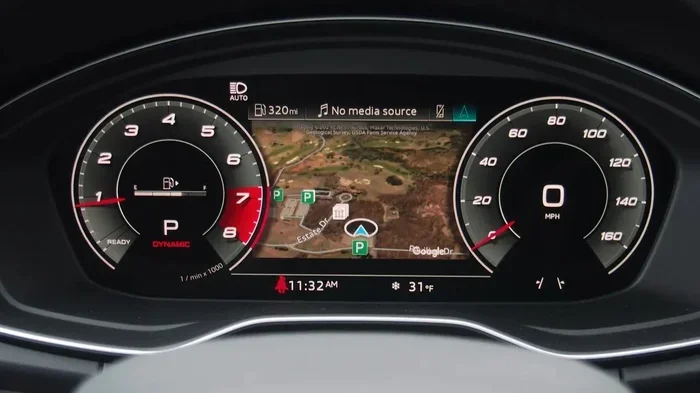
How to Activate the Audi Navigation System Step by Step
Activating the Audi navigation system is straightforward once you know the right steps. This guide walks you through the entire process from accessing the MMI menu to entering your activation code and updating your maps. Whether you own an Audi A4, Q5, or another model, you will have your GPS navigation working in no time.
So you just bought or leased a new Audi and the navigation system is sitting there, waiting to be activated. Maybe you are staring at a blank screen on your dashboard and wondering what to do next. The good news is that activating the Audi navigation system is not as complicated as it might seem.
Whether you drive an Audi A4, an Audi Q5, or another model in the lineup, the activation process follows a similar path. You will need an activation code, access to your vehicle settings, and a few minutes of your time. This guide breaks everything down into simple steps so you can get from point A to point B with confidence.
Many Audi owners skip the activation process because they think it requires a trip to the dealership. That is not always true. With the right information, you can handle this yourself. Let us walk through it together and get your Audi GPS navigation up and running.
Key Takeaways
- Know Your System: Understanding your Audi MMI interface is the first step to successful activation.
- Activation Code Required: You will need a unique code from your dealer or paperwork to activate the navigation feature.
- Map Updates Matter: Keeping your maps current ensures accurate directions and reliable routing.
- Multiple Activation Methods: You can activate through the onboard system, online portal, or with dealer assistance.
- Troubleshooting Is Simple: Most common issues have easy fixes you can do at home.
- Regular Maintenance Helps: Keeping your Audi infotainment system updated improves overall performance.
📑 Table of Contents
Understanding Your Audi Navigation System
Before you dive into activation, it helps to understand what you are working with. Audi uses a system called MMI, which stands for Multi Media Interface. This is the central hub for all your vehicle’s entertainment, settings, and navigation functions. The MMI system controls your Audi infotainment display and connects to your GPS antenna to provide real-time directions.
What Is the MMI System?
The MMI system is essentially the brain behind your Audi’s dashboard screen. It manages everything from radio tuning to climate control settings, and of course, car navigation. Depending on your model year, you may have a traditional MMI controller or a newer touchscreen interface. Both systems follow a similar activation process.
The navigation feature in Audi vehicles uses GPS satellites to determine your location and provide turn-by-turn directions. The system stores map data on either a built-in hard drive or a SIM card, depending on your model. When you activate the system, you unlock access to all these features.
Types of Audi Navigation Systems
Audi offers different navigation packages across its model range. The MMI Navigation Plus is the most common system found in newer models. It features a larger display, improved graphics, and real-time traffic updates. Some older Audi models use the standard MMI system, which still provides reliable directions but with fewer features.
Here is a quick look at the different systems you might encounter:
- MMI Navigation: Found in older Audi models. Provides basic map display and routing.
- MMI Navigation Plus: Available in most current Audi models. Includes real-time traffic, voice recognition, and 3D mapping.
- MMI Touch Response: Uses a touchscreen interface for intuitive control of navigation and media functions.
- Audi Connect: An online navigation system that uses cellular data for live updates and remote features.
Knowing which system your Audi has will help you navigate the activation menu more easily. You can usually find this information on the bottom of your display screen or in your owner’s manual.
How to Activate the Audi Navigation System
Now let us get to the heart of the matter. Activating your Audi navigation system involves a few clear steps. Follow along and you will be routing to your destination in minutes.
Step 1: Start Your Vehicle
First, make sure your Audi is turned on and the dashboard display is active. You do not need to be driving. Simply press the engine start button or turn the key to the accessory position. The MMI screen should light up and display the main menu.
Give the system a moment to fully boot up. Older Audi models may take 10 to 15 seconds to load the home screen. Newer models with touchscreen interfaces tend to start faster. If the screen remains black, check that your vehicle is in park and the parking brake is engaged.
Step 2: Access the MMI Menu
Once your screen is active, look for the main menu button. On most Audi models, this is a physical button on the center console or the steering wheel controls. Press it and you will see a grid of options including Media, Phone, Navigation, and Settings.
Use the MMI controller knob to scroll to the Navigation option. On touchscreen models, simply tap the Navigation icon. The system will prompt you to select your destination or enter an address. Before you can do that, you need to complete the activation process.
Step 3: Enter the Activation Menu
Navigate to the Settings menu within the MMI system. Look for an option labeled “System,” “Vehicle Settings,” or “Activation.” The exact wording depends on your model year and MMI version. Select the activation option and the system will display a prompt asking for your activation code.
If you do not see an activation option, try going to the Navigation menu directly. Some Audi models display the activation prompt the first time you access the navigation feature. The system will guide you through the remaining steps.
Step 4: Enter Your Activation Code
This is the key step. Your Audi navigation activation code is unique to your vehicle. You can find it in one of several places:
- Owner’s Manual: Check the paperwork that came with your vehicle. The activation code is often printed on a card or sticker inside the manual.
- Dealership Records: If you purchased or leased your Audi from a dealer, they can look up your activation code using your vehicle identification number.
- Online Portal: Some Audi models allow you to retrieve your activation code through the Audi online owner portal or the myAudi app.
Enter the code using the MMI controller or touchscreen keypad. Make sure you type each digit carefully. If the code is rejected, double-check for any typos or missing characters. The code is usually a combination of letters and numbers.
Step 5: Confirm and Complete Activation
After entering the code, select “Confirm” or “Activate.” The system will process the code and enable the navigation feature. You should see a confirmation message on the screen indicating that the Audi GPS system is now active.
At this point, you can start using your navigation system right away. Enter a destination address, select a route, and follow the on-screen directions. The system will use GPS signals to track your location and provide real-time guidance.
Common Activation Issues and How to Fix Them
Sometimes things do not go as smoothly as we hope. Here are the most common problems Audi owners face when trying to activate the navigation system, along with simple solutions.
Activation Code Not Working
If your activation code is rejected, do not panic. This is more common than you might think. The first thing to check is whether you are entering the code correctly. Codes are case-sensitive, so make sure uppercase and lowercase letters match exactly.
Another common issue is that the code has already been used on a different vehicle or system. If you recently had service work done at a dealership, they may have entered the code already. Contact your dealer to verify and get a fresh code if needed.
Blank or Frozen Screen
A frozen or blank screen can be frustrating. This usually happens when the MMI system needs a reboot. Turn off your vehicle, wait 30 seconds, and then restart it. This clears the temporary memory and often resolves display issues.
If the screen remains unresponsive, you may need to perform a hard reset. Locate the reset button on the back of the MMI unit or hold down the power button for 10 seconds. Refer to your owner’s manual for model-specific instructions.
No GPS Signal
Even after successful activation, you might notice the system is not picking up a GPS signal. This can happen if your vehicle is parked in a covered garage or between tall buildings. Drive to an open area and wait a minute or two for the signal to connect.
If the GPS signal still does not appear, check that the antenna connection is secure. This is located on the roof of your Audi and can sometimes become loose after roof rack installations or car washes. A quick check at your local service center can resolve this.
Maps Not Displaying Correctly
Outdated maps are a common reason for navigation errors. If your routes seem wrong or landmarks are missing, you likely need a map update. Audi provides map update services through dealerships and online portals. Keeping your maps current ensures accurate directions and reliable routing every time you drive.
Keeping Your Audi Navigation System Updated
Once your navigation system is activated, the work is not done. Regular updates keep your maps accurate and your system running smoothly. Think of it like maintaining your vehicle, except this one is quick and easy.
Why Map Updates Are Important
Roads change, new businesses open, and traffic patterns shift. Outdated maps can lead you down construction zones or missing turns that were recently added. Regular updates ensure your Audi driving assistant gives you the most efficient and accurate routes possible.
Audi typically releases map updates several times a year. You can check for updates through the myAudi app or by visiting your local Audi dealership. Some models support over-the-air updates, which means your system downloads the latest maps automatically without any effort from you.
How to Check for Updates
Checking for navigation updates is simple. Go to the Settings menu on your MMI screen, select “System,” and look for “Map Updates.” The system will check for available updates and notify you if a new version is ready to download. Follow the on-screen prompts to complete the installation.
Updating your maps usually takes about 15 to 30 minutes. Make sure your vehicle is parked and connected to Wi-Fi if possible. Avoid turning off the system during the update process, as this can corrupt the map data.
Tips for Getting the Most Out of Your Audi Navigation
Now that your system is activated and updated, here are some tips to help you get the best experience every time you drive.
Use Voice Commands
The Audi navigation system supports voice commands, which makes entering destinations safer and more convenient. Press and hold the voice button on your steering wheel, say “Navigate to,” and then speak the name of your destination. The system will search for the address and start routing immediately.
Save Favorite Locations
Save your frequently visited locations like home, work, or the gym. This saves time when you need quick directions. You can save up to several favorite locations depending on your MMI system version. Simply enter the address, go to the options menu, and select “Save as Favorite.”
Explore the Point of Interest Search
The point of interest, or POI, search feature lets you find restaurants, gas stations, hotels, and more along your route. Type in a category like “coffee” or “gas station” and the system will show you nearby options. This is especially helpful when you are driving in an unfamiliar city.
Connect Your Phone for Enhanced Features
If your Audi supports Apple CarPlay or Android Auto, connecting your phone unlocks additional navigation options. You can use Google Maps, Waze, or Apple Maps through your vehicle’s display. This gives you access to real-time traffic data, alternate routes, and business reviews.
When to Seek Professional Help
Most activation issues can be resolved with the steps outlined above. However, some problems require professional attention. If you have tried all the troubleshooting steps and your navigation system still does not work, it is time to visit your Audi dealer or a qualified technician.
Issues with the GPS antenna, wiring, or software corruption may need specialized diagnostic equipment to repair. Your dealer can run a full system diagnostic and identify any hardware or software problems. Regular maintenance of your Audi’s electronic systems, including the navigation unit, helps prevent unexpected issues down the road.
For general vehicle maintenance and service needs, you can also explore options like updating your Lexus navigation system if you are comparing different vehicle systems, or check how low engine oil shows on the dashboard to understand warning indicators across different car brands.
Additionally, if you are experiencing display or sensor issues, understanding how tire pressure readings appear on the dashboard can help you troubleshoot related electronic display problems in your vehicle.
Conclusion
Activating the Audi navigation system is a simple process that anyone can handle with the right guidance. From accessing the MMI menu to entering your activation code and confirming the setup, each step is designed to be user-friendly. Once activated, your Audi GPS will guide you reliably to any destination.
Remember to keep your maps updated and explore the full range of features your navigation system offers. Voice commands, favorite locations, and POI searches make driving more convenient and enjoyable. If you run into any issues, the troubleshooting steps in this guide should help you resolve them quickly.
Your Audi is a sophisticated machine, and the navigation system is one of its most valuable features. Take the time to set it up properly, and you will enjoy safer, more efficient drives every time you hit the road. Happy navigating.
Frequently Asked Questions
How do I find my Audi navigation activation code?
Your activation code can be found in your owner’s manual, on a card included with your vehicle paperwork, or by contacting your Audi dealer. You can also check the myAudi online portal or app using your vehicle information. The code is unique to your vehicle and usually consists of a combination of letters and numbers.
Can I activate the Audi navigation system without going to the dealer?
Yes, in most cases you can activate the navigation system yourself at home. You will need the activation code and access to your vehicle’s MMI system. Follow the steps in the activation menu under Settings or Navigation. If you do not have your activation code, contact your dealer to retrieve it using your VIN.
How often should I update my Audi navigation maps?
Audi recommends updating your navigation maps at least once a year. Roads change frequently, and outdated maps can lead to incorrect routing. Some Audi models support automatic over-the-air updates, while others require a visit to the dealership or a download through the myAudi app.
Why is my Audi navigation screen not responding?
A non-responsive screen is usually caused by a temporary system glitch. Try turning off your vehicle, waiting 30 seconds, and restarting it. If the screen remains frozen, perform a hard reset by holding the power button for 10 seconds or using the reset button on the back of the MMI unit.
Can I use Google Maps or Waze with my Audi navigation system?
Yes, if your Audi supports Apple CarPlay or Android Auto, you can use Google Maps, Waze, or Apple Maps through your vehicle’s display. Simply connect your phone via Bluetooth or USB and select the app on the MMI screen. This gives you access to real-time traffic data and alternate routing options.
What should I do if my Audi GPS loses signal frequently?
Frequent GPS signal loss can be caused by a loose roof antenna, being parked in a covered area, or driving through tunnels. Check that the antenna connection is secure and try driving to an open area. If the problem persists, visit your Audi dealer for a diagnostic check of the GPS system.