How Do I Update My Toyota App for the Latest Version
Updating your Toyota App is easy and keeps your connected services running smoothly. Whether you use an iPhone or Android device, this guide walks you through checking your current version, downloading updates, and fixing common problems. You’ll also learn what’s new in the latest release and how to get the most from your Toyota App experience.
Your Toyota App is more than just a nice-to-have. It connects you to your vehicle, lets you remote start the engine, check fuel levels, and even unlock your doors from your phone. But like any app, it needs regular updates to work its best. In this guide, we’ll show you exactly how to update your Toyota App for the latest version, no matter what kind of phone you use.
Whether you’re a long-time Toyota owner or you just bought your first new vehicle, keeping your app up to date matters. Updates fix bugs, improve security, and often add cool new features you didn’t have before. We’ll walk you through the entire process step by step, so you never have to guess what to do.
We’ll also cover common problems you might run into during the update process and how to fix them quickly. By the end of this article, you’ll feel confident updating your app whenever a new version drops. Let’s get started.
Key Takeaways
- Regular updates keep your Toyota App fast, secure, and bug-free.
- You can update the app on both iPhone and Android through your device’s app store.
- Checking your current version first helps you know exactly what needs updating.
- Common update problems like freezing or login issues have simple fixes.
- The latest version often includes new features like improved remote connect and notifications.
- Two people can share the Toyota App for the same car with proper setup.
- Factory resetting Hybrid Connect can resolve persistent app connectivity issues.
📑 Table of Contents
- Why Keeping Your Toyota App Updated Matters
- How to Check Your Current Toyota App Version
- How to Update the Toyota App on iPhone
- How to Update the Toyota App on Android
- Troubleshooting Common Toyota App Update Problems
- What’s New in the Latest Toyota App Version
- Tips for Keeping Your Toyota App Running Smoothly
- Conclusion
Why Keeping Your Toyota App Updated Matters
It’s tempting to hit “Remind Me Later” when your phone pops up an update notification. But skipping updates can cause real problems with your Toyota App. Here’s why staying current matters so much.
Security Improvements
Every update patches potential security holes. Your Toyota App stores personal information and connects to your vehicle’s systems. Outdated versions may have vulnerabilities that hackers could exploit. Keeping your app updated means your data stays safe and your car stays secure.
Bug Fixes and Performance
No app is perfect when it first launches. Developers find issues after release and fix them in updates. These patches make the app faster, smoother, and more reliable. If your Toyota App has been lagging or crashing, an update might solve the problem completely.
New Features and Enhancements
Toyota regularly adds new capabilities to its app. These might include improved remote start controls, better navigation integration, or enhanced notification settings. When you update, you get access to all the latest features without paying extra.
Compatibility with Your Vehicle
Toyota occasionally changes how its vehicles communicate with apps. An outdated app might not work properly with newer model years. Keeping everything current ensures your phone and your car stay in sync. This is especially important if you’ve recently changed vehicles or your car received a software update.
How to Check Your Current Toyota App Version
Before you update anything, it helps to know what version you’re currently running. This tells you exactly what you’re working with and whether an update is available.
On iPhone
Open your App Store and tap your profile picture in the top right corner. Scroll down to see a list of all your apps with available updates. Look for the Toyota App in the list. If you see an “Update” button next to it, a newer version is available. You can also tap on the Toyota App directly to see its current version number.
On Android
Open the Google Play Store and tap your profile icon in the upper right. Select “Manage apps and device” from the menu. Look through the “Updates available” section for the Toyota App. Tapping on it will show you the current installed version and the latest available version.
Inside the App Itself
You can also check the version from within the Toyota App. Go to Settings or About within the app menu. The version number should be listed there. Write this down before updating so you can confirm the update worked afterward.
How to Update the Toyota App on iPhone
Updating the Toyota App on an iPhone is straightforward and usually takes less than a minute. Here’s exactly what to do.
- Open the App Store. Find the blue App Store icon on your home screen and tap it.
- Tap your profile picture. It’s located in the upper right corner of the screen.
- Scroll down to see pending updates. Your phone will automatically check for available updates.
- Find the Toyota App. Look through the list of apps that need updating.
- Tap Update next to the Toyota App. You can also tap “Update All” to update everything at once.
- Wait for the download to finish. This depends on your internet speed and the app size.
- Open the app and confirm. Check the version number in Settings to make sure the update took effect.
Make sure you’re connected to Wi-Fi before updating. App updates can use a lot of data, and you don’t want to eat through your cellular plan. Also, ensure your iPhone has enough battery life or keep it plugged in during the process.
Two people can use the Toyota App for the same car with their own separate accounts. If you share your vehicle with a family member, both of you should update the app to avoid compatibility issues. You can learn more about sharing the Toyota App in our dedicated guide.
How to Update the Toyota App on Android
The process for Android devices is very similar but uses the Google Play Store instead of the App Store. Follow these steps to get your Toyota App updated.
- Open the Google Play Store. Find the colorful triangle icon on your home screen or app drawer.
- Tap your profile picture. It’s in the upper right corner of the screen.
- Select Manage apps and device. This shows you all your installed apps and their update status.
- Find the Toyota App under Updates available. Tap on it to see details.
- Tap Update. The app will download and install the newest version automatically.
- Open the Toyota App. Navigate to the About or Settings section to confirm the new version.
Android gives you the option to enable auto-updates for all your apps. This means you’ll never have to manually update the Toyota App again. To turn this on, go to the Google Play Store, tap your profile picture, and select Settings. Then choose Network Preferences and toggle on Auto-update apps. You can set it to update over Wi-Fi only, which saves your mobile data.
If you’ve ever factory reset your Hybrid Connect system, you know how important it is to keep all your connected apps updated too. A fresh app version can sometimes resolve connectivity issues between your phone and your vehicle.
Troubleshooting Common Toyota App Update Problems
Updates don’t always go perfectly the first time. Sometimes things go wrong, and the app won’t update properly. Don’t worry. Most problems have simple solutions.
The App Won’t Update
If the Toyota App refuses to update, try these steps. First, check your internet connection. Switch between Wi-Fi and mobile data to see if one works better. Next, make sure you have enough storage space on your phone. Updates need room to download and install. You can check your storage in your phone’s Settings under Storage or Battery and Storage.
Sometimes clearing the app cache helps. On Android, go to Settings, then Apps, find the Toyota App, and select Clear Cache. On iPhone, you’ll need to delete and reinstall the app. Don’t worry, your account data should still be there when you log back in.
The App Crashes After Updating
This can happen occasionally, especially if the update had a bug that was quickly patched. Force close the app and reopen it. If that doesn’t work, restart your phone entirely. This clears temporary files and gives the app a fresh start. If the problem persists, try uninstalling and reinstalling the app.
You can also check the Toyota App’s official social media pages or forums. Other users might be experiencing the same issue, and Toyota may already be working on a fix. In the meantime, rolling back to the previous version might be an option, though this is more complex on newer phones.
Login Issues After an Update
Sometimes after an update, the app won’t accept your login credentials. This is usually because the update changed the login process slightly. Try resetting your password through the Toyota website on a computer first. Then log in again on your phone.
Make sure you’re entering the correct email address associated with your Toyota account. If you have multiple Toyota accounts, you might be trying to log in with the wrong one. Check your email inbox for Toyota account confirmation messages to verify which email you used.
Connectivity Problems with Your Vehicle
If the app updates but won’t connect to your car, try turning off Bluetooth and Wi-Fi on your phone, then turning them back on. Restarting your car’s infotainment system can also help. In some cases, you might need to factory reset your Hybrid Connect system to restore proper communication between the app and your vehicle.
Another thing to check is whether your phone’s operating system is up to date. Sometimes an old phone software version conflicts with the newest app version. Updating your phone’s system software can resolve these conflicts.
Can I Unlock My Tundra With My Phone?
Yes, the Toyota App supports phone-based unlocking for compatible models like the Tundra. However, you need the latest app version for this feature to work reliably. If you’re having trouble unlocking your Tundra with your phone, updating the app is the first step to fixing the issue.
What’s New in the Latest Toyota App Version
Toyota regularly releases updates that bring new and improved features to the app. While exact features vary by version, here are some common improvements you can expect from the latest update.
Enhanced Remote Connect. The latest versions often improve remote start, lock, and unlock functions. You may notice faster response times and more reliable connections to your vehicle.
Improved Notification System. Toyota has been working on making alerts more customizable. You can now choose which notifications you want to receive and how you want to be alerted. This includes maintenance reminders, low fuel warnings, and vehicle health reports.
Better Navigation Integration. Newer app versions tend to work more seamlessly with your car’s built-in navigation system. You can send destinations from your phone to your car’s screen more easily than before.
Energy Monitoring for Hybrids. If you drive a hybrid like the Prius, updates often include improved battery monitoring tools. You can track your energy usage more accurately and get tips on how to maximize your fuel efficiency.
Voice Command Improvements. The latest versions may include enhanced voice recognition, making it easier to control app features hands-free while driving. This is especially useful for making calls, sending messages, or adjusting climate settings without taking your eyes off the road.
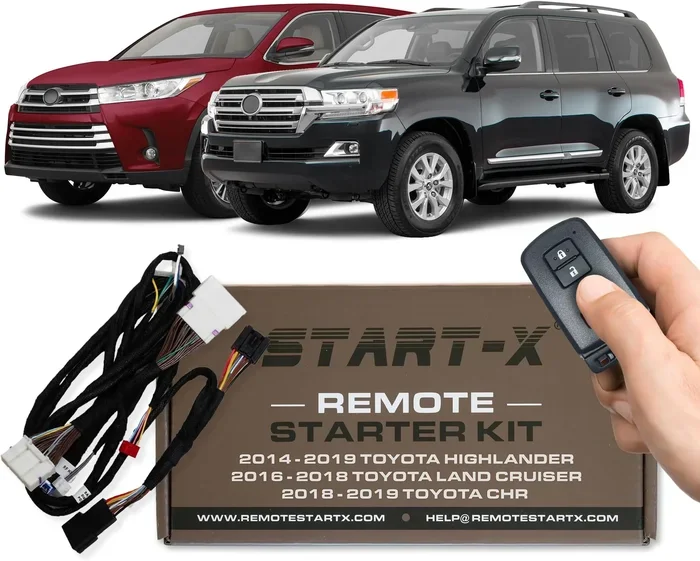
You can also start your Toyota Highlander with a key or use the app as a digital key, depending on your model and trim level. These features continue to improve with each app update, so staying current is well worth the effort.
Tips for Keeping Your Toyota App Running Smoothly
Beyond just updating, there are some simple habits that keep your Toyota App in great shape all year long.
- Enable auto-updates so you never miss an important patch.
- Restart your phone regularly to clear out temporary files that might interfere with the app.
- Keep plenty of storage space available on your device for app updates and data.
- Use Wi-Fi when possible for app downloads to save mobile data.
- Log out properly before uninstalling the app to protect your account.
- Check for app updates weekly rather than waiting for your phone to remind you.
- Keep your phone’s operating system updated since old software can cause app conflicts.
These small habits add up over time and help you avoid frustrating app problems. Think of them as routine maintenance for your digital connection to your Toyota, just like you’d maintain your car’s engine air filter or check your car battery regularly.
If you ever run into issues you can’t resolve, the Toyota customer support team is available to help. You can also visit your local Toyota dealership for assistance with app-related problems. Many service centers can help troubleshoot connectivity issues on the spot.
Conclusion
Updating your Toyota App is one of the simplest things you can do to keep your connected driving experience running smoothly. It takes just a few minutes, and the benefits are well worth the effort. From improved security and bug fixes to exciting new features, every update makes your app better.
Whether you’re on iPhone or Android, the process is quick and easy. Just remember to check your current version first, download the update through your app store, and confirm the installation was successful. If you run into problems, the troubleshooting steps we covered should help you get back on track.
Keep your Toyota App current, and it will keep you connected to your vehicle. A well-maintained app means a better experience every time you get behind the wheel. So go ahead, check for that update now, and enjoy everything the latest version has to offer.
Frequently Asked Questions
How often should I update my Toyota App?
You should update your Toyota App whenever a new version is available. Most app updates come out every few weeks or months. Enabling auto-updates on your phone ensures you never miss an important update without having to think about it.
Can I update the Toyota App over cellular data?
Yes, you can update over cellular data, but it’s not recommended. App updates can be large and use up your data quickly. Connecting to Wi-Fi before updating saves your mobile data and ensures a more stable download. You can change your settings to only allow app updates over Wi-Fi.
What should I do if the Toyota App won’t open after updating?
First, force close the app and reopen it. If that doesn’t work, restart your phone. Sometimes a simple reboot fixes post-update glitches. If the problem continues, try uninstalling and reinstalling the app from your app store. Your account information should remain intact.
Do I need an internet connection to update the Toyota App?
Yes, you need an active internet connection to download and install any app update. Wi-Fi is the best option because it’s faster and doesn’t use your mobile data plan. Make sure your connection is stable before starting the update to avoid interruptions.
Will updating the Toyota App delete my account or saved data?
No, updating the app will not delete your account or any saved data. Your login information, vehicle settings, and preferences stay intact through updates. However, it’s always a good idea to know your login credentials just in case you ever need to reinstall the app from scratch.
Can I use an older version of the Toyota App if I don’t want to update?
You can technically keep using an older version, but it’s not recommended. Older versions may stop working over time as Toyota updates its servers and backend systems. You might also miss important security patches and new features. Staying current ensures the best experience and full functionality with your Toyota vehicle.