How Do I Connect My Phone to My Car Navigation System
Connecting your phone to your car navigation system is easier than you think. Whether you use Android Auto, Apple CarPlay, or a simple Bluetooth pairing, this guide walks you through every method. You will learn wired and wireless options, troubleshooting tips, and expert tricks to get your phone linked to car navigation in minutes.
Key Takeaways
- Multiple Connection Methods: You can connect via Bluetooth, USB cable, or wireless protocols like Android Auto and Apple CarPlay.
- Compatibility Matters: Check your car model and phone operating system before choosing a connection method.
- Wired vs. Wireless: Wired connections offer more stability, while wireless setups provide greater convenience.
- Troubleshooting Is Simple: Most connection issues can be fixed with basic steps like restarting devices or updating software.
- Safety First: Always set up your phone connection before driving to avoid distractions on the road.
- Extra Features: A connected phone unlocks hands-free calling, music streaming, and real-time GPS navigation.
📑 Table of Contents
- How Do I Connect My Phone to My Car Navigation System?
- Understanding Your Connection Options
- Setting Up Apple CarPlay for iPhone Users
- Setting Up Android Auto for Android Users
- Connecting Older Cars Without Smart Infotainment
- Troubleshooting Common Connection Problems
- Common Mistakes to Avoid When Connecting Your Phone
- Comparison Table: Wired vs. Wireless Connection Methods
- Maximizing Your Connected Driving Experience
- Conclusion
How Do I Connect My Phone to My Car Navigation System?
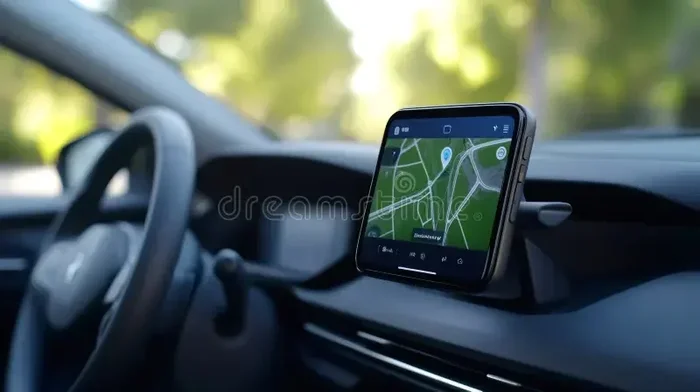
Have you ever jumped into your car and wished your phone could talk to your dashboard? Connecting your phone to your car navigation system opens up a world of convenience. You get real-time GPS directions, hands-free calling, and your favorite music right on the big screen.
The good news is that you do not need to be a tech expert. Most modern cars and phones make this process surprisingly simple. Whether your car is brand new or a few years old, there is a way to link your device. This guide covers every method, from Bluetooth to USB to wireless connections.
By the end of this article, you will know exactly how to get your phone talking to your car. You will also learn how to fix common problems and make the most of your connected setup. Let us dive in and get you on the road with confidence.
Why Connecting Your Phone to Car Navigation Matters
Think about how much you rely on your phone every day. It is your map, your music player, and your communication hub. When you connect phone to car navigation, you bring all of that power into your vehicle safely.
Here is what you gain when your phone and car work together:
- Turn-by-turn GPS directions without holding your phone
- Hands-free calling so you keep your eyes on the road
- Music streaming from apps like Spotify and Apple Music
- Voice commands to control everything without touching your screen
- Real-time traffic updates that help you avoid delays
- Text message readouts so you stay informed safely
These features are not just nice to have. Many of them are essential for a modern driving experience. A connected setup also reduces distractions, which makes your trips safer for everyone in the car.
Understanding Your Connection Options
Before you start, it helps to understand the different ways your phone can talk to your car. Not every method works for every vehicle, so knowing your options saves time and frustration.
Bluetooth Connection
Bluetooth is the most common way to link phone to car navigation. Almost every car made after 2010 supports it. The process is simple and does not require any cables.
Here is how Bluetooth pairing typically works:
- Turn on your car’s infotainment system
- Go to the Bluetooth settings on your car’s screen
- Put your phone in pairing mode
- Select your phone from the car’s list of available devices
- Confirm the pairing code on both screens
Once paired, your phone automatically connects when you get in the car. You can make calls, play music, and use navigation apps through your car’s speakers and display.
USB Cable Connection
A USB connection provides a more stable link between your phone and car. It is especially useful for Android Auto and Apple CarPlay, which need a wired connection for the best experience.
To connect via USB:
- Find your car’s USB port (usually on the center console or dashboard)
- Use a high-quality USB cable that supports data transfer
- Plug the cable into both your phone and the car
- Follow the on-screen prompts on your car’s display
USB connections charge your phone while you drive. They also deliver faster data transfer, which means smoother navigation and quicker app loading.
Wireless Connection
Many newer cars support wireless phone to car navigation without any cables at all. Wireless Apple CarPlay and wireless Android Auto use Wi-Fi to create a connection. This means no fumbling with cables every time you get in the car.
To set up a wireless connection:
- Check if your car supports wireless projection
- Make sure your phone is compatible with wireless CarPlay or Android Auto
- Go to your car’s settings and select the wireless projection option
- Follow the prompts on your phone to complete the setup
Wireless connections are convenient, but they can sometimes be less stable than wired ones. If you notice lag or disconnections, a USB cable may be a better choice.
Setting Up Apple CarPlay for iPhone Users
If you drive an iPhone, Apple CarPlay is a game-changer for car navigation. It puts a simplified version of your iPhone interface right on your car’s screen. You get access to Maps, Phone, Messages, Music, and your favorite third-party apps.
How to Set Up Apple CarPlay
Setting up CarPlay is straightforward. Follow these steps and you will be navigating in no time:
- Make sure your iPhone is running iOS 12 or later
- Plug your iPhone into your car’s USB port using a Lightning cable
- Your car’s display should show a CarPlay icon — tap it
- On your iPhone, tap “Allow” to grant permissions
- Customize your CarPlay layout by rearranging apps
For wireless CarPlay, go to your iPhone’s Settings, then General, then CarPlay. Select your car from the list and confirm the connection. Your iPhone will now automatically connect to your car whenever you get in.
Best Navigation Apps for Apple CarPlay
CarPlay supports many navigation apps beyond the default Apple Maps. Here are some top choices:
- Google Maps — excellent for real-time traffic and alternative routes
- Waze — great for community-reported road hazards and police alerts
- Citymapper — ideal for urban navigation with public transit options
- Sygic — offers offline maps for areas with poor signal
Setting Up Android Auto for Android Users
Android users have a similarly powerful option with Android Auto. This system mirrors your Android phone’s interface onto your car’s display. It gives you access to navigation, calls, messages, and music in a driver-friendly format.
How to Set Up Android Auto
Getting Android Auto running on your car is easy:
- Make sure your phone runs Android 10 or later
- Download the Android Auto app from the Google Play Store
- Connect your phone to your car using a USB cable
- Open the Android Auto app on your phone
- Follow the on-screen setup instructions
- Grant all necessary permissions when prompted
For wireless Android Auto, go to your phone’s Settings, then Connected Devices, then Connection Preferences, and select Android Auto. Pair it with your car just like you would with Bluetooth. Wireless Android Auto is available on select car models and newer Android phones.
Top Navigation Apps for Android Auto
Android Auto works with a wide range of navigation apps:
- Google Maps — the default and most reliable choice
- Waze — perfect for real-time community updates
- Sygic — great for offline navigation
- HERE WeGo — excellent alternative with detailed maps
Connecting Older Cars Without Smart Infotainment
Not every car has a fancy infotainment system. If your car is older, you can still connect phone to car navigation with a few simple tools. The key is finding a solution that works with your car’s existing setup.
Using a Bluetooth FM Transmitter
A Bluetooth FM transmitter is one of the easiest and most affordable ways to add phone connectivity to an older car. It plugs into your car’s cigarette lighter or USB port and broadcasts audio through an FM frequency.
Here is how it works:
- Plug the transmitter into your car’s power outlet
- Set your car’s radio to an empty FM frequency
- Pair your phone with the transmitter via Bluetooth
- Play your navigation app on your phone
- Audio comes through your car’s speakers
Most FM transmitters also include a USB port to charge your phone. Some models even have a built-in microphone for hands-free calling. Look for a transmitter with a USB-C port and good signal range for the best experience.
Using a Dedicated Car Navigation Adapter
If your car has a standard audio input or a CD changer port, you can use a dedicated adapter. These devices plug into your car’s existing system and create a bridge for your phone’s audio and data.
Popular options include:
- Aux input adapters — simple and reliable for audio only
- Bluetooth car kits — add wireless connectivity to any car
- MirrorLink adapters — mirror your phone screen on your car display
- Aftermarket head units — replace your entire car stereo with a smart unit
An aftermarket head unit is the most comprehensive solution. It replaces your old stereo with a modern unit that supports CarPlay, Android Auto, and Bluetooth. Installation is more involved, but the results are worth it.
Quick Tips for Older Cars
Quick Tip: Before buying any adapter, check what inputs your car already has. Look for an aux port, USB port, or cigarette lighter. This helps you choose the right adapter without wasting money.
Quick Tip: If you go the Bluetooth FM transmitter route, avoid frequencies already used by local radio stations. Interference will hurt your audio quality. Test a few frequencies to find the clearest one.
Troubleshooting Common Connection Problems
Even with the best setup, things can go wrong. Your phone might not connect, the audio might cut out, or navigation might not display properly. Most issues have simple fixes.
Phone Won’t Connect to Car
If your phone refuses to pair with your car, try these steps:
- Turn Bluetooth off and back on both devices
- Delete the old pairing and start fresh
- Restart both your phone and your car’s infotainment system
- Make sure your phone’s software is up to date
- Check that your car’s firmware is current
Sometimes the simplest fix is the best one. A quick restart of both devices clears temporary glitches and often solves the problem immediately.
Poor Audio Quality or Connection Drops
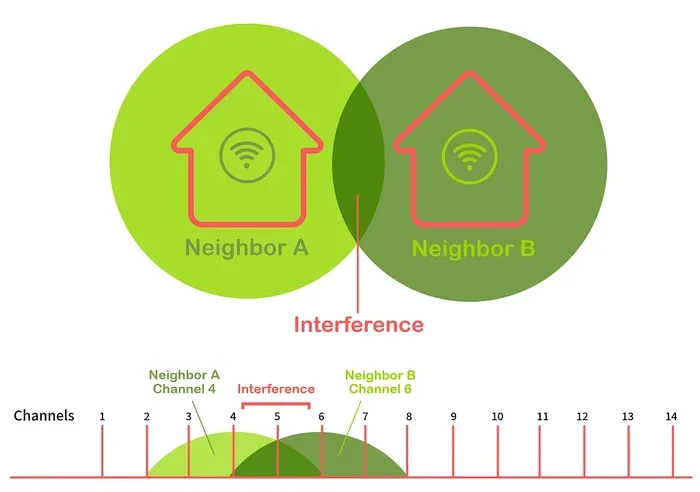
If your audio sounds fuzzy or keeps cutting out, the issue is usually signal interference. Here is what to do:
- Move closer to the car’s infotainment system
- Check for other Bluetooth devices causing interference
- Switch from Bluetooth to a USB connection for stability
- Update your car’s software and your phone’s operating system
- Clear the Bluetooth cache on your phone
USB connections almost always provide better audio quality than Bluetooth. If sound quality matters to you, a cable is the way to go.
Navigation App Not Displaying on Car Screen
When your navigation app does not show up on the car display, try these fixes:
- Make sure the app is open and active on your phone
- Check that CarPlay or Android Auto permissions are enabled
- Update the navigation app to the latest version
- Unplug and replug your USB cable
- Try a different USB port in your car
Expert Insight: Many users report that closing all other apps on their phone before connecting helps. This frees up resources and ensures the navigation app runs smoothly on the car display.
When to Seek Professional Help
Most connection issues are easy to fix at home. But if you have tried everything and still cannot get your phone to connect, it may be time to visit a professional. A car electronics specialist can diagnose hardware issues and recommend the right solution.
Consider professional help if:
- Your car’s infotainment system is unresponsive
- USB ports are damaged or not working
- Bluetooth hardware has failed
- You need help installing an aftermarket head unit
Common Mistakes to Avoid When Connecting Your Phone
Avoiding these common mistakes will save you time and frustration:
- Using a cheap USB cable. Many cables charge your phone but do not transfer data. Always use a high-quality cable that supports data transfer.
- Skipping software updates. Outdated phone or car software causes compatibility issues. Keep both devices current.
- Connecting while driving. Set up your connection before you start the engine. It is safer and less distracting.
- Ignoring app permissions. CarPlay and Android Auto need specific permissions to work properly. Grant them when prompted.
- Overlooking phone compatibility. Not all phones support all connection methods. Check your phone’s specs before buying adapters.
- Leaving old pairings in memory. Old Bluetooth connections can interfere with new ones. Delete unused pairings regularly.
Common Mistake: Many people try to connect their phone while the car is already moving. This divides your attention and is dangerous. Always set up your connection in a parked car.
Comparison Table: Wired vs. Wireless Connection Methods
| Feature | Wired (USB) | Wireless (Bluetooth/Wi-Fi) |
|---|---|---|
| Stability | Very stable | Good, but can fluctuate |
| Audio Quality | Excellent | Good |
| Convenience | Requires cable each time | Automatic connection |
| Phone Charging | Yes | No (unless separate charger) |
| Setup Complexity | Simple | Simple |
| Compatibility | Wide | Requires newer car and phone |
| Cost | Low (just a cable) | None if both devices support it |
Both wired and wireless connections have their strengths. If you want the most reliable experience, go with a USB cable. If convenience is your priority, wireless is the way to go. Many drivers keep both options available and switch based on their needs.
Maximizing Your Connected Driving Experience
Once your phone is connected, you can do more than just navigate. A linked setup transforms your car into a smart vehicle. Here are some ways to get the most out of your connection.
Use Voice Commands
Both CarPlay and Android Auto support voice commands. You can say “Hey Siri” or “OK Google” to control navigation, make calls, and send messages without lifting a finger. This keeps your eyes on the road and your hands on the wheel.
Stream Music Through Your Car Speakers
Why listen to music through tiny phone speakers when your car’s sound system is far superior? Stream Spotify, Apple Music, or Pandora directly through your car’s audio system. The sound quality is dramatically better.
Get Real-Time Traffic Updates
Connected navigation apps receive live traffic data. They reroute you around jams, accidents, and road closures automatically. This feature alone can save you significant time on your daily commute.
Sync Your Contacts and Calendar
When your phone is connected, your car can read your incoming calls and messages aloud. You can also see your calendar appointments on the car display. This integration keeps you informed without ever touching your phone.
Update Your Apps Regularly
Navigation apps receive frequent updates that improve accuracy and add features. Keep your apps updated for the best experience. Most apps update automatically, but it is worth checking manually every few weeks.
Quick Tip: Download offline maps for areas with poor cell service. Apps like Google Maps and Sygic let you download entire regions for navigation without an internet connection. This is a lifesaver for road trips through rural areas.
Conclusion
Connecting your phone to your car navigation system is one of the simplest upgrades you can make to your driving experience. It takes just a few minutes and pays off every time you get behind the wheel. Whether you choose Bluetooth, USB, or wireless, the process is straightforward and well worth the effort.
Start with the method that best fits your car and phone. If your vehicle supports Apple CarPlay or Android Auto, take advantage of those features. If your car is older, a Bluetooth FM transmitter or aftermarket adapter works great too.
Remember to troubleshoot patiently if something goes wrong. Most issues are minor and easy to fix. And always set up your connection before driving — safety comes first.
Now that you know how to connect phone to car navigation, you are ready to enjoy a smarter, safer, and more connected driving experience. Take a few minutes today to set it up, and you will wonder how you ever drove without it.
Frequently Asked Questions
Can I connect any phone to any car navigation system?
Most modern phones and cars are compatible, but older vehicles may need an adapter. Check if your car supports Bluetooth, Apple CarPlay, or Android Auto before connecting. If your car lacks smart features, a Bluetooth FM transmitter or aftermarket head unit will bridge the gap.
Is it safe to use phone navigation while driving?
Yes, when your phone is properly connected to your car’s system. You can use voice commands and the car’s display to navigate without touching your phone. Always set up your route before starting to drive, and pull over if you need to make changes.
Do I need an internet connection for car navigation to work?
For real-time traffic updates and live rerouting, yes, you need a data connection. However, you can download offline maps in apps like Google Maps and Sygic. Offline maps work without internet and are perfect for areas with poor cell coverage.
Why does my phone disconnect from my car’s Bluetooth frequently?
Frequent disconnections are usually caused by software glitches, interference from other devices, or outdated firmware. Restart both devices, delete and re-pair the Bluetooth connection, and update all software. If the problem persists, a USB cable connection may be more reliable.
Can I use multiple navigation apps with Apple CarPlay or Android Auto?
Yes, both CarPlay and Android Auto support multiple navigation apps. You can download Google Maps, Waze, Sygic, and others from your phone’s app store. After connecting, select your preferred app from the CarPlay or Android Auto home screen.
What is the difference between Android Auto and Bluetooth phone connection?
Bluetooth connection mainly handles calls and audio streaming. Android Auto goes much further by mirroring your phone’s interface on the car screen. It gives you access to navigation apps, messaging, and voice commands in a driver-friendly format that Bluetooth alone cannot provide.
=== META DESCRIPTION ===
Learn how to connect your phone to your car navigation system with our complete guide. Step-by-step instructions for Bluetooth, USB, and wireless setups.
=== QUICK SUMMARY ===
Connecting your phone to your car navigation system is easier than you think. Whether you use Android Auto, Apple CarPlay, or a simple Bluetooth pairing, this guide walks you through every method. You will learn wired and wireless options, troubleshooting tips, and expert tricks to get your phone linked to car navigation in minutes.
=== KEY TAKEAWAYS ===
Key Takeaways
- Multiple Connection Methods: You can connect via Bluetooth, USB cable, or wireless protocols like Android Auto and Apple CarPlay.
- Compatibility Matters: Check your car model and phone operating system before choosing a connection method.
- Wired vs. Wireless: Wired connections offer more stability, while wireless setups provide greater convenience.
- Troubleshooting Is Simple: Most connection issues can be fixed with basic steps like restarting devices or updating software.
- Safety First: Always set up your phone connection before driving to avoid distractions on the road.
- Extra Features: A connected phone unlocks hands-free calling, music streaming, and real-time GPS navigation.