Does the Toyota Dashcam Record Audio While Driving
The Toyota dashcam record audio feature is a common question among owners. This guide explains whether the built-in microphone captures sound, how to adjust settings, and why audio matters for safety. You’ll also learn troubleshooting tips and legal considerations.
Many Toyota owners wonder whether their Toyota dashcam record audio while driving. The answer is yes, in most cases. The built-in microphone captures sound along with video footage. However, there are settings, privacy rules, and troubleshooting steps you should know. This guide covers everything you need to understand about audio recording on your Toyota dashcam.
Whether you drive a Camry, RAV4, or Highlander, the dashcam serves as an extra set of eyes on the road. It records what happens ahead, and in some models, it also captures what’s happening inside the cabin. Understanding how audio works can help you use the feature safely and legally. Let’s dive into the details.
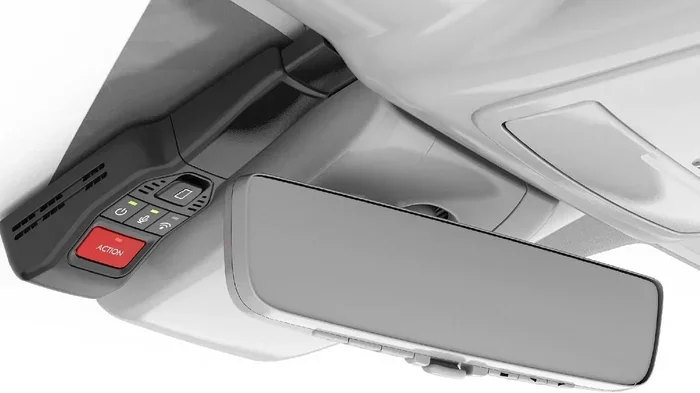
Before we get into the specifics, it helps to understand what the dashcam actually does. The system uses a front-facing camera mounted near the rearview mirror. In many newer Toyotas, it also includes a rear camera. The camera continuously records driving footage and saves it to an SD card. When you turn off the ignition, the system can switch to parking mode. In parking mode, it monitors for motion or impacts and saves a clip if triggered. Throughout all of this, the microphone listens to the surrounding environment.
Key Takeaways
- Yes, most Toyota dashcams record audio: The built-in microphone captures sound while driving, but you can turn it off.
- Audio helps capture important details: Honking, engine sounds, and conversations can support insurance claims.
- Check your settings regularly: Audio recording may be disabled by default or after a reset.
- Privacy and legal rules apply: Some states restrict audio recording without consent.
- Troubleshooting is simple: A loose SD card or muted microphone often causes no sound.
- The dashcam does not replace engine diagnostics: It won’t show low engine oil on the dashboard or help you get rid of the engine management light.
📑 Table of Contents
What Is the Toyota Dashcam and How Does It Work?
The Toyota dashcam is part of the vehicle’s safety and security package. It works alongside features like lane departure alert, pre-collision system, and dynamic radar cruise control. The camera unit is compact and designed to blend into the interior. Most models store footage on a removable SD card, which you can access to save or delete clips.
The dashcam is not a diagnostic tool. It will not alert you if low engine oil shows on the dashboard. It also cannot help you get rid of the engine management light. Those functions rely on separate sensors and warning systems. The dashcam’s sole purpose is to capture visual and audio evidence of the road ahead and the cabin behind you.
Here is a quick look at how the system operates:
- Camera: Captures high-definition video of the road ahead and, in some models, the rear as well.
- Microphone: Picks up ambient sounds, engine noise, honking, and passenger conversations.
- SD Card: Stores video and audio clips. The card loops when it fills up, overwriting the oldest footage.
- Parking Mode: Activates when the ignition is off. It records if motion or impact is detected.
- G-Sensor: Detects sudden movement or collisions and locks the affected clip so it is not overwritten.
Understanding these components helps you appreciate why audio matters. The microphone is just as important as the camera because sound adds context to the visuals. A silent video of a collision can leave many questions unanswered. Audio fills in those gaps.
Does the Toyota Dashcam Record Audio While Driving?
The short answer is yes. The Toyota dashcam record audio function is active by default in most models. The microphone listens continuously while the camera is powered on. It captures engine hum, traffic noise, horn honks, and even voices inside the vehicle. This audio track is saved alongside the video file on the SD card.
However, the exact behavior depends on your specific model, year, and trim level. Some Toyota vehicles come with a single microphone built into the rearview mirror area. Others may have dual microphones for better sound separation. The setting can also vary between the audio recording being always on or only on when the car is in motion.
How the Microphone Works
The microphone is usually integrated into the camera unit or the rearview mirror assembly. It is designed to pick up a wide range of frequencies, from low engine rumbles to high-pitched tire screeches. While driving, the dashcam records both video and audio simultaneously. The system does not need any extra hardware because the microphone is built right in.
Here is what typical audio recording looks like in practice:
- While driving: The mic records all surrounding sounds. This includes traffic, sirens, engine revs, and conversations between passengers.
- In parking mode: Audio may or may not record, depending on your settings. Some models disable audio in parking mode to conserve storage space.
- When the car is off: The dashcam powers down completely, so no audio or video is captured.
If you want to verify that audio is working, you can record a short test clip. Play it back on the multimedia screen or transfer it to a computer. You should hear the engine running, road noise, and any voices in the cabin. If you hear nothing, the microphone may be muted or there could be a setting issue.
Audio Recording Settings
Most Toyota models let you control the audio recording feature through the multimedia system. You can turn the microphone on or off based on your preference. The setting is usually found under the Camera or Dashcam menu. Here is how to access it on most Toyota systems:
- Start the vehicle. Make sure the engine is running and the multimedia screen is active.
- Open the Settings menu. Look for the gear icon on the home screen.
- Navigate to Camera or Dashcam settings. The exact label varies by model. It might say Camera, Safety Camera, or Dashcam.
- Find the Microphone option. Toggle the switch to enable or disable audio recording.
- Save and exit. Confirm the change and return to the home screen.
Some owners prefer to keep audio on because it adds valuable context to the footage. A video of a collision without sound can be less convincing to insurance adjusters. Sound can prove who honked first, whether a pedestrian was shouting, or if there was a verbal exchange between drivers. On the other hand, if you are concerned about privacy, you can simply mute the mic. The choice is entirely yours.
Why Audio Recording Matters for Safety and Security
Audio adds a powerful layer of information to your driving footage. Video alone shows what happened visually, but sound tells the full story. Here are several reasons why the Toyota dashcam record audio feature is so valuable.
Capturing Important Details
Think about a hit-and-run incident. The dashcam video shows a car swerving into your lane, but the audio captures the screech of tires and a shouted apology. That audio can be critical evidence. Insurance companies often prefer footage that includes sound because it reduces the chance of fraudulent claims. Sound can also help establish the sequence of events more clearly.
Similarly, if someone breaks into your car while parked, the audio might capture the sound of glass breaking or footsteps approaching. Even in parking mode, the combination of video and audio strengthens your insurance claim. The footage can also help Toyota track a stolen car by providing audio clues about the suspect’s voice, the sound of the ignition being turned, or the engine starting.
Consider another scenario: a minor fender bender at an intersection. The video shows the impact, but the audio captures the other driver saying, “I didn’t see you.” That spoken admission can be incredibly useful when dealing with insurance adjusters or police reports. Without audio, the other driver might deny saying anything.
Legal Considerations for Audio Recording
Before you rely on dashcam audio, it is important to understand the legal side. In many U.S. states, recording audio without the consent of all parties is illegal. This is especially true for conversations happening inside the cabin. If you have passengers, you should inform them that the microphone is recording.
The laws vary from state to state. Some states follow a one-party consent rule, meaning only one person in the conversation needs to agree to be recorded. Others require all-party consent, meaning everyone in the vehicle must know and agree. If you plan to use dashcam audio in court or with an insurance claim, the recording must be legally obtained. Otherwise, it may be ruled inadmissible.
The simplest way to stay compliant is to keep the microphone on when you have consent and turn it off when you do not. Most Toyota dashcam systems make it easy to toggle the mic with just a few taps. Always check your local laws to ensure you are using the feature correctly.
How to Check and Adjust Your Dashcam Audio Settings
Adjusting the audio settings is straightforward on most Toyota models. Follow these steps to check or change your dashcam microphone settings.
- Start the vehicle. Make sure the engine is running and the dashcam is active.
- Access the Settings menu. Press the Settings icon on the multimedia screen.
- Navigate to Camera or Dashcam settings. Look for a section labeled Camera, Dashcam, or Safety Camera.
- Find the Microphone option. Toggle the switch to turn audio recording on or off.
- Save your changes. Exit the menu and verify that the mic icon appears or disappears on the screen.
If you cannot find the audio setting, consult your owner’s manual. Some Toyota models group the dashcam settings under the Safety Connect or Entune infotainment system. You can also visit a Toyota dealer for assistance. They can walk you through the menu and confirm whether your specific model supports audio recording. A dealer can also check for any software updates that might affect the dashcam’s functionality.
Quick Tips for Managing Audio
- Use a noise-canceling microphone: If your Toyota model supports an external mic, consider installing one for clearer audio. External mics can reduce wind noise and engine rumble.
- Check the SD card regularly: A full SD card can stop audio recording. Format the card or replace it when needed. Use a high-speed card rated for dashcam use.
- Test before a long trip: Record a short clip and play it back to ensure the mic is working properly.
- Turn off audio in the cabin: If you have sensitive conversations, mute the mic to protect privacy.
- Keep the camera lens clean: A dirty lens does not affect audio, but it can degrade video quality. Wipe the lens gently with a microfiber cloth.
Common Issues with Toyota Dashcam Audio
Even when the dashcam is functioning properly, you might encounter audio problems. Here are the most common issues and how to fix them.
No Sound? Try These Fixes
If your Toyota dashcam record audio stops working, start with these simple checks:
- Check the microphone mute setting. It may have been accidentally turned off in the menu. Navigate to the dashcam settings and ensure the mic is enabled.
- Inspect the SD card. A corrupted or full SD card can prevent audio from being saved. Try formatting the card or using a new, high-quality SD card.
- Restart the system. Turn the car off, wait a few seconds, and restart. This often resets the camera module and restores audio.
- Check for software updates. Toyota occasionally releases updates that fix dashcam bugs. Visit a dealer or use the myToyota app to check for updates.
- Look for physical damage. If the microphone is loose or damaged, it may need professional repair. Avoid poking the mic area with objects.
When Audio Sounds Garbled or Faint
Sometimes the audio is present but unclear. This can happen if the microphone is blocked by a phone mount, a sticker, or a sunshade. Make sure nothing is covering the mic area near the rearview mirror. Wind noise from open windows can also drown out conversations. In that case, roll up the windows or reduce the fan speed to get cleaner audio.
Another common cause is a low-quality SD card. Cheap cards may not handle the audio data rate properly, resulting in choppy or missing sound. Use a high-speed, high-capacity SD card specifically rated for dashcam use. This ensures smooth video and clear audio recording every time you hit the road.
Final Thoughts
The Toyota dashcam record audio feature is a powerful tool for drivers. It captures not just what you see, but what you hear. This adds depth to your footage and can be invaluable in accidents, theft, or disputes. Just remember to manage your settings, respect privacy laws, and keep your SD card in good shape.
Whether you use the dashcam for daily commuting or long road trips, audio makes the recordings more reliable and informative. If you ever run into issues, the troubleshooting steps above should help you get sound back quickly. Stay safe on the road, and let your dashcam do its job of capturing every important moment.
Frequently Asked Questions
Does the Toyota dashcam record audio in parking mode?
It depends on your settings. Many Toyota models allow audio recording in parking mode, but some disable it by default to save storage. Check your dashcam settings to confirm whether sound is captured when the car is off.
Can I turn off the dashcam microphone?
Yes, you can mute the microphone through the Settings menu on your multimedia screen. Look for the Microphone or Audio Recording option and toggle it off. This stops all sound capture while the dashcam is active.
Is it legal to record audio with a dashcam?
Laws vary by state and country. Many places require consent from all passengers before recording audio. Check your local regulations to ensure your dashcam recordings are legally admissible.
Why is there no sound on my Toyota dashcam?
Common causes include a muted microphone, a full or corrupted SD card, or a software glitch. Try restarting the system, checking the settings, or formatting the SD card to restore audio.
Can dashcam audio be used as evidence in court?
Yes, if the audio was recorded legally. If you obtained consent from passengers and followed local laws, the audio can support your insurance claim or legal case.
Does the Toyota dashcam record audio and video simultaneously?
Yes, in most Toyota models with a dashcam, the system records both audio and video at the same time while the camera is active. You can adjust the audio setting independently.