How Do I Delete a Phone Off My Toyota Corolla Fast
Deleting a phone from your Toyota Corolla is a simple process that takes just a few minutes. Whether you are selling the car, pairing a new device, or cleaning up old connections, this guide walks you through every method. You will learn how to remove paired phones using the touchscreen, the audio controls, and even how to factory reset your Bluetooth system if needed.
Have you ever handed your Toyota Corolla over to a friend or family member and later realized you do not want their phone lingering in your Bluetooth memory? Or maybe you bought a used Corolla and it still has the previous owner’s phone saved. Either way, learning how to delete a phone off my Toyota Corolla is a skill every Corolla owner should have. It is fast, easy, and does not require a trip to the dealership.
Your Toyota Corolla stores paired phone information so you can make hands-free calls and stream audio seamlessly. But over time, that list of connected devices can get cluttered. A full Bluetooth phone book with old connections can slow things down and cause pairing confusion. This guide will show you exactly how to clean it up, no matter which model year you drive.
The good news is that Toyota made this process straightforward. Whether your Corolla has a bright touchscreen display or a more traditional radio interface, you can remove unwanted phones in just a few steps. We will cover every method, share common mistakes to avoid, and even help you pair a new phone once the old one is gone. Let us get started.
Key Takeaways
- Easy Removal: You can delete a phone from your Toyota Corolla in under five minutes using the infotainment system.
- Multiple Methods: The process differs slightly depending on whether your Corolla has a touchscreen or standard audio controls.
- Factory Reset Option: A full Bluetooth reset clears all paired devices at once if you need a clean slate.
- Re-pairing Is Simple: After deletion, pairing a new phone takes just a couple of minutes.
- No Data Loss: Deleting a phone from your Corolla does not erase any data stored on your phone itself.
📑 Table of Contents
- Understanding How Your Toyota Corolla Connects to Phones
- Step-by-Step Guide to Deleting a Phone From Your Toyota Corolla
- Resetting Your Toyota Corolla Bluetooth System
- Pairing a New Phone After Deletion
- Common Mistakes When Deleting Phones From Toyota Corolla
- Expert Tips for Managing Multiple Phone Connections
- Frequently Asked Questions
- Conclusion
Understanding How Your Toyota Corolla Connects to Phones
Before you dive into the deletion process, it helps to understand what happens when you pair a phone with your Corolla. Your Toyota Corolla uses Bluetooth technology to create a wireless link between your phone and the car’s audio system. Once paired, you can make calls, send messages, and play music without touching your phone.
How Bluetooth Phone Pairing Works in the Corolla
When you first pair a phone, your Corolla stores the device name, phone number, and contact list access permissions. This is what lets you see incoming calls on the display and use voice commands. The car can usually remember multiple phones at the same time, which is great for couples or families sharing one vehicle.
However, each phone takes up memory space in the system. If you have five or six old phones stored, it can cause lag or connection issues. This is exactly why knowing how to manage your paired devices matters. Think of it like cleaning out your phone’s storage — a little maintenance goes a long way.
What Toyota Entune and the Infotainment System Do
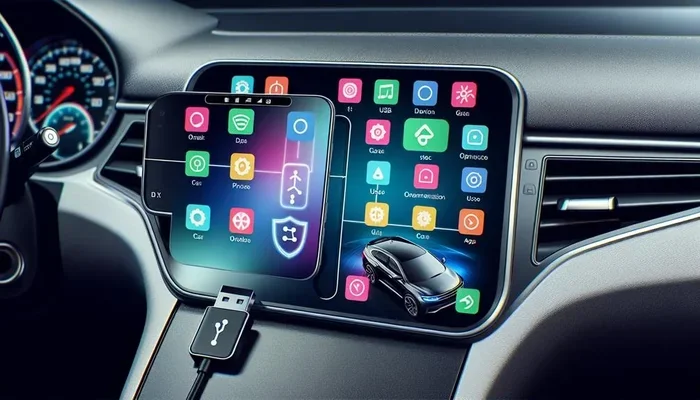
Most newer Toyota Corollas come with the Entune infotainment system or the newer Toyota Audio system. These systems handle Bluetooth connections, music streaming, and phone book access. The exact menu layout depends on your model year, but the core functions remain similar across generations.
If you are unsure whether your Corolla has a touchscreen, check the center console. Models from roughly 2018 onward tend to have larger touch displays. Older models from 2014 to 2017 often use a smaller screen with physical buttons. Both types allow you to delete paired phones, but the navigation path differs slightly. We will cover both below.
Step-by-Step Guide to Deleting a Phone From Your Toyota Corolla
Now for the part you have been waiting for. Here is exactly how to remove a phone from your Toyota Corolla. Follow these steps carefully and you will be done in no time.
For Models With a Touchscreen Display
If your Corolla has a touchscreen, the process is very intuitive. Follow these steps:
- Press the Bluetooth or Phone button on the steering wheel or the home screen. This opens the phone menu.
- Navigate to the Settings icon. It usually looks like a gear or a wrench. Tap it to open system settings.
- Select Bluetooth Settings. You will see a list of all paired devices.
- Find the phone you want to delete. Tap on the device name to open its details.
- Choose the Delete or Forget Device option. A confirmation prompt will appear.
- Confirm the deletion. The phone is now removed from your Corolla’s memory.
That is it. The entire process takes less than two minutes once you know where to look. If you have multiple phones to remove, repeat the steps for each one.
For Models With Standard Audio Controls
If your Corolla does not have a touchscreen, do not worry. You can still delete a paired phone using the audio controls and the display screen. Here is how:
- Press the Phone button on the steering wheel to access the phone menu.
- Use the Tune or Volume knob to scroll through the menu options on the display.
- Select Bluetooth or Phone Settings. Press the knob to enter the settings menu.
- Scroll to the list of paired devices. Find the phone you want to remove.
- Press and hold the Enter button or select Options, then choose Delete Device.
- Confirm your choice. The phone will be removed from the system.
This method works on Corollas from 2014 through 2020 and older. The button layout might vary slightly, but the general path is the same. If you get stuck, check your owner’s manual for the exact menu names for your specific year.
Resetting Your Toyota Corolla Bluetooth System
Sometimes deleting one phone is not enough. If you are experiencing connection problems, or if you bought a used Corolla with several mystery phones in the system, a full Bluetooth reset might be the answer. This clears all paired devices and gives you a completely fresh start.
When to Factory Reset Your Bluetooth System
You should consider a factory reset if you notice any of these issues:
- Your Corolla will not connect to any phone, even after deleting and re-pairing.
- The Bluetooth menu is unresponsive or keeps freezing.
- You see phantom devices that you cannot select or delete individually.
- You are selling or giving away the car and want to wipe all personal data.
A factory reset is also helpful if you have tried deleting phones one by one and the system still acts glitchy. It is like restarting your computer — sometimes a fresh start solves everything.
How to Clear All Paired Devices at Once
Here is how to perform a Bluetooth reset on most Toyota Corolla models:
- Go to the Bluetooth Settings menu using the steps above.
- Look for a Reset or Clear All Devices option. This is usually at the bottom of the paired devices list.
- Select Reset and confirm. The system will erase all paired phones.
- Turn the ignition off and wait 30 seconds. This lets the system fully reset.
- Turn the car back on. Your Bluetooth system is now completely clean.
After the reset, you will need to re-pair any phones you want to use. Do not worry — your phone contacts and data are completely safe. The reset only affects the car’s memory, not your phone.
For more information on resetting Toyota systems, check out our guide on how to factory reset Hybrid Connect for related Toyota tech resets.
Pairing a New Phone After Deletion
Once you have successfully deleted the old phone, you will probably want to pair a new one. The good news is that this process is just as easy as the deletion. Here is a quick walkthrough.
Quick Pairing Steps for Your New Phone
- Turn on your car and make sure the infotainment system is awake.
- Go to the Bluetooth Settings menu and select Add New Device or Search for Devices.
- On your phone, turn on Bluetooth and set it to discoverable mode.
- Wait for your Corolla to find your phone. It should appear in the list on the car’s display.
- Tap your phone name on the car screen and confirm the pairing request on your phone.
- Grant permissions for contacts and audio if prompted.
- Test the connection by making a hands-free call or playing music.
That is all there is to it. Most Corollas remember paired devices even after a battery disconnect, so once you pair a new phone, it should reconnect automatically every time you get in the car.
Troubleshooting Common Pairing Problems
If your new phone will not connect after deletion, try these quick fixes:
- Turn Bluetooth off and on again on your phone.
- Restart your Corolla’s infotainment system by holding the power button for 10 seconds.
- Make sure your phone is not connected to another device like a smartwatch or headphones that might interfere.
- Check for software updates for your Corolla’s audio system at a Toyota dealership.
Most pairing issues resolve with a simple restart. If the problem persists, a full Bluetooth reset (covered above) usually does the trick.
Common Mistakes When Deleting Phones From Toyota Corolla
You would be surprised how many people make avoidable mistakes when managing their Corolla’s Bluetooth connections. Here are the most common ones and how to steer clear of them.
Mistake 1: Confusing Delete with Unpair
Some Corolla owners think unpairing and deleting are the same thing. In most cases, they are. But on certain model years, unpairing only temporarily disconnects the phone while deleting removes it from the system entirely. Always confirm you see the confirmation message that says the device has been removed or deleted.
Mistake 2: Not Restarting the System After Deletion
After deleting a phone, the system sometimes needs a fresh start to fully release the memory. If you notice the deleted phone still appearing, try turning the car off, waiting 30 seconds, and turning it back on. This simple step resolves the issue most of the time.
Mistake 3: Skipping the Confirmation Step
Always read the confirmation prompt before tapping Yes or Confirm. Once you confirm, the deletion is permanent and cannot be undone without re-pairing the phone again. Make sure you have the correct device selected.
Mistake 4: Forgetting to Clear Phone Book Access
When you delete a phone, also check if the car still has access to that phone’s contact list. On some Corolla models, contact permissions are stored separately. Go into the phone book settings and make sure the deleted phone no longer has access. This protects your privacy, especially if you are selling the car.
For additional tips on managing your Toyota’s connected features, you might also find our article on unlocking your Tundra with your phone helpful for understanding Toyota phone connectivity features.
Expert Tips for Managing Multiple Phone Connections
If you share your Toyota Corolla with a spouse, child, or roommate, managing multiple phones can feel like a juggling act. Here are some expert tips to keep things running smoothly.
Set Up Priority Connections
Most Toyota Corollas allow you to set a primary and secondary phone. The primary phone connects automatically when you start the car. The secondary phone connects when the primary is not available. This is a great feature for couples who share a vehicle.
Name Your Devices Clearly
When you pair a phone, give it a clear name like “John’s iPhone” or “Sarah’s Galaxy.” This makes it much easier to identify and delete the right device later. Generic names like “Phone 1” and “Phone 2” can get confusing fast.
Regularly Review Your Paired Devices
Make it a habit to check your Bluetooth settings every few months. Delete any phones you no longer use. This keeps your system fast and prevents old devices from causing connection conflicts. A clean Bluetooth phone book means a better experience every time you get behind the wheel.
Use the Steering Wheel Controls for Quick Access
Pressing the Phone button on your steering wheel gives you instant access to your paired devices. You can switch between phones, make calls, and even delete devices without taking your eyes off the road. It is one of the safest and most convenient features of your Corolla.
Managing your Toyota Corolla’s phone connections is all about staying organized. A little maintenance goes a long way toward a seamless driving experience. If you are also curious about other Toyota tech features, our guide on driving a Toyota Highlander without a key fob explores more ways Toyota integrates your phone with the vehicle.
For owners who also use their phone for remote features, another great resource is our piece on rolling down windows with your Toyota key fob, which covers additional connectivity features you can explore.
Frequently Asked Questions
Can I delete a phone from my Toyota Corolla without turning on the car?
No, you need to have the ignition in the On or Accessory position to access the Bluetooth settings. The infotainment system only powers on when the car is running or in accessory mode. Simply press the start button without pressing the brake pedal to enter accessory mode.
Will deleting a phone from my Corolla also delete contacts from my phone?
Absolutely not. Deleting a phone from your Corolla only removes the car’s memory of that device. All your contacts, photos, apps, and data remain completely safe on your phone. The car and your phone store information separately.
How many phones can a Toyota Corolla Bluetooth system store?
Most Toyota Corolla models can store between four and six paired phones at a time. The exact number depends on your model year and infotainment system version. If you hit the limit, you will need to delete an old phone before pairing a new one.
What should I do if the deleted phone still shows up in my Bluetooth list?
This usually happens when the system has not fully refreshed. Try turning your car off, waiting 30 seconds, and turning it back on. If the phone still appears, go into the Bluetooth settings and look for a Reset or Clear All option. A full reset will remove any ghost entries.
Can I delete a phone remotely if I no longer have physical access to the car?
No, you must be inside the car or have the key fob within range to access the Bluetooth settings. Toyota does not currently offer a remote Bluetooth management feature through the app. You would need physical access to the vehicle to delete paired devices.
Is it safe to sell my Toyota Corolla if I forgot to delete my phone?
It is not safe from a privacy standpoint. The next owner could potentially access your call history or contacts if the phone is still paired. Always delete all personal phones before selling or giving away your Corolla. A quick Bluetooth reset ensures complete data removal.
Conclusion
Deleting a phone off your Toyota Corolla is one of the easiest and most useful things you can do as a car owner. Whether you are cleaning up old connections, preparing to sell, or simply want a fresh start with a new device, the steps are straightforward and fast. You now know how to delete a phone using both touchscreen and non-touchscreen methods, how to perform a full Bluetooth reset, and how to avoid common pitfalls.
Remember to keep your Bluetooth phone book tidy by reviewing it regularly. A clean system means faster connections, fewer glitches, and better privacy. The entire process takes just a few minutes, and once you have done it once, you will never forget how.
Take a few minutes today to clean up your Toyota Corolla’s Bluetooth connections. Your future self — whether you are selling the car or just want a smoother driving experience — will thank you. Happy driving!