Why Wont My iPhone Connect to My Toyota Camry Bluetooth
iPhone Bluetooth not connecting to your Toyota Camry is a frustrating but solvable problem. Whether your phone won’t pair, keeps disconnecting, or shows no available devices, this guide covers every fix you need. You will learn simple steps to reset Bluetooth, update software, and get your connection working again in no time.
You are driving your Toyota Camry, ready to enjoy your favorite playlist or take a hands-free call. You tap Bluetooth on your iPhone. Nothing happens. You try again. Still nothing. This is a problem many Toyota Camry owners face every day. The good news is that you can fix it. This guide will walk you through every possible reason your iPhone won’t connect to Toyota Camry Bluetooth and show you exactly how to solve it.
Bluetooth connection problems between iPhones and Toyotas are more common than you think. They happen after software updates, when you buy a used car, or sometimes for no clear reason at all. Whether you own a 2015 Camry or a brand-new 2024 model, the steps in this article will help you get back on the road with your phone connected. Let’s dive in and fix this together.
Key Takeaways
- Restart and Reset: Turning Bluetooth off and on or resetting your car stereo often solves the problem quickly.
- Software Updates Matter: Keeping your iPhone and Toyota Camry software up to date prevents most connection issues.
- Forget and Re-Pair: Removing the device from both your phone and car system can fix stubborn pairing failures.
- Check for Hardware Issues: Sometimes the problem is a faulty Bluetooth module or antenna that needs professional attention.
- Limit Connected Devices: Too many paired devices can cause interference and slow down your connection.
- Visit a Dealer When Needed: If all else fails, a Toyota dealership can diagnose deeper hardware or software problems.
📑 Table of Contents
Why Your iPhone and Toyota Camry Bluetooth Won’t Pair
Before you start troubleshooting, it helps to understand what is going wrong. Bluetooth is a short-range wireless technology that lets your phone talk to your car’s audio system. When the connection fails, it usually comes down to one of a few common causes. Let’s look at them.
Understanding the Connection Problem
Bluetooth works by sending and receiving radio signals between two devices. Your iPhone sends a signal. Your Toyota Camry’s infotainment system receives it. If something interrupts that signal, the connection fails. This could be a software glitch, a setting issue, or even interference from other wireless devices in your car.
Sometimes the problem is simple. Maybe Bluetooth is turned off on your phone. Maybe the car’s system is already connected to another device. Other times, the issue runs deeper. A corrupted pairing record or outdated software can block the connection entirely. The key is to work through each possible cause one by one.
Common Reasons for Bluetooth Failures
- Bluetooth is turned off on your iPhone or your car’s system.
- Your phone is already connected to a different audio source like Apple CarPlay via USB.
- The Bluetooth cache is full and needs to be cleared.
- Your iPhone software is out of date and incompatible with your car’s system.
- Your Toyota Camry’s infotainment system needs a reboot.
- Too many devices are paired and causing interference.
- A hardware issue with the car’s Bluetooth module or your phone’s antenna.
Step-by-Step Fixes to Connect Your iPhone
Now that you know the common causes, let’s fix the problem. Follow these steps in order. Most people solve their Bluetooth issue within the first few steps.
Turn Bluetooth Off and Back On
This sounds too simple, but it works more often than you would think. Swipe down from the top right corner of your iPhone screen. Tap the Bluetooth icon to turn it off. Wait about 10 seconds. Tap it again to turn it back on. Now try pairing your phone with your Toyota Camry again.
On the car side, you can also turn off the infotainment system completely. Press and hold the power button on your dashboard screen. Wait 15 seconds. Turn it back on. Then go to the Bluetooth settings on your car and try pairing again. This simple reset clears temporary glitches that block connections.
Forget the Device and Re-Pair
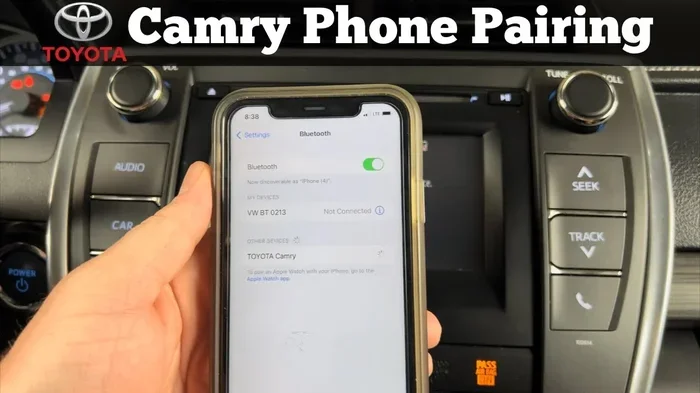
If turning Bluetooth off and on does not work, the next step is to forget the device completely. On your iPhone, go to Settings, then Bluetooth. Find your Toyota Camry in the list of devices. Tap the info icon next to it. Select “Forget This Device.” Do the same on your car’s infotainment system.
Now start fresh. Turn on Bluetooth on your iPhone. Go to your car’s Bluetooth settings and make it discoverable. Search for new devices on your phone. Select your Camry when it appears. Enter the PIN if your car asks for one. This process clears old pairing data that may be corrupted.
Check for iOS Updates
Apple releases iOS updates regularly. These updates often include bug fixes for Bluetooth connectivity. If your iPhone is running an older version of iOS, it might not play nicely with your Toyota’s system.
Go to Settings, then General, then Software Update. If an update is available, download and install it. Make sure your phone is charged or plugged in during the update. After the update is complete, try connecting your iPhone to your Camry again. This one step solves the problem for many people.
Reset Your Toyota Camry Bluetooth System
Your Toyota Camry has a Bluetooth system that sometimes needs a full reset. The exact steps vary by model year, but here is the general process. Go to your car’s Settings menu on the infotainment screen. Find the Bluetooth section. Look for an option to “Reset Bluetooth” or “Factory Reset.” Confirm the reset.
You can also try resetting your car’s entire infotainment system. Turn off the car. Press and hold the power button on the screen for about 20 seconds. Release it and wait for the system to restart. This clears all temporary data and can fix stubborn connection problems. If you are unsure about the exact steps for your model, check your owner’s manual or visit the Toyota website.
Toyota Camry Bluetooth Compatibility with iPhone
Not all Toyota Camry models work perfectly with every iPhone. Compatibility matters, especially if you drive an older Camry or use the latest iPhone model. Let’s explore what you need to know.
Which Toyota Camry Models Support iPhone Bluetooth
Most Toyota Camry models from 2007 onward come with Bluetooth capability. However, older models may only support basic phone calling and not audio streaming. If you have a 2005 or 2006 Camry, you might need an aftermarket Bluetooth adapter to get full functionality.
Here is a quick look at what to expect from different model years:
- 2007-2011 Camry: Basic Bluetooth calling. Limited or no music streaming support.
- 2012-2014 Camry: Bluetooth calling and basic music streaming. Supports most iPhone models.
- 2015-2019 Camry: Full Bluetooth support including Apple CarPlay in some trims.
- 2020-2024 Camry: Advanced Bluetooth with wireless Apple CarPlay and improved connection stability.
Bluetooth Version and iPhone Compatibility
Bluetooth has different versions, and they affect how well your devices work together. Newer iPhones use Bluetooth 5.0 or later. Older Toyota Camry models may have Bluetooth 2.0 or 3.0. While Bluetooth is designed to be backward compatible, version mismatches can sometimes cause connection problems.
If your Camry has an older Bluetooth version, you might experience slower connection times or lower audio quality. This does not mean your phone will not connect at all. It just means the experience might not be as smooth as with a newer car. Updating your car’s software can sometimes improve Bluetooth performance even on older models.
Troubleshooting Persistent Connection Issues
If you have tried the basic fixes and your iPhone still will not connect, do not give up. There are deeper troubleshooting steps that can help. These steps address less obvious problems that many people overlook.
Is Your iPhone Software Outdated?
We already mentioned checking for iOS updates, but this deserves a closer look. Sometimes a minor iOS update fixes major Bluetooth bugs. Apple is known for releasing patch updates that specifically address connectivity issues.
Go to Settings, General, and Software Update. Even if your phone says it is up to date, check again. Sometimes updates take a few hours to roll out to all devices. If you are running the latest version and still have problems, try restarting your iPhone. A simple reboot clears temporary files that can interfere with Bluetooth.
Could a Software Glitch Be the Cause?
Software glitches are one of the most common reasons for Bluetooth failures. These glitches can happen after a major iOS update or when you install a new app that interacts with Bluetooth. Sometimes the iPhone’s Bluetooth module simply gets stuck and needs a hard reset.
To force restart your iPhone, the process varies by model. For iPhone 8 and later, quickly press and release the Volume Up button. Then do the same with the Volume Down button. Press and hold the Side button until the Apple logo appears. This clears the Bluetooth module and often fixes stubborn connection issues.
Reset Network Settings on Your iPhone
This is a more aggressive fix, but it works well when nothing else does. Resetting your network settings clears all saved Wi-Fi passwords, Bluetooth pairings, and VPN settings. You will need to reconnect to your Wi-Fi and re-pair your devices afterward.
Go to Settings, then General, then Transfer or Reset iPhone. Tap Reset, then Reset Network Settings. Enter your passcode if prompted. Confirm the reset. Your phone will restart. After it boots back up, go to Bluetooth settings and try pairing with your Toyota Camry again. This step fixes the problem for the majority of users who have tried everything else.
Clear Bluetooth Cache on Your iPhone
Your iPhone stores Bluetooth pairing data in a cache. Over time, this cache can become corrupted and cause connection problems. Clearing the cache is not something Apple makes easy, but there is a workaround.
Go to Settings, then Bluetooth. Find your Toyota Camry and tap the info icon. Select “Forget This Device.” Then restart your iPhone. When your phone turns back on, go to Bluetooth settings and try pairing again. This effectively clears the Bluetooth cache without you needing to do anything technical. It is one of the most effective fixes for recurring connection problems.
Tips for a Better Bluetooth Experience in Your Camry
Once you get your iPhone connected to your Toyota Camry, you want it to stay connected. Here are some tips to keep your Bluetooth working smoothly every day.
Keep Your Phone Charged and Close
Bluetooth signals are weaker when your phone battery is low. If your iPhone is at 5% battery, the Bluetooth connection may drop or fail to connect. Keep your phone charged, especially on long drives. Also, keep your phone in a visible spot. Placing it under a seat or in the glove box can weaken the signal and cause dropouts.
Limit Connected Devices
Your Toyota Camry can remember multiple paired devices. But the more devices it remembers, the more work the Bluetooth system has to do. If you have five or six devices paired, delete the ones you no longer use. This keeps your car’s Bluetooth system running fast and reduces connection conflicts.
Use Hands-Free Calling Safely
Bluetooth is great for hands-free calling, but it can also be a distraction. Keep your calls short while driving. Use Siri or your car’s voice controls to answer calls without touching your phone. This keeps your eyes on the road and your Bluetooth connection stable. A stable connection means fewer dropouts and a better experience overall.
When to See a Professional
You have tried everything. Your iPhone still will not connect to your Toyota Camry Bluetooth. At this point, it is time to consider professional help. Not every problem can be solved with a quick reset at home.
Hardware Problems to Watch For
Sometimes the problem is physical. Your car’s Bluetooth antenna might be damaged. The Bluetooth module inside your infotainment system might have failed. These hardware issues are not something you can fix with a software reset.
Signs of a hardware problem include: your car’s Bluetooth never shows up as an available device, the Bluetooth icon never appears on your dashboard screen, or the connection drops constantly even after a full reset. If you notice any of these signs, it is time to see a professional.
Visiting a Toyota Dealership
If you suspect a hardware issue, visiting a Toyota dealership is your best option. They have the tools and expertise to diagnose Bluetooth problems at the component level. You can take your Toyota to any dealership for warranty work, so this is a great resource if your Camry is still under warranty. They can also update your car’s software to the latest version, which often fixes Bluetooth bugs that were discovered after your car was built.
A dealership technician can run diagnostic tests on your car’s Bluetooth system. They can check if the antenna is working properly and if the module is sending and receiving signals correctly. If a part needs to be replaced, they can do it quickly and correctly. This is the best option for persistent Bluetooth problems that you cannot solve on your own.
Conclusion
Dealing with iPhone Bluetooth connection problems in your Toyota Camry can be frustrating, but it is almost always fixable. Start with the simple steps like turning Bluetooth off and on, forgetting the device, and re-pairing. Move on to software updates and network resets if those do not work. Keep your Bluetooth system clean by limiting paired devices and keeping your software up to date.
Most Bluetooth connection issues are caused by software glitches, outdated settings, or too many paired devices. These are easy to fix with the steps in this guide. If you have tried everything and the problem persists, a visit to a Toyota dealership can uncover deeper hardware issues. You do not have to drive around disconnected. Use the tips in this article, and you will be streaming music and taking hands-free calls in no time.
Frequently Asked Questions
Why does my iPhone keep disconnecting from my Toyota Camry Bluetooth?
Frequent disconnections are usually caused by software glitches or too many paired devices. Try forgetting the device on both your phone and car, then re-pair. Also check for iOS and car software updates. If the problem continues, resetting your network settings on your iPhone often fixes it.
Can I use Apple CarPlay instead of Bluetooth in my Toyota Camry?
Yes, many Toyota Camry models support Apple CarPlay, which gives you a more stable connection than Bluetooth alone. CarPlay can connect via USB cable or wirelessly depending on your model year. It offers better audio quality and easier access to your phone’s features while driving.
How do I know if my Toyota Camry Bluetooth is working properly?
When Bluetooth is working, you will see the Bluetooth icon on your car’s display screen. You should be able to make and receive calls through your car’s speakers. Music from your iPhone should stream through your car’s audio system without interruption. If any of these do not work, the connection needs troubleshooting.
Does the Toyota Camry Bluetooth work with Android phones too?
Yes, the Toyota Camry Bluetooth system works with both iPhone and Android devices. The pairing process is similar for both. However, some features like Apple CarPlay are iPhone-exclusive, while Android Auto works with Android phones. The basic Bluetooth calling and music streaming work with any phone.
Why does my Toyota Camry not show up as a Bluetooth device on my iPhone?
This usually means your car’s Bluetooth system is not in discoverable mode. Go to your car’s infotainment settings and make sure Bluetooth is turned on and set to visible. Also check that your iPhone Bluetooth is enabled. If the car still does not appear, try resetting the car’s infotainment system and then searching again.
Can a software update fix Toyota Camry Bluetooth problems?
Yes, software updates can fix Bluetooth problems on both your iPhone and your Toyota Camry. Apple releases iOS updates that often include Bluetooth bug fixes. Toyota also releases software updates for newer Camry models. Check both your phone and car for available updates before trying other fixes.