Where Is the Sync on My iPhone and How to Enable It
Finding the sync on your iPhone is easier than you think, whether you are connecting to your car, iCloud, or other devices. This guide walks you through every sync setting and method so you can get your iPhone connected fast. You will learn how to enable wireless sync, troubleshoot connection issues, and master Apple CarPlay integration in your vehicle.
If you have ever stared at your iPhone wondering, “Where is the sync on my iPhone?” you are not alone. Millions of people search for this every single day. The sync feature on your iPhone is the bridge that connects your device to your car, your computer, and your iCloud account. Without it, your photos, contacts, music, and navigation data stay stuck on one device. In this guide, we will show you exactly where to find every sync option and how to turn it on in just a few taps.
Whether you want to connect your iPhone to your car for Apple CarPlay, back up your data through iCloud, or transfer files to your laptop, understanding sync settings is essential. The good news is that Apple makes syncing straightforward once you know where to look. We will break it down section by section so you never have to guess again. Let us dive right in and get your iPhone connected.
Key Takeaways
- Sync Location: The sync feature lives in Settings, primarily under General, Bluetooth, and iCloud depending on what you are syncing.
- Apple CarPlay Connection: iPhone sync with your car happens through Bluetooth or a USB cable via Apple CarPlay.
- iCloud Sync: Enabling iCloud sync keeps your photos, contacts, and files updated across all your Apple devices.
- Wireless Options: You can sync wirelessly if your car supports it or by using Wi-Fi sync with your computer.
- Troubleshooting Matters: Simple fixes like restarting your iPhone or toggling Bluetooth often solve sync problems.
- Sync Settings Are Key: Customizing sync preferences gives you control over what data transfers and when.
📑 Table of Contents
- Where Is the Sync on My iPhone? Understanding the Basics
- How to Enable iPhone Sync with Apple CarPlay
- Understanding Bluetooth Sync for iPhone and Car
- Sync Settings for iCloud and Data Transfer
- iPhone Sync Troubleshooting: Fixing Common Problems
- Comparing Sync Methods: Wired vs Wireless vs iCloud
- Expert Tips to Maximize iPhone Sync Performance
- Common Mistakes People Make with iPhone Sync
- Final Thoughts on iPhone Sync
Where Is the Sync on My iPhone? Understanding the Basics
The sync feature on your iPhone is not one single button. Instead, it is spread across several settings menus depending on what type of sync you need. When you are asking “where is the sync on my iPhone,” the answer depends on whether you want to sync with your car, your computer, or the cloud.
Sync Settings Location for Car Connection
If you want to sync your iPhone with your vehicle, you need to go to Settings > Bluetooth. This is where your iPhone manages all wireless connections, including your car’s infotainment system. Make sure Bluetooth is turned on, and your car should appear in the list of available devices. Tap on your car’s name to pair and connect.
For a wired connection, plug your iPhone into your car’s USB port using a Lightning or USB-C cable. Your car should recognize the device automatically. You may see a prompt on your iPhone screen asking if you trust the vehicle. Tap “Trust” to allow data sharing and sync to begin.
Sync Settings for iCloud and Wireless Sync
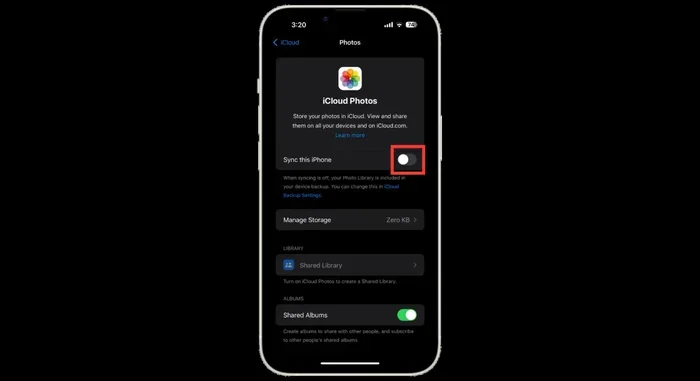
To sync your data with iCloud, head to Settings > [Your Name] > iCloud. Here you will see a list of apps and data types. Toggle each one on or off depending on what you want to sync. This includes photos, contacts, calendars, notes, and files.
For wireless sync with your computer, open iTunes or the Finder on your Mac. Connect your iPhone with a cable, select your device, and look for the “Sync” option. You can also enable “Sync with this iPhone over Wi-Fi” for future wireless sync sessions.
How to Enable iPhone Sync with Apple CarPlay
Apple CarPlay is one of the most popular reasons people ask about sync on their iPhone. CarPlay mirrors your iPhone’s interface on your car’s display, giving you access to maps, music, messages, and more. Setting it up is simple once you know the steps.
Step-by-Step CarPlay Sync Setup
First, make sure your car supports Apple CarPlay. Most modern vehicles from brands like Ford, Toyota, Honda, and BMW include CarPlay as a standard or optional feature. Check your car’s manual if you are unsure.
Next, follow these steps to enable sync:
- Open Settings on your iPhone.
- Tap General and then select CarPlay.
- Choose your car from the list of available vehicles.
- Follow the on-screen prompts to complete pairing.
Once connected, your car’s display will show CarPlay. You can access Siri, navigation, music, and messaging all from the car’s screen while keeping your hands on the wheel and eyes on the road.
Troubleshooting CarPlay Sync Issues
If CarPlay does not connect right away, do not panic. Try these quick fixes:
- Turn Bluetooth off and back on from Settings > Bluetooth.
- Restart your iPhone by holding the power button and volume button together.
- Check that your car’s infotainment system is set to CarPlay mode.
- Update your iPhone to the latest iOS version.
- Try a different USB cable or port if using a wired connection.
These simple steps resolve most iPhone connectivity issues with vehicles. If the problem persists, consult your car manufacturer’s support page for model-specific guidance.
Understanding Bluetooth Sync for iPhone and Car
Bluetooth sync is the most common way to connect your iPhone to your car. It allows hands-free calling, audio streaming, and access to your contact list through the car’s system. Here is everything you need to know about managing Bluetooth sync settings.
How Bluetooth Sync Works
When you pair your iPhone with your car via Bluetooth, the two devices exchange data wirelessly. This includes your phone book, recent calls, and audio profiles. The sync happens automatically once the devices are paired and connected.
To manage what data syncs through Bluetooth, go to Settings > Bluetooth and tap the “i” icon next to your car’s name. From there, you can toggle options like “Sync Contacts,” “Sync Call History,” and “Sync Media.”
Enabling Hands-Free Calling Through Sync
One of the biggest benefits of iPhone sync with your car is hands-free calling. When sync is enabled, you can make and receive calls through your car’s microphone and speakers. Siri can read your incoming messages aloud, so you stay focused on driving.
To ensure hands-free calling works:
- Go to Settings > Phone > Calls on Other Devices and turn it on.
- Make sure your car is selected as a connected device.
- Check that your car’s audio system is set to the Bluetooth audio profile.
Sync Settings for iCloud and Data Transfer
Beyond your car, your iPhone syncs with iCloud to keep your data backed up and available across all your Apple devices. Understanding iCloud sync settings helps you control what gets synced and saves you storage space.
What Gets Synced Through iCloud
iCloud sync covers a wide range of data types on your iPhone. Here is what you can sync:
- Photos and Videos: Every photo you take can be uploaded to iCloud and accessed on your iPad, Mac, or Apple TV.
- Contacts and Calendars: Stay updated across all devices with real-time contact and calendar sync.
- Files and Documents: iCloud Drive keeps your files accessible from any Apple device.
- App Data: Many apps sync their data through iCloud so you can pick up where you left off.
- Messages: iMessages sync across all your Apple devices when iCloud sync is enabled.
How to Manage iCloud Sync Preferences
To fine-tune what syncs through iCloud, follow these steps:
- Open Settings on your iPhone.
- Tap your name at the top of the screen.
- Select iCloud.
- Tap Show All under Apps Using iCloud.
- Toggle each app on or off based on your preference.
Managing these sync settings gives you full control over your data and helps you avoid filling up your iCloud storage with things you do not need backed up.
iPhone Sync Troubleshooting: Fixing Common Problems
Even with the best setup, sync issues can happen. Your iPhone might refuse to connect to your car, or iCloud sync might stall mid-transfer. Here are the most common sync problems and how to fix them fast.
When Sync Is Not Working
If your iPhone sync is not working, start with the basics. A simple restart often solves the problem. Hold down the power button and volume button, slide to power off, and turn your iPhone back on.
Next, check that your software is up to date. Go to Settings > General > Software Update and install any available updates. Outdated software is one of the top reasons sync fails between devices.
Fixing Bluetooth Connection Issues
Bluetooth sync problems are extremely common. Try these solutions:
- Forget the car device from your Bluetooth settings and re-pair it.
- Make sure your car is in pairing mode before searching from your iPhone.
- Move closer to your car’s infotainment system during the initial pairing process.
- Reset network settings from Settings > General > Transfer or Reset iPhone > Reset > Reset Network Settings.
When iCloud Sync Stalls
If iCloud sync is stuck, check your internet connection first. A weak Wi-Fi signal can slow or halt sync. Also, make sure you have enough iCloud storage available. You can check this at Settings > [Your Name] > iCloud > Manage Storage.
Another common fix is signing out of iCloud and signing back in. Go to Settings > [Your Name] > Scroll Down > Sign Out, then sign back in with your Apple ID. This often refreshes the sync connection.
Comparing Sync Methods: Wired vs Wireless vs iCloud
There are three main ways to sync your iPhone with other devices. Each method has its strengths and weaknesses. Understanding the differences helps you choose the best sync method for your needs.
Sync Method Comparison Table
| Sync Method | Speed | Convenience | Best For |
|---|---|---|---|
| USB Wired Sync | Fast | Moderate | Large file transfers and car connection |
| Wireless Sync (Bluetooth) | Moderate | High | Hands-free car calling and audio streaming |
| Wi-Fi Sync | Moderate | High | Computer backup without cables |
| iCloud Sync | Varies | Very High | Cross-device data backup and access |
Which Sync Method Should You Use?
For car connections, Bluetooth wireless sync or a USB cable works best. Bluetooth gives you hands-free convenience, while a USB cable provides a more stable connection for music and navigation. For everyday data backup and cross-device access, iCloud sync is the clear winner.
If you travel frequently and need offline access to your files, use a USB cable to sync with your laptop. This creates a local backup that does not depend on internet connectivity.
Expert Tips to Maximize iPhone Sync Performance
Getting your iPhone to sync is only half the battle. Making it sync efficiently and reliably takes a few extra steps. Here are expert tips that make a real difference.
Keep Your iPhone and Car Software Updated
Apple regularly releases iOS updates that improve sync performance and fix bugs. Similarly, many car manufacturers release infotainment updates. Keeping both devices updated ensures the best compatibility and the smoothest sync experience.
Clear Out Unnecessary Sync Data
Syncing too much data can slow things down. Go through your sync settings and disable apps or data types you do not need synced. This frees up bandwidth and keeps your sync fast and reliable.
Use a High-Quality Cable for Wired Sync
If you rely on USB sync, the cable matters more than you might think. Cheap or damaged cables cause sync failures and slow transfer speeds. Invest in a certified MFi (Made for iPhone) cable for the best results.
Restart Your Devices Regularly
Restarting your iPhone and your car’s infotainment system clears temporary glitches that can interfere with sync. Make it a habit to restart both devices once a week for optimal performance.
Common Mistakes People Make with iPhone Sync
Avoid these common pitfalls that cause sync problems and frustration:
- Ignoring Software Updates: Running outdated iOS or car firmware is the number one cause of sync failures.
- Not Checking Storage Space: Full iCloud storage or iPhone storage can prevent sync from completing.
- Using Non-Certified Cables: Cheap cables may not support data transfer, only charging.
- Skipping the Trust Prompt: When you connect your iPhone to a new device, always tap “Trust” on your iPhone screen.
- Leaving Bluetooth Off: It sounds obvious, but forgetting to turn on Bluetooth is a surprisingly common sync blocker.
- Overloading Sync with Too Many Apps: Syncing every single app drains battery and slows everything down.
By avoiding these mistakes, you keep your sync running smoothly and your iPhone connected to everything you need.
Final Thoughts on iPhone Sync
Now you know exactly where the sync on your iPhone is and how to enable it for every situation. Whether you are connecting to your car through Apple CarPlay, backing up to iCloud, or transferring files to your computer, the sync options are all within reach in your Settings menu.
The key is understanding that sync is not one single feature but a collection of tools that work together to keep your iPhone connected to your world. Take a few minutes to explore your sync settings today. Once you know where everything lives, you will never have to search again.
Start with the steps in this guide, and you will have your iPhone synced and working in no time. If you run into any issues, refer back to the troubleshooting section. Your connected driving experience is just a few taps away.
Frequently Asked Questions
Where do I find sync settings on my iPhone?
The sync settings on your iPhone are spread across different menus. For Bluetooth sync with your car, go to Settings > Bluetooth. For iCloud sync, go to Settings > [Your Name] > iCloud. For computer sync, open iTunes or Finder and select your device.
Why is my iPhone not syncing with my car?
The most common reasons are Bluetooth being turned off, outdated software, or the car not being in pairing mode. Try restarting both your iPhone and your car’s infotainment system. You can also try forgetting the car from your Bluetooth settings and re-pairing it.
Can I sync my iPhone wirelessly with my car?
Yes, if your car supports wireless Apple CarPlay or Bluetooth sync. You do not need a cable for wireless connections. Just make sure Bluetooth is enabled on your iPhone and your car is discoverable. Some newer vehicles also support wireless CarPlay out of the box.
How do I enable iCloud sync on my iPhone?
Go to Settings > [Your Name] > iCloud and toggle on the apps and data types you want to sync. This includes photos, contacts, calendars, notes, and files. Make sure you have enough iCloud storage available for your sync needs.
What is the difference between Bluetooth sync and USB sync?
Bluetooth sync is wireless and convenient for hands-free calling and audio streaming. USB sync uses a cable and provides a faster, more stable connection for large file transfers and reliable car integration. Both methods serve different purposes and work great together.
How can I speed up my iPhone sync?
To speed up sync, make sure your iPhone is running the latest iOS version, use a high-quality certified cable for wired sync, and clear unnecessary data from your sync settings. Also, ensure you have a strong Wi-Fi connection for iCloud sync and enough free storage on your device.
=== CONCLUSION ===
Understanding where the sync on your iPhone is and how to enable it opens up a seamless connected experience. From Apple CarPlay in your car to iCloud backup at home, sync keeps your data flowing across every device you own. The steps in this guide give you everything you need to set up, manage, and troubleshoot your iPhone sync like a pro.
Take action today. Open your Settings, explore the sync options, and get your iPhone connected to your car and your cloud. Once you experience the convenience of a fully synced iPhone, you will wonder how you ever managed without it. Happy syncing!