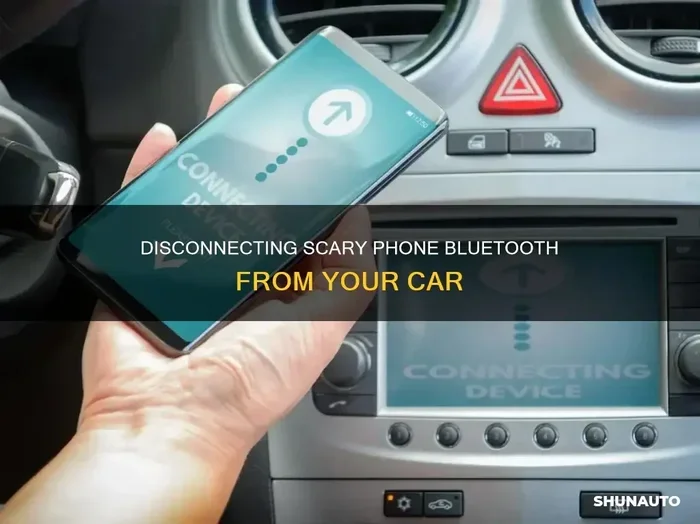
Quick Guide on How to Unpair Phone From Car Bluetooth
Knowing how to unpair phone from car Bluetooth is essential for every driver. Whether you are switching phones, selling your vehicle, or fixing connection issues, this guide walks you through the exact steps for Android and iPhone. We also cover troubleshooting tips, common mistakes, and expert advice to make the process smooth and hassle-free.
Have you ever been in your car, trying to play music or take a call, and your bluetooth connection car just refuses to cooperate? Maybe the audio keeps cutting out, or your phone refuses to sync with the stereo. Whatever the reason, knowing how to unpair phone from car Bluetooth is a skill every driver should have. It is simple, fast, and can solve a surprising number of problems.
In this guide, we will walk you through the exact steps to remove phone from car bluetooth on both Android and iPhone. We will also cover when you should unpair, common mistakes to avoid, and how to re-pair your device afterward. By the end, you will feel confident handling your car bluetooth settings like a pro.
Let us start with the basics. Your car’s bluetooth pairing car system stores a list of devices it has connected to before. When you unpair, you are simply telling the car to forget that device. It does not delete anything from your phone. Think of it like removing a guest from your guest list. They are no longer invited, but they are still perfectly fine on their own list.
Key Takeaways
- Easy Process: Unpairing your phone from car Bluetooth takes just a few taps on both your phone and your car’s infotainment system.
- Works for All Devices: The steps are similar whether you use Android or iPhone, with minor differences in the menu paths.
- Solves Connection Problems: Removing an old pairing often fixes static, audio drops, and other bluetooth connection car issues.
- Privacy Matters: Unpairing protects your personal data when you sell or share your vehicle.
- Quick Re-pairing: After unpairing, you can easily pair phone car bluetooth again in seconds.
- Reset When Needed: A full vehicle bluetooth reset can solve stubborn problems that simple unpairing cannot.
📑 Table of Contents
- Why You Might Need to Unpair Your Phone From Car Bluetooth
- How to Unpair Phone From Car Bluetooth on Android
- How to Unpair Phone From Car Bluetooth on iPhone
- How to Unpair From the Car’s Infotainment System Directly
- When to Reset Your Car Bluetooth Instead of Just Unpairing
- Common Mistakes People Make When Unpairing From Car Bluetooth
- How to Re-Pair Your Phone After Unpairing
- Expert Insights on Car Bluetooth Management
- Key Takeaways
- Conclusion
Why You Might Need to Unpair Your Phone From Car Bluetooth
There are many reasons why you would want to disconnect bluetooth car from your phone. Some are simple and everyday. Others are more specific to certain situations. Let us look at the most common ones.
Switching to a New Phone
If you have just bought a new phone, your old phone pairing car connection will still be stored in your vehicle. This can cause confusion. Your car might try to connect to the old device automatically. By unpairing device from your car, you make room for the new one. It keeps things clean and organized.
Selling or Sharing Your Vehicle
Are you selling your car? You definitely want to delete bluetooth pairing for all previous owners and their phones. This protects your personal data. Your contacts, call logs, and messages may have synced through the car hands free system. Removing them is an important privacy step.
Fixing Connection Problems
Sometimes the bluetooth connection car just stops working properly. You might hear static, experience audio delays, or find that calls keep dropping. Before you dive into complex bluetooth troubleshooting, try unpairing and re-pairing. This simple reset often fixes the problem completely.
Multiple Devices Causing Conflicts
If you have several phones or tablets that have been paired to the same car, they can interfere with each other. The car might connect to the wrong device. Unpairing phone car bluetooth for devices you no longer use keeps everything running smoothly.
How to Unpair Phone From Car Bluetooth on Android
Android phones make it pretty easy to remove phone from car bluetooth. The exact steps can vary slightly depending on your phone brand and car model. But the general process is very similar across the board. Here is how to do it.
Step 1: Open Your Phone Settings
Go to your home screen and find the Settings app. It usually looks like a gear icon. Tap on it to open. Then look for the Bluetooth option. It might be under a section called “Connections” or “Network & Internet” on some phones. Tap on Bluetooth to open the settings panel.
Step 2: Find Your Car in the Paired Devices List
Once you are in the Bluetooth settings, you will see a list of paired devices. Look for your car’s name. It might say something like “Toyota SYNC” or “Honda Bluetooth” or “Ford Sync.” Tap on the name of your car. A menu should pop up.
Step 3: Select Unpair or Forget
In the menu, look for an option that says “Unpair,” “Forget,” or “Remove.” Tap on it. Your phone will now disconnect from the car and remove it from the bluetooth pairing list. You might see a confirmation message. Confirm the action.
Step 4: Repeat if Needed
If you have multiple phones or devices paired to the car, repeat this process for each one. This ensures a completely clean slate. After unpairing all devices, your car’s wireless connection car system will be ready for a fresh start.
Quick Tip: If you cannot find your car in the Bluetooth list, try turning Bluetooth off and back on. Sometimes the device just needs a refresh to appear in the list.
How to Unpair Phone From Car Bluetooth on iPhone
iPhone users will find the process very similar but with a few differences in the menu layout. Apple keeps things simple, which is always a plus. Here is the step-by-step process for unpair phone from car bluetooth on an iPhone.
Step 1: Open Settings
On your iPhone, locate the Settings app. It is a gray gear icon on your home screen. Tap to open it. Scroll down until you see “Bluetooth.” Tap on it to enter the Bluetooth settings.
Step 2: Locate Your Car
You will see a list of devices under “My Devices” or “Other Devices.” Find your car’s name in this list. It might show the car’s brand name or a custom name you gave it. Tap the small “i” icon next to your car’s name.
Step 3: Choose Forget This Device
A new screen will appear with more options. Scroll down and tap “Forget This Device.” Your iPhone will ask you to confirm. Tap “Forget Device” again. The car bluetooth settings on your iPhone will now remove the car from the list.
Step 4: Turn Bluetooth Off (Optional)
As an extra step, you can toggle Bluetooth off and then back on. This ensures the car is fully disconnected and will not try to reconnect automatically. It is a small step that can save you from frustration later.
Quick Tip: If your iPhone keeps trying to reconnect to the car after you unpair, restart your phone. This forces all bluetooth pairing car connections to refresh from scratch.
How to Unpair From the Car’s Infotainment System Directly
Sometimes it is easier to unpair from the car side rather than from your phone. Most modern vehicles have a car infotainment system that lets you manage paired devices right from the dashboard screen. Here is how to do it.
For Toyota and Lexus Vehicles
Press the “Setup” button on your Toyota’s audio system. Navigate to “Bluetooth” settings. Select “Device List.” Find your phone in the list. Choose “Delete” or “Unregister.” Confirm your choice. The car will now forget your phone completely.
For Ford Vehicles
On Ford models, go to the “Settings” menu on the SYNC screen. Tap “Bluetooth.” Select your phone from the list. Choose “Delete Device.” Confirm when prompted. Your Ford’s bluetooth connection car system will remove the phone from memory.
For Honda Vehicles
On Honda cars, press the “Settings” button. Go to “Bluetooth” or “Phone” settings. Select “Device Management.” Find your phone and choose “Delete.” The Honda system will now release the pairing.
For General Vehicles
For other car brands, the process is generally the same. Go to Settings, find Bluetooth or Phone, look for a list of paired devices, select your phone, and choose Delete or Unpair. If you are unsure, check your car’s owner manual. It will have specific instructions for unpair device on your model.
When to Reset Your Car Bluetooth Instead of Just Unpairing
Sometimes simply unpairing phone car bluetooth is not enough. If you are dealing with persistent connection problems, you might need to perform a full vehicle bluetooth reset. This clears all paired devices and resets the Bluetooth system to factory defaults.
Signs You Need a Full Reset
- Your car Bluetooth keeps disconnecting randomly even after unpairing and re-pairing.
- You notice audio quality has deteriorated significantly across all devices.
- Your car’s infotainment system is running slowly or freezing when accessing Bluetooth.
- None of your paired devices can connect, even after multiple attempts.
- You see error messages related to bluetooth pairing issue that do not go away.
How to Perform a Vehicle Bluetooth Reset
The reset process varies by car brand. For most vehicles, you can find the reset option in the same Bluetooth settings menu. Look for “Reset Bluetooth” or “Factory Reset.” Some cars require you to hold down a specific button on the stereo unit for several seconds. Others might need you to disconnect the car battery briefly. Always refer to your vehicle’s manual before attempting a hardware reset.
Quick Tip: Before performing a full reset, write down or photograph your current paired devices. This saves you the trouble of re-adding everything from memory later.
Common Mistakes People Make When Unpairing From Car Bluetooth
Even though unpairing is a simple process, people still make mistakes. Here are the most common ones and how to avoid them.
Forgetting to Unpair Before Selling the Car
This is a big one. If you sell or trade in your car with your phone still paired, the next owner has access to your connected devices. Always delete bluetooth pairing for every device before handing over the keys. It protects your privacy and makes the car more appealing to buyers.
Not Restarting After Unpairing
Sometimes the car’s system holds onto old connection data even after you unpair. Restarting both your phone and your car’s infotainment system ensures a clean break. It clears any cached connection data that might cause issues later.
Trying to Re-pair Too Quickly
After unpairing, give both devices a moment before trying to reconnect. Rushing the sync phone car process can lead to errors. Wait about 10 to 15 seconds, then start fresh. This small patience goes a long way.
Ignoring Software Updates
Outdated software on either your phone or your car can cause bluetooth pairing issue problems. Before unpairing and re-pairing, check for updates. Update your phone’s operating system and your car’s infotainment software if available. This can prevent future connection problems.
Unpairing Only One Device
If you have multiple phones in the household, make sure to unpair all of them if needed. Leaving old devices connected can cause conflicts. Each wireless connection car device takes up memory and processing power on the car’s system.
How to Re-Pair Your Phone After Unpairing
Once you have successfully unpair phone from car bluetooth, you will likely want to connect again. Re-pairing is just as easy as the original pairing process. Here is how to do it.
First, make sure Bluetooth is turned on on your phone. Then start your car and activate the Bluetooth discovery mode on your car’s infotainment system. On your phone, scan for available devices. Your car should appear in the list. Tap on it to initiate pairing. You may need to confirm a PIN or passkey that appears on both screens. Once confirmed, your phone car bluetooth connection should be restored within seconds.
If you are using Apple CarPlay bluetooth or Android Auto bluetooth, you may need to enable those features separately after re-pairing. Go to your phone’s settings and make sure CarPlay or Android Auto is turned on. The connection should then work fully, including navigation and audio streaming.
Quick Tip: To make future re-pairing faster, give your car a recognizable name during the initial pairing process. Use something like “My Car Bluetooth” instead of the default name. This makes it easy to identify in the list of available devices.
Expert Insights on Car Bluetooth Management
Managing car bluetooth is more than just connecting and disconnecting. It is about keeping your system running smoothly and protecting your privacy. Here are some expert tips to keep in mind.
First, limit the number of devices you keep paired at any one time. Most car systems can handle between five and twenty paired devices. But the more devices you have stored, the slower the system can become. Keep only the devices you actively use. This keeps your car stereo bluetooth responsive and fast.
Second, clean out your pairing list every few months. Just like cleaning out your glove box, this is a simple maintenance task that keeps things running well. Spend five minutes going through your bluetooth pairing list and removing any devices you no longer use.
Third, if you notice persistent problems, do not just keep unpairing and re-pairing endlessly. That can sometimes make things worse. Instead, perform a full vehicle bluetooth reset or consult your car’s manufacturer for support. There might be a deeper issue that needs professional attention.
Finally, keep your phone and car software up to date. Both Apple and Google regularly release updates that improve bluetooth connection car stability. Car manufacturers also release infotainment updates that fix bugs and improve performance. Staying current is one of the best things you can do for your wireless connection.
Key Takeaways
- Simple Process: Unpairing your phone from car Bluetooth is quick and straightforward on both Android and iPhone devices.
- Two Methods: You can unpair from your phone’s settings or directly from the car’s infotainment system. Both work equally well.
- Privacy Protection: Always unpair and delete your data before selling or sharing your vehicle to protect your personal information.
- Troubleshooting Power: Unpairing and re-pairing often fixes connection issues like static, drops, and audio delays without needing professional help.
- Avoid Common Mistakes: Don’t forget to restart devices, update software, or clean up old pairings regularly for the best experience.
- Re-pairing Is Easy: After unpairing, reconnecting takes just a few steps and can be done in under a minute.
Conclusion
Learning how to unpair phone from car Bluetooth is one of those small skills that makes a big difference in your daily driving experience. Whether you are switching phones, selling your car, or just trying to fix a stubborn connection problem, the steps are simple and quick. You now know how to unpair from both Android and iPhone, how to do it from the car’s system directly, and when a full reset might be necessary.
Remember to keep your paired device list clean. Avoid the common mistakes we covered. And do not be afraid to re-pair whenever needed. A fresh bluetooth connection car can breathe new life into your driving experience. Your music, calls, and navigation will all work better when the connection is clean and strong.
Take a few minutes today to check your car bluetooth settings. Remove any old or unused devices. You will be surprised how much smoother everything runs afterward. A little maintenance goes a long way when it comes to your car’s wireless technology.
Now that you have this knowledge, you are fully equipped to handle any unpair device situation with confidence. Drive safe, stay connected, and enjoy the freedom of a well-managed bluetooth pairing car setup.
Frequently Asked Questions
Can I unpair my phone from car Bluetooth without touching the car’s screen?
Yes, you can. Simply go to your phone’s Bluetooth settings, find your car in the list of paired devices, and tap “Forget” or “Unpair.” The car will automatically disconnect. You do not need to access the car’s infotainment system at all. This works on both Android and iPhone.
Will unpairing delete my contacts or messages from the car?
No, unpairing does not delete anything from your phone. It only removes the connection between your phone and car. However, some cars store synced contacts locally in their memory. To fully remove that data, you may need to go into the car’s Bluetooth settings and clear the phonebook or contact list separately.
How do I know if my phone is successfully unpaired from the car?
After unpairing, your car should no longer appear in your phone’s Bluetooth device list. On the car’s side, your phone name should disappear from the paired devices list. If you try to play audio or make a call, the connection should not work until you re-pair the devices.
Can I unpair one phone but keep another phone connected to the same car?
Absolutely. Most car Bluetooth systems support multiple paired devices. You can unpair one phone while keeping others connected. Just follow the unpairing steps for the specific device you want to remove. The remaining devices will continue to work normally.
Why does my car keep trying to reconnect after I unpair it?
This can happen if Bluetooth is turned on in your phone and the car is still in discovery mode. To stop this, make sure Bluetooth is turned off on your phone, or restart both devices. If the problem persists, try restarting your car’s infotainment system as well.
Is it safe to unpair and re-pair frequently?
Yes, it is completely safe. Unpairing and re-pairing does not damage your phone or car system. In fact, doing it occasionally can help keep your bluetooth connection car running smoothly by clearing out old connection data and refreshing the system. It is a good maintenance practice.
=== CONCLUSION ===
Now you know exactly how to unpair phone from car Bluetooth in every situation. Whether you use Android or iPhone, whether you unpair from your phone or the car’s screen, the process is simple and fast. Keep this guide handy for your next phone switch, car sale, or connection fix. Your car bluetooth settings will thank you for it.