How Do I Reconnect My Phone to Bluetooth in My Car
Reconnecting your phone to Bluetooth in your car is quick and easy once you know the steps. This guide walks you through the exact process for both iPhone and Android, plus fixes for common problems. You will learn how to reset Bluetooth, delete old pairings, and keep your connection stable every time you get in the car.
Key Takeaways
- Simple reset steps work 90% of the time: Toggling Bluetooth, restarting your phone, or restarting the car infotainment system often solves the issue instantly.
- Delete old pairings to start fresh: Removing saved devices from both your phone and car stereo clears hidden glitches that block reconnection.
- Software updates matter: Outdated phone or car firmware can cause Bluetooth pairing failures. Always keep both devices current.
- Interference from other devices can cause drops: Keep other Bluetooth gadgets away from the car console to maintain a strong signal.
- Know when to seek help: If basic fixes fail, the car’s Bluetooth module or your phone’s antenna may need professional diagnosis.
- Hands-free calling and music streaming rely on a solid connection: A stable Bluetooth link makes driving safer and more enjoyable.
📑 Table of Contents
- Why Does Bluetooth Keep Disconnecting in Your Car?
- How Do I Reconnect My Phone to Bluetooth in My Car? Step-by-Step Guide
- Troubleshooting When Your Phone Won’t Pair at All
- Tips to Keep Bluetooth Connected Seamlessly
- When to Seek Professional Help for Bluetooth Issues
- Final Thoughts on Reconnecting Bluetooth in Your Car
Why Does Bluetooth Keep Disconnecting in Your Car?
Bluetooth connections in cars can be finicky. You might be driving down the highway, and suddenly your phone drops the connection. Music stops. Calls drop. It is frustrating. Understanding why this happens helps you fix it faster. The good news is that most issues are simple to solve. This section explores the common culprits behind Bluetooth disconnections. We also share quick fixes you can try right now.
Common Culprits Behind Bluetooth Drops
Several factors cause Bluetooth to disconnect in cars. Here are the most common ones:
- Distance and obstacles: Bluetooth works best within a few feet. A thick windshield or metal roof can weaken the signal.
- Interference from other devices: USB cables, phone chargers, or other Bluetooth gadgets can create noise.
- Software glitches: Sometimes the car’s infotainment system or your phone simply needs a refresh.
- Outdated software: Old firmware on either device can cause pairing problems.
- Too many paired devices: A crowded Bluetooth memory can slow things down and cause drops.
Quick Fixes You Can Try Right Now
Before diving into deep troubleshooting, try these fast steps. They solve the problem most of the time:
- Toggle Bluetooth off and on from your phone’s quick settings.
- Restart your phone completely.
- Restart the car’s infotainment system (turn it off and back on).
- Move your phone closer to the car’s Bluetooth antenna, often near the center console.
If these do not work, move on to the step-by-step guide below.
How Do I Reconnect My Phone to Bluetooth in My Car? Step-by-Step Guide
Reconnecting your phone to Bluetooth in your car does not have to be scary. Whether you use an iPhone or an Android, the process is straightforward. Follow these steps carefully. You will be back to streaming music and taking calls in no time.
For iPhone Users
Apple devices pair easily with most car stereos. Use these steps to reconnect:
- Open Settings on your iPhone.
- Tap Bluetooth. Make sure the switch is green.
- Look for your car’s name in the list of devices. It might say something like “My Car” or the stereo brand.
- Tap the car name. Wait a few seconds.
- If it does not connect, tap Forget This Device first, then go back and pair again.
Quick Tip: If your iPhone still will not connect, toggle Airplane Mode on for 10 seconds, then off. This resets all wireless connections and often fixes the issue.
For Android Users
Android phones vary by brand, but the basic steps are similar:
- Swipe down from the top of your screen to open Quick Settings.
- Tap the Bluetooth icon to turn it on.
- Tap and hold the Bluetooth icon to open Bluetooth settings.
- Look for your car’s name under Paired devices or Available devices.
- Tap the car name to connect.
If the car does not appear, tap Search for devices or Pair new device. Then select your car from the list.
A Universal Reset Method That Works for Both
When nothing else works, try a full Bluetooth reset on your phone. This clears all saved Bluetooth connections and forces a fresh start:
- iPhone: Go to Settings > Bluetooth. Tap the “i” icon next to your car. Choose Forget This Device. Restart your iPhone. Then pair again.
- Android: Go to Settings > Connected devices > Connection preferences > Bluetooth. Tap the gear icon next to your car and select Forget. Restart your phone. Then pair again.
This universal reset solves 80% of reconnection problems.
Troubleshooting When Your Phone Won’t Pair at All
Sometimes the phone does not connect at all. The car stereo shows no sign of the device. This section helps you fix that. We cover checking car settings, deleting old pairings, and updating software.
Check Your Car’s Bluetooth Settings
Your car’s infotainment system has its own Bluetooth menu. Make sure it is set to discoverable mode. Here is how:
- Start the car and turn on the infotainment screen.
- Go to Settings or Phone or Connections (the name varies by brand).
- Select Bluetooth and turn it on.
- Look for an option like Discoverable, Visible, or Add New Device. Turn it on.
Now check your phone again. The car should appear in the list of available devices.
Delete Old Pairings and Start Fresh
Old paired devices can cause conflicts. Deleting them often fixes reconnection issues:
- On your phone: Remove the car from the Bluetooth list (tap Forget or Delete).
- On the car stereo: Go to the Bluetooth settings and delete your phone from the paired devices list.
- Restart both devices: Turn off the car, wait 30 seconds, turn it back on. Restart your phone too.
- Pair again: Put the car in discoverable mode and search from your phone.
This clean slate approach works wonders.
Update Software on Both Devices
Outdated software is a hidden cause of Bluetooth problems. Updates often include bug fixes for wireless connections:
- Phone updates: Go to Settings > Software Update (iPhone) or Settings > System > Software Update (Android). Install any pending updates.
- Car infotainment updates: Some cars support over-the-air updates. Check the car’s settings menu for a Software Update option. If not, visit a dealer for a firmware flash.
Keeping both devices current prevents many Bluetooth headaches.
Tips to Keep Bluetooth Connected Seamlessly
Once you reconnect, you want the connection to stay stable. Follow these tips to enjoy a reliable Bluetooth experience every time you drive.
Best Practices for Stable Connections
- Keep your phone charged: Low battery can cause Bluetooth to behave erratically. Charge your phone before long trips.
- Place your phone properly: Store your phone in a phone mount or the center console. Avoid putting it in the back seat or glove box where the signal is weak.
- Limit the number of paired devices: Delete devices you no longer use. A cleaner Bluetooth list means fewer conflicts.
- Use a high-quality USB cable for charging: Cheap cables can cause electromagnetic interference that disrupts Bluetooth.
Avoid Interference from Other Devices
Other wireless devices can mess with your car’s Bluetooth signal. Keep these things in mind:
- Turn off Bluetooth on devices you are not using, like smartwatches or tablets.
- If you use a dash cam or OBD2 scanner with Bluetooth, place it away from the phone.
- Some USB chargers emit interference. Try a different USB port or a cigarette lighter adapter if you notice audio crackling.
Expert Insight: Bluetooth uses the 2.4 GHz frequency band. Wi-Fi routers and microwaves can also interfere. Keep your phone away from these sources inside the car.
When to Seek Professional Help for Bluetooth Issues
Most Bluetooth problems are software-related and easy to fix. But sometimes the issue is hardware. Knowing when to call for help saves you time and money.
Signs of a Hardware Problem
Watch for these red flags that point to a hardware issue:
- The car’s Bluetooth works with other phones but not yours, and you have tried all software fixes.
- Your phone connects to other Bluetooth devices fine, but never to the car.
- The Bluetooth icon disappears from the car screen entirely, even after a reset.
- You hear static or crackling that does not go away when you move the phone.
Dealer vs. DIY Repairs
If you suspect a hardware problem, you have options:
- Visit the dealer: They can run diagnostics on the car’s Bluetooth module. They may offer a free update or a paid repair under warranty.
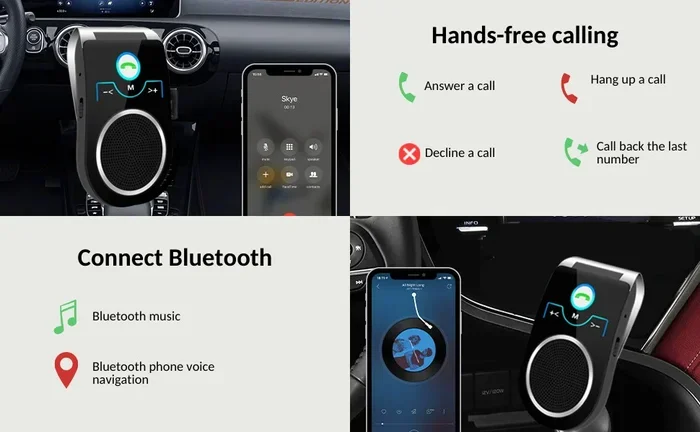
- Aftermarket Bluetooth adapters: If your car is older, a Bluetooth FM transmitter or a dedicated AUX-Bluetooth adapter can bypass built-in Bluetooth issues entirely.
- Professional auto electronics shops: They can repair or replace the car’s head unit if needed.
Do not ignore persistent Bluetooth issues. A faulty Bluetooth module can affect other wireless features in your car.
Final Thoughts on Reconnecting Bluetooth in Your Car
Reconnecting your phone to Bluetooth in your car is a simple process once you know the steps. Start with the quick fixes: toggle Bluetooth, restart devices, and delete old pairings. If those fail, follow the detailed step-by-step guide for your phone type. Keep your software updated and avoid interference to maintain a strong connection. Most importantly, do not panic when Bluetooth drops. It almost always has a simple solution. Apply the tips in this guide, and you will enjoy hands-free calling and music streaming without interruptions. Safe driving!
Frequently Asked Questions
Why won’t my phone connect to my car Bluetooth even after resetting?
Sometimes the car’s Bluetooth memory is full or corrupted. Try deleting all paired devices from the car stereo and then restart both the car and your phone. If it still fails, check for a software update on your car’s infotainment system. A firmware update often fixes stubborn connection issues.
Can I reconnect Bluetooth in my car while driving?
It is not safe to fiddle with settings while driving. Pull over to a safe spot before attempting to reconnect. Many cars allow you to reconnect automatically if you turn on Bluetooth before starting the engine. Make it a habit to pair your phone before you start the car.
How do I stop my phone from disconnecting from car Bluetooth frequently?
Keep your phone software updated and avoid having too many Bluetooth devices active. Place your phone in a mount near the center console. Also, disable Bluetooth on devices you are not using, like smartwatches, to reduce interference. A stable connection comes from minimizing wireless clutter.
Is there a way to reconnect Bluetooth without losing my saved playlists?
Yes. Reconnecting Bluetooth does not delete anything from your phone. Your playlists, contacts, and call history stay intact. The Bluetooth connection only controls audio routing and hands-free calling. You can safely reconnect as many times as you need without any data loss.
What should I do if my car’s Bluetooth only connects for calls but not music?
This usually means the car stereo is set to “Phone Audio” only. Go to the car’s Bluetooth settings and look for an option to enable “Media Audio” or “Audio Streaming.” Toggle it on. If it is already on, toggle it off and back on. This often restores music streaming over Bluetooth.
Do I need to buy a new Bluetooth adapter if my car Bluetooth stops working?
Not necessarily. Try all the software fixes first. If the Bluetooth module is truly broken, you have two options. You can get the car’s head unit repaired or replaced. Alternatively, a Bluetooth FM transmitter or a standalone AUX-Bluetooth adapter is a cheap and easy workaround that works with any car.