How Do I Make My iPhone Discoverable for Quick Sharing
Making your iPhone discoverable is the first step to sharing files, connecting to your car, and using quick features like AirDrop. Whether you want to pair with Apple CarPlay, send photos to a friend, or share your location in the car, your iPhone needs to be visible to other devices. This guide walks you through every method, setting, and troubleshooting tip to keep your iPhone discoverable and ready for fast, seamless sharing.
Key Takeaways
- Bluetooth and Wi-Fi are key: Both need to be turned on to make your iPhone discoverable for most car and device connections.
- AirDrop is the fastest sharing tool: Setting AirDrop to “Everyone” or “Contacts Only” makes your iPhone instantly visible for quick file transfers.
- Apple CarPlay requires discoverability: Your iPhone must be discoverable for wireless CarPlay to work smoothly in your car.
- Restart and reset settings if troubleshooting fails: A simple restart or network reset often fixes discoverability issues fast.
- Proximity matters: Keep your iPhone within Bluetooth range (about 30 feet) for reliable discoverability.
- iOS updates fix bugs: Keeping your iPhone updated ensures the best compatibility with cars and sharing features.
📑 Table of Contents
- How Do I Make My iPhone Discoverable for Quick Sharing?
- What Does It Mean to Make Your iPhone Discoverable?
- How to Make Your iPhone Discoverable via Bluetooth
- How to Make Your iPhone Discoverable with AirDrop
- How to Make Your iPhone Discoverable for Apple CarPlay
- How to Make Your iPhone Discoverable for Quick Share and Handoff
- Troubleshooting iPhone Discoverability Issues
- Expert Tips for Keeping Your iPhone Discoverable
- Why iPhone Discoverability Matters for Quick Sharing
- Conclusion
How Do I Make My iPhone Discoverable for Quick Sharing?
Have you ever tried to share something from your iPhone and nothing happened? Maybe your car wouldn’t detect your phone. Or perhaps AirDrop just sat there spinning with no results. The culprit is almost always the same — your iPhone wasn’t discoverable.
Making your iPhone discoverable is simple once you know where to look. It’s not just one toggle. It’s a mix of settings that work together to make your phone visible to other devices nearby. This guide covers everything you need. From Bluetooth pairing to AirDrop settings to Apple CarPlay connections, you’ll find clear steps and real-world tips.
Whether you’re trying to connect your phone to your car’s infotainment system or share a playlist with a passenger, this article has you covered. Let’s dive in.
What Does It Mean to Make Your iPhone Discoverable?
When your iPhone is discoverable, it means other devices can see it and connect to it. Think of it like waving hello in a crowded room. Your phone sends out a signal that says, “Hey, I’m here! Come connect.”
This works through Bluetooth, Wi-Fi, and AirDrop. Each one serves a different purpose. Bluetooth handles connections to cars, earbuds, and speakers. AirDrop handles fast file sharing between Apple devices. And Wi-Fi powers features like wireless CarPlay and iCloud sharing.
Here’s the thing many people miss. Discoverability isn’t always on by default. Your iPhone hides itself to save battery and protect your privacy. So you need to turn it on manually for the type of sharing you want.
How to Make Your iPhone Discoverable via Bluetooth
Bluetooth is the most common way to make your iPhone discoverable. This is how you connect to your car, wireless headphones, and smart home devices. Here’s exactly how to do it.
Step-by-Step Bluetooth Discovery
- Open Settings on your iPhone.
- Tap Bluetooth at the top of the screen.
- Toggle Bluetooth ON if it’s off. The switch turns green.
- Wait a few seconds. Your iPhone will start scanning for nearby devices.
- Look for your device in the list under “Other Devices.”
- Tap the device name to pair.
Once paired, your iPhone will automatically connect when Bluetooth is on and you’re in range. But if you want a new device to find you, your iPhone needs to be actively searching. That’s the discoverable state.
Quick Tips for Bluetooth Discoverability
- Keep your iPhone within 30 feet of the device you’re pairing with. Bluetooth range is limited.
- Turn Bluetooth off and back on if your iPhone isn’t showing up. This forces a fresh scan.
- Make sure the other device is in pairing mode too. Many car systems and speakers need to be set to “Discoverable” as well.
- Remove old pairings you don’t use. Go to Settings > Bluetooth > tap the “i” icon > “Forget This Device.” This clears clutter and prevents connection conflicts.
Why Bluetooth Discovery Fails (and How to Fix It)
Sometimes your iPhone just won’t show up. Here are the most common reasons and fixes.
- Airplane Mode is on. This disables all wireless connections. Swipe down from the top right corner and make sure the airplane icon is off.
- Your iPhone is low on battery. Low power mode can reduce Bluetooth performance. Charge your phone to at least 20%.
- The other device is full. Many car systems and speakers can only store a limited number of paired devices. Delete old ones to make room.
- Software needs updating. Go to Settings > General > Software Update. Install any pending updates.
How to Make Your iPhone Discoverable with AirDrop
AirDrop is the fastest way to share photos, videos, contacts, and links between Apple devices. But for AirDrop to work, your iPhone must be discoverable. Here’s how to set it up.
Turning on AirDrop
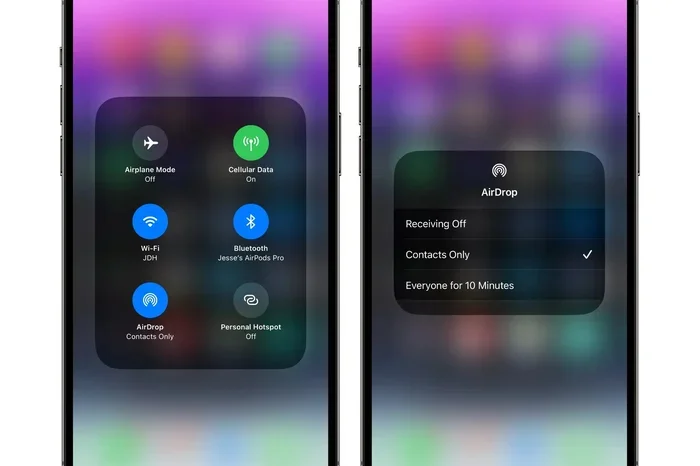
- Open Control Center. Swipe down from the top right corner of your screen.
- Press and hold the network settings card. This is the area with Wi-Fi and Bluetooth icons.
- Tap the AirDrop icon.
- Choose your visibility:
- Receiving Off: No one can see your iPhone.
- Contacts Only: Only people in your contacts list can send you files.
- Everyone: Any nearby Apple device can see and send to you.
For quick sharing in the car or with friends, “Everyone” works best. Just remember to switch back to “Contacts Only” or “Receiving Off” when you’re done. This keeps your iPhone private.
AirDrop Tips for Car Sharing
- Make sure both devices have Wi-Fi and Bluetooth turned on. AirDrop uses both to create a direct peer-to-peer connection.
- Turn off Personal Hotspot if it’s on. It can interfere with AirDrop discovery.
- Keep the devices close. AirDrop works best within about 30 feet.
- Use AirDrop to share maps and directions with passengers. Just tap the Share button in Maps and select AirDrop.
How to Make Your iPhone Discoverable for Apple CarPlay
Apple CarPlay is one of the biggest reasons people want their iPhone to be discoverable. CarPlay lets you use your phone’s features on your car’s screen safely. But for it to work, your iPhone needs to be visible to your car’s system.
Wireless CarPlay Discoverability
Wireless CarPlay uses Bluetooth and Wi-Fi to connect without a cable. Here’s how to make it work.
- Go to Settings > General > CarPlay.
- Tap your car’s name when it appears.
- Make sure “Show CarPlay on Lock Screen” is turned on.
- On your car’s infotainment screen, select CarPlay.
- Your iPhone will appear as a discoverable device. Tap it to connect.
Once connected, your iPhone stays discoverable as long as Bluetooth and Wi-Fi are on and you’re in range. You can now make calls, send messages, play music, and use navigation — all from your car’s screen.
Wired CarPlay Discoverability
If you use a cable, discoverability is simpler. Just plug your iPhone into your car’s USB port. The car should detect it automatically. If it doesn’t:
- Try a different USB cable. Some cables only charge and don’t transfer data.
- Try a different USB port in your car.
- Unlock your iPhone. A locked phone may not connect to CarPlay.
- Go to Settings > General > CarPlay > Available Cars. Tap your car and set it as trusted.
How to Make Your iPhone Discoverable for Quick Share and Handoff
Apple has built-in features that rely on your iPhone being discoverable. Two of the most useful are Quick Share (now called “Share via AirDrop” on iOS) and Handoff.
Using Handoff to Share Across Devices
Handoff lets you start something on one Apple device and pick it up on another. For example, you can start writing an email on your iPhone and finish it on your Mac. For this to work:
- Go to Settings > General > AirPlay & Handoff.
- Turn on Handoff.
- Make sure Bluetooth and Wi-Fi are on.
Now your iPhone is discoverable by your other Apple devices. You’ll see a small icon in your Dock on Mac or in the app switcher on iPad.
Quick Share and Universal Clipboard
The Universal Clipboard lets you copy text on your iPhone and paste it on your Mac or iPad. This also requires your iPhone to be discoverable. Just make sure all devices are signed into the same iCloud account and have Bluetooth and Wi-Fi enabled.
For quick sharing in the car, you can copy a location on your iPhone and paste it into your car’s search bar if both support Universal Clipboard over CarPlay.
Proximity Sharing and iCloud
Apple uses proximity-based sharing to detect nearby devices. This powers features like AirDrop, Handoff, and even iCloud sharing of photos and files. To keep these working smoothly:
- Keep your Apple ID signed in across all devices.
- Use the same Wi-Fi network when possible.
- Enable Two-Factor Authentication for your Apple ID to keep sharing secure.
Troubleshooting iPhone Discoverability Issues
Even when you follow all the steps, sometimes your iPhone just won’t be discoverable. Don’t worry — this is common and usually easy to fix.
Common Problems and Solutions
| Problem | Solution |
|---|---|
| iPhone doesn’t show up in Bluetooth list | Restart Bluetooth or restart your iPhone entirely |
| AirDrop won’t find nearby devices | Check that both devices have Wi-Fi and Bluetooth on and AirDrop set to “Everyone” |
| CarPlay won’t connect | Try a different cable, unlock your iPhone, and reset network settings |
| Handoff isn’t working | Make sure Handoff is enabled and all devices use the same Apple ID |
| iPhone keeps disconnecting | Move closer to the device, remove interference from other Bluetooth devices, and update iOS |
Reset Network Settings
If nothing else works, resetting your network settings often solves discoverability problems. Go to Settings > General > Transfer or Reset iPhone > Reset > Reset Network Settings. This clears all saved Wi-Fi passwords, Bluetooth pairings, and VPN settings. You’ll need to reconnect everything, but it fixes most stubborn issues.
Update Your iPhone
Apple regularly releases iOS updates that fix bugs and improve Bluetooth and Wi-Fi performance. Keeping your iPhone updated is one of the easiest ways to maintain reliable discoverability. Go to Settings > General > Software Update and install any available updates.
Expert Tips for Keeping Your iPhone Discoverable
Here are some pro tips from people who use these features every day. Follow these habits and you’ll rarely run into discoverability problems.
Quick Tips
- Create a Shortcut. Use the Shortcuts app to create a “Sharing Mode” shortcut that turns on Bluetooth, Wi-Fi, and sets AirDrop to “Everyone” with one tap.
- Use the Control Center. Swipe down from the top right to quickly toggle Bluetooth and AirDrop without digging through Settings.
- Name your devices clearly. In Bluetooth settings, rename your car or speaker to something recognizable so you don’t pair with the wrong device.
- Turn on “Show Previews.” In AirDrop settings, enabling previews helps you confirm you’re sending to the right person.
- Restart your iPhone weekly. A regular restart clears temporary glitches that can affect Bluetooth and Wi-Fi discovery.
Common Mistakes to Avoid
- Don’t leave AirDrop on “Everyone” forever. This opens you up to unwanted file transfers. Switch it back after you’re done sharing.
- Don’t ignore low battery warnings. A dying iPhone will reduce Bluetooth range and may stop being discoverable entirely.
- Don’t pair in crowded areas. Busy places like airports or malls have many Bluetooth signals. This can cause your iPhone to connect to the wrong device.
- Don’t skip iOS updates. Older versions of iOS have known bugs with Bluetooth discovery that are fixed in newer releases.
Why iPhone Discoverability Matters for Quick Sharing
At its core, making your iPhone discoverable is about convenience. It removes friction from sharing. You’re in the car, you want to send a song to the passenger’s iPhone — one tap and it’s done. You’re at a rest stop, and you want to share a map — AirDrop handles it instantly.
In the automotive world, discoverability is everything. Your car needs to find your phone. Your phone needs to find the car. When both sides are set up correctly, the connection is seamless. You get navigation on the big screen, hands-free calling, and music streaming without ever touching your phone.
The same applies to sharing with friends and family. Whether it’s AirDrop photos after a road trip or sharing a playlist during a long drive, discoverability makes it all possible in seconds.
Take a few minutes right now to check your settings. Turn on Bluetooth, set AirDrop to your preferred level, and make sure CarPlay is ready. Once these are in place, your iPhone will always be ready to share — exactly when you need it most.
Stay connected. Stay sharing. And enjoy the ride with a iPhone that’s always discoverable and always ready.
Conclusion
Making your iPhone discoverable for quick sharing is easier than most people think. The key is understanding which settings control visibility for different types of connections. Bluetooth handles car and accessory pairing. AirDrop handles fast file sharing between Apple devices. And CarPlay brings your phone’s features to your car’s screen.
Follow the steps in this guide, keep your iOS updated, and use the troubleshooting tips when needed. You’ll never struggle to connect again. Your iPhone will be ready to share — anytime, anywhere.
Frequently Asked Questions
Why won’t my iPhone show up as discoverable on Bluetooth?
Your iPhone may not be discoverable if Bluetooth is off, Airplane Mode is on, or the other device is out of range. Try turning Bluetooth off and back on, restarting your iPhone, or moving closer to the device you’re trying to pair with.
How do I make AirDrop discoverable on my iPhone?
Open Control Center, press and hold the network settings card, and tap the AirDrop icon. Choose “Everyone” or “Contacts Only” to make your iPhone visible to nearby Apple devices for quick sharing.
Can I make my iPhone discoverable for wireless CarPlay?
Yes. Go to Settings > General > CarPlay and make sure your car is set up. Both Bluetooth and Wi-Fi must be on for wireless CarPlay discovery. Your iPhone will appear on your car’s screen when it’s in range.
What should I do if my iPhone keeps losing discoverability?
This is often caused by low battery, outdated software, or too many saved Bluetooth pairings. Restart your iPhone, update iOS, and forget old devices in your Bluetooth settings to fix the issue.
Is it safe to set AirDrop to Everyone for quick sharing?
It’s safe for short periods when you need fast sharing. However, always switch back to “Contacts Only” or “Receiving Off” afterward. This prevents strangers from sending you unwanted files and keeps your iPhone secure.
Do I need Wi-Fi on for AirDrop to work?
Yes. AirDrop uses both Wi-Fi and Bluetooth to create a direct connection. Even if you’re not connected to a Wi-Fi network, Wi-Fi must be turned on for AirDrop discovery to work properly.