How Do I Connect Apple CarPlay to My Toyota Sienna
Connecting Apple CarPlay to your Toyota Sienna is simple once you know the right steps. Whether you use a USB cable or go wireless, this guide walks you through the entire process. You will learn setup, troubleshooting, and pro tips to get the most out of your Toyota infotainment system.
There is something really satisfying about tapping into your iPhone on the big screen in your Toyota Sienna. Apple CarPlay brings your favorite apps, maps, music, and messages right to the center console. It makes every drive feel smarter and safer. If you have been wondering how to get it working in your Sienna, you are in the right place.
This guide covers everything you need to know about Apple CarPlay Toyota Sienna setup. We will walk through wired and wireless methods, troubleshoot common problems, and share tips you will actually use. Whether you drive a 2021 model or the latest 2024 Sienna, this guide has you covered.
Let us get started. By the end, you will be streaming Spotify, navigating with Google Maps, and sending texts hands-free. No guesswork. No frustration. Just clear steps that work.
Key Takeaways
- Apple CarPlay works on most Toyota Sienna models from 2021 onward with both wired and wireless options depending on your trim level.
- A compatible USB cable is essential for wired connections, while wireless CarPlay requires a stable Wi-Fi connection through the Toyota multimedia system.
- Common CarPlay issues can often be fixed with a simple reset of the infotainment system or by updating your iPhone software.
- Siri voice commands work seamlessly with CarPlay to keep your hands on the wheel and eyes on the road.
- Toyota Sienna tech features extend beyond CarPlay, including keyless entry and smart key systems that integrate with your iPhone.
📑 Table of Contents
- What Is Apple CarPlay and Why It Matters in the Toyota Sienna
- What You Need Before Connecting Apple CarPlay
- Step-by-Step: How to Connect Apple CarPlay to Your Toyota Sienna
- Troubleshooting Common Apple CarPlay Connection Issues
- Apple CarPlay Tips and Tricks for Toyota Sienna Owners
- Apple CarPlay vs. Other Toyota Sienna Infotainment Options
- Keeping Your Toyota Sienna’s Tech Running Smoothly
- Conclusion
What Is Apple CarPlay and Why It Matters in the Toyota Sienna
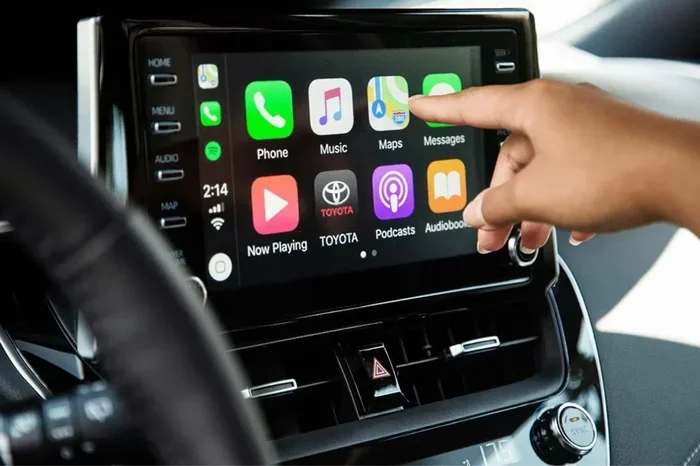
Apple CarPlay is a bridge between your iPhone and your car. It projects a simplified version of your iPhone interface onto your Toyota Sienna’s touchscreen. You get access to calls, messages, music, and navigation without touching your phone directly.
The Toyota Sienna comes equipped with a capable Toyota multimedia system that supports CarPlay. This is especially helpful for families. Parents can navigate to soccer practice, play audiobooks for the kids, and take calls all while keeping their focus on the road. The large center screen in the Sienna makes CarPlay particularly enjoyable to use.
Here is why CarPlay matters so much in a family van like the Sienna:
- Safety first — Siri voice commands let you keep your eyes on the road.
- Familiar interface — You already know how your iPhone works, so there is no learning curve.
- Seamless integration — Your contacts, playlists, and favorites appear instantly.
- Hands-free calling and messaging — Perfect for carpooling with the family.
What You Need Before Connecting Apple CarPlay
Before you plug in or pair, make sure you have everything ready. The setup process is smooth when you are prepared. Here is what you need:
Compatible iPhone
Apple CarPlay works with iPhones running iOS 7.1 or later. In practice, you will want at least an iPhone 8 or newer for the best experience. Make sure your iPhone is updated to the latest iOS version before attempting to connect. This alone fixes many connection issues.
The Right Cable (for Wired Connection)
If you are using a wired setup, you need a Lightning to USB cable or a USB-C cable depending on your iPhone model. Not all cables are created equal. A cheap, low-quality cable can cause connection drops and frustration. Use a certified Apple cable or a high-quality MFi-certified cable for reliable performance.
Toyota Sienna Model Compatibility
Most Toyota Sienna models from 2021 onward support Apple CarPlay. Earlier models may also support it depending on the trim and optional tech package. Check your owner’s manual if you are unsure. The wireless version of CarPlay typically requires the Toyota Multimedia system with the JBL audio upgrade or similar higher-end trim.
Wi-Fi for Wireless CarPlay
Wireless Apple CarPlay needs a stable Wi-Fi connection between your iPhone and the Sienna’s system. Both devices must be on the same network or connected via Bluetooth pairing. Make sure Wi-Fi is turned on in your iPhone settings before you start.
Step-by-Step: How to Connect Apple CarPlay to Your Toyota Sienna
Now for the part you have been waiting for. Here are the detailed steps for both wired and wireless connections. Follow along and you will be up and running in minutes.
Method 1: Wired Apple CarPlay Connection
This is the most reliable method and works on nearly every Sienna model.
- Start your Toyota Sienna and make sure the engine is running.
- Plug your iPhone into the USB port located in the center console or armrest area.
- Wait a few seconds for the Toyota multimedia system to recognize your phone.
- You should see the CarPlay icon appear on the screen. Tap it.
- If prompted, unlock your iPhone and tap “Trust” on the security prompt.
- Your CarPlay home screen will appear. You are now connected.
Quick Tip: If nothing happens after plugging in, try a different USB port. Some Sienna models have multiple ports, and one may work better than the other. Also, make sure your cable is not damaged or frayed.
Method 2: Wireless Apple CarPlay Connection
Wireless CarPlay is available on newer Sienna trims with the updated infotainment system. It is incredibly convenient because you never need to plug in a cable.
- Start your Toyota Sienna and ensure the touchscreen is active.
- Go to Settings on your iPhone and select General, then CarPlay.
- Your Sienna should appear as a available vehicle. Tap on it.
- Follow any on-screen prompts on both your iPhone and the Sienna display.
- Once paired, CarPlay will automatically connect whenever you start the car.
Pro Tip: If your Sienna does not show up in the CarPlay settings on your iPhone, make sure Bluetooth and Wi-Fi are both enabled. Wireless CarPlay relies on both technologies working together.
Setting Apple CarPlay as Your Default Display
Once connected, you may want to set CarPlay as your default screen. In the Toyota multimedia settings, look for an option to set CarPlay as the primary display mode. This way, it will automatically launch when you start the engine. Some Sienna models do this by default, while others require you to change the setting once.
Troubleshooting Common Apple CarPlay Connection Issues
Even with the best setup, you may run into hiccups. CarPlay connection problems are common but usually easy to fix. Here are the most frequent issues and their solutions.
CarPlay Is Not Showing Up on the Screen
This is the most common complaint. Try these steps in order:
- Restart your iPhone by holding the power button and sliding to power off.
- Restart the Toyota infotainment system by holding the power button on the touchscreen for about 10 seconds.
- Try a different USB cable or a different USB port in your Sienna.
- Make sure CarPlay is enabled in your iPhone settings under General.
CarPlay Disconnects Frequently
If your connection keeps dropping, the issue is often related to the cable or Wi-Fi stability. For wired connections, replace the cable first. For wireless connections, make sure nothing else is interfering with the Wi-Fi signal. If problems persist, a factory reset of the infotainment system can help. You can learn more about resetting Toyota systems in our guide on how to factory reset Hybrid Connect, which covers similar reset procedures for Toyota multimedia systems.
Siri Is Not Responding Through CarPlay
Make sure Siri is enabled in your iPhone settings. Go to Settings, then Siri & Search, and toggle on all the relevant options. Also check that your iPhone is not on silent mode, as this can prevent voice prompts from working through CarPlay.
CarPlay Works but the Screen Is Frozen or Laggy
This usually happens when too many apps are running in the background. Close all apps on your iPhone before connecting. Also make sure your iPhone has enough storage space. A nearly full iPhone can slow down CarPlay performance significantly.
When to Seek Professional Help
If none of the above fixes work, there may be a deeper issue with your Toyota’s multimedia system or your iPhone’s hardware. In this case, it is worth visiting a Toyota dealership or a qualified auto electronics specialist. If you are also dealing with other Toyota tech questions, check out our article on driving a Toyota without a key fob for insights into Toyota’s smart key technology that works alongside CarPlay.
Apple CarPlay Tips and Tricks for Toyota Sienna Owners
Once you have CarPlay working, a few tweaks can make the experience even better. Here are tips that real Sienna owners swear by.
Use Siri for Hands-Free Everything
Press and hold the CarPlay voice button on your steering wheel to activate Siri. You can say things like “Call Mom,” “Play my workout playlist,” or “Navigate to the nearest gas station.” This is incredibly useful when you have kids in the backseat and need to keep your hands on the wheel.
Customize Your CarPlay Home Screen
You can rearrange your CarPlay apps by going to Settings on your iPhone. Drag and drop to put your most-used apps front and center. This includes Maps, Music, Messages, Podcasts, and any third-party apps you love.
Keep Your iPhone Software Updated
Apple regularly releases iOS updates that improve CarPlay performance and fix bugs. Check for updates at least once a month to ensure smooth operation. This is especially important after a major iOS release.
Use the USB-C Port If Available
Newer Toyota Sienna models come with USB-C ports. If your iPhone uses USB-C (iPhone 15 and newer), use a USB-C to USB-C cable for the fastest and most stable connection. USB-A to USB-C cables work too but may be slightly slower.
Take Advantage of Wireless Charging
If your Sienna has wireless charging, you can charge your iPhone while using wireless CarPlay. This eliminates cable clutter and keeps your phone powered on long road trips. Just make sure your phone case is not too thick, as it can interfere with wireless charging.
Explore Compatible Apps
CarPlay supports a wide range of apps beyond the basics. Popular options include Spotify, Pandora, Waze, WhatsApp, and iHeartRadio. Download any apps you use regularly before connecting so they appear on your CarPlay home screen.
Apple CarPlay vs. Other Toyota Sienna Infotainment Options
Toyota Sienna owners have a few ways to access their phone’s features while driving. Here is how CarPlay compares to other options.
| Feature | Apple CarPlay | Android Auto | Toyota Entune |
|---|---|---|---|
| iPhone Compatibility | Full support | Not supported | Limited |
| Android Compatibility | Not supported | Full support | Limited |
| Wireless Option | Yes (newer models) | Yes | No |
| Siri Voice Commands | Yes | No | No |
| App Selection | Large | Large | Limited |
| Ease of Setup | Very Easy | Very Easy | Moderate |
Apple CarPlay is the clear winner for iPhone users in the Toyota Sienna. It offers the most seamless and feature-rich experience. If you are an Android user, Android Auto is a great alternative. Toyota Entune provides basic built-in features but does not match the flexibility of either smartphone projection system.
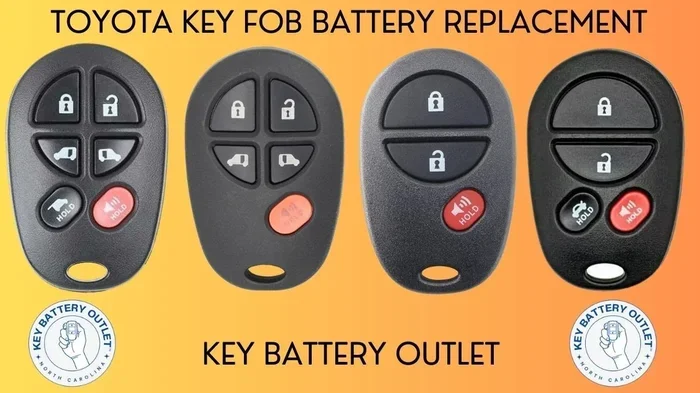
For those who also use smart key features in their Sienna, it is worth noting that Toyota’s smart key system works independently of CarPlay. If you are curious about how Toyota’s key fob features work with the Sienna, check out our guide on rolling down windows with your Toyota key fob for more details on the Sienna’s smart key capabilities.
Keeping Your Toyota Sienna’s Tech Running Smoothly
Apple CarPlay is just one part of your Toyota Sienna’s technology suite. To keep everything running well, follow these general maintenance tips.
- Update your infotainment system when Toyota releases updates. These often improve CarPlay compatibility and performance.
- Keep your USB ports clean and free of dust or debris. Dirty ports cause connection issues.
- Restart your system regularly — once a month is a good habit.
- Use original or certified cables to avoid connectivity problems.
Taking care of the tech in your Sienna pays off in the long run. A well-maintained infotainment system means fewer headaches and a better driving experience every single day.
Conclusion
Connecting Apple CarPlay to your Toyota Sienna is a straightforward process that transforms your driving experience. Whether you choose the wired or wireless method, you will enjoy safer hands-free communication, familiar apps on the big screen, and a more enjoyable ride for the whole family.
If you run into issues, remember that most problems have simple fixes. Restart your devices, try a different cable, or update your software. And for more Toyota Sienna tips and guides, explore our other articles on Toyota technology and maintenance. The goal is to make your Sienna work smarter for you. Now go enjoy that CarPlay setup and make every drive a little more connected.