Does Mazda 3 Have Apple CarPlay Everything You Need
Yes, the Mazda 3 supports Apple CarPlay, but the exact features depend on your model year and trim level. Whether you drive a 2024 Mazda 3 or an older model, this guide covers everything from setup to troubleshooting. Apple CarPlay on the Mazda 3 brings seamless smartphone integration, making calls, streaming music, and using navigation safer and easier on every drive.
Does your Mazda 3 play nice with your iPhone? That is the question a lot of drivers ask, and Apple CarPlay is the answer for many of them. This handy feature lets you use your phone’s best apps right on your car’s screen. It makes driving safer and more fun at the same time.
The Mazda 3 is one of the most popular compact sedans on the road. It is known for its sporty looks, great fuel economy, and solid build quality. But when it comes to smart tech features, people want to know the details. Does the Mazda 3 have Apple CarPlay, and if so, how does it work?
In this guide, we will walk you through everything you need to know. We will cover which model years support it, how to set it up, and what to do if things go wrong. By the end, you will feel confident about your Mazda 3’s tech capabilities.
Key Takeaways
- Apple CarPlay is available on most Mazda 3 models, especially 2019 and newer trims.
- Wireless Apple CarPlay is offered on higher trims, while base models may require a USB cable.
- Setting up Apple CarPlay on the Mazda 3 is straightforward and takes only a few minutes.
- Not all Mazda 3 model years come with Apple CarPlay, so check your specific year.
- Troubleshooting tips can fix common Apple CarPlay issues like freezing or disconnection.
- Android Auto is also available on select Mazda 3 trims as an alternative.
- Keeping your Mazda 3 software updated ensures the best Apple CarPlay experience.
📑 Table of Contents
- What Is Apple CarPlay and Why Does It Matter?
- Does the Mazda 3 Have Apple CarPlay?
- Which Mazda 3 Model Years Support Apple CarPlay?
- How to Set Up Apple CarPlay on Your Mazda 3
- Common Apple CarPlay Issues and How to Fix Them
- Tips to Get the Most Out of Apple CarPlay in Your Mazda 3
- Does Apple CarPlay Drain Your Car Battery?
- How Apple CarPlay Compares to Other Car Connectivity Options
- Can You Get Apple CarPlay Added to an Older Mazda 3?
- Maintaining Your Mazda 3’s Tech Features
- Expert Tips for Mazda 3 Owners Using Apple CarPlay
- Final Thoughts
What Is Apple CarPlay and Why Does It Matter?
Apple CarPlay is Apple’s smartphone integration system for cars. It mirrors key iPhone features onto your car’s infotainment screen. You can make calls, send messages, listen to music, and get directions without picking up your phone.
The system is designed with driver safety in mind. It uses a simplified interface that is easy to read and navigate. Siri voice commands let you keep your eyes on the road and hands on the wheel. This is a big deal for anyone who relies on their phone daily.
How Apple CarPlay Works in Practice
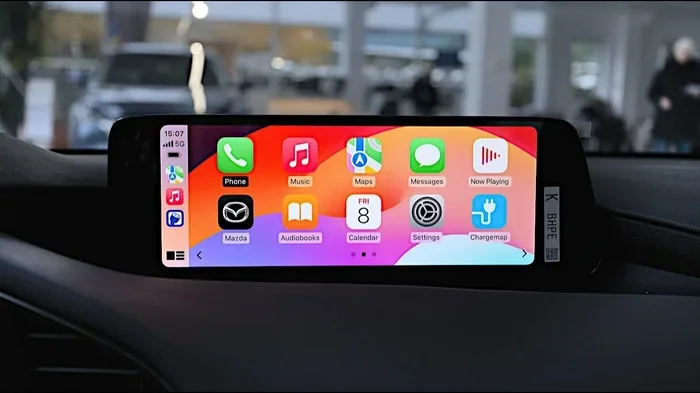
Once connected, your Mazda 3’s screen shows a few key apps. You get Phone, Messages, Music, Maps, and a few others. The layout is clean and intuitive. You can tap icons or use voice commands to access what you need.
For example, you can say “Hey Siri, play my running playlist.” Or you can say “Hey Siri, navigate to the nearest gas station.” The system responds quickly and keeps things hands-free. This makes the driving experience much smoother and safer.
Does the Mazda 3 Have Apple CarPlay?
The short answer is yes. The Mazda 3 does have Apple CarPlay on most model years and trim levels. But the details matter. Not every Mazda 3 comes with the same tech package.
Here is what you need to know about Apple CarPlay on the Mazda 3:
- 2019 and newer Mazda 3 models generally support Apple CarPlay.
- Base models may require a USB cable connection.
- Higher trims like the Premium and Grand Touring often offer wireless Apple CarPlay.
- 2018 and older models may not support Apple CarPlay at all.
- Some trims offer Android Auto as an alternative or alongside CarPlay.
If you are shopping for a used Mazda 3, always check the infotainment system before buying. Ask the seller if Apple CarPlay is included. A quick test with your iPhone can tell you everything you need to know.
Which Mazda 3 Model Years Support Apple CarPlay?
Not every Mazda 3 year is created equal when it comes to tech features. Here is a breakdown of what to expect:
| Model Year | Apple CarPlay Support | Connection Type |
|---|---|---|
| 2019 | Yes | USB Cable |
| 2020 | Yes | USB or Wireless (higher trims) |
| 2021 | Yes | USB or Wireless |
| 2022 | Yes | USB or Wireless |
| 2023 | Yes | Wireless on most trims |
| 2024 | Yes | Wireless on most trims |
If you own a 2018 or older Mazda 3, you may need an aftermarket solution. Some adapters can add Apple CarPlay functionality to older infotainment systems. However, these can be hit or miss. It is always better to check with a Mazda dealer first.
Understanding Trim Levels and Tech Packages
Mazda organizes the 3 series into several trim levels. The base models come with a standard infotainment system. Higher trims add more features, including wireless Apple CarPlay. Here is a quick look:
- Base (2.5 S): Apple CarPlay via USB cable. Basic infotainment with a 7-inch screen.
- Preferred (2.5 Preferred): Apple CarPlay via USB. Slightly upgraded audio system.
- Premium (2.5 Premium): Wireless Apple CarPlay on most years. Larger screen and premium audio.
- Grand Touring: Full wireless Apple CarPlay. Bose audio and more premium features.
- Aspen Edition (2024): All the tech perks including wireless CarPlay.
When choosing a Mazda 3, think about how much you rely on your phone while driving. If you use navigation, music, and messaging daily, go for a trim with wireless Apple CarPlay. It makes a real difference in day-to-day driving.
How to Set Up Apple CarPlay on Your Mazda 3
Setting up Apple CarPlay on the Mazda 3 is simple. You do not need to be a tech expert. Here is a step-by-step guide that works for most model years.
Step 1: Check Your Infotainment System
Start your Mazda 3 and look at the infotainment screen. You should see a CarPlay icon or a smartphone symbol. If you do not see it, your model year or trim may not support it. In that case, check the owner’s manual or contact your dealer.
Step 2: Connect Your iPhone
For wired connections, plug your iPhone into the USB port. The USB port is usually in the center console or armrest. For wireless connections, make sure Bluetooth and Wi-Fi are turned on in your iPhone settings.
Step 3: Follow the On-Screen Prompts
Your Mazda 3 screen will prompt you to allow CarPlay. Tap “Allow” on both the car screen and your iPhone. The system will sync your apps and settings automatically.
Step 4: Start Using Apple CarPlay
Once connected, you can access Phone, Messages, Music, and Maps. Use the touchscreen or steering wheel controls to navigate. Siri voice commands work great for hands-free use.
Common Apple CarPlay Issues and How to Fix Them
Even with the best setup, Apple CarPlay can sometimes act up. Here are the most common problems Mazda 3 owners face and how to solve them.
CarPlay Won’t Connect
This is the most common issue. Try these fixes first:
- Unplug and replug your USB cable.
- Restart your iPhone and the Mazda 3 infotainment system.
- Make sure your iPhone is running the latest iOS version.
- Check that CarPlay is enabled in iPhone settings under General.
CarPlay Keeps Disconnecting
If your connection drops often, the USB cable might be faulty. Try a different cable or a different USB port. For wireless connections, clearing the Bluetooth cache can help. You can also try resetting the Mazda 3’s infotainment system.
Audio or Maps Not Working Properly
Sometimes CarPlay connects but certain features do not work. Check your app permissions in iPhone settings. Make sure the apps have access to location services and notifications. Also, check that your Mazda 3 software is up to date.
Tips to Get the Most Out of Apple CarPlay in Your Mazda 3
Want to make the most of your Apple CarPlay Mazda 3 experience? Here are some practical tips:
- Use a high-quality USB cable. Cheap cables cause connection problems. Invest in a certified Lightning or USB-C cable.
- Keep your iPhone and Mazda software updated. Updates fix bugs and improve compatibility.
- Use Siri for hands-free control. This keeps your eyes on the road and hands on the wheel.
- Organize your CarPlay apps. Only keep the apps you actually use. This keeps the screen clean and easy to navigate.
- Check your Mazda 3’s infotainment manual. It has specific tips for your model year and trim.
Does Apple CarPlay Drain Your Car Battery?
A common concern among car owners is whether Apple CarPlay drains the car battery. The short answer is it can, but usually not in a problematic way. When your iPhone is connected via USB, it draws a small amount of power from the car.
If you leave CarPlay connected for hours with the engine off, it can drain the battery. This is true for any USB-connected device. The best practice is to disconnect your iPhone when the car is parked for long periods.
If you are worried about battery drain, wireless Apple CarPlay is a good option. It uses less power than a wired connection because it does not draw current through a cable. Still, it is smart to turn off Bluetooth when you are not using it for extended periods.
If you ever find yourself with a dead battery, services like Does Walmart Replace Car Batteries can help you get back on the road quickly.
How Apple CarPlay Compares to Other Car Connectivity Options
Apple CarPlay is not the only way to connect your phone to your car. Here is how it stacks up against other options:
- Bluetooth: Basic connectivity for calls and music. No screen mirroring or app access.
- Android Auto: Google’s version of CarPlay. Available on some Mazda 3 trims.
- Built-in Navigation: Mazda’s own GPS system works without a phone. But it may not be as updated as Google or Apple Maps.
- Aftermarket Adapters: Can add CarPlay to older cars but may not work as smoothly.
For most people, Apple CarPlay is the best option if you use an iPhone. It is reliable, easy to use, and keeps you connected safely.
Can You Get Apple CarPlay Added to an Older Mazda 3?
If your Mazda 3 is from 2018 or earlier, you might wonder about adding Apple CarPlay. The good news is there are some options:
- Aftermarket head units: You can replace the factory radio with an aftermarket unit that supports CarPlay. This is the most reliable method.
- Bluetooth CarPlay adapters: These small devices plug into your car’s system and add wireless CarPlay. They work well but can be pricey.
- Dealer upgrades: Some Mazda dealers offer software updates or hardware swaps for older models. Call your local dealer to ask.
Keep in mind that aftermarket solutions vary in quality. Some work great, while others can be glitchy. Read reviews and check compatibility before buying anything. If you are not comfortable with DIY installs, visit a professional installer or your Mazda dealer.
Maintaining Your Mazda 3’s Tech Features
Your Mazda 3 is an investment, and keeping its tech features in top shape matters. Regular maintenance goes a long way. Just like you would check your engine oil or tire pressure, keeping your infotainment system updated ensures the best experience.
Software Updates
Mazda releases software updates for the infotainment system from time to time. These updates can improve Apple CarPlay performance and fix bugs. Check with your dealer or visit the Mazda website for the latest updates.
Cleaning the Screen
The infotainment screen collects dust and fingerprints. Use a microfiber cloth to clean it gently. Avoid harsh chemicals that can damage the screen coating. A clean screen makes CarPlay easier to read and navigate.
Keeping Your USB Ports Clean
Dust and debris can build up in USB ports over time. This can cause connection issues with CarPlay. Use compressed air to gently clean the ports. A good connection means fewer headaches down the road.
Expert Tips for Mazda 3 Owners Using Apple CarPlay
Here are some insider tips from experienced Mazda 3 owners and tech experts:
- Set up your CarPlay apps before you drive. This saves time and keeps you focused on the road.
- Use the steering wheel controls. Most Mazda 3 models have buttons to answer calls and skip tracks without touching the screen.
- Enable “Do Not Disturb While Driving.” This works hand in hand with CarPlay to block distracting notifications.
- Pair your iPhone with Bluetooth for calls even when CarPlay is off. This gives you hands-free calling without needing the full CarPlay interface.
- If you are considering a Mazda 3 purchase, test the CarPlay system in person. Visit a dealer and bring your iPhone to make sure everything works smoothly for you.
For owners who want to keep their Mazda 3 running its best, regular service is key. Whether you handle basic maintenance yourself or visit a professional, staying on top of upkeep makes all the difference. If you ever wonder about where to get your Mazda serviced, check out Can I Get My Mazda Serviced Anywhere for helpful guidance on your options.
Final Thoughts
So, does the Mazda 3 have Apple CarPlay? The answer is a clear yes for most modern model years. Apple CarPlay on the Mazda 3 brings a level of convenience and safety that makes every drive better. Whether you use it for navigation, music, or hands-free calls, this feature is a game changer.
The key is knowing which trim and model year you have. Higher trims offer wireless connectivity, while base models may need a cable. Either way, the experience is solid and user-friendly.
If you run into issues, the troubleshooting tips above should help. And if your Mazda 3 is older, aftermarket options can still bring CarPlay to your dashboard. The bottom line is that the Mazda 3 and Apple CarPlay are a great match.
Take some time to explore your car’s tech features. Set up your favorite apps, get comfortable with Siri, and enjoy a smarter driving experience. Your Mazda 3 has a lot to offer, and Apple CarPlay is one of the best ways to unlock its full potential.
Frequently Asked Questions
Can I use Apple CarPlay wirelessly on a 2019 Mazda 3?
Wireless Apple CarPlay is generally available on higher trims of the 2019 Mazda 3. Base models may require a USB cable connection. Check your specific trim level to confirm wireless support.
Why does Apple CarPlay keep disconnecting on my Mazda 3?
Disconnections are often caused by a faulty USB cable or an outdated iOS version. Try a different cable, restart both your iPhone and the car’s infotainment system, and ensure your software is up to date. Clearing the Bluetooth cache can also help with wireless connections.
Can I use Apple CarPlay and Android Auto at the same time on a Mazda 3?
No, you cannot use both simultaneously. The Mazda 3 infotainment system allows you to switch between Apple CarPlay and Android Auto. You need to disconnect one and connect the other when switching.
Does Apple CarPlay work with iPhone SE and older iPhone models?
Yes, Apple CarPlay is compatible with iPhone SE and many older iPhone models. Your iPhone needs to be running a supported version of iOS. Check Apple’s website for the latest compatibility requirements.
Can I add Apple CarPlay to a 2017 Mazda 3?
The 2017 Mazda 3 does not have native Apple CarPlay support. However, you can add it through an aftermarket head unit or a Bluetooth CarPlay adapter. These solutions vary in quality, so research options carefully before purchasing.
Does Apple CarPlay use data on my phone?
Yes, Apple CarPlay uses data for apps like Maps and streaming music. Navigation apps consume data for route calculations and traffic updates. Music streaming also uses data unless you are connected to Wi-Fi. Keep an eye on your data usage if you use CarPlay frequently.