How Do I Reset My CD Drive And Get It Working Again
Resetting your CD drive is easier than most people think. Whether your disc drive is stuck, not reading discs, or showing error messages, this guide walks you through every fix step by step. You will learn software resets, hardware tricks, and preventive tips to keep your CD drive running smoothly for years.
Have you ever popped a CD into your drive only to hear silence or see an error message staring back at you? It is frustrating, right? A CD drive that refuses to work can throw a wrench into your day, especially when you need to listen to music, install software, or access important data stored on a disc.
The good news is that resetting your CD drive is usually a straightforward process. You do not need to be a tech expert to get it working again. In this guide, we will walk you through every method, from simple software resets to hardware fixes and everything in between. By the end, you will know exactly how to diagnose the problem and fix it yourself.
Whether your drive is stuck, not reading discs, or throwing random errors, this article has you covered. We will also share tips on preventing future problems so your disc drive stays in great shape. Let us dive in and get that CD drive working again.
Key Takeaways
- Soft Reset First: Most CD drive issues can be fixed with a simple software reset through Device Manager or Command Prompt.
- Check Your Connections: Loose cables or outdated drivers are the top causes of CD drive problems.
- Clean Before You Replace: A dirty lens or stuck disc is often the real culprit behind a malfunctioning drive.
- Know When To Replace: If the drive is physically damaged or too old, replacement is more cost-effective than repair.
- Prevent Future Issues: Regular cleaning and proper handling can extend your CD drive lifespan significantly.
- Try Multiple Methods: If one reset method fails, move to the next. Most users find success by the third or fourth approach.
📑 Table of Contents
Understanding Why Your CD Drive Stops Working
Before we jump into the reset methods, it helps to understand what might be causing the problem in the first place. CD drives are mechanical devices with moving parts, lasers, and software components. Any one of these can fail or malfunction over time.
Most CD drive issues fall into a few common categories. Understanding which category your problem fits into will help you choose the right fix.
Common Signs Your CD Drive Needs a Reset
How do you know your CD drive needs attention? Here are the most common signs:
- The disc tray will not open or close. This is one of the most obvious problems. The tray might be stuck halfway or refuse to move at all.
- The drive does not recognize discs. You insert a CD or DVD, but your computer acts like nothing is there.
- Error messages keep appearing. Messages like “Disc read error” or “Please insert a disc” even when a disc is already inside.
- Unusual noises. Clicking, grinding, or spinning sounds that were not there before are warning signs.
- The drive disappears from File Explorer. Your computer no longer shows the CD drive as an available device.
- Discs spin but do not read. The drive seems to try but cannot access the data on the disc.
If you are experiencing any of these issues, do not worry. Most of them can be resolved with a simple reset or minor troubleshooting.
What Causes CD Drive Malfunctions
Several factors can cause your CD drive to malfunction. Here are the most common culprits:
- Outdated or corrupted drivers. Your computer relies on drivers to communicate with hardware. When these become outdated or damaged, the drive stops working properly.
- Software conflicts. Sometimes a new program or update can interfere with how your system handles the CD drive.
- Dust and debris buildup. Over time, dust can accumulate on the laser lens, preventing it from reading discs correctly.
- Mechanical wear and tear. CD drives have moving parts that wear out over time, especially with frequent use.
- Scratched or damaged discs. A badly scratched disc can cause the drive to error out or refuse to read.
- Loose internal connections. The cable connecting the drive to your motherboard can become loose over time.
Now that you understand the common causes, let us move on to the actual reset methods. Start with the first one and work your way down until you find the fix that works for your situation.
How To Reset Your CD Drive Step by Step
There are several ways to reset a CD drive. We will cover the most effective methods, starting with the simplest and least invasive approaches. Each method is designed to be easy to follow, even if you are not very technical.
Method 1: Reset Through Device Manager
This is the most common and easiest way to reset your CD drive. Device Manager controls all the hardware connected to your computer, and you can use it to restart your disc drive with just a few clicks.
- Open Device Manager. Right-click on the Start button and select Device Manager from the menu.
- Find your CD drive. Look for the “DVD/CD-ROM Drives” section and click the arrow to expand it.
- Right-click on your drive. A menu will appear with several options.
- Select Uninstall Device. Click this option. A confirmation message may appear. Go ahead and confirm.
- Restart your computer. When your PC boots back up, Windows will automatically reinstall the CD drive driver.
This soft reset clears any software glitches that might be causing the problem. After the restart, check if your CD drive is working properly. If the tray opens and discs are recognized, you are all set.
Method 2: The Power Cycle Trick
Sometimes a simple power cycle is all it takes to reset your optical disc drive. This method works by completely cutting power to the drive, which resets its internal electronics.
- Close all open programs. Make sure no software is accessing the CD drive.
- Shut down your computer completely. Do not just put it to sleep. Fully power it off.
- Unplug the power cable. If you are using a desktop, unplug it from the wall. For laptops, remove the battery if possible.
- Press and hold the power button for 15 seconds. This drains any residual power from the system.
- Plug everything back in and turn on the computer.
Once your computer is back on, try inserting a CD or DVD. The power cycle often resolves temporary software glitches that prevent the drive from functioning correctly.
Method 3: Use Command Prompt to Reset the Drive
If the first two methods did not work, you can try using the Command Prompt to reset your CD drive. This method is a bit more technical but very effective.
- Open Command Prompt as Administrator. Click the Start button, type “cmd,” right-click on Command Prompt, and select Run as Administrator.
- Type the following command:
reg delete "HKCU\Software\Microsoft\Windows\CurrentVersion\Explorer\MountPoints2" /f - Press Enter. This command clears the registry entries related to drive mounting.
- Restart your computer. After the reboot, check if your CD drive is working.
This method clears out corrupted registry entries that might be preventing your drive from being recognized. It is safe to run and does not delete any personal files.
Method 4: Update or Reinstall the CD Drive Driver
Sometimes the problem is not a reset issue but a driver problem. Updating or reinstalling the driver can fix many CD drive issues.
- Open Device Manager again.
- Right-click on your CD drive and select Update Driver.
- Choose Search Automatically for Drivers. Windows will look for the latest driver online.
- If that does not work, uninstall the driver and restart. Windows will reinstall a fresh driver automatically.
You can also visit your computer manufacturer’s website and download the latest driver manually. This is especially helpful if Windows does not find an updated driver on its own.
When Software Fixes Are Not Enough
If you have tried all the software reset methods and your CD drive still is not working, it is time to look at hardware solutions. Not every problem requires a replacement, though. Sometimes a little cleaning or a physical check is all you need.
Clean Your CD Drive Lens
Dust and dirt on the laser lens are one of the most common reasons a CD drive stops reading discs. Cleaning the lens is simple and inexpensive.
You can buy a CD lens cleaner kit for just a few dollars. These kits come with a special disc that has tiny brushes on it. You simply insert the disc into your drive, and it cleans the lens as it spins.
Here are some tips for cleaning your CD drive:
- Use compressed air. A short burst of compressed air can blow dust out of the drive opening.
- Do not use water or liquid cleaners. These can damage the delicate laser lens inside.
- Clean gently. The lens is very sensitive, so avoid touching it directly.
- Clean your discs too. Sometimes the problem is not the drive but a dirty disc. Wipe discs gently with a soft cloth from the center outward.
After cleaning, try inserting a disc again. You might be surprised at how much difference a simple cleaning can make.
Check the Physical Connections
If you are comfortable opening up your computer, checking the physical connections to your CD drive can reveal hidden problems. A loose cable can cause all sorts of issues, from the drive not being recognized to discs not spinning.
- Turn off your computer and unplug it. Safety first.
- Open the computer case. Most desktop cases have side panels that slide off or unscrew.
- Locate the CD drive. You will see the data cable (usually a wide flat ribbon cable) and the power cable connected to it.
- Check both connections. Make sure they are firmly seated. If they look loose, unplug them and plug them back in securely.
- Close the case, plug everything back in, and turn on the computer.
This simple check resolves many CD drive issues that are mistaken for software problems. If the connections were loose, your drive should work perfectly after you reseat them.
Check for Physical Damage
Sometimes the CD drive has suffered physical damage that cannot be fixed with a reset. Look for visible signs of damage such as:
- Cracks in the drive housing
- Scratches on the laser lens area
- Broken or bent tray mechanisms
- Burn marks or discoloration on the drive body
If you notice any of these, the drive may need professional repair or replacement. Trying to fix physical damage yourself can sometimes make things worse.
When To Replace Your CD Drive Instead Of Resetting
There comes a time when resetting and troubleshooting are not enough. Knowing when to replace your CD drive can save you time and frustration.
Consider replacing your CD drive if:
- The drive is more than five years old and has been used heavily.
- You have tried multiple reset methods and none have worked.
- The drive makes grinding or clicking noises every time you insert a disc.
- The tray mechanism is broken and will not open or close properly.
- The laser lens is visibly damaged or dirty beyond what cleaning can fix.
Replacement CD drives are relatively affordable, especially external USB models. An external CD drive costs between $20 and $50 and connects easily to any computer. This is a great option if your built-in drive has given up the ghost.
If you are dealing with a broader car entertainment system that uses a CD player, the approach might differ slightly. Always check your vehicle manual for specific guidance on disc drive maintenance in car systems. Sometimes the issue relates to the overall system rather than just the drive itself.
For broader vehicle maintenance questions, it is always good to stay informed. For instance, if you are dealing with other car issues alongside your CD player troubles, you might want to look into whether you can drive with the maintenance required light on while you sort everything out. Similarly, if you are doing DIY repairs around the house or garage, understanding how to clean your engine air filter instead of replacing it can save you time and money on general upkeep.
Preventing Future CD Drive Problems
Once you get your CD drive working again, you will want to keep it in good shape. Prevention is always better than cure, and a few simple habits can extend the life of your disc drive significantly.
Handle Discs Properly
- Always handle discs by the edges. Avoid touching the shiny bottom surface.
- Store discs in their cases when not in use. This protects them from dust and scratches.
- Do not expose discs to extreme heat or direct sunlight. Heat can warp discs and damage the data layer.
- Clean discs before inserting them. A quick wipe with a soft cloth can prevent dust from entering the drive.
Keep the Drive Clean
- Use compressed air regularly. Blow dust out of the drive opening every few months.
- Run a lens cleaner disc occasionally. This keeps the laser lens free of buildup.
- Avoid inserting dirty or damaged discs. These can scratch the lens or jam the mechanism.
Keep Software Up to Date
- Update your operating system regularly. Updates often include driver fixes that keep your CD drive running smoothly.
- Check for driver updates every few months. Visit your manufacturer’s website for the latest drivers.
- Avoid installing unnecessary software that might conflict with your drive.
Following these simple tips will help ensure your CD drive stays reliable for years to come. A little preventive maintenance goes a long way toward avoiding the frustration of a malfunctioning disc drive.
Quick Tips for Common CD Drive Problems
Here are some quick fixes for the most common CD drive issues you might encounter:
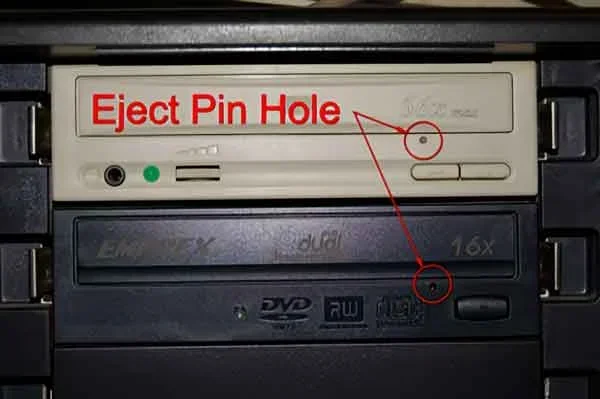
- Tray stuck open: Look for a small hole on the front of the drive. Insert a paperclip into it to manually eject the tray.
- Drive not showing up: Try Method 1 (Device Manager) first, then move to Method 3 (Command Prompt) if that does not work.
- Disc spins but does not read: Clean the lens with a CD lens cleaner kit.
- Drive makes grinding noises: Stop using it immediately. This could indicate mechanical failure.
- Drive works intermittently: Check the cable connections and try a different power outlet if using a desktop.
Final Thoughts on Resetting Your CD Drive
Resetting your CD drive does not have to be complicated. Most of the time, a simple Device Manager reset or power cycle is all it takes to get your drive back in working order. We have covered every method from software fixes to hardware checks, so you have everything you need in one place.
Remember to start with the simplest method and work your way up. If cleaning the lens or checking connections does the trick, you saved yourself a lot of hassle. And if the drive truly needs replacement, external USB models are affordable and easy to set up.
The key takeaway is that most CD drive problems are fixable at home with basic troubleshooting. You do not need expensive tools or professional help for the majority of issues. A little patience and the right approach will have your disc drive spinning again in no time.
Take care of your equipment, handle your discs properly, and keep your software updated. These habits will keep your CD drive healthy and reliable. Now go ahead and try these methods, and enjoy your music, movies, and data stored on your discs once again.
Frequently Asked Questions
Why is my CD drive not opening or closing properly?
A stuck CD drive tray is often caused by a mechanical jam or a software glitch. Try the power cycle method first by fully shutting down your computer and unplugging it for a minute. If the tray is still stuck, you can gently insert a paperclip into the small emergency eject hole on the front of the drive to manually pop it open.
Can I reset my CD drive without opening my computer?
Yes, absolutely. Most CD drive resets can be done entirely through software. Device Manager, Command Prompt, and power cycling are all methods that require no physical access to the internal components of your computer. These software-based approaches resolve the majority of CD drive issues.
How do I know if my CD drive needs to be replaced instead of reset?
If you have tried multiple reset methods and the drive still does not work, it may be time for a replacement. Signs that point to replacement include grinding noises, visible physical damage, a broken tray mechanism, or a drive that is more than five years old and has heavy usage. External USB CD drives are affordable and easy to set up as a replacement option.
Is it safe to clean the CD drive lens myself?
Yes, it is safe as long as you use the right tools. A CD lens cleaner kit is specifically designed for this purpose and is very gentle on the lens. Avoid using liquids, cotton swabs, or anything that could scratch the lens. Compressed air is also safe for blowing away loose dust from the drive opening.
Why does my CD drive work sometimes but not other times?
Intermittent CD drive issues are often caused by loose cable connections, outdated drivers, or overheating. Check that all cables are securely connected and update your drivers through Device Manager. If the problem persists, the drive motor or laser assembly may be failing and could need replacement.
How often should I clean my CD drive to prevent problems?
We recommend cleaning your CD drive every three to six months. Use compressed air to blow out dust from the drive opening, and run a lens cleaner disc every few months. Regular cleaning prevents buildup that can cause read errors, skipping, or complete drive failure over time.