Why Isnt My Phone Connecting to My Car Screen Today
Your phone not connecting to your car screen is a frustrating but fixable problem. Whether it is a Bluetooth pairing issue, a software glitch, or a compatibility mismatch, most causes are simple to solve. This guide walks you through every common reason and the best fixes step by step. You will learn quick tips, common mistakes to avoid, and expert insights that save you time and money.
This is a comprehensive guide about Why Isn’t My Phone Connecting to My Car Screen.
Key Takeaways
- Bluetooth glitches are the #1 cause: A simple restart of both devices fixes most connection problems.
- Software updates matter: Outdated phone or car firmware often blocks the connection.
- Android Auto and Apple CarPlay have specific quirks: Each platform has its own set of common bugs.
- USB cables can be the hidden culprit: Cheap or damaged cables prevent phone connecting to car screen reliably.
- Clear the paired devices list regularly: Too many saved connections confuse both your phone and car system.
- Reset network settings as a last resort: This wipes old Bluetooth pairings and forces a clean start.
- Visit a pro if nothing works: Your car’s infotainment unit may need hardware diagnostics.
[FEATURED_IMAGE_PLACEHOLDER]
Common Reasons Your Phone Wont Connect to Your Car Screen
You get in your car, tap your phone against the screen, and nothing happens. Or maybe you go through the Bluetooth menu and your car simply does not show up. It is annoying, especially when you are in a rush. The good news is that this problem is incredibly common, and there is almost always a simple explanation.
When your phone connecting to car screen fails, it usually comes down to one of a handful of causes. Sometimes it is a Bluetooth signal issue. Other times, it is a software mismatch between your device and your car’s infotainment system. Understanding the root cause is the first step toward a quick fix.
Let us break down the most common reasons your connection drops or fails entirely. Once you know what is going wrong, you can fix it fast and get back to using hands-free calling and music streaming on the road.
Bluetooth Pairing Failures
Bluetooth is the backbone of most wireless connections between phones and car screens. When pairing fails, your phone connecting to car screen through Bluetooth simply will not work. This happens when the car’s system has stored old or corrupted pairing data. It can also happen when too many devices are saved in the car’s memory, causing confusion during the discovery process.
Another frequent cause is distance. Bluetooth has a limited range, usually around 30 feet. If your phone is buried in a bag or tucked in a pocket behind your seat, the signal may not reach the car’s receiver. Even walls and metal surfaces can weaken the Bluetooth signal enough to cause a failed connection.
Software Compatibility Issues
Not all phones play nicely with all car systems. Your phone operating system version, your car’s infotainment software, and the apps you use all need to be compatible. For example, an older car stereo might not support the latest version of Android Auto or Apple CarPlay. Similarly, a brand-new phone running the latest software might drop support for older Bluetooth protocols that your car still uses.
This is especially true if you recently updated your phone and the car system was never updated to match. Smartphone mirroring relies on both sides speaking the same digital language. When one side updates and the other does not, the connection breaks down.
Hardware Problems
Sometimes the issue is not software at all. It is hardware. A damaged Bluetooth antenna in your car, a faulty USB port, or a broken screen touch sensor can all prevent your phone from connecting. These problems are less common but they do happen, especially in older vehicles or cars that have been in accidents.
If you notice that your car screen is slow, unresponsive, or shows error messages consistently, the infotainment unit itself might be failing. In these cases, a visit to a mechanic or car electronics specialist is the smart move.
Bluetooth Troubleshooting Steps That Actually Work
Before you panic or assume the worst, try these proven troubleshooting steps. Most people fix their Bluetooth connection issues in under ten minutes using these simple methods. Work through them in order, and test the connection after each step.
Step 1: Turn Bluetooth Off and Back On
This sounds too simple, but it works more often than you would think. Go to your phone’s settings, toggle Bluetooth off, wait ten seconds, and turn it back on. Do the same on your car’s infotainment system if it has a Bluetooth toggle. This clears temporary glitches and forces both devices to re-scan for available connections.
Step 2: Restart Both Devices
A full restart of your phone and your car’s infotainment system can clear out stuck processes and refresh the Bluetooth stack. For your phone, simply power it off and back on. For your car, most systems allow you to hold the power button for several seconds to restart the entire unit. This is one of the fastest ways to restore your phone connecting to car screen without losing any settings.
Step 3: Delete Old Pairings and Re-Pair
Over time, your car’s Bluetooth memory fills up with old device names and pairing keys. This can cause conflicts. Go into your car’s Bluetooth settings and delete your phone from the paired devices list. Then do the same on your phone. Start fresh by searching for the car’s system name and entering the pairing code when prompted.
Step 4: Check Bluetooth Range and Obstacles
Make sure your phone is within close range of the car’s antenna, which is usually near the rearview mirror or the center console. Remove your phone from thick cases, metal containers, or bags with magnetic closures. These can all block the Bluetooth signal and prevent a stable connection.
Android Auto and Apple CarPlay Connection Issues
If you use Android Auto or Apple CarPlay, you have a more specific set of potential problems. These apps add a layer of software on top of the basic Bluetooth connection, and that layer can introduce its own bugs. Here is what to look for and how to fix it.
Android Auto Connection Problems
Android Auto is Google’s platform for projecting your phone’s interface onto your car screen. When it fails to connect, the first thing to check is whether the app is up to date. Open the Google Play Store, search for Android Auto, and install any available updates. An outdated app is one of the top reasons for phone connecting to car screen failures with Android devices.
Next, clear the app cache. Go to your phone’s Settings, find Apps, locate Android Auto, and tap Clear Cache. This removes temporary data that can cause the app to crash or freeze during startup. If the problem persists, try uninstalling updates and reinstalling the app fresh.
Some car models require you to enable Android Auto through the car’s settings first. Check your car’s manual or the manufacturer’s website for specific setup instructions. Also, make sure USB debugging is enabled in your phone’s developer options if you are using a wired connection.
Apple CarPlay Connection Problems
CarPlay users face similar but slightly different issues. The most common one is that CarPlay simply does not appear on the car screen after pairing. Start by checking that CarPlay is enabled on your iPhone. Go to Settings, then General, then CarPlay, and make sure your car is listed and selected.
If CarPlay shows up but freezes or loads slowly, try resetting your iPhone’s network settings. Go to Settings, General, Reset, and tap Reset Network Settings. This clears all Wi-Fi passwords, Bluetooth pairings, and cellular settings, so you will need to reconnect everything afterward. But it often solves stubborn CarPlay connection issues.
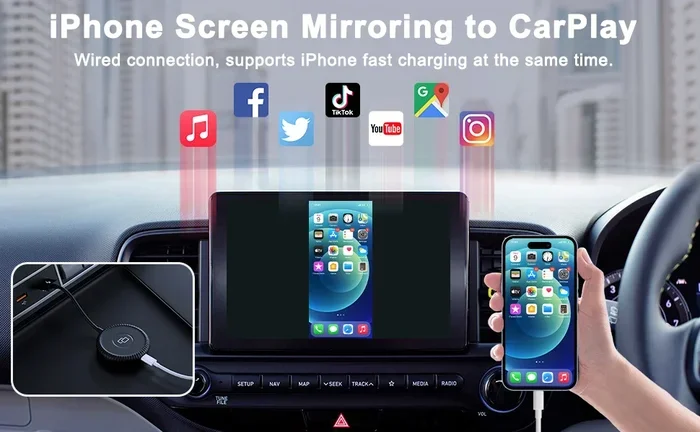
Another fix is to try a different Lightning or USB-C cable. Apple CarPlay is very sensitive to cable quality. A cheap or damaged cable can cause the connection to drop or fail to start at all. Use the original cable that came with your iPhone, or a certified MFi (Made for iPhone) cable, for the best results.
USB Cable and Wireless Connection Problems
Not all connections between your phone and car screen are wireless. Many cars still rely on USB cables for data transfer, charging, and smartphone mirroring. When the USB route fails, it can be just as frustrating as a Bluetooth problem.
Why USB Connections Fail
USB cables wear out over time. The connectors bend, the internal wires break, and the data transfer capability degrades. If your car screen shows a charging icon but does not display the Android Auto or CarPlay interface, the cable might only be capable of charging, not data transfer.
Dirt and debris in the USB port are another common cause. Dust, lint, and crumbs can block the connection between the cable and the port. Use a toothpick or compressed air to gently clean the port before plugging in your cable. A clean connection makes a huge difference.
Wireless Connection Stability
Wireless connections are convenient, but they can be less stable than wired ones. Wi-Fi-based connections for CarPlay and Android Auto depend on a strong signal between your phone and the car. If you are in a crowded area with lots of Wi-Fi interference, the connection might drop or fail to establish.
To improve wireless stability, make sure your phone is not in Low Power Mode, as this can disable background processes needed for connection. Also, turn off Wi-Fi on your phone if your car uses a dedicated Wi-Fi hotspot for CarPlay or Android Auto, as conflicting networks can cause confusion.
Quick Tips for Better Connections
- Use short, high-quality USB cables rated for data transfer.
- Keep your phone’s operating system updated to the latest version.
- Restart your car’s infotainment system at least once a week.
- Avoid using phone cases that block the antenna or USB port.
- Park your car in a clear area away from tall buildings and power lines when pairing.
Software and Firmware Updates You Shouldnt Ignore
One of the most overlooked reasons for phone connecting to car screen failures is outdated software. Both your phone and your car’s infotainment system need to run compatible firmware for a smooth connection. When one side falls behind, the connection suffers.
Updating Your Phone
Phone updates often include bug fixes for Bluetooth and connectivity issues. Check for updates regularly by going to Settings, then Software Update (or General, then Software Update for iPhones). Install any pending updates and restart your phone afterward. This alone resolves many connection problems that users struggle with for weeks.
Updating Your Car’s Infotainment System
Car software updates are not as automatic as phone updates. Many cars require you to visit a dealership or use a USB drive to install firmware updates. Check your car manufacturer’s website or contact your dealer to find out if an update is available for your model and year.
Some newer cars support over-the-air updates, which download and install automatically when the car is parked and connected to Wi-Fi. If your car has this feature, make sure it is turned on and that you have a stable internet connection.
The Role of App Updates
Even if your phone and car are up to date, outdated apps can cause problems. Make sure Android Auto, CarPlay, and any music streaming apps you use are running the latest versions. App developers frequently release patches that fix connection bugs and improve compatibility with new phone models.
When to Seek Professional Help for Car Screen Issues
Most connection problems are easy to fix at home. But sometimes, the issue goes deeper than a simple reset or update. Knowing when to seek professional help saves you time and prevents further damage to your car’s electronics.
Signs You Need a Professional
If you have tried every fix in this guide and your phone connecting to car screen still fails, it is time to call in the experts. Warning signs include a car screen that freezes constantly, error messages that do not go away, or a Bluetooth system that cannot detect any devices at all.
These symptoms often point to a failing infotainment unit, a damaged Bluetooth module, or a wiring issue behind the dashboard. None of these are DIY fixes, and trying to disassemble your car’s electronics without proper knowledge can void your warranty.
What to Expect at the Shop
A qualified mechanic or car electronics specialist will start by running diagnostics on your car’s infotainment system. They can check the Bluetooth module, test the USB ports, and scan for error codes. Most shops can also perform firmware updates on the spot if needed.
The cost varies depending on the issue. A simple firmware update might be free or low-cost. Replacing a Bluetooth module or infotainment unit can run several hundred dollars. Always get a quote before agreeing to any repairs.
Common Mistakes That Prevent Phone Connecting to Car Screen
Even with the best intentions, people make mistakes that cause or worsen connection problems. Here are the most common ones to avoid.
- Ignoring the car’s Bluetooth memory limit: Most car systems can only store a certain number of paired devices. Delete old devices you no longer use to free up space.
- Using a damaged cable: A frayed or bent USB cable might charge your phone but fail to transfer data. Inspect your cables regularly and replace them when they show wear.
- Not restarting the car system: Just like your phone, your car’s infotainment system benefits from a fresh restart. Turn it off and on again before trying advanced fixes.
- Skipping software updates: It is tempting to tap “Remind Me Later” on update notifications, but these updates often include critical connectivity fixes.
- Placing the phone too far from the car: Bluetooth and wireless CarPlay signals weaken with distance. Keep your phone in the center console or on the passenger seat during initial pairing.
- Using third-party adapters without checking compatibility: Not all Bluetooth adapters or CarPlay dongles work with every car. Check compatibility before purchasing.
Expert Insights on Maintaining a Stable Connection
Automotive tech specialists agree that prevention is better than cure when it comes to phone connecting to car screen issues. Here is what the pros recommend for keeping your connection strong and reliable.
Schedule regular maintenance checks for your car’s electronics, just like you would for the engine. A quick diagnostic scan at your local auto shop can catch Bluetooth or infotainment issues before they become serious problems. Many shops offer free or low-cost system checks during routine oil changes.
Keep a spare USB cable in your car. Cables get damaged, lost, or forgotten. Having a backup cable that you know is high-quality and data-capable can save you from a failed connection on a road trip. Look for cables that are braided and reinforced at the connectors for extra durability.
Limit the number of apps running in the background. When too many apps are active, your phone’s Bluetooth and processing power get stretched thin. Close unnecessary apps before you start driving, and your connection will be more stable.
Consider a Bluetooth adapter or receiver if your car is older and does not have built-in Bluetooth or CarPlay support. These small devices plug into your car’s audio system and add modern connectivity features. They are affordable and easy to install, making them a great upgrade for older vehicles.
Key Takeaways
- Bluetooth glitches are the #1 cause: A simple restart of both devices fixes most connection problems.
- Software updates matter: Outdated phone or car firmware often blocks the connection.
- Android Auto and Apple CarPlay have specific quirks: Each platform has its own set of common bugs.
- USB cables can be the hidden culprit: Cheap or damaged cables prevent phone connecting to car screen reliably.
- Clear the paired devices list regularly: Too many saved connections confuse both your phone and car system.
- Reset network settings as a last resort: This wipes old Bluetooth pairings and forces a clean start.
- Visit a pro if nothing works: Your car’s infotainment unit may need hardware diagnostics.
Conclusion
A phone not connecting to car screen does not have to ruin your day. In most cases, the fix is quick, free, and something you can do right from your driveway. Start with the basics, like restarting both devices and checking for updates. Work your way through the troubleshooting steps in this guide, and you will solve the problem in the vast majority of cases.
Remember that Bluetooth connection issues, software mismatches, and cable problems are all normal and expected. Technology is not perfect, and cars and phones are constantly evolving. Staying patient and methodical will always get you better results than frustration and guesswork.
Keep your software updated, use quality cables, and treat your car’s infotainment system with the same care you give your phone. With these habits, your phone connecting to car screen will be seamless almost every time. And when a problem does pop up, you now have the knowledge to fix it yourself. Safe travels and happy connecting.
Frequently Asked Questions
Why does my phone keep disconnecting from my car screen while driving?
This usually happens due to a weak Bluetooth signal or an unstable connection. Move your phone closer to the center console and make sure nothing is blocking the signal. Also, check if your phone is in battery saver mode, as this can disable background Bluetooth processes and cause disconnections.
Can too many paired devices cause connection problems?
Yes, absolutely. Most car infotainment systems have a limit on how many devices they can remember. When that limit is reached, the system gets confused and may refuse to pair with new devices. Delete old pairings you no longer use to keep the system running smoothly.
Is it better to connect my phone via Bluetooth or USB?
USB connections are generally more stable and faster for data transfer, especially for Android Auto and CarPlay. Bluetooth is more convenient for hands-free calling and basic audio streaming. For the best experience, use a USB cable for media and navigation, and Bluetooth for phone calls.
How do I update my car’s infotainment software?
Check your car manufacturer’s website for instructions specific to your model. Some cars support over-the-air updates, while others require a visit to the dealership or a USB drive update. You can also ask your dealer during your next service visit to check for available updates.
Why does Android Auto or CarPlay work sometimes but not others?
This is often caused by app version mismatches, cached data, or temporary software glitches. Make sure both the app and your phone’s operating system are up to date. Clearing the app cache and restarting both devices usually resolves this intermittent behavior.
Do phone cases affect Bluetooth connections to car screens?
Some cases, especially thick or metal-backed ones, can interfere with Bluetooth signals. Remove the case temporarily and see if the connection improves. If it does, consider switching to a thinner case that does not block the phone’s antenna.
Frequently Asked Questions
What is Why Isn’t My Phone Connecting to My Car Screen?
Why Isn’t My Phone Connecting to My Car Screen is an important topic with many practical applications.