Why Is My Toyota Not Recognizing Android Auto Anymore
Your Toyota might not recognize Android Auto because of a loose USB cable, outdated software, or a glitch in the infotainment system. This guide walks you through the most common reasons and the easiest fixes to get your phone back on the screen. We also share quick tips to prevent the problem from coming back so you can stay connected on every drive.
You turn the key, hop in, and reach for your phone. You want to use Android Auto on your Toyota’s screen. But nothing happens. The phone does not connect. The screen stays blank. It is frustrating, right? You are not alone. Many Toyota owners run into this exact problem at some point.
Why is my Toyota not recognizing Android Auto anymore? There are several reasons this can happen, and most of them are easy to fix. Sometimes it is a cable problem. Sometimes it is a software glitch. And sometimes it is a setting you accidentally changed. This guide covers every common cause and gives you step by step solutions that actually work.
We will walk through each fix in plain language. No confusing tech talk. No guesswork. Whether you drive a Camry, a RAV4, a Highlander, or any other Toyota model, this article has you covered. Let us get your phone connected again.
Key Takeaways
- Cable and port issues are the number one reason Android Auto fails to connect on Toyota vehicles.
- Outdated Toyota infotainment software or an outdated Android phone can cause compatibility problems.
- Restarting both your phone and the car system often solves the issue in minutes.
- Clearing the Android Auto app cache is a simple fix many people overlook.
- Wireless vs. wired Android Auto behaves differently, and each has its own troubleshooting steps.
- Knowing when to visit a dealer saves time when simple fixes do not work.
📑 Table of Contents
- What Is Android Auto and Why Does It Matter in Your Toyota?
- Common Reasons Your Toyota Is Not Recognizing Android Auto
- How to Fix Android Auto Connection Problems on Your Toyota
- Wired vs Wireless Android Auto on Toyota Models
- When to Visit a Toyota Dealer for Help
- Tips to Prevent Android Auto Problems in the Future
- How Android Auto Compares to Apple CarPlay in Toyota Vehicles
- Why Does My Toyota Only Sometimes Recognize Android Auto?
- Quick Tips for Popular Toyota Models
- Final Thoughts
What Is Android Auto and Why Does It Matter in Your Toyota?
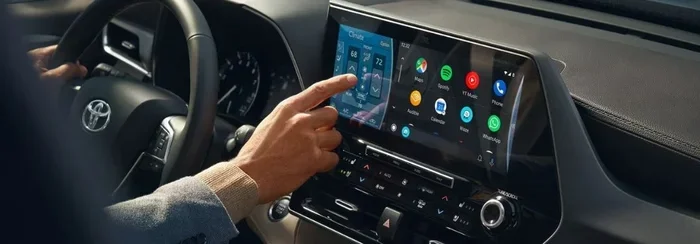
Android Auto is a feature from Google that mirrors your phone onto your car’s display. It lets you see your maps, play music, send texts, and make calls safely while driving. Your Toyota’s infotainment system acts as the bridge between your phone and the screen.
When Android Auto works, it is incredibly convenient. When it stops working, it feels like something is missing. You lose your navigation, your music shortcuts, and your hands free calling. That is why fixing the connection matters so much.
Toyota has partnered with Google to make Android Auto available on most models from recent years. The system works best with a stable USB connection or a wireless Android Auto setup, depending on your model and year. Understanding how the system works helps you troubleshoot faster.
Common Reasons Your Toyota Is Not Recognizing Android Auto
Before you panic, take a breath. There are only a handful of reasons this happens. Let us look at each one clearly.
1. A Faulty or Damaged USB Cable
This is the most common cause by far. A USB cable that is frayed, bent, or too old may not carry data properly. Your phone might charge, but Android Auto needs data transfer to work. If your cable only charges and does not sync, that is a red flag.
Try a different cable. Use the original cable that came with your phone if you still have it. A high quality USB C cable rated for data transfer makes a huge difference.
2. Dirt or Debris in the USB Port
Your Toyota’s USB port sits in a spot where dust and crumbs can collect. Over time, this buildup blocks the connection. A loose fit means your phone cannot communicate with the infotainment system.
Look closely at the port. Use a flashlight. If you see dirt, gently clean it out with a toothpick or a can of compressed air. Be careful not to damage the pins inside.
3. Outdated Software on Your Phone or Car System
Both your phone and your Toyota’s system need to run current software. An outdated Android version on your phone can break compatibility. Similarly, if your Toyota’s infotainment system has not been updated, it may not recognize the latest version of Android Auto.
Check for phone updates in your settings. For your Toyota, visit the settings menu on the display and look for a system update option. Keeping both devices updated is one of the best ways to prevent connection problems.
4. Android Auto App Glitches
Sometimes the problem lives inside the Android Auto app itself. The app might have crashed in the background, or a cached file could be corrupt. This does not mean anything is broken. It just means the app needs a fresh start.
Clearing the app cache is a simple fix. Go to your phone’s settings, find the Android Auto app, and clear the cache. Then restart the app and try connecting again.
5. Wireless Connection Interference
If you use wireless Android Auto, other devices or Wi-Fi networks can interfere with the connection. Bluetooth and Wi Fi signals from other sources can create conflicts. This is especially common in parking lots or crowded areas.
Turning wireless Android Auto off and using a wired connection temporarily can help you isolate the problem. If the wired connection works but wireless does not, interference is likely the culprit.
6. Phone Compatibility Issues
Not every phone works perfectly with every Toyota model. Older phones may not support the latest version of Android Auto. Newer phones sometimes need a setting adjustment to work with certain car systems.
Check the official Android Auto compatibility list on Google’s website. Make sure your phone model and operating system version are supported. If your phone is very old, it might be time for an upgrade to enjoy full smartphone integration with your Toyota.
How to Fix Android Auto Connection Problems on Your Toyota
Now that you know the common causes, let us fix them one by one. These steps are in order from easiest to most involved.
Step 1: Restart Both Devices
This sounds too simple, but it works more often than you think. Turn off your car. Unplug your phone. Restart your phone. Then get back in and try again. A fresh start clears temporary glitches that block the connection.
Step 2: Try a Different USB Cable and Port
Swap out your current cable for a new one. If your Toyota has multiple USB ports, try the other one. Some ports only charge. Others handle data. The port labeled “data” or with a symbol next to it is the one you want.
Step 3: Update the Android Auto App
Open the Google Play Store on your phone. Search for Android Auto. If an update is available, install it. An outdated app version is one of the top reasons Toyota screen not responding to Android Auto issues happen.
Step 4: Clear the App Cache and Data
Go to Settings on your phone. Tap Apps. Find Android Auto. Tap Storage. Then tap Clear Cache. If that does not work, you can also tap Clear Data. This resets the app to its default state without deleting your personal settings.
Step 5: Check for Toyota Software Updates
On your Toyota’s display, go to Settings. Look for System or Software Update. If an update is available, install it. Toyota releases updates that fix bugs and improve Android Auto Toyota compatibility.
Step 6: Reset the Infotainment System
If nothing else works, you can reset your Toyota’s infotainment system. The process varies by model. For many Toyotas, you hold down the power button for about 10 seconds. The screen will turn off and restart. This clears deeper glitches that a simple restart does not fix.
If you are not sure how to reset your specific model, you can also check how to reset your car stereo without the reset button for general guidance that applies to many Toyota systems.
Wired vs Wireless Android Auto on Toyota Models
Toyota offers both wired and wireless Android Auto depending on the model and trim level. Each has its own strengths and its own quirks.
Wired Android Auto uses a USB cable to connect your phone to the car. It is more stable and less prone to interference. The downside is that you need to plug in your phone every time, and the cable can wear out over time.
Wireless Android Auto connects through Wi Fi and Bluetooth. It is more convenient because you do not need a cable. But it can be affected by signal interference, and some older Toyota systems do not support it.
Here is a quick comparison to help you understand the differences.
| Feature | Wired Android Auto | Wireless Android Auto |
|---|---|---|
| Connection Stability | Very stable | Good, but can fluctuate |
| Setup | Plug in cable | Pair once, then automatic |
| Interference Risk | Low | Medium to high |
| Cable Wear | Yes, cables degrade | No cables needed |
| Supported Models | Most Toyotas | Newer models only |
If you are having trouble with wireless Android Auto, try switching to wired temporarily. This helps you figure out whether the problem is with the connection type or something deeper in the system.
When to Visit a Toyota Dealer for Help
Most Android Auto problems are fixable at home. But sometimes the issue is not something you can solve yourself. Here are signs that it is time to see a professional.
- The USB port is physically damaged or loose. You can feel wobble when you plug in a cable.
- The infotainment screen freezes constantly, even after a full reset.
- Android Auto worked before but stopped after a software update from Toyota.
- Multiple phones fail to connect, even when they work fine in other cars.
When you visit a dealer, they have diagnostic tools that can read your car’s system and pinpoint the exact problem. If your vehicle is still under warranty, this service may be covered. You can also check if you are able to take your Toyota to any dealership for warranty work before scheduling a service visit.
Dealers can also check whether your Toyota’s infotainment unit needs a firmware update that is not available through the self service menu. These updates sometimes fix Android Auto not working issues that have been reported by other owners.
Tips to Prevent Android Auto Problems in the Future
Prevention is always easier than troubleshooting. Here are simple habits that keep your Android Auto connection running smoothly.
- Use a high quality USB cable. Cheap cables fail often. Invest in a braided, data rated cable from a reputable brand.
- Keep your phone and car software updated. Set both to update automatically when possible.
- Clean the USB port regularly. A quick glance and gentle cleaning every few weeks prevents buildup.
- Restart your phone weekly. This clears background processes that can interfere with car connections.
- Avoid using your phone while it is plugged in for Android Auto. Heavy app usage during a connection can cause conflicts.
- Check the Android Auto app settings. Make sure it is set to connect automatically when you get in the car.
These small habits add up. They keep your Toyota infotainment system running at its best and reduce the chances of connection issues.
How Android Auto Compares to Apple CarPlay in Toyota Vehicles
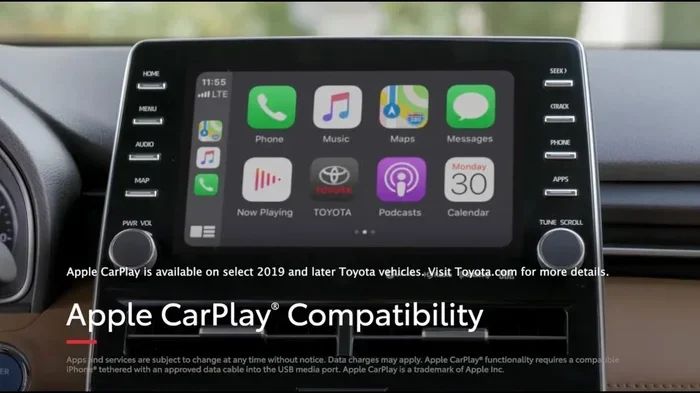
Some Toyota owners wonder whether they should switch to Apple CarPlay instead. Both systems offer phone mirroring and hands free access to your apps. But they work differently, and your choice depends on your phone and your needs.
Android Auto works with Android phones. Apple CarPlay works with iPhones. If you use an Android phone, Android Auto is your only option. If you use an iPhone, CarPlay is built in.
Both systems support navigation, music, calls, and messaging. Both work wired and wireless on compatible models. The main difference is the app ecosystem. Android Auto gives you access to Google Maps, Spotify, YouTube Music, and other Android apps. CarPlay gives you Apple Maps, Apple Music, and compatible third party apps.
If you are happy with your Android phone, there is no reason to switch. Just fix the connection issue and keep enjoying smartphone integration in your Toyota.
Why Does My Toyota Only Sometimes Recognize Android Auto?
Intermittent connection problems are tricky but very common. If Android Auto works some days and not others, the issue is usually one of these three things.
First, the cable connection is inconsistent. A cable that works sometimes but not others is failing. Replace it and see if the problem goes away.
Second, your phone’s battery optimization settings are interfering. Some Android phones aggressively shut down background apps to save battery. This can kill Android Auto before it fully connects. Go to your battery settings and whitelist Android Auto from optimization.
Third, temperature can play a role. Extreme heat or cold affects both your phone and your car’s electronics. If you notice the problem only in very hot or very cold weather, temperature is likely the cause. Let your car warm up before plugging in your phone.
Quick Tips for Popular Toyota Models
Different Toyota models have slightly different infotainment systems. Here are a few model specific tips.
If you drive a Toyota Camry, make sure you are using the correct USB port in the center console. Some Camry models have ports behind the armrest that are less exposed to dust.
If you drive a Toyota RAV4, check if your model supports wireless Android Auto. Newer RAV4 trims include this feature, and it can be more reliable than a wired connection if your USB port has any wear.
If you drive a Toyota Highlander, the infotainment system can be slow to respond after a cold start. Wait about 15 seconds after turning the car on before plugging in your phone. This gives the system time to fully boot up.
If you are curious about other Toyota tech features, check out whether you can start your Toyota Highlander with a key or learn more about rolling down your windows with your Toyota key fob for additional convenience tips.
Final Thoughts
Why is my Toyota not recognizing Android Auto anymore? In most cases, the answer is simple. It is a cable, a software update, or a minor glitch that a quick restart fixes. You do not need to be a mechanic to solve this problem. You just need patience and the right steps.
Start with the basics. Try a new cable. Clean the port. Update your apps and your car’s software. Clear the Android Auto cache. Restart everything. These steps solve the problem for the vast majority of Toyota owners.
If those steps do not work, dig deeper into the model specific tips we covered. And if nothing works, do not hesitate to visit your Toyota dealer. They have the tools and expertise to handle hardware issues that are beyond a DIY fix.
Your Toyota was built to keep you connected. With the right troubleshooting, Android Auto will be back on your screen before you know it. Stay safe, stay connected, and enjoy the drive.
Frequently Asked Questions
Why does my Toyota say no media when I plug in Android Auto?
This usually means the USB cable is not transferring data, even if it is charging your phone. Try a different cable that supports data transfer. Also check that the USB port is clean and not blocked by dust or debris. A faulty cable is the most common reason for this message.
Can I use wireless Android Auto if my Toyota does not support it?
No, wireless Android Auto requires compatible hardware in your Toyota’s infotainment system. If your model does not support it, you will need to use a wired USB connection. You can check your Toyota model year and trim level on the official Toyota website to confirm compatibility.
Does Android Auto work with all Toyota models?
Android Auto works with most Toyota models from recent years, but support varies by trim level and model year. Newer models generally have better support and may include wireless Android Auto. If you are unsure, check with your dealer or look up your specific model and year.
How do I update Android Auto on my phone?
Open the Google Play Store on your Android phone. Search for Android Auto. If an update is available, tap Update. Keeping the app current ensures the best compatibility with your Toyota’s infotainment system. You can also enable auto updates in the Play Store settings.
Why does Android Auto disconnect while I am driving?
Intermittent disconnections are often caused by a loose USB cable or a dirty port. The vibration from driving can worsen a weak connection. Try a different cable and make sure it is plugged in firmly. If the problem persists, the USB port itself may need inspection.
Will resetting my Toyota infotainment system delete my saved settings?
A basic restart will not delete any settings. A full factory reset may erase saved preferences like radio stations and Bluetooth pairings. Before doing a factory reset, note down your important settings or take a photo of your current setup. Most Android Auto issues can be fixed without a full reset.