How to Restart a BMW Screen and Get It Working Again
Restarting your BMW screen is simpler than you think. Whether your BMW infotainment system is frozen, unresponsive, or showing a black screen, a quick reset can solve the problem in minutes. This guide walks you through soft resets, hard resets, and iDrive reboots so you can get back on the road without a trip to the dealer.
You are driving down the road, and suddenly your BMW screen goes blank. Or maybe it freezes right in the middle of navigating to a new destination. Either way, it is frustrating. The good news is that how to restart a BMW screen is something you can handle yourself in most cases. You do not need to be a mechanic or a tech expert. A few simple steps can bring your display back to life and get you on your way.
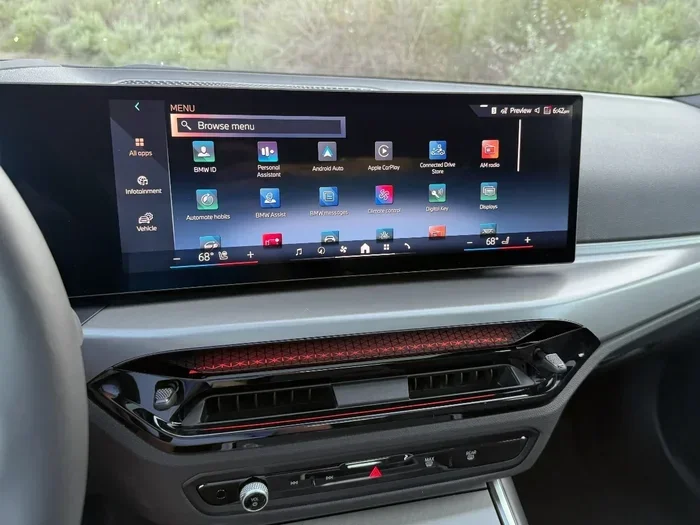
Modern BMW vehicles come packed with advanced technology. The BMW infotainment system controls your music, navigation, climate settings, and even rearview cameras. When that system glitches, it can throw a wrench into your entire driving experience. This guide covers every method you can use to restart your BMW screen, from the simplest soft reset to more advanced troubleshooting steps. We will also share tips to prevent screen problems in the future.
Whether you drive a BMW 3 Series, 5 Series, X5, or any other model, the restart process is very similar. Let us dive in and get your display working again.
Key Takeaways
- Soft Reset: The easiest way to restart your BMW screen when it freezes or lags.
- Hard Reset: A full power cycle that clears deeper system glitches in the BMW infotainment system.
- iDrive Reset: Specific steps to reboot the iDrive controller and navigation display.
- Preventive Tips: Simple habits to keep your BMW touchscreen and display working smoothly.
- When to See a Pro: Know when a screen issue needs professional BMW diagnostics.
📑 Table of Contents
Why Does a BMW Screen Freeze or Go Black?
Before we jump into the restart methods, it helps to understand why your BMW screen might act up in the first place. Knowing the cause can help you prevent it from happening again.
Software Glitches
Your BMW runs on a complex software system. Just like your smartphone, the BMW iDrive system can experience temporary software bugs. These glitches often cause the screen to freeze, lag, or display strange errors. A simple restart usually fixes this.
Overheating
BMW electronics generate heat, especially during long drives or hot weather. If your car sits in direct sunlight for hours, the central display can overheat and shut down. This is a protective measure, not a broken screen. Letting the car cool down often solves the problem.
Power Supply Issues
Sometimes the screen loses power due to a weak battery, a blown fuse, or a loose connection. If your BMW dashboard display flickers or turns off randomly, the power supply might be the culprit.
Outdated Software
BMW releases software updates regularly. An outdated infotainment system can cause compatibility issues, slow performance, and screen freezes. Keeping your software up to date is one of the best ways to avoid problems.
How to Perform a Soft Reset on Your BMW Screen
A soft reset is the first thing you should try. It is quick, easy, and safe. It does not delete any of your settings or paired devices. Think of it like restarting your phone.
Method 1: The Button Hold Technique
Here is how to do it. Press and hold the power button on your BMW screen for about 10 to 15 seconds. The display will turn off and then come back on. Once it restarts, check if the screen is responding normally.
This method works on most BMW models, including the 3 Series, 5 Series, X3, and X5. If your BMW has a separate power button for the infotainment system, hold that one down.
Method 2: The iDrive Controller Reset
Your BMW iDrive controller is the dial or joystick you use to navigate menus. You can also use it to trigger a reset. Here is what to do.
- Press and hold the iDrive controller button for about 15 seconds.
- Wait for the screen to go dark.
- Release the button and wait for the system to reboot.
This method is especially useful when the screen is partially responsive but lagging. It gives the BMW multimedia system a fresh start without losing any of your saved preferences.
When to Use a Soft Reset
Use a soft reset when your screen is slow, frozen, or showing minor glitches. It is also a great first step if your BMW navigation screen is not loading maps properly. Most of the time, a soft reset solves the problem completely.
How to Perform a Hard Reset on Your BMW Screen
If a soft reset does not work, it is time to try a hard reset. This method fully powers down the infotainment system. It clears deeper glitches that a soft reset cannot fix.
Step-by-Step Hard Reset Guide
- Turn off the engine. Make sure your BMW is parked safely and the engine is completely off.
- Open the driver-side door. This keeps the car in a partial power state that allows the system to fully reset.
- Locate the fuse box. In most BMW models, the fuse box for the infotainment system is under the dashboard on the driver side. Refer to your owner’s manual for the exact location.
- Remove the infotainment fuse. Pull the fuse labeled “INFOTAINMENT” or “NAVIGATION.” Wait about 60 seconds.
- Reinsert the fuse. Push it back in firmly.
- Close the door and start the engine. The BMW screen should boot up fresh.
A hard reset is more involved than a soft reset, but it is still something you can do at home. It does not require any special tools. Just a little patience and your owner’s manual.
Important Warning
Do not attempt a hard reset while driving. Always park your car in a safe location first. Also, be careful when handling fuses. If you are not comfortable with this process, a soft reset or professional help is a better option.
How to Reset the BMW iDrive System
The iDrive system is the brain of your BMW’s infotainment setup. When the iDrive freezes or stops responding, a dedicated reset can help. Here is how to do it.
Soft iDrive Reset
Hold down both the volume knob and the menu button on the iDrive controller at the same time for about 10 seconds. The system will restart and reload all your settings.
Factory Reset of iDrive
If your iDrive is still acting up after a soft reset, you can perform a factory reset. This restores all settings to their original defaults. Here is the process.
- Go to the BMW settings menu on your screen.
- Navigate to “System” and then “Reset.”
- Select “Factory Reset” and confirm your choice.
- Wait for the system to reboot. This may take several minutes.
Note: A factory reset will erase all paired phones, saved addresses, and custom settings. Make sure you have important information backed up before proceeding.
Common BMW Screen Problems and Quick Fixes
Not all screen problems require a full restart. Here are some common issues and their quick fixes.
| Problem | Likely Cause | Quick Fix |
|---|---|---|
| Screen is black | Power loss or software freeze | Hold the power button for 15 seconds |
| Screen is frozen | Software glitch | Perform a soft reset |
| Touchscreen not responding | Calibration issue or overheating | Let the car cool down, then restart |
| Screen flickers | Loose connection or weak battery | Check the battery voltage |
| Navigation not loading | Outdated maps or software | Update the iDrive system |
| Screen stays on after engine off | Settings issue | Check display timeout settings |
Preventing BMW Screen Problems
Prevention is always better than fixing a problem. Here are some simple tips to keep your BMW screen running smoothly.
Keep Your Software Updated
BMW regularly releases software updates that fix bugs and improve performance. Check for updates through the iDrive system or visit your local dealer. If you are wondering about dealer costs, do dealers charge a diagnostic fee is a common question, and many dealers offer free updates for newer models.
Avoid Extreme Heat
BMW electronics do not love extreme heat. If you park outside in direct sunlight for long periods, consider using a sunshade. This keeps the interior cool and protects the BMW central display from overheating. If you are curious about how hot your car can get, how hot can a car get in the sun is worth checking out.
Keep the System Clean
Dust and debris can build up around the screen and buttons. Wipe the screen gently with a microfiber cloth. Avoid using harsh chemicals that can damage the touchscreen coating.
Don’t Ignore Warning Signs
If your screen starts acting strange, address it early. A minor glitch today can become a bigger problem tomorrow. Early intervention often saves you time and money.
When to Take Your BMW to a Professional
Most screen issues are easy to fix with a simple restart. But sometimes, the problem is deeper and needs professional attention. Here are signs that you should visit a BMW dealer or certified mechanic.
- The screen remains black even after multiple restarts.
- You see error messages that do not go away.
- The screen flickers constantly and does not stabilize.
- Your BMW infotainment system restarts randomly while driving.
- The touchscreen stops responding entirely.
Dealers have specialized diagnostic tools that can identify hardware failures, software corruption, or wiring issues. If you are concerned about costs, remember that dealers do charge diagnostic fees in some cases, but the peace of mind is worth it for complex issues.
Also, if your screen problem is caused by a part that needs replacing, you might want to check how long car parts can be on backorder so you are prepared for any wait time.
Final Thoughts
Knowing how to restart a BMW screen is an essential skill for every BMW owner. A frozen screen, a black display, or a lagging iDrive system can all be resolved with the right restart method. Start with a soft reset. If that does not work, move on to a hard reset or an iDrive factory reset. These steps are simple, safe, and effective.
Prevention goes a long way too. Keep your software updated, protect your car from extreme heat, and address small issues before they become big ones. Your BMW screen is designed to last the life of the vehicle, and with a little care, it will keep working flawlessly for years to come.
Next time your BMW display acts up, do not panic. You now have all the tools and knowledge to fix it yourself. Get back on the road and enjoy the drive.
Frequently Asked Questions
How long does it take to restart a BMW screen?
A soft reset usually takes about 30 seconds to one minute. A hard reset may take two to five minutes, including the time it takes for the system to fully reboot. A factory reset of the iDrive system can take up to 10 minutes.
Will restarting my BMW screen delete any data?
A soft reset will not delete any data. A hard reset also preserves your settings. However, a factory reset of the iDrive system will erase all paired devices, saved navigation addresses, and custom preferences. Always back up important information first.
Why does my BMW screen keep freezing?
Screen freezing is often caused by software glitches, outdated firmware, or overheating. Try a soft reset first. If the problem persists, check for software updates or visit a BMW dealer for diagnostics.
Can I restart my BMW screen while driving?
No, you should never restart your BMW screen while driving. Always park the car in a safe location before attempting any reset. A distracted driver is a dangerous driver.
What should I do if a hard reset does not fix my BMW screen?
If a hard reset does not work, try a factory reset of the iDrive system. If that also fails, the issue may be hardware-related. Take your BMW to a certified dealer or mechanic for professional diagnosis.
Do I need special tools to restart my BMW screen?
No. A soft reset and iDrive reset require no tools at all. A hard reset only requires you to locate and remove a fuse, which you can do with your fingers or a basic fuse puller that comes with most BMW tool kits.