How to Connect iPhone to Acura Bluetooth Step by Step
Connecting your iPhone to Acura Bluetooth is simple when you follow the right steps. This guide walks you through pairing your iPhone with your Acura’s infotainment system, troubleshooting common issues, and getting the most out of wireless connectivity. Whether you own an Acura TLX, RDX, or MDX, you will have your phone streaming in no time.
There is something really satisfying about tapping your iPhone and having your favorite music start flowing through your Acura’s speakers. Connecting iPhone to Acura Bluetooth opens up a world of convenience. You get hands-free calling, navigation prompts, and endless entertainment on the road.
Maybe you just bought a new Acura. Or perhaps your old Bluetooth connection stopped working and you need a fresh start. Either way, you are in the right place. This step-by-step guide covers everything you need to know about pairing your iPhone with your Acura’s infotainment system. We will walk through the setup process, fix common problems, and share tips that make the whole experience smoother.
The good news is that Acura makes this process straightforward. Most models from the past decade use a similar Bluetooth setup process. Whether you drive an Acura RDX, TLX, MDX, or ILX, the basics stay the same. Let us dive in and get your phone connected.
Key Takeaways
- Pairing your iPhone to Acura Bluetooth takes just a few minutes if you follow the correct sequence of steps.
- Enabling Bluetooth on both your iPhone and Acura is the first critical step many people skip.
- Common issues like connection drops can be fixed with simple resets and software updates.
- AcuraLink and wireless streaming make your driving experience more convenient and safer.
- Keeping your iPhone and Acura software updated prevents most Bluetooth problems before they start.
📑 Table of Contents
- Why Connecting iPhone to Acura Bluetooth Matters
- Step-by-Step Guide to Pairing Your iPhone
- Troubleshooting Common Connection Problems
- Acura Models and Bluetooth Compatibility
- Tips for the Best Bluetooth Experience
- Common Mistakes to Avoid
- Maintaining Your Acura Bluetooth Connection
- Frequently Asked Questions
- Final Thoughts
Why Connecting iPhone to Acura Bluetooth Matters
Bluetooth connectivity in your Acura does more than just play music. It transforms your driving experience in several important ways. When your iPhone is connected, you gain access to a range of features that keep you safer and more entertained.
Hands-free calling is one of the biggest benefits. You can make and receive calls without ever touching your phone. This keeps your hands on the wheel and your eyes on the road. Wireless streaming lets you listen to podcasts, audiobooks, and your personal music library through your car’s premium audio system.
Navigation apps like Google Maps and Apple Maps send turn-by-turn directions straight to your Acura’s display. iPhone CarPlay integration (on supported models) adds even more functionality. You can use Siri voice commands to send texts, set reminders, and control your music. All of this becomes possible the moment you successfully complete the Acura Bluetooth pairing process.
Step-by-Step Guide to Pairing Your iPhone
Here is the core process for connecting iPhone to Acura Bluetooth. Follow these steps carefully and you will be up and running in just a few minutes.
Step 1: Prepare Your iPhone
Before you touch your Acura’s dashboard, start with your iPhone. Open the Settings app and tap on Bluetooth. Make sure the toggle switch is turned on. Your iPhone will immediately start scanning for nearby devices.
Next, check that your iPhone is running the latest version of iOS. Go to Settings, then General, then Software Update. If an update is available, install it before proceeding. Updated software prevents compatibility issues that can interfere with Bluetooth connections.
Also, make sure your iPhone is not connected to another Bluetooth device. If it is already paired with headphones or a speaker, disconnect from those temporarily. This ensures your iPhone’s full attention is on finding your Acura.
Step 2: Enable Bluetooth on Your Acura
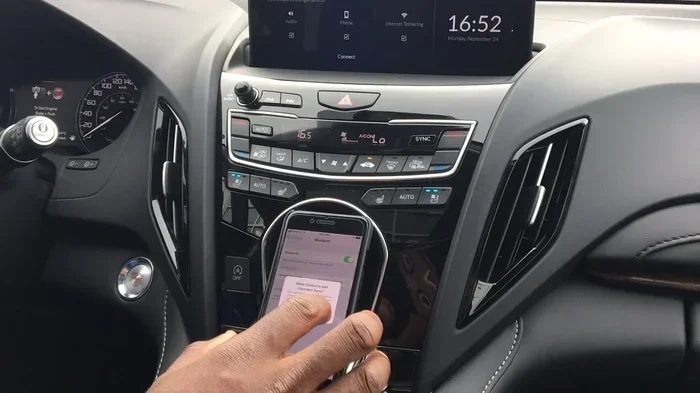
Now turn your attention to the Acura. Start the engine and press the Home button on your Acura’s infotainment screen. Look for the Settings icon, which usually looks like a gear. Tap on it and find the Bluetooth or Phone menu.
In the Bluetooth settings, make sure Bluetooth is turned on. Your Acura will begin searching for available devices. On most models, you will see a message saying “Searching for devices” or “Add new device.” Wait for the search to complete.
On the Acura dashboard, you may also see a Phone button on the steering wheel controls. Pressing it can sometimes speed up the discovery process. Different Acura models place this button in slightly different locations, so check your owner’s manual if you cannot find it.
Step 3: Pair the Devices
Your iPhone should now appear in the Acura’s Bluetooth device list. Tap on your iPhone’s name when you see it. On your iPhone, a pairing request will pop up asking you to confirm the connection.
You will see a six-digit number on both screens. Make sure the numbers match, then tap Pair on your iPhone and Confirm on your Acura. This Bluetooth pairing verification step ensures no unauthorized device connects to your car.
Once paired, your Acura may ask what type of connection you want. Choose Phone, Audio, or both depending on your needs. Selecting both gives you full access to calls and music streaming. Acura vehicle connectivity works best when you enable all available options during the initial setup.
Step 4: Test the Connection
Now comes the fun part. Play a song on your iPhone and check if it streams through your Acura’s speakers. Try making a test call to confirm hands-free calling works properly.
If music plays and calls connect clearly, congratulations. You have successfully connected iPhone to Acura Bluetooth. If something does not work, do not worry. The next section covers troubleshooting steps that solve most common issues.
Troubleshooting Common Connection Problems
Sometimes the Acura Bluetooth pairing process does not go smoothly. This is more common than you might think. Here are the most frequent issues and how to fix them.
iPhone Not Showing Up on Acura
If your Acura’s screen does not detect your iPhone, the first thing to check is distance. Move your iPhone closer to the Acura’s infotainment system. Bluetooth has a limited range, and being too far can prevent detection.
Next, try turning Bluetooth off and back on again on both devices. This simple Bluetooth troubleshooting step resets the connection and often solves the problem. Also make sure Airplane Mode is not accidentally enabled on your iPhone.
Another effective fix is to reset your Acura’s infotainment system. You can do this by holding down the power button on the screen for about 10 seconds. The system will restart and clear any temporary glitches that might be blocking the connection.
Connection Drops Frequently
If your iPhone connects but keeps disconnecting, the issue is often related to iPhone settings. Go to Settings, then Bluetooth, and tap the info icon next to your Acura. Select “Forget This Device” and try pairing again from scratch.
Sometimes too many saved Bluetooth connections cause interference. Go through your iPhone’s Bluetooth settings and remove any devices you no longer use. This frees up bandwidth and can stabilize the connection to your Acura.
Check your car battery health as well. A weak or aging car battery can cause intermittent Bluetooth failures. If you have not checked your battery recently, it is worth doing so. How do I check my car battery? You can use a multimeter or visit a service center for a quick test.
Audio Quality Issues
When the connection works but the sound quality is poor, the problem is usually with the audio settings. On your Acura, check that the audio output is set to Bluetooth rather than the internal speakers. On your iPhone, make sure no other audio app is actively streaming to a different device.
Restarting both devices often fixes audio glitches. Turn off your Acura, wait 30 seconds, and start it again. Do the same with your iPhone. This clears temporary cache issues that can degrade audio performance.
When to Factory Reset the System
If none of the above steps work, a factory reset of the Acura’s connectivity system might be necessary. This is different from a full factory reset of the car. You are only resetting the Bluetooth and connectivity modules.
For Acura models with AcuraLink or hybrid connect systems, you may want to look up how to factory reset the hybrid connect module. This process clears all saved Bluetooth pairings and network settings, giving you a clean slate to work with.
After a reset, repeat the pairing process from Step 1. In most cases, this resolves stubborn connection issues that simpler fixes could not handle.
Acura Models and Bluetooth Compatibility
Not all Acura models have the same Bluetooth capabilities. Understanding what your specific model supports helps set realistic expectations and avoid frustration.
Newer Acura models from 2016 onward generally support Bluetooth 4.0 or higher, which offers faster pairing and more stable connections. Older models from 2010 to 2015 may use Bluetooth 2.1 or 3.0, which still works but can be slower and less reliable.
Here is a quick comparison of Bluetooth features across popular Acura models:
- Acura RDX (2016+): Supports Bluetooth 4.0, wireless streaming, hands-free calling, and Siri integration.
- Acura TLX (2015+): Full Bluetooth connectivity with audio streaming and phone book access.
- Acura MDX (2014+): Advanced Bluetooth with multiple phone pairing and voice command support.
- Acura ILX (2013-2022): Standard Bluetooth with audio streaming and hands-free calling.
- Acura RLX (2013-2020): Premium Bluetooth with HD Radio integration and wireless charging (on select trims).
If you are unsure about your specific model’s capabilities, check your owner’s manual or visit the Acura website. The model year and trim level determine which Acura infotainment features are available to you.
Tips for the Best Bluetooth Experience
Once you have your iPhone connected to Acura Bluetooth, a few simple habits keep everything running smoothly. These tips come from years of experience with car connectivity systems.
Keep your iPhone close to the car when initially pairing. Once the connection is established, you can sit further away without issues. But during setup, proximity matters.
Update your Acura’s software regularly. Acura releases firmware updates that improve Bluetooth performance and fix known bugs. You can check for updates through the infotainment system’s Settings menu or visit your local Acura dealer.
Limit the number of paired devices. Your Acura can usually store multiple phone profiles, but too many saved connections can slow down the pairing process. Keep only the devices you actively use.
Use Siri for hands-free control once connected. Say “Hey Siri” to make calls, send messages, or change music without touching your phone. This is one of the safest and most convenient features of iPhone Acura connectivity.
Restart both devices monthly as a preventive measure. This clears temporary files and keeps the Bluetooth module running efficiently. It takes less than a minute and can prevent problems before they start.
Common Mistakes to Avoid
Even with a straightforward process, people make mistakes that cause delays and frustration. Here are the most common ones to watch out for.
Skipping the software update step. Outdated iOS or Acura firmware is the number one cause of Bluetooth pairing failures. Always update both before attempting to pair.
Not resetting Bluetooth settings when problems persist. Many people keep trying the same steps over and over. A full reset of Bluetooth settings on both devices is often the key to solving stubborn issues.
Ignoring the car battery connection. A failing car battery can cause all sorts of electronic glitches, including Bluetooth dropouts. If you notice other electrical issues alongside Bluetooth problems, get your battery checked.
Forgetting to delete old pairings. If you are trying to connect a new phone or re-pair after a reset, old saved connections create confusion. Clear them before starting fresh.
Assuming all Acura models work identically. Bluetooth features vary by model year and trim. What works on a 2020 RDX might differ slightly from a 2012 ILX. Always refer to your specific model’s manual for the most accurate guidance.
Maintaining Your Acura Bluetooth Connection
Once your iPhone is connected, keeping the connection strong requires minimal effort. A few regular maintenance habits go a long way toward preventing problems.
Clear your Acura’s Bluetooth cache periodically. Over time, stored data can slow down the system. A factory reset of the connectivity module (not the whole car) keeps things running fast. If your Acura uses a hybrid connect system, learning how to factory reset hybrid connect is a valuable skill.
Check for iOS updates every week or two. Apple regularly releases patches that improve Bluetooth stability. Turning on automatic updates ensures you never miss a fix.
Protect your Acura’s infotainment screen and controls from dust and moisture. Dirt around the touchscreen can interfere with touch responsiveness, making it harder to navigate Bluetooth settings. A microfiber cloth and occasional cleaning keep everything responsive.
Replace your car battery every 3 to 5 years as a preventive measure. A healthy battery ensures all electronic systems, including Bluetooth, operate at full capacity. If you notice dimming lights or slow cranking alongside Bluetooth issues, the battery is likely the culprit.
Frequently Asked Questions
Can I connect multiple iPhones to my Acura’s Bluetooth?
Yes, most Acura models support multiple phone pairings. The system can usually store up to five or six different phone profiles. When a passenger wants to connect their phone, they simply go through the same pairing process. The Acura automatically detects which phone is closest and connects to it first.
Why does my iPhone keep disconnecting from Acura Bluetooth?
Frequent disconnections are usually caused by outdated software, interference from other Bluetooth devices, or a weak car battery. Start by updating both your iPhone and Acura’s firmware. Then try forgetting the device and re-pairing. If the problem continues, check your car battery health and consider replacing it if it is more than three years old.
Do I need CarPlay to connect my iPhone to Acura Bluetooth?
No, CarPlay is separate from basic Bluetooth connectivity. You can stream music and make hands-free calls using standard Bluetooth without CarPlay. CarPlay adds a visual interface and additional app support, but the core Bluetooth connection works independently of it.
How do I delete a previously paired iPhone from my Acura?
Go to your Acura’s infotainment Settings, then Bluetooth, then Phone List. Find the device you want to remove and select Delete or Forget. This clears the pairing from your Acura’s memory and allows you to pair a new device without interference from the old one.
Can I stream music from Spotify or Apple Music through Acura Bluetooth?
Absolutely. Once your iPhone is paired with Acura Bluetooth, any audio app on your iPhone will stream through the car’s speakers. This includes Spotify, Apple Music, Pandora, Audible, and more. Just start playing music on your iPhone and it will route through the Bluetooth connection automatically.
What should I do if my Acura Bluetooth stops working after a software update?
Software updates sometimes reset Bluetooth settings on both devices. If this happens, delete the pairing on both your iPhone and Acura, then pair them again from scratch. Also make sure both devices are fully updated to the latest available versions, as manufacturers often release follow-up patches to fix post-update bugs.
Final Thoughts
Connecting iPhone to Acura Bluetooth is one of those simple things that makes driving so much better. Once you have it set up, you wonder how you ever drove without it. Hands-free calls, streaming music, and navigation directions all come together seamlessly.
The process is straightforward whether you are pairing for the first time or reconnecting after a reset. Follow the steps in this guide, troubleshoot any issues that come up, and keep your software updated. Your Acura and iPhone will work together like they were meant to.
Take a few minutes today to get your Bluetooth connection running properly. You will thank yourself every time you get behind the wheel. Safe driving and happy streaming!