How to Add Navigation to Your Subaru Starlink System
Adding navigation to your Subaru Starlink system is simpler than you might think. Whether you own a new Subaru or are upgrading an older model, this guide walks you through every step to get GPS and map features up and running. You will learn about subscription options, setup procedures, troubleshooting tips, and how to keep your maps updated for reliable directions every time you drive.
Adding navigation to your Subaru Starlink system opens up a world of convenience on the road. Whether you are commuting to work, planning a road trip, or simply exploring a new neighborhood, having reliable GPS guidance at your fingertips makes every drive more enjoyable. Many Subaru owners assume navigation comes standard, but the reality is that not every model includes this feature out of the box.
If you have been searching for a way to bring map guidance and turn-by-turn directions into your Subaru cockpit, you have come to the right place. This guide covers everything you need to know about adding navigation to Subaru Starlink. We will walk you through the different options, the setup process, common issues, and tips to keep your system running smoothly. By the end, you will have a clear roadmap to getting your Subaru GPS navigation up and running.
The Subaru Starlink system is a connected services platform that offers a range of features including emergency assistance, remote start, and media streaming. Navigation is one of the most sought-after additions to this ecosystem. The good news is that there are multiple paths to get it working, regardless of your model year or trim level. Let us dive into the details.
Key Takeaways
- Starlink Navigation Requires a Subscription: Not all Subaru models come with built-in navigation, and adding it often requires a Starlink subscription plan.
- Multiple Ways to Add Navigation: You can add navigation through a dealer, an aftermarket device, or a smartphone integration method.
- Map Updates Are Essential: Keeping your maps current ensures accurate directions and points of interest.
- Factory Reset Can Solve Issues: If your Starlink system is not responding properly, a factory reset may resolve the problem.
- Hybrid Subaru Owners Benefit Too: Navigation features work across both traditional and hybrid Subaru models.
- Voice Commands Make Navigation Easier: Starlink supports voice-guided directions for safer driving.
📑 Table of Contents
- Understanding Subaru Starlink Navigation Options
- How to Add Navigation Through Starlink Subscription
- Setting Up Navigation on Your Subaru Starlink
- Troubleshooting Common Starlink Navigation Issues
- Keeping Your Subaru Starlink System Updated
- Tips for Getting the Most Out of Subaru Starlink Navigation
- Comparing Navigation Options for Subaru Starlink
- Common Mistakes to Avoid When Setting Up Starlink Navigation
- Expert Insights on Subaru Starlink Navigation
- Final Thoughts on Adding Navigation to Subaru Starlink
Understanding Subaru Starlink Navigation Options
Before you start the setup process, it helps to understand what navigation options are available for your Subaru. Not every vehicle uses the same approach, and knowing your choices saves time and money.
Built-In Starlink Navigation
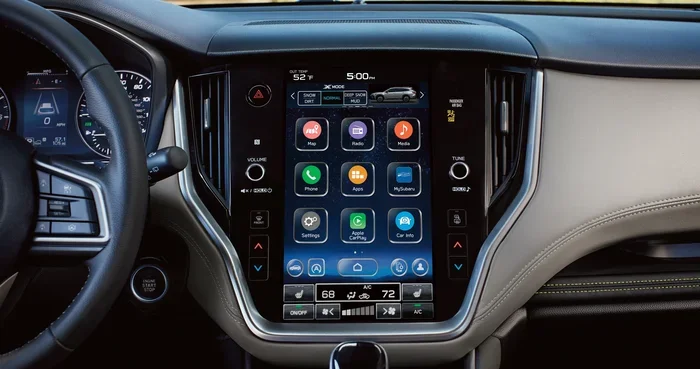
Newer Subaru models, especially higher trims, come with factory-installed Starlink navigation. This built-in system uses a dedicated touchscreen display and GPS antenna mounted inside the vehicle. The maps are stored on the system and can be updated through a USB drive or over-the-air if your Subaru supports it. Built-in navigation tends to be the most seamless experience because it integrates directly with the car’s audio and display systems.
However, not all Subaru models include this feature standard. Models like the base trims of the Impreza or older model years may not have it. In these cases, you need to explore other options.
Aftermarket Navigation Devices
If your Subaru does not have a built-in screen or the factory navigation package, an aftermarket device is a great alternative. Portable GPS units from brands like Garmin or TomTom mount on your dashboard or windshield. These devices are independent of the Starlink system but offer full navigation capabilities. They are especially useful for older Subaru models that lack modern infotainment features.
The downside is that aftermarket devices do not integrate with your car’s audio system as smoothly. You may need to use Bluetooth or an auxiliary cable to hear directions through your speakers. Still, they provide reliable map guidance at a fraction of the cost of a dealer-installed upgrade.
Smartphone Integration
One of the most popular ways to add navigation to a Subaru is through smartphone integration. Both Apple CarPlay and Android Auto allow you to mirror your phone’s navigation apps on your Subaru’s touchscreen. Apps like Google Maps, Waze, and Apple Maps work seamlessly through this connection.
This method is incredibly flexible because you always have the latest maps and traffic data on your phone. You simply connect your phone via USB or wirelessly, open your preferred navigation app, and follow the directions on your car’s display. For many Subaru owners, this is the easiest and most cost-effective way to get navigation features without any extra hardware.
How to Add Navigation Through Starlink Subscription
If your Subaru supports the Starlink system, adding navigation often comes down to selecting the right subscription plan. Subaru offers different tiers of Starlink services, and navigation features may be included in specific packages.
Starlink Safety and Security
The base Starlink package focuses on safety features like automatic crash notification and roadside assistance. This tier does not typically include navigation. If you want GPS features, you will need to look at higher-tier plans.
Starlink Navigation Package
The Starlink Navigation package is specifically designed for drivers who want built-in GPS and map features. This package usually includes real-time traffic updates, points of interest search, and route guidance. You can purchase this package through your Subaru dealer or online through the Starlink portal.
Subscription pricing varies depending on your region and the specific package you choose. Some Subaru models come with a complimentary trial period, giving you time to test the navigation features before committing to a paid plan. Make sure to ask your dealer about current promotions or bundled offers.
Activation Process
Once you have selected your subscription, activation is straightforward. Follow these steps to get started:
- Turn on your Subaru and access the Starlink main menu on the touchscreen.
- Navigate to the settings or services section.
- Select the option to activate or add a new service.
- Enter your subscription details or follow the on-screen prompts to purchase.
- Wait for the system to connect to the Starlink network.
- Once connected, the navigation icon should appear on your home screen.
The entire process usually takes just a few minutes. If you run into any issues, your Subaru dealer can assist with activation over the phone or in person.
Setting Up Navigation on Your Subaru Starlink
After you have the navigation service active, the next step is setting it up for your daily driving. Proper configuration ensures you get the best experience from your Subaru infotainment system.
Entering Your Destination
To enter a destination, tap the navigation icon on your Starlink home screen. You can search by address, business name, or category like restaurants or gas stations. The system uses a map interface similar to what you would see on a standalone GPS device. Simply type in where you want to go, and the system will calculate the best route.
You can also save favorite locations for quick access later. This is especially useful for addresses you visit regularly, like your workplace or a gym.
Adjusting Navigation Settings
Starlink navigation offers several settings to customize your experience:
- Route Preferences: Choose between the fastest route, shortest distance, or a route that avoids highways and tolls.
- Voice Guidance: Turn on spoken directions so you do not have to keep your eyes on the screen.
- Traffic Updates: Enable real-time traffic data to avoid congestion and construction zones.
- Night Mode: Switch to a darker display theme for easier viewing at night.
Taking a few minutes to adjust these settings makes a big difference in how pleasant and useful your navigation experience is.
Using Voice Commands
Starlink supports voice commands, which is a huge safety benefit while driving. Instead of typing on the touchscreen, you can press the voice button on your steering wheel and say where you want to go. The system will search for your destination and start guiding you. This feature keeps your hands on the wheel and your eyes on the road.
Troubleshooting Common Starlink Navigation Issues
Even the best technology can have hiccups. If your Starlink navigation is not working as expected, try these troubleshooting steps before visiting a dealer.
System Not Responding or Freezing
If your Starlink touchscreen freezes or becomes unresponsive, the first step is to perform a soft reset. Turn off the ignition, wait about 30 seconds, and then restart the vehicle. This clears temporary glitches and refreshes the system.
If a soft reset does not work, you may need to factory reset the Hybrid Connect system. This restores all settings to their defaults and often resolves persistent software issues. Note that a factory reset will erase your saved preferences, so make sure you know your login credentials before proceeding.
No GPS Signal
A lost GPS signal can prevent navigation from working. This usually happens when the vehicle is in a tunnel, underground parking, or an area with heavy tree cover. Moving to an open area typically restores the signal within a minute or two.
If the signal does not return, check that your antenna is functioning properly. The GPS antenna is usually mounted on the roof of the vehicle. Physical damage or obstructions can interfere with signal reception.
Maps Out of Date
Outdated maps can lead to incorrect directions or missing roads. Subaru releases map updates periodically, and keeping your system current is important for accuracy. You can check for updates through the Starlink settings menu or by visiting your Subaru dealer for a professional update.
Keeping Your Subaru Starlink System Updated
Regular updates are key to maintaining a smooth navigation experience. Subaru pushes software and map updates through the Starlink network, and staying current ensures you have the latest features and road data.
Map Update Frequency
Most Subaru models receive map updates once or twice a year. Some newer models support over-the-air updates, which download automatically when your vehicle is connected to Wi-Fi. If your Subaru does not support over-the-air updates, you may need to visit a dealer or use a USB drive to install the latest maps manually.
Software and Feature Updates
Beyond maps, Subaru also releases software updates that improve system performance, add new features, and fix bugs. These updates can enhance the speed of your Subaru touchscreen display and improve the reliability of voice commands and route calculations.
To check for available updates, go to your Starlink settings and look for the software or system update option. If an update is available, follow the on-screen instructions to download and install it. Make sure your vehicle is parked safely and the engine is running during the update process.
Tips for Getting the Most Out of Subaru Starlink Navigation
Once your navigation is set up and working, a few best practices can help you get even more value from the system.
Use Points of Interest Search
The Starlink navigation system includes a points of interest database. You can search for gas stations, restaurants, hotels, and more without typing a full address. This is incredibly handy when you are traveling in unfamiliar areas and need to find services quickly.
Plan Routes Before You Drive
While Starlink allows you to enter destinations while driving, it is always safer to plan your route before you start the engine. You can use the Starlink app on your phone to set up routes at home and send them to your vehicle. This way, the navigation is ready to go as soon as you sit behind the wheel.
Keep Your Phone Charged
If you use smartphone integration for navigation, your phone battery can drain quickly during long drives. Consider using a USB charging cable connected to your Subaru’s infotainment system to keep your phone powered throughout the trip.
Explore Subaru Hybrid Benefits
If you drive a Subaru hybrid, you already know the value of fuel efficiency. Making your hybrid battery last longer pairs well with efficient route planning through Starlink navigation. You can use the navigation system to find the most fuel-friendly routes and avoid heavy traffic, which helps both your battery and your fuel economy.
Maintain Your Subaru for Optimal Performance
A well-maintained vehicle supports all its electronic systems, including Starlink. Regular maintenance like checking your Subaru coolant levels and keeping your battery in good condition ensures that your infotainment and navigation systems operate without interruption. Simple upkeep goes a long way toward a reliable driving experience.
Comparing Navigation Options for Subaru Starlink
Choosing the right navigation method depends on your needs, budget, and vehicle model. Here is a quick comparison of the main options available to Subaru owners.
| Option | Cost | Integration | Map Updates | Best For |
|---|---|---|---|---|
| Built-In Starlink Navigation | Subscription-based | Seamless | Automatic or USB | New Subaru models with factory support |
| Aftermarket GPS Device | One-time purchase ($100-$300) | Limited | Manual updates | Older Subaru models without screens |
| Smartphone Integration (CarPlay/Android Auto) | Free (app-based) | Good | Automatic via phone | Budget-conscious drivers wanting flexibility |
Each option has its strengths. Built-in Starlink navigation offers the most polished experience, while smartphone integration provides the most flexibility. Aftermarket devices are a solid choice for older vehicles that lack modern tech features.
Common Mistakes to Avoid When Setting Up Starlink Navigation
Setting up navigation on your Subaru Starlink system is generally straightforward, but a few common mistakes can cause frustration. Avoiding these pitfalls saves time and ensures a smoother experience.
- Skipping the Subscription Step: Many owners assume navigation is free with Starlink. In most cases, you need an active subscription to access full navigation features. Always verify your plan includes map and guidance services.
- Ignoring Map Updates: Using outdated maps leads to missed turns and incorrect routes. Make it a habit to check for updates at least twice a year.
- Not Testing Before a Long Trip: Always test your navigation system on a familiar route before relying on it for a long road trip. This helps you identify any issues early.
- Overloading the System: Installing too many apps or storing excessive data on your Starlink system can slow it down. Keep the system lean for the best performance.
Expert Insights on Subaru Starlink Navigation
From a technical standpoint, the Subaru Starlink navigation system is a solid platform that continues to improve with each model year. The integration of real-time traffic data, voice guidance, and smartphone compatibility puts it on par with many competing systems in the market.
One area where Starlink shines is its safety integration. Navigation alerts are paired with the system’s safety features, meaning you get not just directions but also proactive safety notifications. This combination of guidance and protection is a standout benefit for families and daily commuters alike.
For owners considering whether to invest in the navigation package, the answer largely depends on how often you drive in unfamiliar areas. If you travel frequently or live in a fast-growing area with new roads, the navigation subscription is well worth the investment. If you mostly stick to known routes, smartphone integration may be all you need.
Final Thoughts on Adding Navigation to Subaru Starlink
Adding navigation to your Subaru Starlink system is a worthwhile upgrade that enhances your driving experience in meaningful ways. Whether you choose a built-in subscription, an aftermarket device, or smartphone integration, the goal is the same: getting you to your destination safely and efficiently.
The process is more accessible than most owners realize. With a clear understanding of your options, a simple setup process, and regular maintenance, your Subaru Starlink navigation will serve you well for years to come. Take the time today to explore your options and get your system configured. A small investment in setup pays off every time you turn the key and hit the road.
Remember, the best navigation system is the one you actually use. Choose the option that fits your lifestyle, budget, and vehicle, and enjoy the confidence that comes with knowing exactly where you are going. Safe travels.
Frequently Asked Questions
Can I add navigation to any Subaru Starlink model?
Most Subaru models with a Starlink system can support navigation, but the method varies. Newer models may have built-in navigation ready to activate with a subscription, while older models may require a smartphone integration or aftermarket device. Check your specific model and year to confirm compatibility.
How much does a Starlink navigation subscription cost?
Subscription pricing varies by region and package. Subaru typically offers different tiers that include navigation features. Some models come with a free trial period. Contact your Subaru dealer for current pricing and available bundles.
Do I need an internet connection for Starlink navigation to work?
Yes, Starlink navigation requires a data connection for real-time traffic updates, map downloads, and points of interest searches. The system connects through your Subaru’s built-in cellular modem or your phone’s data connection when using smartphone integration.
Can I use Apple CarPlay or Android Auto for navigation instead?
Absolutely. If your Subaru supports Apple CarPlay or Android Auto, you can use navigation apps like Google Maps or Waze on your car’s display. This is often the most flexible and cost-effective option for adding navigation to your vehicle.
How often do I need to update the maps on my Starlink system?
Map updates are typically released once or twice a year. Keeping your maps current ensures accurate directions and up-to-date points of interest. You can check for updates through your Starlink settings menu or visit your Subaru dealer for assistance.
What should I do if my Starlink navigation stops working suddenly?
Start by performing a soft reset of your vehicle. If that does not resolve the issue, check your data connection and subscription status. A factory reset of the connected services system can also help clear persistent software problems. Contact your Subaru dealer if the issue continues.
=== CONCLUSION ===
Adding navigation to your Subaru Starlink system is one of the best upgrades you can make for your daily driving and road trips. With multiple options available from factory subscriptions to smartphone integration, there is a solution for every Subaru owner and budget. The key is to choose the method that fits your vehicle, activate the right services, and keep your system updated for the best performance.
Take advantage of the tips and steps outlined in this guide to get your Subaru Starlink navigation running smoothly. Whether you are a new Subaru owner or have been driving for years, a reliable navigation system transforms how you get around. Start your setup today and enjoy the confidence of knowing exactly where you are going on every journey.