How Do I Update My Buick Navigation System Made Easy
Updating your Buick navigation system is simpler than you think. Whether you use a USB drive, OnStar, or a dealer service, this guide walks you through every method step by step. You will learn how to check your current map version, download updates, and avoid common mistakes that cause problems.
Have you ever followed your Buick navigation system and ended up on a road that no longer exists? That happens when your maps are out of date. Roads change, new businesses open, and routes get rerouted. Keeping your Buick GPS update current saves you from frustration and wasted time.
Many Buick owners wonder how to update their navigation. The good news is that it is not as hard as it sounds. You have a few different options. You can do it yourself with a USB drive, use OnStar if your car has it, or visit a dealer. This guide covers every method in plain, simple language so you can get back on the road with confidence.
Whether you drive a Buick Enclave, Buick LaCrosse, or another model, this article has you covered. We will walk through each step, share tips, and help you avoid common pitfalls. Let us get started.
Key Takeaways
- Multiple Update Methods: You can update your Buick navigation using a USB drive, OnStar, or by visiting a dealer.
- Regular Updates Matter: Keeping your maps current ensures accurate routing and new point of interest data.
- USB Update Is DIY-Friendly: Most Buick owners can handle a map update at home with a USB flash drive.
- OnStar Offers Wireless Updates: If your vehicle has active OnStar, you may be able to update navigation wirelessly.
- Common Issues Are Fixable: Frozen screens, failed downloads, and error messages usually have simple solutions.
- Dealer Updates Are Thorough: Visiting a Buick dealer ensures firmware and map data are fully current.
📑 Table of Contents
- Why Keeping Your Buick Navigation Updated Matters
- How to Check Your Current Navigation Version
- Updating Your Navigation via USB Drive
- Using OnStar or Dealer Services for Updates
- Common Navigation Update Problems and How to Fix Them
- How Often Should You Update Your Buick Navigation?
- Tips to Keep Your Navigation System Running Smoothly
- Conclusion
Why Keeping Your Buick Navigation Updated Matters
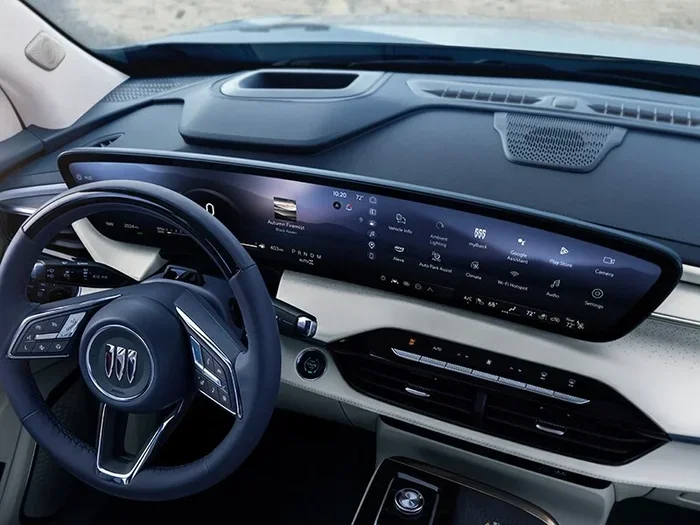
Your Buick infotainment system relies on GPS map data to guide you. Over time, that data becomes outdated. Here is why staying current makes a big difference.
Accurate Routes and Directions
Updated maps include new roads, highway changes, and revised traffic patterns. Your route guidance stays reliable when the map data is fresh. You will spend less time getting lost and more time enjoying your drive.
New Points of Interest
Navigation updates add new restaurants, gas stations, hotels, and attractions to your database. When you search for a point of interest, you get more results and better options. This is especially helpful when you are traveling in unfamiliar areas.
Improved Traffic and Safety Features
Many modern Buick systems offer real-time traffic updates. Fresh map data ensures these features work correctly. You also get the latest speed limit information and road hazard alerts, which helps you stay safe.
Better Resale Value
A car with current navigation software feels more modern. If you ever sell your Buick, buyers notice a well-maintained navigation system. It is a small detail that adds real value.
How to Check Your Current Navigation Version
Before you update, you need to know what version you have. This tells you whether an update is needed and helps you pick the right files. The process is quick and easy.
Step-by-Step: Checking Your Map Version
Follow these steps to find your current navigation system software version:
- Start your Buick and let the engine run.
- Press the Setup button on the infotainment screen.
- Navigate to Settings or System.
- Look for Navigation or Map Information.
- You will see a version number and a date. Write it down.
If the date is more than one year old, it is time to update. New map data comes out regularly, and older versions may miss recent road changes.
What Version Number Should You Look For?
Buick releases updates several times a year. The version number usually includes a year and a sequence number. For example, a 2024 map release will have a higher number than a 2023 release. Visit the Buick website or call your dealer to find the latest version available for your model.
Updating Your Navigation via USB Drive
The most popular way to update a Buick navigation system is with a USB flash drive. This method lets you do it at home, and it costs nothing but a few minutes of your time.
What You Will Need
- A USB flash drive with at least 8 GB of storage.
- A computer with internet access.
- The latest map data files from the Buick website.
- A few free hours to let the update complete.
Step-by-Step USB Update Process
- Format your USB drive. Use FAT32 file format. Most computers let you do this by right-clicking the drive and selecting Format.
- Download the update files. Go to the official Buick website. Find the navigation map update section. Select your model and year. Download the files to your computer.
- Copy the files to the USB drive. Drag and drop the downloaded folder onto your USB drive. Do not rename or move individual files inside the folder.
- Plug the USB drive into your Buick. Use a USB port in the center console or glove box.
- Follow the on-screen prompts. The system will detect the update. Select Install and wait. Do not turn off the ignition during this process.
- Restart the system. Once the update finishes, the screen may go dark for a moment. This is normal. The system will reboot with the new maps.
Quick Tips for a Smooth USB Update
- Use a high-quality USB drive from a trusted brand. Cheap drives sometimes fail during the transfer.
- Make sure your car battery is fully charged or the engine is running. A dead battery during an update can cause serious problems.
- Do not unplug the USB drive until the system tells you the update is complete.
- If the update fails, reformat the USB drive and try again. Sometimes a simple restart fixes the issue.
USB Update vs. Other Methods
| Method | Cost | Difficulty | Time Required |
|---|---|---|---|
| USB Drive (DIY) | Free (just the USB drive) | Easy to Moderate | 30-60 minutes |
| OnStar Wireless | Free with active plan | Very Easy | 15-30 minutes |
| Dealer Service | Free to low cost | Very Easy | 1-2 hours (wait time) |
Using OnStar or Dealer Services for Updates
If you prefer not to handle a USB drive, you have two other great options. OnStar can push updates wirelessly to your vehicle. And your local Buick dealer can handle the entire process for you.
Updating Through OnStar
OnStar is Buick’s connected services platform. If your vehicle has an active OnStar plan, you may be able to receive navigation system software updates over the air. Here is how it works:
- Check your OnStar plan status. Some plans include map updates at no extra charge.
- Open the OnStar button on your console or use the MyBuick app.
- Navigate to the Vehicle Updates section.
- If an update is available, follow the prompts to download and install it.
- The system will handle everything automatically. You just need to wait.
OnStar updates are convenient because you do not need any extra equipment. However, not all Buick models support wireless navigation updates. Check with OnStar or your dealer to confirm your vehicle is eligible.
Visiting a Buick Dealer
When in doubt, a dealer visit is the most reliable option. A technician will connect your vehicle to their system and install the latest map update and any firmware upgrades. Here is what to expect:
- Call your local Buick dealer ahead of time. Ask about navigation update availability.
- Bring your vehicle in during business hours. The process usually takes one to two hours.
- The technician will also check your GPS signal and navigation settings to make sure everything works properly.
- Some dealers offer this service for free. Others may charge a small labor fee. It is always worth asking.
Expert Insight
Dealers have access to the full suite of Buick updates. This includes not just maps but also firmware patches that fix bugs and improve system speed. If your navigation has been acting strange, a dealer visit can address both map and software issues at once.
Common Navigation Update Problems and How to Fix Them
Even when you follow the instructions carefully, things can go wrong. Here are the most common issues Buick owners face and how to solve them.
Update Fails to Install
This is the most common complaint. The USB drive may not be formatted correctly, or the files may be corrupted. To fix this, reformat the USB drive to FAT32, re-download the files from the official Buick site, and try again. Avoid using USB hubs or extension cables. Plug the drive directly into the car port.
Screen Freezes During Update
A frozen screen can be scary, but it usually fixes itself. Wait at least 15 minutes before doing anything. If the screen stays frozen, turn the ignition off and back on. The system should resume or roll back to the previous version safely.
Maps Show but Routes Are Wrong
This usually means the update did not fully install. Check the version number again to confirm. If the version looks correct but routes are still off, try resetting the navigation system. Go to Settings, find Navigation, and select Reset to Default.
USB Drive Not Recognized
If your Buick does not detect the USB drive, try a different port or a different USB drive. Some older Buick models only support certain drive sizes. A 4 GB or 8 GB drive works best in most cases. Avoid drives larger than 32 GB, as some systems cannot read them.
GPS Signal Lost After Update
Sometimes the GPS signal drops after a map update. This is usually temporary. Drive your car outside and wait a few minutes. The system should reconnect to satellites. If it does not, go to Settings and select GPS Reset or Location Services to restore the connection.
Quick Tips Section
- Always back up your navigation settings before updating. You do not want to lose your saved favorites.
- Update your navigation during a day off or when you are not planning to drive. This gives you plenty of time if something goes wrong.
- Keep your owner’s manual handy. It has model-specific instructions that can save you time.
- Subscribe to Buick’s email alerts. They notify you when new map updates are available for your model.
How Often Should You Update Your Buick Navigation?
There is no single answer to this question. It depends on how often you drive, where you live, and how frequently roads change in your area. As a general rule, update your Buick GPS update at least once a year. If you travel frequently or live in a fast-growing area, consider updating every six months.
Buick typically releases map updates twice a year. Spring and fall are the most common release windows. Check the Buick website or contact your dealer to find out when the next update is coming.
Some owners wait until they notice a problem before updating. By then, the maps could be months out of date. Making updates a regular habit keeps your navigation system software running at its best.
Tips to Keep Your Navigation System Running Smoothly
A little maintenance goes a long way. Here are some simple habits that keep your Buick navigation in top shape.
Keep Your Software Current
Maps are only part of the picture. Firmware updates improve overall system performance. They fix bugs, speed up the touchscreen, and add new features. Check for firmware updates every time you update your maps.
Protect Your USB Drive
Your USB drive is a key tool for updates. Store it in a safe place when not in use. Label it clearly so you do not accidentally use it for other files. A dedicated update drive saves time and prevents errors.
Clean Your Touchscreen Regularly
A smudged or dirty screen makes navigation harder to read. Use a soft microfiber cloth to wipe the display gently. Avoid harsh chemicals that could damage the screen coating.
Restart Your System Occasionally
Just like your phone, your Buick infotainment system benefits from a fresh restart. If you notice slow performance or glitchy behavior, a simple restart often fixes the problem. Hold the power button for a few seconds and select Restart.
Use Official Sources Only
Always download map files from the official Buick website or through OnStar. Third-party sources may contain outdated or corrupted files. Stick with official channels to keep your Buick navigation system safe and accurate.
Conclusion
Updating your Buick navigation system does not have to be complicated. You have several options, from a simple USB update at home to a dealer visit or wireless OnStar download. The key is to stay consistent and update your maps at least once a year.
Regular updates give you accurate routes, new points of interest, and better traffic information. They also protect the long-term value of your vehicle. Whether you drive a Buick Enclave, Buick LaCrosse, or another model, taking a few minutes to update your navigation pays off every time you get behind the wheel.
Now that you know how easy it is, there is no reason to wait. Pick your preferred method, gather your tools, and give your Buick GPS update the attention it deserves. Your future self will thank you every time the navigation guides you right to your destination.
Frequently Asked Questions
Can I update my Buick navigation system for free?
Yes, in most cases. Buick provides map update files for free on their official website. You only need a USB drive. Some dealer services may charge a small labor fee, but the map data itself is typically free.
How long does a Buick navigation update take?
A USB update usually takes between 30 and 60 minutes. OnStar wireless updates are faster, often around 15 to 30 minutes. Dealer updates take about one to two hours including wait time.
What kind of USB drive works best for Buick navigation updates?
A standard 8 GB USB flash drive formatted to FAT32 works in most Buick models. Avoid drives larger than 32 GB for older systems. Stick with reliable brands like SanDisk or Kingston for the best results.
Will updating my navigation erase my saved favorites and routes?
In most cases, your saved favorites and recent routes are preserved after an update. However, it is always a good idea to write down your favorite locations before updating, just to be safe.
Can I update my Buick navigation without a USB drive?
Yes, if your vehicle has OnStar with a wireless update plan, you can update your navigation without any USB drive. You can also visit a Buick dealer who will handle the update for you using their professional equipment.
How do I know if my Buick navigation update was successful?
After the update, check the map version number in your navigation settings. It should match the latest version available on the Buick website. Test a route to confirm the system is guiding you correctly with updated roads and points of interest.