How to Connect Bluetooth to Acura MDX the Easy Way
Connecting Bluetooth to your Acura MDX is simple once you know the steps. This guide walks you through pairing your phone, troubleshooting common issues, and getting the best sound quality. You will learn how to set up hands-free calling, stream music, and manage multiple devices with ease.
Have you ever jumped into your Acura MDX and wished you could just tap your phone to the car and start playing music? Maybe you have tried Bluetooth pairing before and it did not work the way you expected. You are not alone. Many MDX owners find the wireless connection process a little confusing at first.
The good news is that connecting Bluetooth to your Acura MDX does not have to be hard. Whether you want to make hands-free calling, stream your favorite playlists, or use voice commands on the road, this guide has you covered. We will walk you through every step in plain language so you can get it done fast.
By the time you finish reading, you will know exactly how to pair your phone, fix common problems, and get the most out of your car’s infotainment system. No jargon. No guesswork. Just clear steps that actually work.
Key Takeaways
- Bluetooth pairing on the Acura MDX takes just a few minutes if you follow the right steps.
- Hands-free calling and audio streaming are core features that make driving safer and more enjoyable.
- Resetting your Hybrid Connect system can solve most Bluetooth connection problems.
- A healthy car battery is essential for stable Bluetooth performance.
- Managing multiple paired devices lets you switch between phones seamlessly.
- Keeping your MDX software updated ensures the best wireless connection experience.
📑 Table of Contents
Understanding Bluetooth on the Acura MDX
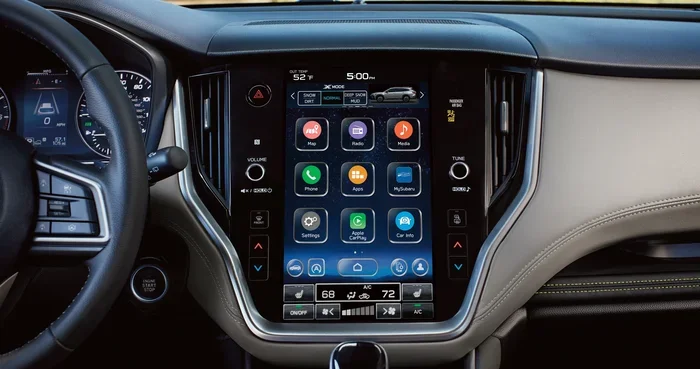
The Acura MDX comes with a built-in car infotainment system that supports Bluetooth wireless technology. This means you can connect your phone without any wires. The system handles both audio streaming and phone calls. It works with most smartphones, whether you use an iPhone or an Android device.
What Bluetooth Features Does the MDX Offer?
The Acura MDX Bluetooth system gives you several useful features. First, you get hands-free calling, which lets you answer phone calls through your car speakers. Second, you can stream Bluetooth audio from your phone to the car stereo. Third, the system supports contact syncing, so you can see your phone contacts on the screen.
Some models also support voice recognition. This lets you control calls and music using voice commands. It is a great safety feature because you keep your hands on the wheel and your eyes on the road.
Which MDX Models Support Bluetooth?
Most Acura MDX models from 2007 onward include Bluetooth connectivity as a standard or available feature. If you have a newer model, Bluetooth is almost certainly built in. Older models may need a retrofit adapter, but that is rare. You can check your owner’s manual or look at the MDX touchscreen for a Bluetooth icon.
Preparing to Connect Bluetooth to Your Acura MDX
Before you start the pairing process, a little preparation goes a long way. Taking a few minutes to set things up will save you time and frustration later.
Check Your Car Battery First
A weak car battery can cause all kinds of electrical issues, including Bluetooth connection problems. If your battery is low, the infotainment system may not work properly. Before you try to pair your phone, make sure your battery is healthy. You can learn how to check your car battery with a simple multimeter or by visiting a local auto shop.
Also, make sure your car is running when you attempt to pair. The infotainment system needs stable power to search for and connect to devices. A running engine gives the electrical system the power it needs.
Make Sure Your Phone Is Ready
On your phone, turn on Bluetooth in the settings menu. Make sure your phone is discoverable. This means it is broadcasting a signal that other devices can see. Most phones keep discoverable mode on for a few minutes after you turn Bluetooth on. If your phone times out, just turn Bluetooth off and on again.
Also, make sure your phone has enough battery. A dying phone can interrupt the Bluetooth pairing process. Plug your phone in if the battery is low. This ensures a smooth and uninterrupted connection.
Step-by-Step Bluetooth Pairing Guide
Now for the fun part. Here is exactly how to connect Bluetooth to your Acura MDX step by step. Follow these instructions in order and you should be connected in under five minutes.
Step 1: Turn on Bluetooth on Your Phone
Open your phone settings and tap the Bluetooth option. Toggle it on. Your phone will immediately start looking for nearby devices. You should see a list of available devices appear on your screen. Keep your phone close to the car console during this step.
Step 2: Access the MDX Bluetooth Settings
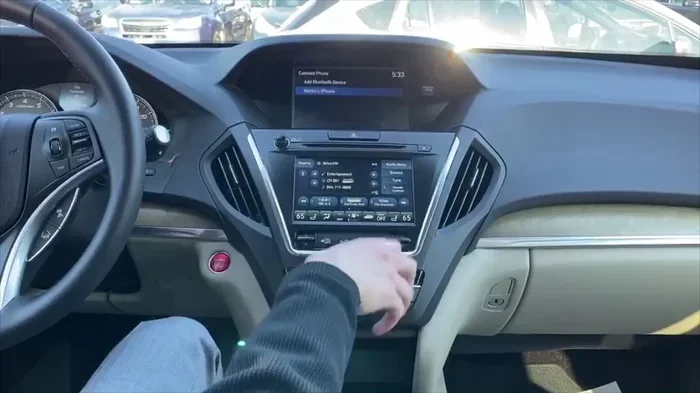
On your MDX touchscreen or control panel, find the Bluetooth settings menu. On most models, you can do this by pressing the Setup button, then scrolling to Bluetooth. The exact path may vary slightly depending on your model year, but the general steps are the same.
Select the option to add a new device. The MDX will now start searching for nearby Bluetooth devices. You should see a message on the screen saying it is searching or discovering devices.
Step 3: Search for and Select Your Device
On your phone, look for the name of your Acura MDX in the list of available devices. It may show up as “Acura MDX” or something similar. Tap on it to select it.
On the MDX screen, you may see a confirmation prompt. Accept the connection request on both your phone and the car system. Some models require you to enter a PIN code to complete the pairing.
Step 4: Enter the PIN and Confirm
If the system asks for a PIN, try entering 0000 or 1234. These are the most common default PIN codes for car Bluetooth systems. If those do not work, check your owner’s manual for the correct code.
Once you enter the PIN, both devices should confirm the connection. You will hear a tone or see a confirmation message on the MDX touchscreen. Your phone should now show “Connected” next to the Acura MDX name. Congratulations, you are now wirelessly connected!
Troubleshooting Common Bluetooth Connection Issues
Sometimes things do not go as planned. If your Bluetooth connection is not working, do not worry. Most problems have simple fixes. Here are the most common issues and how to solve them.
Bluetooth Won’t Show Up on the MDX Screen
If your phone does not appear on the MDX screen, try turning Bluetooth off on both devices and then back on again. This refreshes the device discovery process. Also, make sure your phone is within a few feet of the car console. Bluetooth range is typically about 30 feet, but being closer helps during the initial pairing.
If the problem continues, try deleting any old Bluetooth pairings from both your phone and the car. Sometimes stored connections from previous devices can cause conflicts. A clean slate often solves the issue.
Connection Keeps Dropping
A Bluetooth connection that keeps dropping can be very frustrating. This is often caused by interference from other wireless devices. Wi-Fi routers, USB cables, and even other phones in the area can cause interference. Try moving your phone to a different location in the car.
If the problem persists, it may be a software issue. In some cases, resetting the Hybrid Connect system on your MDX can fix this. A factory reset clears out any software glitches that may be affecting your wireless connection. Just be sure to back up any important settings before you reset.
Audio Quality Is Poor
If your Bluetooth audio sounds scratchy or distorted, the first thing to check is the distance between your phone and the car. Moving closer often improves sound quality. Also, make sure nothing is blocking the signal between your phone and the car console.
Another common cause is a low phone battery. When a phone’s battery is very low, it may reduce Bluetooth signal strength to save power. Plug your phone in and see if the audio quality improves.
Advanced Tips for Better Bluetooth Performance
Once you have your Bluetooth connection working, there are a few extra steps you can take to make it even better. These tips will help you get the most out of your Acura MDX’s wireless features.
Updating Your MDX Software
Acura occasionally releases software updates for the MDX infotainment system. These updates can improve Bluetooth connectivity, fix bugs, and add new features. Check with your Acura dealer or visit the Acura website to see if any updates are available for your model.
Keeping your software up to date is one of the easiest ways to maintain a strong wireless connection. It only takes a few minutes and can make a big difference in performance.
Managing Multiple Paired Devices
The Acura MDX can store multiple paired devices at once. This is great if you share the car with a spouse or family member. Each person can have their own Bluetooth profile saved in the system.
To switch between devices, simply have the second phone make its Bluetooth signal available. The MDX should detect it and prompt you to connect. You can also go into the Bluetooth settings menu and manually select which device to use. This makes vehicle connectivity easy for everyone in the family.
Using Bluetooth for Navigation and Apps
Beyond calls and music, Bluetooth connectivity on the MDX can also support navigation apps on your phone. Apps like Google Maps or Waze can send audio directions through your car speakers. This gives you turn-by-turn navigation without holding your phone.
Just make sure your phone has a strong Bluetooth signal and that your data connection is active. The combination of Acura technology and your phone’s smart features makes for a powerful driving experience.
Common Mistakes to Avoid When Connecting Bluetooth
Even with a good guide, people still make mistakes. Here are a few common ones to watch out for when you are connecting Bluetooth to your Acura MDX.
- Skipping the preparation step. Always make sure your car battery is charged and your phone is ready before you start.
- Ignoring old pairings. Leftover connections from other devices can cause conflicts. Clear them before trying a new pairing.
- Not updating the software. Old software can cause Bluetooth troubleshooting headaches. Keep your system current.
- Placing your phone too far away. During initial pairing, keep your phone within a few feet of the console.
- Using the wrong PIN. Try 0000 or 1234 first. If those do not work, check the owner’s manual.
Avoiding these simple mistakes will save you a lot of time and frustration. Most Bluetooth connection issues come down to small oversights that are easy to fix.
Conclusion
Connecting Bluetooth to your Acura MDX is one of the best things you can do for your daily driving experience. It gives you hands-free calling, wireless audio streaming, and seamless smartphone integration. The process is straightforward once you know the steps, and most people can complete it in just a few minutes.
If you run into problems, remember that most issues have simple solutions. Check your battery, reset your system, and make sure your phone is up to date. With a little patience, you will be enjoying Bluetooth connectivity in your MDX in no time.
Take a few minutes today to set up your Bluetooth connection. You will wonder how you ever drove without it. Safe travels and happy streaming.
Frequently Asked Questions
How long does Bluetooth pairing take on an Acura MDX?
The Bluetooth pairing process usually takes about two to five minutes. If everything goes smoothly, you can be connected in under three minutes. The key is to have both your phone and car ready before you start.
Can I connect more than one phone to my Acura MDX Bluetooth?
Yes, the Acura MDX can store multiple paired devices. This means you and your spouse or family member can each have your own phone connected. You can switch between devices easily through the Bluetooth settings menu.
Why won’t my phone show up on the Acura MDX Bluetooth screen?
This is usually caused by your phone not being in discoverable mode. Make sure Bluetooth is turned on and your phone is set to be visible to other devices. Also, try turning Bluetooth off and on again on both your phone and the car system. If the issue persists, clearing old pairings can help.
Do I need an adapter to use Bluetooth on my Acura MDX?
No, most Acura MDX models come with built-in Bluetooth technology. You do not need any extra adapters or accessories. Just use the car’s infotainment system to search for and pair your phone. If you have a very old model, you may need a retrofit adapter, but this is rare.
Can I stream music from Spotify or Apple Music through Acura MDX Bluetooth?
Absolutely. The Acura MDX Bluetooth system supports audio streaming from any app on your phone, including Spotify, Apple Music, and YouTube Music. Just connect your phone via Bluetooth and start playing music from your preferred app. The audio will come through your car speakers.
What should I do if my Bluetooth connection keeps dropping in the Acura MDX?
First, try moving your phone closer to the car console. If that does not work, turn Bluetooth off and back on both devices. You may also want to factory reset your Hybrid Connect system to clear any software glitches. Keeping your MDX software updated can also prevent connection drops.
=== END OF ARTICLE ===