Learn How to Turn On Traffic Sign Recognition in Audi
Traffic sign recognition is a smart safety feature in Audi vehicles that automatically detects road signs and displays them on your dashboard. In this guide, we walk you through exactly how to turn on traffic sign recognition in Audi models, adjust settings, and get the most out of this driver assistance technology. Whether you drive an Audi A4, A6, or Q5, you will find clear steps to activate and customize sign recognition for safer, more informed driving.
Driving an Audi comes with a suite of advanced technology designed to make every trip safer and more comfortable. Among the most useful features is traffic sign recognition, a system that automatically reads road signs and shows them to you right on the dashboard. If you have ever wondered how to turn on traffic sign recognition in Audi, you are in the right place. This guide covers everything from basic activation to advanced settings, so you can make the most of this smart safety tool.
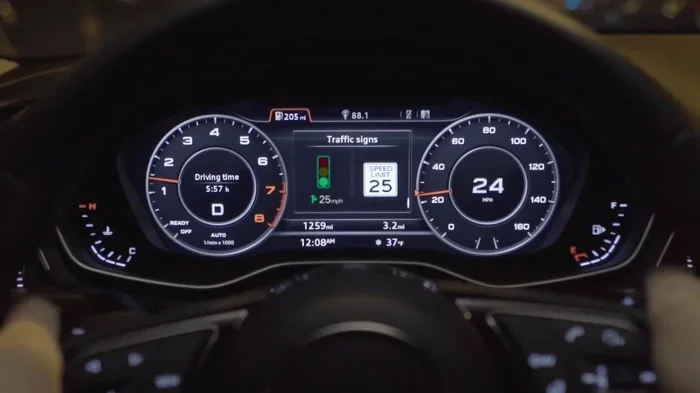
Traffic sign recognition is not just a luxury feature. It actively helps you stay aware of speed limits, no-passing zones, and other important road information. The system uses a small camera mounted near the rearview mirror to read signs as you drive. Then it displays the relevant information on your Audi instrument cluster or Audi cockpit display. Understanding how this feature works and how to activate it can genuinely improve your daily commute and long road trips alike.
In the following sections, we will walk you through exactly what traffic sign recognition does, which Audi models support it, and the step-by-step process to turn it on. We will also cover customization options, common troubleshooting tips, and expert advice to help you get the best experience. By the end of this guide, you will feel confident navigating the Audi MMI system and using your vehicle’s safety features to their full potential.
Key Takeaways
- Easy Activation: Turning on traffic sign recognition in Audi is straightforward through the MMI infotainment system in just a few taps.
- Dashboard Display: The system projects speed limits and road signs directly onto your Audi instrument cluster for quick reference.
- Model Compatibility: Most newer Audi models including the A3, A4, A6, A8, and Q5 come equipped with this feature.
- Customizable Settings: You can adjust alert preferences, display brightness, and sign types to match your driving style.
- Works with Other Safety Features: Traffic sign recognition integrates with adaptive cruise control and other Audi driver assistance tools.
- Camera Maintenance Matters: Keeping the windshield clean near the rearview mirror ensures the traffic sign camera works properly.
📑 Table of Contents
- What Is Traffic Sign Recognition in Audi?
- Which Audi Models Support Traffic Sign Recognition?
- Step-by-Step Guide to Turn On Traffic Sign Recognition
- Customizing Your Traffic Sign Display Settings
- Troubleshooting Common Issues with Traffic Sign Recognition
- Tips for Getting the Most Out of Traffic Sign Recognition
- Frequently Asked Questions
- Conclusion
What Is Traffic Sign Recognition in Audi?
Traffic sign recognition is an intelligent driver assistance system built into many modern Audi vehicles. It uses a forward-facing camera to detect and read traffic signs along the road. Once the system identifies a sign, it displays the relevant information on your dashboard or instrument cluster. This means you do not have to constantly scan the road for speed limit signs or other warnings.
The technology behind road sign detection relies on image recognition software. The camera captures images of signs, and the system compares them against a database of known traffic symbols. When it finds a match, it sends the information to the display unit. This process happens almost instantly, giving you real-time updates as you drive through different zones.
How the Traffic Sign Camera Works
The traffic sign camera is typically located near the top of the windshield, close to the rearview mirror. This position gives it a clear view of the road ahead. The camera feeds data to the Audi infotainment system, which processes the images and displays the recognized signs. It is important to keep this area clean and unobstructed for the best performance.
Quick Tip: If your traffic sign recognition seems unreliable, check the area near the rearview mirror for dirt, snow, or obstructions. A clean camera lens makes a big difference in road sign detection accuracy.
What Signs Does the System Recognize?
The system can recognize a wide range of traffic signs, including:
- Speed limit signs
- No overtaking signs
- Stop signs
- Yield signs
- No entry signs
- End of speed limit signs
- Weight limit signs
The system focuses primarily on speed-related signs and warning signs. It may not recognize every local or temporary sign, such as construction zone signs with hand-held boards. However, it covers the most common road signs you will encounter in daily driving.
Which Audi Models Support Traffic Sign Recognition?
Not every Audi model comes with traffic sign recognition standard. The feature is more common in mid-range and premium trims. Here is a look at which Audi vehicles typically include this driver assistance system:
| Audi Model | Traffic Sign Recognition | Typical Trim Levels |
|---|---|---|
| Audi A3 | Available | Premium and above |
| Audi A4 | Available | Premium and above |
| Audi A6 | Standard on most trims | Premium and above |
| Audi A8 | Standard | All trims |
| Audi Q5 | Available | Premium and above |
| Audi Q7 | Standard on most trims | Premium and above |
| Audi TT | Available | Premium and above |
Always check your specific vehicle’s manual or consult your dealer to confirm whether your model includes traffic sign recognition. Some older model years may not have the hardware needed, even if the software is present. The Audi safety features package often bundles this technology with other helpful systems like adaptive cruise control and lane keeping assist.
Expert Insight: If you are shopping for a used Audi, look for the driver assistance package in the vehicle history. This package almost always includes traffic sign recognition along with other valuable safety tools like forward collision warning and blind spot monitoring.
Step-by-Step Guide to Turn On Traffic Sign Recognition
Now let us get to the main question: how do you actually turn on traffic sign recognition in your Audi? The process is simple once you know where to look. The exact steps may vary slightly depending on your model year and MMI system version, but the general process is the same across most Audi vehicles.
Step 1: Start Your Vehicle
Begin by starting your Audi and letting the engine run. The Audi cockpit display needs to be fully powered on for the settings menu to load properly. Make sure your vehicle is parked safely before you adjust any settings.
Step 2: Access the MMI Main Menu
Press the MMI button on your steering wheel or tap the MMI home button on the center console screen. This brings up the main infotainment menu. Use the rotary dial or touchscreen to navigate through the options.
Step 3: Navigate to Vehicle Settings
Look for the “Vehicle” or “Car” icon on the MMI home screen. Tap on it to open the vehicle settings menu. From there, scroll down to find the “Driver Assistance” or “Driver Aid” section. This is where all the safety and convenience features are controlled.
Step 4: Find Traffic Sign Recognition
Inside the driver assistance menu, look for “Traffic Sign Recognition” or “Sign Recognition.” The exact wording depends on your MMI version. Tap on it to enter the sign recognition settings page.
Step 5: Toggle the System On
You will see an on/off switch for traffic sign recognition. Toggle it to the “On” position. The system will begin initializing, and you may see a brief loading screen while the camera calibrates. Once active, the traffic sign display will show recognized signs in real time.
Quick Tip: Some Audi models allow you to choose between different display modes for traffic signs. You can often select whether signs appear in the instrument cluster, on the head-up display, or both. Explore these options to find what works best for you.
Step 6: Adjust Alert Preferences
After turning the system on, you can customize how it alerts you. Most Audi let you choose between visual alerts only or visual plus audio alerts. Visual alerts show the sign on the display, while audio alerts give you a beep or voice notification when a new sign is detected.
Common Mistake: Many drivers turn on traffic sign recognition but leave the alert volume at zero. If you do not hear audio notifications, check your alert volume settings in the same menu. A quiet alert defeats the purpose of the feature.
Customizing Your Traffic Sign Display Settings
Once you know how to turn on traffic sign recognition in Audi, you can fine-tune the system to match your preferences. Customization options let you control what types of signs appear, how they are displayed, and when you receive alerts.
Adjusting Display Brightness
The traffic sign information appears on your Audi instrument cluster, which means it shares screen space with your speedometer, fuel gauge, and other indicators. You can adjust the brightness of the display to ensure signs are easy to read in both daylight and nighttime driving conditions.
In bright sunlight, a dim display can be hard to read. Conversely, an overly bright display at night can be distracting. Take a moment to set the brightness level to a comfortable range. The system often has an automatic brightness option that adjusts based on ambient light conditions.
Choosing Which Signs to Display
Not all traffic signs are equally important to every driver. The sign recognition settings menu lets you choose which types of signs you want to see. For example, you might want speed limit signs displayed at all times but prefer to hide less critical signs like parking regulations.
Most Audi allow you to toggle the following sign categories:
- Speed limits (current and previous)
- No overtaking warnings
- Stop and yield signs
- End of restrictions
- Weight and height limits
Selecting only the signs that matter most to you reduces clutter on the display and makes the information easier to process while driving.
Integrating with Adaptive Cruise Control
Traffic sign recognition works especially well when paired with your Audi’s adaptive cruise control system. When the system detects a lower speed limit ahead, it can display a warning and even suggest reducing your cruise control speed. This integration makes long highway drives more comfortable and helps you avoid accidental speeding.
To get the best results from this integration, make sure both traffic sign recognition and adaptive cruise control are turned on. You can usually find the cruise control settings in the same driver assistance menu where you activated sign recognition.
Expert Insight: Maximizing Sign Recognition Accuracy
The accuracy of vehicle speed monitoring through traffic sign recognition depends on several factors. Clean camera lenses, proper weather conditions, and unobstructed sign visibility all contribute to better performance. If you notice the system missing signs frequently, try cleaning the windshield near the camera and ensure no accessories are blocking the camera’s view.
Also keep in mind that the system relies on a database of known sign shapes and symbols. Temporary signs, hand-painted signs, or signs in unusual formats may not be recognized. The system is designed to assist you, not replace your own attention and judgment on the road.
Troubleshooting Common Issues with Traffic Sign Recognition
Like any electronic system in your vehicle, traffic sign recognition can occasionally have issues. Most problems are easy to fix with simple troubleshooting steps. Here are the most common issues drivers face and how to resolve them.
Traffic Sign Recognition Will Not Turn On
If the system will not activate, start by checking a few basics. Make sure your vehicle is fully started and the engine is running. The Audi MMI system needs to be fully booted before you can access driver assistance settings. If the system still will not turn on, try restarting the infotainment system by holding the power button for about 10 seconds.
Another common cause is a software update that may have reset your settings. Check for available updates through the MMI system or visit your Audi dealer. Sometimes a simple system reboot fixes the issue. Also verify that the feature is not disabled in a separate vehicle profile if your Audi supports multiple driver profiles.
Signs Not Displaying Correctly
If the system turns on but does not display signs properly, the camera is the most likely culprit. Check the area near the rearview mirror for dirt, ice, or stickers that might be blocking the camera lens. A simple wipe with a soft cloth can often resolve display issues.
Weather conditions also play a role. Heavy rain, snow, or fog can reduce the camera’s ability to read signs. The system may temporarily become less accurate in poor weather. This is normal behavior and does not indicate a malfunction.
Quick Tip: If you notice the system works well on clear days but struggles in rain or snow, this is expected. The traffic sign camera relies on clear visibility, much like how the temperature inside your car can rise dramatically based on how hot a car can get in the sun, external conditions directly affect how your car’s systems perform.
Incorrect Speed Limit Displayed
Occasionally, the system may display the wrong speed limit. This usually happens when the camera reads a sign on a different road or misidentifies a sign. The system prioritizes the most recent sign it has detected, so temporary signs or signs from intersecting roads can sometimes cause confusion.
If you notice frequent incorrect readings, try resetting the system through the driver assistance settings menu. You can also check for software updates that may improve the sign recognition database. In most cases, these issues are minor and resolve themselves as the system recalibrates.
Audio Alerts Not Working
If visual alerts work but you do not hear audio notifications, check your alert settings in the traffic sign recognition menu. Make sure the alert volume is turned up and that audio alerts are enabled. Also verify that your vehicle’s audio system is not muted or set to a very low volume.
Common Mistake: Some drivers accidentally mute all vehicle alerts, including traffic sign notifications, when adjusting the audio system. If you recently changed your audio settings, check that the alert volume was not affected.
Tips for Getting the Most Out of Traffic Sign Recognition
To truly benefit from your Audi’s traffic sign recognition system, follow these practical tips that will help you use the feature effectively and safely.
Keep Your Windshield Clean
The traffic sign camera sits behind the windshield near the rearview mirror. Any dirt, streaks, or obstructions in this area can reduce the camera’s accuracy. Make it a habit to clean the windshield in this area regularly, especially during winter when salt and grime build up quickly.
Update Your System Software
Audi regularly releases software updates that improve the traffic sign recognition database and overall system performance. Check for updates at your dealer or through the myAudi app. Keeping your system updated ensures you have the most current sign recognition capabilities.
Use the System as a Supplement, Not a Replacement
Traffic sign recognition is a helpful assistant, but it is not perfect. Always pay attention to the road and obey signs yourself. The system may miss temporary signs, construction zone signs, or signs in unusual formats. Think of it as an extra layer of awareness rather than a substitute for your own driving attention.
Combine with Other Safety Features
The real power of traffic sign recognition comes when you use it alongside other Audi safety features. Pair it with adaptive cruise control for automatic speed adjustments, or combine it with lane departure warning for a comprehensive safety net. The Audi driver assistance suite works best when all features are active and working together.
Understand the Limitations
Traffic sign recognition works best on highways and well-marked roads. In rural areas with faded signs, in heavy traffic, or during severe weather, the system may be less reliable. Understanding these limitations helps you use the feature appropriately and avoid over-reliance on its readings.
Expert Insight: Experienced Audi drivers recommend taking a few minutes after purchasing a new or used vehicle to explore all the driver assistance settings. Familiarizing yourself with the Audi infotainment system and its safety features before you need them in real driving situations builds confidence and helps you stay safe on the road.
Frequently Asked Questions
Can I turn on traffic sign recognition while driving?
Yes, you can activate traffic sign recognition while driving. However, it is always safer to set up your preferences when parked. If you need to toggle the system on or off while driving, use the steering wheel controls or voice commands to keep your hands on the wheel and eyes on the road.
Does traffic sign recognition work in all weather conditions?
The system works best in clear weather conditions. Heavy rain, snow, fog, or glare from sunlight can reduce the camera’s ability to read signs accurately. The system may temporarily become less reliable in poor weather, but it typically resumes normal operation once conditions improve.
Can I disable traffic sign recognition if I find it distracting?
Absolutely. You can turn off traffic sign recognition at any time through the MMI settings menu. If the alerts or displays feel distracting, you can also adjust the alert type or reduce the number of sign categories displayed. The system is designed to be customizable to your comfort level.
Does traffic sign recognition work with the head-up display?
On Audi models equipped with a head-up display, traffic sign information can be projected directly onto the windshield. This allows you to see speed limit signs without looking away from the road. Check your vehicle’s manual to confirm head-up display compatibility with traffic sign recognition.
How do I know if my Audi has the traffic sign recognition camera?
Look near the top of your windshield behind the rearview mirror. If you see a small camera lens or module mounted there, your Audi likely has the hardware needed for traffic sign recognition. You can also check your vehicle’s settings menu to see if the option appears under driver assistance features.
Is traffic sign recognition available on all Audi trims?
No, traffic sign recognition is typically available on mid-range and premium trims. Base trims may not include this feature as standard equipment. When purchasing an Audi, check the trim level and optional packages to confirm whether traffic sign recognition is included.
Conclusion
Learning how to turn on traffic sign recognition in Audi is one of the simplest ways to enhance your driving experience and stay safer on the road. The system provides real-time information about speed limits and road signs right on your dashboard, helping you drive with greater confidence and awareness. By following the step-by-step activation guide, customizing your display preferences, and keeping the camera clean, you can ensure the system works reliably every time you get behind the wheel.
Remember that traffic sign recognition is a powerful tool, but it works best when combined with your own attention and good driving habits. Use it alongside other Audi safety features like adaptive cruise control and lane keeping assist for a comprehensive safety setup. Keep your software updated, explore the customization options, and do not hesitate to consult your Audi dealer if you encounter any persistent issues.
With traffic sign recognition turned on and properly configured, you are well-equipped to handle everything from highway driving to unfamiliar city streets. Enjoy the peace of mind that comes with knowing your Audi is working to keep you informed and safe on every journey.