How Do I Connect My iPhone to Apple CarPlay Wirelessly
Connecting your iPhone to Apple CarPlay wirelessly is easier than you think. This guide walks you through every step to get wireless CarPlay working on your car in minutes. You will learn the setup process, troubleshoot common problems, and discover tips for a seamless iPhone CarPlay wireless connection. Whether you have a new or older vehicle, we have you covered with practical, actionable advice.
Key Takeaways
- Wireless CarPlay lets you go cable-free: You can connect your iPhone to your car’s infotainment system without any wires, making daily driving more convenient.
- Compatibility matters: Not every car or iPhone model supports wireless Apple CarPlay, so checking before you start saves time and frustration.
- Setup takes just a few minutes: The iPhone CarPlay wireless setup process is straightforward and does not require advanced technical skills.
- Troubleshooting is simple: Most CarPlay connection issues can be fixed with basic steps like restarting your iPhone or toggling Bluetooth.
- Keep your software updated: Running the latest iOS and car firmware ensures the smoothest wireless CarPlay experience possible.
- Adapters bridge the gap: If your car does not natively support wireless CarPlay, a wireless CarPlay adapter can add the feature affordably.
📑 Table of Contents
- How Do I Connect My iPhone to Apple CarPlay Wirelessly?
- Checking If Your Car Supports Wireless CarPlay
- Checking If Your iPhone Supports Wireless CarPlay
- Step-by-Step Guide to Connect iPhone to Apple CarPlay Wirelessly
- Troubleshooting Common Wireless CarPlay Connection Issues
- Using a Wireless CarPlay Adapter for Older Cars
- Tips for Getting the Best Wireless CarPlay Experience
- Quick Tips for a Smooth Wireless CarPlay Setup
- Common Mistakes to Avoid When Setting Up Wireless CarPlay
- Expert Insights on Wireless CarPlay
- Final Thoughts
How Do I Connect My iPhone to Apple CarPlay Wirelessly?
You have probably heard about Apple CarPlay and how it makes driving safer and more fun. Maybe you have been using a wired connection and want to cut the cord. Or perhaps you just bought a new car and want to get wireless CarPlay running right away. Either way, you are in the right place.
In this guide, we will walk you through exactly how to connect your iPhone to Apple CarPlay wirelessly. We will cover everything from checking compatibility to fixing common problems. By the end, you will feel confident setting up wireless CarPlay on your car like a pro. Let us dive in.
Why Go Wireless with Apple CarPlay?
Wired CarPlay works fine, but it has its limits. You need a cable every time you get in the car. The cable can wear out. And sometimes it just does not reach the right spot in your console. Wireless CarPlay removes all of those headaches.
With a wireless CarPlay connection, your iPhone pairs to your car automatically. You hop in, and your screen is ready to go. No fumbling with cables. No unplugging and replugging. It just works. This is what modern driving should feel like.
Wireless CarPlay also supports most of the same features as wired. You get navigation, music, messages, and phone calls all through your car’s display. The experience is smooth and responsive. Once you go wireless, going back to a cable feels like a step backward.
Checking If Your Car Supports Wireless CarPlay
Before you try to connect your iPhone to Apple CarPlay wirelessly, you need to confirm your car supports it. Not every vehicle has wireless CarPlay built in. Some cars only offer wired connections. And older models may not support CarPlay at all.
How to Check Your Car’s CarPlay Support
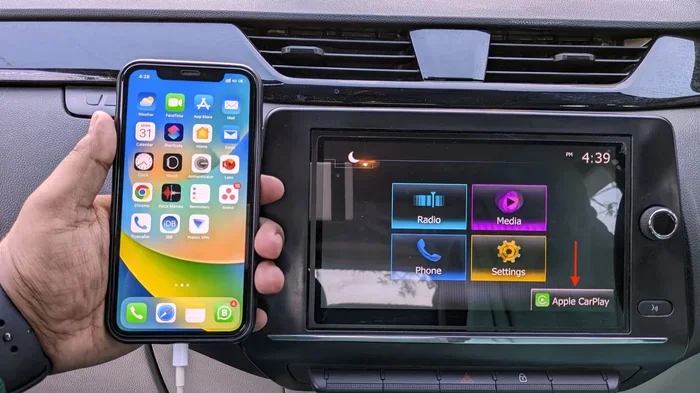
Start by looking at your car’s infotainment screen. When you plug in your iPhone with a cable, does CarPlay appear? If yes, your car supports CarPlay. But that does not always mean it supports wireless.
Here are a few ways to check for wireless CarPlay compatibility:
- Check your car’s manual: Look for mentions of “wireless CarPlay” or “wireless Apple CarPlay.”
- Visit the manufacturer’s website: Search for your car model and year along with “CarPlay wireless.”
- Look for the CarPlay icon: Some cars show a CarPlay icon on the home screen even before you plug in.
- Ask your dealer: Call the dealership and ask if your specific trim level supports wireless CarPlay.
If your car does not support wireless CarPlay natively, do not worry. We will cover adapters later in this guide that can add wireless capability to almost any car.
Checking If Your iPhone Supports Wireless CarPlay
Your car is not the only piece of the puzzle. Your iPhone also needs to meet certain requirements. Connecting iPhone to Apple CarPlay wirelessly depends on both your car and your phone working together.
iPhone Models That Support Wireless CarPlay
Apple introduced wireless CarPlay support with iPhone 12 and later models. Here is a quick breakdown:
- iPhone 12 and newer: Full support for wireless Apple CarPlay.
- iPhone 11 and older: These models only support wired CarPlay connections.
- iPad and iPod Touch: These devices do not support CarPlay at all.
iOS Version Requirements
Beyond the hardware, you also need the right software. Make sure your iPhone is running iOS 13 or later. Apple has improved wireless CarPlay performance with each update. The latest iOS version will give you the best experience.
To check your iOS version, go to Settings, then General, then Software Update. If an update is available, install it before proceeding. This simple step can prevent many CarPlay connection issues down the road.
Step-by-Step Guide to Connect iPhone to Apple CarPlay Wirelessly
Now for the part you have been waiting for. Here is exactly how to set up wireless CarPlay on your iPhone. Follow these steps carefully and you will be up and running in no time.
Step 1: Make Sure Bluetooth and Wi-Fi Are On
Wireless CarPlay uses both Bluetooth and Wi-Fi to connect. Unlike Bluetooth alone, the Wi-Fi connection handles the heavy data like maps and music streaming. So both need to be active.
Go to Settings, then Bluetooth, and make sure it is turned on. Then go to Settings, then Wi-Fi, and make sure Wi-Fi is on too. You do not need to connect to a specific network. Just having Wi-Fi enabled is enough.
Step 2: Plug In Your iPhone Once
Here is a detail many people miss. Even for wireless CarPlay, you need to plug your iPhone in with a cable at least once. This first wired connection tells your car and your iPhone to pair. After that, you can go completely wireless.
Connect your iPhone using a Lightning or USB-C cable. Wait for the CarPlay screen to appear on your car display. Once it shows up, you are ready for the next step.
Step 3: Enable Wireless CarPlay in iPhone Settings
Now go to Settings on your iPhone. Scroll down and tap General. Then tap CarPlay. You should see your car listed here. Tap on your car’s name.
You will see an option for Wireless CarPlay. Toggle it on. Your iPhone will now remember this setting and connect wirelessly the next time you get in the car.
Step 4: Connect via Your Car’s Infotainment System
Now go to your car. Turn on the ignition without starting the engine. On your car’s infotainment screen, look for the CarPlay option. It might say “Wireless CarPlay” or just “CarPlay.” Tap it.
Your car will search for your iPhone. Once it finds it, tap your iPhone’s name to pair. You may need to confirm the connection on both your iPhone and your car screen. After that, wireless CarPlay should launch automatically every time you get in.
Step 5: Test the Connection
Start the engine and test your iPhone CarPlay wireless connection. Open a music app like Spotify or Apple Music. Try using Maps for navigation. Send a test message using Siri. If everything works smoothly, you are all set.
If something does not work, do not panic. We will cover troubleshooting in the next section.
Troubleshooting Common Wireless CarPlay Connection Issues
Connecting iPhone to Apple CarPlay wirelessly is usually smooth, but sometimes things go wrong. This is normal. Most issues have simple fixes. Let us walk through the most common problems and their solutions.
CarPlay Does Not Appear on the Car Screen
If you do not see CarPlay at all, start with the basics. Make sure your iPhone is within range of your car. Bluetooth and Wi-Fi should both be on. Restart your iPhone and try again. Sometimes a simple restart fixes everything.
Also check that your car is in park or neutral. Many cars only display CarPlay when the vehicle is stationary. If you are parked and still do not see it, move to the next step.
Connection Keeps Dropping
A wireless CarPlay connection that keeps dropping is frustrating. This often happens when your iPhone switches between Wi-Fi networks. If you are near your home network, your phone might try to connect to that instead of your car.
To fix this, go to Settings, then Wi-Fi, and forget any nearby networks you do not need. You can also toggle Airplane Mode on and off to reset your wireless connections. This often stabilizes the CarPlay wireless connection.
CarPlay Is Slow or Unresponsive
If your wireless CarPlay lags or freezes, your iPhone might be low on storage. CarPlay needs available memory to run smoothly. Go to Settings, then General, then iPhone Storage. Delete any apps or files you no longer need.
Also check for iOS updates. Apple regularly releases updates that improve CarPlay performance. Keeping your iPhone updated is one of the easiest ways to prevent slowness.
Siri Does Not Work Through CarPlay
Siri is a huge part of the CarPlay experience. If Siri is not responding, check your iPhone settings. Go to Settings, then Siri and Search. Make sure “Listen for Hey Siri” is turned on. Also check that Siri is enabled for CarPlay under the CarPlay settings.
If you use a Bluetooth headset or speaker, it might interfere with Siri routing through CarPlay. Disconnecting those devices temporarily can help.
Using a Wireless CarPlay Adapter for Older Cars
Not every car comes with built-in wireless CarPlay. But that does not mean you are out of luck. A wireless CarPlay adapter can add wireless capability to almost any car that supports wired CarPlay.
How Wireless CarPlay Adapters Work
A wireless CarPlay adapter plugs into your car’s USB port. It creates a wireless bridge between your iPhone and your car’s infotainment system. The adapter handles the Bluetooth and Wi-Fi pairing so you do not have to do anything complicated.
You plug the adapter in once, pair your iPhone, and from that point on, you get a wireless CarPlay connection every time you get in the car. It is one of the best upgrades you can make for an older vehicle.
Top Wireless CarPlay Adapters to Consider
There are several good adapters on the market. Here are some popular options:
- AA Carlinkit Wireless CarPlay Adapter: One of the most popular choices. Easy setup and wide car compatibility.
- Belkin Boost Up Wireless CarPlay Adapter: A premium option with reliable performance and sleek design.
- Mpow Wireless CarPlay Adapter: A budget-friendly choice that still delivers solid wireless CarPlay quality.
When choosing an adapter, look for ones that support both Bluetooth 5.0 and Wi-Fi 5 or higher. These provide the fastest and most stable wireless CarPlay connection. Also check that the adapter is compatible with your car’s USB port type.
Tips for Getting the Best Wireless CarPlay Experience
Once you have wireless CarPlay working, a few simple tips can make the experience even better. These small adjustments add up to a big difference in daily use.
Keep Your iPhone Charged
Wireless CarPlay uses more battery than normal because it keeps Wi-Fi and Bluetooth active. If you use CarPlay for long drives, your iPhone battery will drain faster. Consider using a wireless charging pad in your car. This keeps your phone topped up without any cables.
Organize Your CarPlay Apps
CarPlay shows a limited number of apps on the home screen. Choose the ones you use most. You can rearrange apps by going to Settings, then General, then CarPlay, and tapping “Customize.” Put your navigation app front and center. Keep your music app easy to reach too.
Use Siri for Hands-Free Control
One of the biggest benefits of Apple CarPlay is hands-free operation. Use Siri to make calls, send messages, and change music without touching your phone. Say “Hey Siri” and give a voice command. It keeps your eyes on the road and your hands on the wheel.
Update Both Your iPhone and Car Software
Apple and car manufacturers regularly release updates that improve CarPlay compatibility. Check for iPhone updates every week or two. Also check your car manufacturer’s website for infotainment system updates. Keeping both devices current prevents many CarPlay connection issues.
Restart Your Car’s Infotainment System
If wireless CarPlay acts up, try restarting your car’s infotainment system. Most cars let you do this by holding the power button on the screen for about 10 seconds. This clears temporary glitches and often fixes connection problems instantly.
Quick Tips for a Smooth Wireless CarPlay Setup
Here are some fast tips to keep in mind:
- Always plug in your iPhone once before trying wireless setup. This initial cable connection is essential.
- Restart both devices if the connection fails. A fresh start solves most problems.
- Forget old pairings if you switch cars. Go to Bluetooth settings and remove the old car, then pair fresh.
- Keep your iPhone close to the car’s antenna, usually located near the center console.
- Disable VPN apps while using CarPlay. Some VPNs can interfere with the connection.
Common Mistakes to Avoid When Setting Up Wireless CarPlay
Even with a good guide, people still make mistakes. Here are some common ones to watch out for:
- Skipping the first wired connection: Many people try to set up wireless CarPlay without ever plugging in. This rarely works. Always do the initial cable setup.
- Ignoring software updates: Outdated iOS or car software is the number one cause of CarPlay connection issues.
- Not resetting network settings: If your wireless CarPlay keeps failing, resetting network settings on your iPhone can work wonders.
- Using a damaged cable for the first connection: A faulty cable can prevent proper pairing. Always use a good quality cable for the initial setup.
- Assuming all cars are the same: Every car brand handles CarPlay a little differently. Familiarize yourself with your specific car’s CarPlay menu.
Expert Insights on Wireless CarPlay
Connecting iPhone to Apple CarPlay wirelessly has come a long way since it first launched. Early versions of wireless CarPlay were slow and unreliable. Today, with modern iPhones and car systems, the experience is seamless. Apple continues to refine the technology with each iOS update.
Industry experts agree that wireless CarPlay is the future of in-car connectivity. Automakers are increasingly making it a standard feature. Even budget cars now offer wireless options. As CarPlay compatible cars become more common, the need for adapters will decrease over time.
From a safety perspective, wireless CarPlay is a clear win. It reduces cable clutter and distractions. You spend less time fiddling with connections and more time focused on the road. Apple designed CarPlay with driver safety as a top priority, and the wireless version only enhances that goal.
Final Thoughts
Connecting your iPhone to Apple CarPlay wirelessly is one of the best upgrades you can make to your daily driving routine. It is convenient, safe, and incredibly easy once you know the steps. Whether your car has native wireless support or you use an adapter, the process is straightforward.
Remember to check compatibility first. Follow the setup steps carefully. Keep your software updated. And do not be afraid to troubleshoot when needed. Most CarPlay connection issues have simple solutions that take just a few minutes.
With wireless CarPlay, you get navigation, music, messages, and calls all displayed on your car’s screen. You stay connected without the distraction of handling your phone. That is a win for everyone on the road. So go ahead, give it a try, and enjoy the freedom of a cable-free iPhone CarPlay wireless connection every time you drive.
Frequently Asked Questions
Can I connect iPhone to Apple CarPlay wirelessly without any extra equipment?
Yes, if both your car and your iPhone support wireless CarPlay, you do not need any extra equipment. Your iPhone connects to your car’s infotainment system automatically using Bluetooth and Wi-Fi. Just make sure both devices are compatible before you try.
What iPhone models support wireless CarPlay?
iPhone 12 and all newer models support wireless Apple CarPlay. iPhone 11 and older models only work with a wired CarPlay connection. Always check the specific iPhone model requirements before setting up wireless CarPlay.
Why does my wireless CarPlay keep disconnecting?
Frequent disconnections usually happen because of Wi-Fi interference or low battery. Make sure your iPhone has enough charge and that no other devices are hogging the Wi-Fi signal. Restarting both your iPhone and your car’s infotainment system often fixes this. Also check for software updates on both devices.
Do I need a wireless CarPlay adapter for my older car?
If your car supports wired CarPlay but not wireless, a wireless CarPlay adapter is a great solution. The adapter plugs into your car’s USB port and creates a wireless bridge to your iPhone. Popular options include the AA Carlinkit and Belkin adapters. They are affordable and easy to set up.
How long does it take to set up wireless CarPlay?
The entire iPhone CarPlay wireless setup process takes about 5 to 10 minutes. The first time requires plugging in your iPhone with a cable. After that initial pairing, your iPhone connects wirelessly every time you get in the car. It becomes completely automatic.
Does wireless CarPlay use more iPhone battery than wired?
Yes, wireless CarPlay uses slightly more battery because it keeps both Wi-Fi and Bluetooth active continuously. For long drives, consider using a wireless charger in your car. This keeps your iPhone powered up while enjoying a wireless CarPlay connection throughout your trip.
=== CONCLUSION ===
Connecting your iPhone to Apple CarPlay wirelessly opens up a whole new level of convenience and safety while driving. The process is simpler than most people think, and the results are immediately noticeable. You get a clean, cable-free setup that works reliably every time you get behind the wheel.
We have covered everything from checking compatibility to troubleshooting common issues. Whether you use a built-in wireless CarPlay system or add an adapter, the experience is smooth and rewarding. Keep your software updated, follow the setup steps, and enjoy hands-free navigation, music, and messaging on every drive.
Now that you know exactly how to connect your iPhone to Apple CarPlay wirelessly, there is nothing stopping you from trying it today. Give it a go, and you will wonder how you ever drove without it.