How to Pair Bluetooth in Your Car with These Steps
Pairing Bluetooth in your car is easier than you think. This guide walks you through every step to connect your phone wirelessly to your car audio system. You will learn how to put your car and phone into pairing mode, troubleshoot connection problems, and optimize your wireless streaming experience. Whether you drive a sedan or an SUV, these tips will get you connected fast.
You are about to learn how to pair Bluetooth in your car the easy way. Maybe you just bought a new phone and want to stream music through your car speakers. Or perhaps your Bluetooth connection keeps dropping and you are tired of dealing with it. Either way, you are in the right place.
This guide covers everything you need to know about how to pair Bluetooth in your car. We will walk you through each step clearly and simply. You will also find tips to fix common problems and get the best sound quality. By the end, you will be fully connected and ready to enjoy hands-free calling and wireless audio on every drive.
Key Takeaways
- Bluetooth pairing unlocks hands-free calling and wireless audio streaming for safer, more convenient driving.
- Putting both your car and phone in pairing mode is the most important first step.
- Troubleshooting common Bluetooth issues like interference and outdated software can fix most connection problems.
- Using a Bluetooth adapter works for older cars that lack built-in wireless capabilities.
- Keeping your phone’s Bluetooth settings optimized ensures a stable and secure connection.
- Voice commands work best after a successful pairing, letting you stay focused on the road.
- Regularly updating your car infotainment system prevents compatibility issues with new smartphones.
📑 Table of Contents
- Why Bluetooth in Your Car Matters
- How to Pair Bluetooth in Your Car: Step-by-Step
- How to Pair Bluetooth in Your Car for Different Phone Types
- Common Bluetooth Car Problems and How to Fix Them
- Using a Bluetooth Adapter for Older Cars
- Tips to Get the Best Bluetooth Car Experience
- Comparison: Built-in Bluetooth vs Bluetooth Adapter
- Quick Tips for Successful Bluetooth Pairing
- Common Mistakes to Avoid When Pairing Bluetooth in Your Car
- Expert Insights on Car Bluetooth Technology
- Key Takeaways
- Frequently Asked Questions
- Conclusion
Why Bluetooth in Your Car Matters
Bluetooth technology has changed the way we drive. It lets you make calls, play music, and use navigation apps without touching your phone. This means safer driving and fewer distractions. Most modern cars come with built-in Bluetooth support. But even older vehicles can get Bluetooth with a simple adapter.
Here is why Bluetooth car connectivity is so important:
- Hands-free calling keeps your hands on the wheel and your eyes on the road.
- Wireless music streaming lets you play your favorite playlists through your car speakers.
- Voice command access lets you control calls and music without picking up your phone.
- Seamless integration means your phone connects automatically when you get in the car.
- No more cables means a cleaner dashboard and less clutter.
Understanding the basics of Bluetooth wireless audio sets you up for success. Your phone and car stereo communicate using radio waves. These waves work within a short range, usually about 30 feet. That is more than enough for your vehicle. The connection uses a profile called A2DP for audio streaming and another profile for voice calls. Once paired, your devices remember each other and reconnect automatically.
How to Pair Bluetooth in Your Car: Step-by-Step
Now let us get into the actual process. The steps are simple, but they vary slightly depending on your car model and phone. We will cover the general process that works for most vehicles and devices.
Step 1: Turn on Your Car’s Bluetooth
First, start your car or turn on the ignition. Go to your car’s infotainment system. Look for a Bluetooth settings menu. This is usually found in the main settings or under a “Phone” or “Audio” section. Turn on Bluetooth if it is not already on. Some cars call this “Enable Bluetooth” or “Wireless Connectivity.”
Once Bluetooth is on, your car enters what is called pairing mode. This means it is ready to be discovered by your phone. Look for a message on your car screen that says “Search for Devices” or “Pair New Device.”
Step 2: Turn on Bluetooth on Your Phone
Next, go to your phone’s Bluetooth settings. On an iPhone, open Settings and tap Bluetooth. On an Android phone, swipe down from the top of your screen and tap the Bluetooth icon. Or go to Settings, then Connections, then Bluetooth.
Make sure Bluetooth is turned on. Your phone will start scanning for nearby devices. You should see your car’s name appear in the list of available devices.
Step 3: Select Your Car from the Device List
Tap on your car’s name when it appears. The names vary by car brand. You might see something like “Ford SYNC,” “Chevrolet MyLink,” or “BMW Bluetooth.”
After you tap, both devices will try to connect. You may see a pairing request on your car screen with a number. Check that the number on your car matches the number on your phone. Then tap “Pair” or “Connect” on both devices. This Bluetooth pairing process usually takes just a few seconds.
Step 4: Allow Permissions and Test the Connection
Your phone may ask for permissions. It might want access to your contacts, messages, and media. Allow these so you can use all features. This is called phone book access and it lets you make calls from your car’s screen.
Once connected, play some music on your phone. You should hear it through your car speakers. Try making a test call to confirm hands-free calling works. If both work, you are all set. You have successfully connected Bluetooth to car audio!
How to Pair Bluetooth in Your Car for Different Phone Types
The general steps are the same for most phones. But there are small differences between iPhone and Android devices. Here is a closer look.
Pairing Bluetooth on iPhone
iPhones make Bluetooth pairing very straightforward. Open Settings and tap Bluetooth. Make sure it is toggled on. Your iPhone will search for devices automatically. When your car appears, tap it. You may need to enter a PIN shown on your car screen. After that, your iPhone connects and remembers the car for future use.
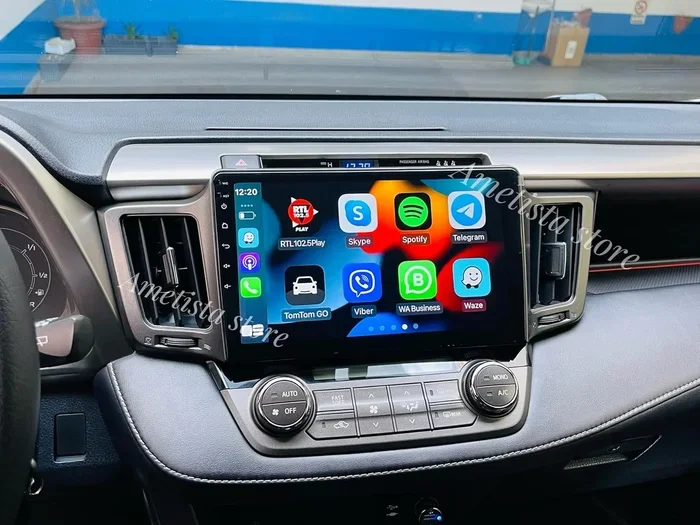
One great thing about iPhone and car Bluetooth is Apple CarPlay compatibility. If your car supports CarPlay, you can mirror your iPhone screen on the car display. This gives you access to maps, music, and messages in a safe way.
Pairing Bluetooth on Android
Android phones offer a similar process but with more options. Go to Settings, then Connected Devices, then Pairing Preferences. Turn on Bluetooth and wait for your car to appear. Tap the car name and accept the pairing request.
Android also supports Android Auto in many cars. This app gives you a simplified interface on your car screen. You get navigation, music, and messaging without distractions. Both iPhone and Android Bluetooth car setups work well once you follow the steps.
Common Bluetooth Car Problems and How to Fix Them
Even when you follow every step, Bluetooth issues can happen. Do not worry. Most problems have simple fixes. Here are the most common ones and how to solve them.
Bluetooth Won’t Connect
This is the most common issue. Usually, it happens because the devices are out of range or the pairing data is corrupted. Try turning Bluetooth off on both your phone and car. Wait 10 seconds. Then turn it back on and try pairing again. This simple reset fixes most Bluetooth connection problems.
Also check that your phone is not connected to another device. If your phone is already paired with headphones or a speaker, it may try to connect to those instead of your car. Turn off Bluetooth on other devices nearby.
Bluetooth Connects but No Sound
If the connection works but you hear no music, check your car’s audio source. Make sure you have selected Bluetooth or Aux as the input source. On some cars, you need to press a button on the steering wheel or screen to switch to Bluetooth audio.
Also check your phone’s volume and your car’s volume. Both need to be turned up. Sometimes the media volume on your phone is separate from the ringtone volume. Make sure media volume is high.
Bluetooth Keeps Disconnecting
Interference can cause Bluetooth dropping frequently. Other wireless devices, USB cables, or even your phone case can cause this. Move your phone to a different spot in the car, like the passenger seat or center console.
Also make sure your phone and car software are up to date. Car manufacturers release Bluetooth firmware updates that fix connection issues. Check your car’s manual or the manufacturer’s website for update instructions.
Phone Does Not Show Up in Car’s Device List
If your phone does not appear, make sure your car is in pairing mode. Some cars only stay in pairing mode for a few minutes. Try turning Bluetooth off and on again on your car. Also restart your phone. This refreshes the Bluetooth search and often fixes the issue.
Using a Bluetooth Adapter for Older Cars
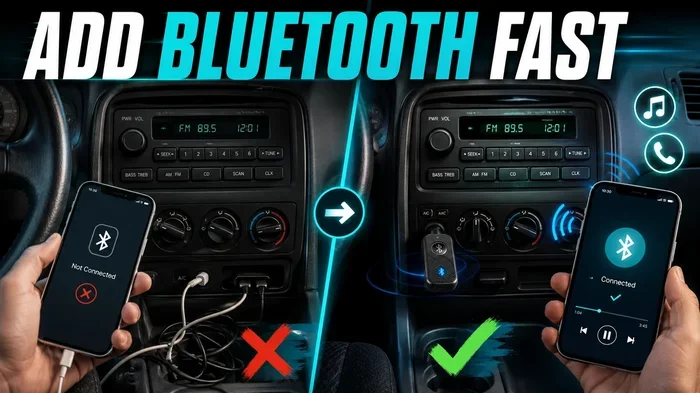
Not all cars have built-in Bluetooth. If your car is older, you can still enjoy wireless audio. A Bluetooth car adapter is the answer. These small devices plug into your car’s auxiliary input or cigarette lighter. They create a Bluetooth connection that streams audio to your car speakers.
Types of Bluetooth Adapters
There are a few types to choose from:
- Aux Bluetooth adapters plug into the AUX port and transmit Bluetooth audio to your car stereo.
- FM transmitters broadcast Bluetooth audio to an unused FM radio frequency on your car stereo.
- USB Bluetooth adapters connect to your car’s USB port and provide both audio and charging.
Each type works well for different situations. Aux adapters give the best sound quality. FM transmitters are easy to use but can pick up radio interference. USB adapters charge your phone while streaming audio. Pick the one that fits your car setup best.
Tips to Get the Best Bluetooth Car Experience
Once you have paired Bluetooth in your car, you can make the experience even better with a few simple tips.
Keep Your Devices Updated
Software updates improve Bluetooth performance and fix bugs. Update your phone regularly. Check your car’s infotainment system for updates too. Many newer cars let you check for updates directly in the settings menu.
Delete Old Paired Devices
Over time, your car may store many old Bluetooth connections. This can slow things down and cause confusion. Go to your car’s Bluetooth settings and remove devices you no longer use. This keeps your connection list clean and helps your car find your phone faster.
Use Voice Commands Safely
One of the best features of Bluetooth car hands-free calling is voice control. Use voice commands to make calls, send texts, and play music. This keeps your hands on the wheel and your eyes on the road. Most phones and car systems support voice assistants like Siri, Google Assistant, or Alexa.
Manage Multiple Devices
If you have multiple phones in the car, most car systems remember more than one device. You can set a priority device for auto-connection. This means your primary phone connects automatically when you start the car. The second phone connects manually when needed.
Protect Your Bluetooth Security
Bluetooth security matters, especially in public parking areas. Turn off Bluetooth when you are not using it. This saves battery and prevents unauthorized connections. Only pair with devices you trust. Use a strong PIN when pairing in public places.
Comparison: Built-in Bluetooth vs Bluetooth Adapter
Not sure which option is right for you? Here is a quick comparison of built-in Bluetooth and Bluetooth adapters.
| Feature | Built-in Bluetooth | Bluetooth Adapter |
|---|---|---|
| Sound Quality | Excellent | Good to Excellent |
| Ease of Setup | Very Easy | Easy |
| Hands-Free Calling | Yes | Varies by model |
| Cost | Included with car | $15 to $80 |
| Works with Older Cars | No | Yes |
| Auto-Reconnect | Yes | Most models yes |
| USB Charging | Yes | Some models yes |
As you can see, built-in Bluetooth offers the best overall experience. But a Bluetooth adapter is a great solution for older cars. The cost is low and the setup is simple. Either way, you get to enjoy wireless audio and hands-free calling.
Quick Tips for Successful Bluetooth Pairing
- Restart both devices before attempting to pair. This clears any temporary glitches.
- Keep your phone close to the car’s infotainment system during pairing.
- Turn off other Bluetooth devices nearby that might interfere.
- Check your car manual for model-specific pairing instructions.
- Forget old pairings if you are having trouble connecting.
- Make sure your phone is charged or plugged in during the pairing process.
Common Mistakes to Avoid When Pairing Bluetooth in Your Car
Even with the best guide, mistakes can happen. Here are errors to avoid:
- Skipping the pairing mode step. Both devices must be in discoverable mode. Without it, they cannot find each other.
- Ignoring software updates. Outdated software is the number one cause of Bluetooth issues.
- Pairing too many devices. This clutters the connection list and slows things down.
- Not granting permissions. If you deny contact access, you cannot make calls from the car screen.
- Placing your phone in a Faraday pocket or bag. This blocks the Bluetooth signal and prevents connection.
Expert Insights on Car Bluetooth Technology
Automotive technology experts say Bluetooth car audio has come a long way. The latest Bluetooth versions offer faster connections and better range. Bluetooth 5.0 and newer provide stable connections even in areas with lots of wireless interference. Many new cars now support Bluetooth LE Audio, which uses less battery and delivers higher sound quality.
Experts also recommend checking your car infotainment system compatibility before buying a new phone. Most modern phones work with all car systems. But some older cars may not support newer Bluetooth features. If you have an older vehicle, a Bluetooth adapter is the simplest upgrade path.
“The key to a great Bluetooth car experience is keeping both devices updated and clean,” says automotive tech specialist Mark Jennings. “Delete old pairings, restart when needed, and always allow the right permissions. It sounds basic, but these steps solve 90 percent of Bluetooth problems.”
Key Takeaways
- Bluetooth pairing in your car is simple and follows the same basic steps for most vehicles and phones.
- Start by turning on Bluetooth on both your car and phone, then select your car from the available devices.
- Common issues like no sound or disconnections usually have quick and easy fixes.
- Bluetooth adapters bring wireless capability to older cars without expensive installs.
- Keeping devices updated and permissions set correctly ensures the best performance.
- Voice commands and hands-free calling make Bluetooth one of the most valuable car features.
- Security matters — turn off Bluetooth when not in use and pair only trusted devices.
Frequently Asked Questions
How do I put my car in pairing mode for Bluetooth?
Go to your car’s infotainment settings and look for Bluetooth or Phone settings. Toggle Bluetooth on and select the option to search for new devices. Your car will now be visible to your phone. The exact steps vary by car brand, so check your owner’s manual if needed.
Why won’t my phone find my car’s Bluetooth?
This usually happens when one or both devices are not in pairing mode. Try turning Bluetooth off and on again on both your phone and car. Restart both devices and move your phone closer to the car’s infotainment system. Also make sure no other device is connected to your car’s Bluetooth.
Can I pair multiple phones to my car’s Bluetooth?
Yes, most car systems can remember several paired phones. However, only one phone can stream audio at a time. Set your primary phone as the auto-connect device. You can manually switch to another phone through the car’s Bluetooth settings when needed.
Is it safe to use Bluetooth in my car?
Yes, Bluetooth is safe and widely used in vehicles. It uses low-power radio waves that are well within safety guidelines. To stay secure, turn off Bluetooth when not in use, use a strong pairing PIN, and only connect to trusted devices. Keep your phone and car software updated for the latest security patches.
What should I do if my Bluetooth keeps disconnecting while driving?
Interference is the most common cause. Move your phone to a different location in the car, away from other wireless devices. Check for software updates on both your phone and car system. If the problem continues, delete the pairing and reconnect from scratch. A Bluetooth adapter with a better antenna can also help in older cars.
Do I need an adapter if my car does not have Bluetooth?
You do not need one, but an adapter is the best way to add Bluetooth to a car that lacks it. Aux Bluetooth adapters and FM transmitters are affordable and easy to install. They let you stream music and make hands-free calls wirelessly. A USB Bluetooth adapter is another option that also charges your phone while you drive.
Conclusion
How to pair Bluetooth in your car is a skill every driver should have. It takes just a few minutes and makes a huge difference in your daily driving experience. You get hands-free calling, wireless music streaming, and convenient voice commands. All of this leads to safer and more enjoyable drives.
Follow the steps in this guide and you will be connected in no time. If you run into issues, the troubleshooting tips will help you fix them quickly. Keep your devices updated, manage your paired devices, and enjoy the convenience of Bluetooth car connectivity. Now get in your car, pair your phone, and hit the road with confidence.