How Do I Connect My Car to the MyToyota App Step by Step
This guide walks you through exactly how to connect my car to the MyToyota app. You will learn the step-by-step pairing process, troubleshooting tips, and how to use key features like remote start and vehicle status. Follow these simple instructions to get your Toyota linked in minutes.
So, you just bought a new Toyota, or maybe you have had one for a while, and you want to use the MyToyota app on your phone. This app lets you do cool things like remote start, lock your doors, and check your vehicle’s health. But first, you need to connect my car to the MyToyota app. It sounds tricky, but it is actually very simple. In this guide, I will walk you through every step. You will also learn how to fix common problems and get the most out of your Toyota’s connected features.
Whether you drive a Camry, RAV4, or a brand-new BZ4X, the process is similar. You just need your phone, your car, and a few minutes. I will show you exactly what to do. No jargon, no confusing tech talk. Just clear, easy steps that anyone can follow. Let us get started.
Key Takeaways
- Easy Setup: You can connect your Toyota to the MyToyota app in just a few minutes using your phone and the car’s multimedia system.
- Remote Features: Once linked, you can start the engine, lock doors, and check fuel levels from anywhere.
- Troubleshooting Available: If the connection fails, a factory reset of Hybrid Connect or a quick app update often solves the problem.
- Multiple Users: The Toyota app can be shared with a passenger or family member for the same vehicle.
- EV Compatibility: Owners of the BZ4X can also use the app to locate free charging stations.
- No Dealer Required: You do not need to visit a dealership to complete the initial connection.
📑 Table of Contents
Understanding Toyota Vehicle Connectivity
Before you link your phone, it helps to understand what Toyota vehicle connectivity actually means. Your Toyota comes with a built-in modem that communicates with cellular networks. This modem is the bridge between your car and the MyToyota app. It sends data like your location, fuel level, and engine status to the cloud. The app then pulls that data and shows it to you on your phone. This system is often called Toyota telematics. It is the same technology that powers features like remote start and stolen vehicle tracking. Once you connect my car to the MyToyota app, you are tapping into that telematics network. You get a digital window into your vehicle’s health and status. It is like having a mechanic in your pocket.
Toyota Remote Connect vs. MyToyota App
You might hear the term Toyota Remote Connect. This is the older name for the connected services package. Newer vehicles use the MyToyota app as the main hub. The app includes everything Remote Connect offered, plus new features like smart home integration and enhanced security alerts. If you have an older model, you might still see the Remote Connect menu on your screen. The connection process is similar, but the app interface is more modern and user-friendly. Both systems use the same cloud backend, so your data stays consistent.
What You Need Before You Start
Before you dive into the steps, let me show you what you need. Having everything ready makes the process much smoother. You do not want to start and then realize you are missing something.
Compatible Toyota Models
Most Toyota models built after 2017 support the MyToyota app. This includes popular models like the Camry, Corolla, RAV4, Highlander, and Tacoma. Electric and hybrid models like the Prius Prime and BZ4X also work. You can check your specific model’s compatibility on the Toyota website. If your car has a touchscreen multimedia system, you are almost certainly good to go. Even older models from 2015 and 2016 may work with the basic Toyota Remote Connect feature. The key is having a cellular modem installed in the vehicle. You can confirm this by checking for a “Connected Services” option in your car’s settings.
Your Smartphone Setup
You will need a smartphone with a strong internet connection. Both iPhone and Android devices work. Make sure your phone’s operating system is up to date. You should also have the MyToyota app downloaded from the App Store or Google Play. Create an account if you do not have one yet. You will need your email address and a password. Keep your car’s 17-digit VIN handy too. You can find it on the driver’s side dashboard or door jamb. A stable Wi-Fi or cellular data connection is essential for the initial pairing and for ongoing features like remote start and vehicle status updates.
Create a MyToyota Account
Open the MyToyota app and tap “Sign Up.” Enter your email, create a password, and fill in your basic details. You will be asked to agree to the terms of service. Once your account is active, log in. The app will guide you through linking your vehicle. This is the moment you connect my car to the MyToyota app for the first time. Make sure your email is correct because you will receive a verification code. After verification, you are ready to pair your car.
How to Connect My Car to the MyToyota App
Now comes the fun part. There are two main ways to connect your Toyota to the app. You can use the car’s multimedia screen, or you can pair directly through the app. I will walk you through both methods so you can pick the one that works best for you.
Method 1: Using the Multimedia Screen
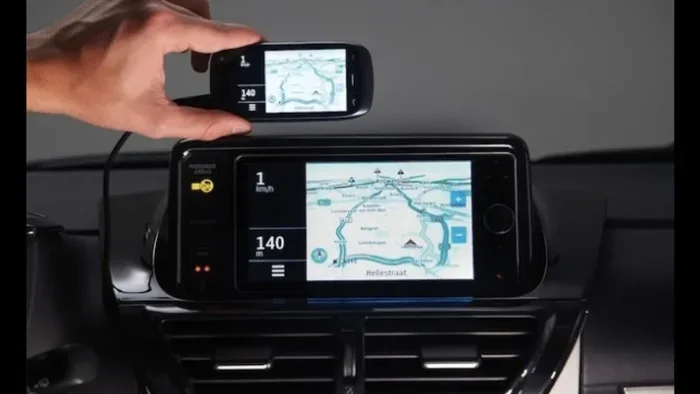
This is the most common way. Start your car and press the “Home” button on the touchscreen. Look for the “Settings” icon. It usually looks like a gear. Select “Connected Services” or “MyToyota.” Choose “Register” or “Link Vehicle.” The screen will show a QR code. Open the MyToyota app on your phone and tap “Scan QR Code.” Point your camera at the code. The app will pair with your car instantly. You will see a confirmation message on both the screen and your phone. This method takes about two minutes and is the easiest for most drivers.
Method 2: Pairing Through the App Directly
If your car does not show the Connected Services menu, you can use the app alone. Log in to the MyToyota app. Tap “Add Vehicle.” Enter your VIN manually or scan it with your phone camera. The app will send a pairing request to your car. You will receive a notification on the car’s display if it has a screen. Accept the request. The app will now sync with your vehicle. This method works for older models that do not have the full multimedia integration. It may take a few extra minutes, but it gets the job done.
| Method | Steps | Best For | Time |
|---|---|---|---|
| Multimedia Screen | Settings → Connected Services → Scan QR Code | Newer Toyotas with touchscreen | 2–3 minutes |
| App Direct Pairing | Add Vehicle → Enter VIN → Accept Request | Older models or no touchscreen | 3–5 minutes |
Quick Tips for a Smooth Connection
- Make sure your phone’s Bluetooth is turned on, even if you are using Wi-Fi.
- Keep your car parked in a spot with good cellular signal.
- Restart the app if it does not find your car on the first try.
- Have your VIN ready to avoid delays.
- Ensure your car’s multimedia system is awake and not in sleep mode.
- Turn off any VPN or ad-blocker on your phone during pairing.
Key Features to Explore After Connecting
Once your car is linked, you can explore a bunch of useful features. These are the main reasons people connect their Toyota to the MyToyota app. Let me break them down for you.
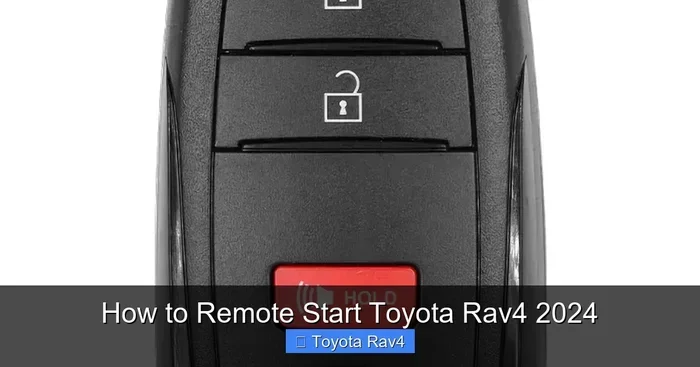
Remote Start
You can start your engine from your couch. Open the app and tap “Remote Start.” Your car will warm up or cool down before you get in. This feature works when you are within a certain distance from the vehicle. You can also set a timer to start the car at a specific time. Just make sure your car is parked in a safe, ventilated spot. Remote start is especially useful on cold winter mornings or hot summer afternoons. You can also pre-condition the cabin by turning on the air conditioning or heater remotely.
Lock and Unlock Doors
Forgot your keys? No problem. Use the app to lock or unlock your doors. You can also grant temporary access to a friend or family member. This is great if you need someone to grab something from your trunk. The app shows the door lock status in real time. You can even set up auto-lock when you walk away from the vehicle. This adds a layer of security because you never have to worry about forgetting to lock up.
Vehicle Status and Alerts
The app gives you a live snapshot of your car’s health. You can check fuel level, tire pressure, and oil life. You will also receive alerts if something needs attention. For example, if your engine management light comes on, the app will notify you. This helps you catch small problems before they become big repairs. You can also monitor your hybrid battery health and electric range if you drive a hybrid or EV. The alerts are customizable, so you only get the notifications that matter to you.
Roadside Assistance and Service Scheduling
You can request roadside help directly from the app. It will share your GPS location with the service team. You can also book maintenance appointments at your local dealership. The app even reminds you when it is time for an oil change or tire rotation. This makes owning a Toyota much more convenient and keeps your vehicle running smoothly. You can view your service history inside the app too, so you always know when your last oil change was.
Multiple Users and Sharing
Did you know that two people can use the Toyota app for the same car? This is perfect for couples or families. You can add a secondary user in the app settings. Both people can lock, unlock, and start the vehicle. Each user gets their own login and activity history. This is very convenient for shared vehicles and eliminates the need to pass a single phone back and forth. You can also set permissions, so a teen driver cannot access certain features like remote start.
Troubleshooting and Common Mistakes
Sometimes the connection does not work the first time. Do not worry. This happens to many Toyota owners. Here are the most common issues and how to fix them.
Common Connection Errors
If the app says “Vehicle Not Found,” check your internet connection on both your phone and in the car. Restart the app and try again. Make sure your car’s multimedia system is updated. An outdated system can cause the app to freeze during pairing. Also, verify that your car’s cellular modem is active. Some older models require a dealer activation before the modem can connect to the internet. You can call your dealer to confirm the modem status. They can activate it remotely in most cases.
Factory Reset Hybrid Connect
For hybrid and plug-in hybrid models, the Hybrid Connect system manages all connected features. If your car still will not link, you may need to reset this system. You can learn how to factory reset Hybrid Connect in a few simple steps. This clears any old pairing data and lets you start fresh. After the reset, try connecting again. This solves the problem in most cases and gets your Toyota back online quickly. It is a powerful fix that works when simple restarts do not.
When to Contact Support
If none of the above works, contact Toyota customer support. They can run remote diagnostics on your vehicle. You can reach them through the app or by phone. Have your VIN and app account details ready. Support can also push a software update to your car if needed. This is especially helpful for models with older firmware that may not support the latest app features. They can also check if your modem subscription is active, which is required for all connected services.
Common Mistakes to Avoid
- Skipping the VIN entry: Always double-check your VIN for accuracy. A single wrong digit will prevent pairing.
- Using an old app version: Update the MyToyota app before you start. New versions fix bugs and improve compatibility.
- Ignoring car software updates: A car update can break the connection if the app is newer. Keep both in sync.
- Pairing in a weak signal area: Move to a location with strong cellular coverage. Parking garages and underground lots often have poor signal.
- Forgetting to verify your email: You must verify your MyToyota account email before you can link a vehicle.
- Turning off the car during pairing: Keep the engine running and the screen active until you see the confirmation message.
Keeping Your Connection Smooth and Final Thoughts
A good connection should stay good. But like any technology, it needs a little care. Here are some expert tips to keep everything running smoothly.
Software Updates Are Key
Toyota regularly releases updates for the MyToyota app and the car’s system. These updates fix bugs and add new features. Turn on automatic updates on your phone. Check for car updates at least once a month. You can do this through the multimedia screen or the app. Keeping everything current prevents connection drops and ensures you have access to the latest features like enhanced security alerts and new remote commands. Updates also improve battery life on your phone by optimizing the app’s background activity.
Sharing Access with Family
As mentioned, you can share the app with a family member. This is a great way to let your spouse or teenage driver use the car without handing over a physical key. The app tracks all actions, so you can see who locked the doors or started the engine. This adds a layer of accountability and safety for your household. You can also set geofencing alerts, which notify you if the car leaves a specific area.
EV Owners: Get the Most from Your BZ4X
If you drive a Toyota BZ4X, the app offers even more. You can monitor your battery level and charging status remotely. You can also find public charging stations. For tips on saving money, you can learn how to get free charging for the BZ4X using the app’s map features. Staying connected helps you maximize your electric range and reduces range anxiety on longer trips. The app also lets you precondition the battery while it is still plugged in, which improves charging speed.
Security and Privacy Considerations
You might wonder if connecting your car to the internet is safe. Toyota uses encryption to protect your data. The app requires a secure login, and you can enable two-factor authentication for extra protection. Your location data is only shared when you actively use a feature like roadside assistance. You can delete your data at any time through the app settings. It is always a good idea to review the privacy policy and understand what information is collected. Overall, the security measures are robust and designed with your privacy in mind.
Final Thoughts
Connecting your car to the MyToyota app is one of the best things you can do for your Toyota. It gives you remote control, real-time alerts, and a smoother ownership experience. The process is simple, and the benefits are huge. I hope this guide helped you connect my car to the MyToyota app without any headaches. If you run into trouble, just go back to the troubleshooting section. You have got this.
Now that your car is linked, take a few minutes to explore the app. Try remote start, check your tire pressure, or just lock your doors from across the parking lot. Once you see how easy it is, you will wonder how you ever drove without it. Enjoy your connected Toyota!
Frequently Asked Questions
Can I connect my car to the MyToyota app without a touchscreen?
Yes, you can. Older Toyota models without a touchscreen can still connect using the app’s direct pairing method. You just need to enter your VIN manually. The app will send a pairing request to the car’s computer. You will receive a notification on the dashboard if your car has a basic display screen.
Is the MyToyota app free to use?
Yes, the app is free to download and use. There are no monthly fees for basic features like remote start, lock/unlock, and vehicle status. Some premium services may require a subscription, but the core connection and features are included at no extra cost.
What should I do if the app says my vehicle is not found?
First, check your internet connection on both your phone and in the car. Restart the app and try again. Make sure your car’s multimedia system is updated. If the problem continues, you may need to factory reset the Hybrid Connect system or contact Toyota support for remote assistance.
Can I use the MyToyota app on more than one phone?
Yes, you can install the app on multiple phones. However, only one phone can be the primary linked device for remote features. You can add secondary users who can access certain functions like lock/unlock. This is great for families or couples who share a vehicle.
How long does the connection process take?
It usually takes just 2 to 5 minutes. If you are using the multimedia screen method, it is even faster. The app direct method may take a little longer if you need to enter the VIN manually. Overall, it is a very quick and simple process.
Will connecting my car void my warranty?
No, connecting the MyToyota app does not void your warranty. In fact, it can help you maintain your warranty by sending you timely service reminders and alerts. Toyota designed the app to work seamlessly with their vehicles. It is a safe and recommended feature for all owners.