How Do I Add Apps to My Toyota Infotainment System
Adding apps to your Toyota infotainment system is easier than you think. Whether you want navigation, music, or smart features, this guide walks you through every step. You will learn which apps work, how to install them, and how to keep everything running smoothly.
Your Toyota is more than just a car. It is a smart machine packed with technology designed to make every drive better. One of the best parts? You can add apps to your Toyota infotainment system and turn your dashboard into a powerful hub for music, navigation, communication, and more.
Maybe you just bought a new Toyota and are exploring what your touchscreen can do. Or perhaps you have had your car for a while and want to unlock features you never knew existed. Either way, you are in the right place. This guide covers everything you need to know about adding apps to your Toyota infotainment system, from setup to troubleshooting.
We will walk you through the process step by step. You will learn which apps work best, how to install them, and what to do when something goes wrong. By the end, you will feel confident using all the Toyota multimedia features your vehicle has to offer.
Key Takeaways
- Toyota infotainment systems support a wide range of apps including navigation, music, and communication tools.
- You can add apps through the Toyota app store or via smartphone integration using Apple CarPlay and Android Auto.
- Keeping your system updated ensures compatibility with the latest apps and features.
- Some apps require a stable Wi-Fi or mobile data connection to download and function properly.
- Common app issues can often be fixed with a simple restart or software update.
- Toyota’s connected services unlock premium features that enhance your daily driving experience.
📑 Table of Contents
Understanding Your Toyota Infotainment System
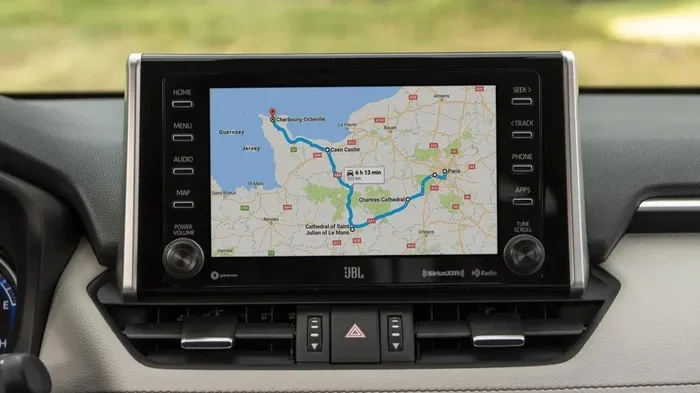
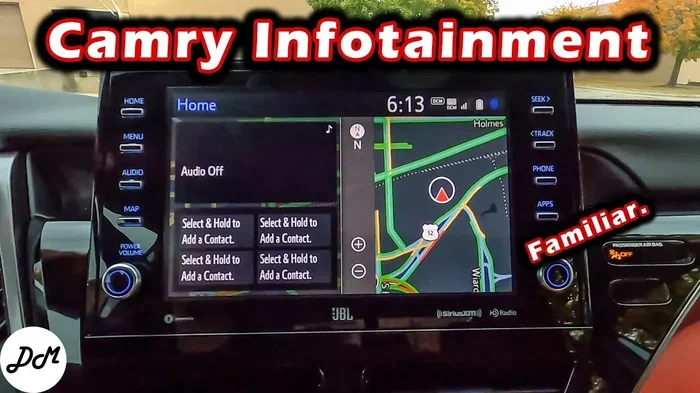
Before you start adding apps, it helps to understand what you are working with. Every Toyota model comes with a built-in infotainment system. This is the touchscreen display that controls your audio, navigation, phone connections, and more. The system goes by different names depending on your model year and trim level.
What Is Toyota Entune?
Toyota Entune is the brand name for Toyota’s infotainment platform. Older models use the Entune system, while newer vehicles may use a more advanced multimedia interface. Both systems support app integration, but the available apps depend on your specific model and year.
Here is a quick look at what you can typically expect:
- Touchscreen display ranging from 7 to 14 inches depending on the model
- Built-in Wi-Fi hotspot capability on select models
- Apple CarPlay and Android Auto support for seamless phone integration
- Bluetooth connectivity for hands-free calling and audio streaming
- USB ports for charging and wired connections
How to Check Your System Version
Not all Toyota infotainment systems are the same. To find out what version you have, go to the settings menu on your touchscreen. Look for “System Information” or “About.” This will tell you your software version and whether your system supports the latest apps.
If your system is older, you may need a Toyota software update to access newer apps. You can check for updates at your local Toyota dealership or through your vehicle’s connected services if your model supports it.
How to Add Apps to Your Toyota
Now for the fun part. Adding apps to your Toyota is a straightforward process, but the exact steps depend on your system type. Here is how to do it for the most common setups.
Using the Toyota App Store
Some Toyota models come with a built-in app store right on the infotainment screen. This works just like the app store on your phone. You browse, select, and download directly to your car’s system.
Here is how to use it:
- Tap the “App Store” icon on your home screen.
- Browse or search for the app you want.
- Tap “Download” or “Install.”
- Wait for the download to complete.
- Tap “Open” to launch the app.
Make sure your car is parked safely before downloading anything. Also, ensure you have a stable Wi-Fi connection for the smoothest experience.
Using Apple CarPlay and Android Auto
If your Toyota supports Apple CarPlay or Android Auto, you get access to a huge library of apps without needing a separate app store. These systems mirror apps from your smartphone onto your car’s screen.
To set up Apple CarPlay:
- Connect your iPhone using a USB cable or wirelessly if your model supports it.
- Your car will detect the connection automatically.
- Swipe left on the touchscreen to access CarPlay.
- Your apps will appear on the screen, ready to use.
To set up Android Auto:
- Download the Android Auto app on your phone.
- Connect your Android phone via USB cable.
- Follow the on-screen prompts to pair the devices.
- Access Android Auto by swiping left on your Toyota touchscreen.
Both systems support popular apps like Spotify, Google Maps, WhatsApp, and more. This is one of the easiest ways to add apps to your Toyota without any extra setup.
Adding Apps via USB or SD Card
Some older Toyota models do not have a built-in app store. In these cases, you can still add certain apps by downloading them to a USB drive or SD card from a computer. Insert the drive into your car’s USB port, and the system will prompt you to install the app.
This method works best for audio apps and offline tools. You will need to check Toyota’s website for compatible app files for your specific model.
Popular Apps You Can Add to Your Toyota
Not all apps are created equal when it comes to in-car use. Here are some of the most popular and useful apps you can add to your Toyota infotainment system.
Navigation Apps
Navigation apps help you find your way with real-time traffic updates and route suggestions. Popular options include:
- Google Maps — available through Android Auto
- Apple Maps — available through Apple CarPlay
- Waze — a community-driven navigation app with live traffic alerts
- Toyota Navigation — the built-in system with offline maps
Music and Audio Apps
Long drives are much more enjoyable with great music. These apps work well on Toyota systems:
- Spotify — stream millions of songs and playlists
- Pandora — personalized radio stations
- Apple Music — seamless integration for iPhone users
- Amazon Music — great for Amazon Prime members
- Podcast apps like Apple Podcasts and Google Podcasts
Communication Apps
Stay connected safely with hands-free communication:
- WhatsApp — send and receive voice messages
- Spotify — also works as a communication hub in some setups
- SMS integration — built into both CarPlay and Android Auto
Smart and Utility Apps
Toyota’s system also supports utility apps that make driving easier:
- Fuel price apps — find the cheapest gas nearby
- Parking apps — locate and pay for parking
- Weather apps — check conditions before you head out
For a full list of compatible apps, visit Toyota’s official website or check with your dealership. You can also learn more about Toyota connected services and what features come with your specific model.
Troubleshooting Common App Issues
Sometimes things do not go as planned. Here are the most common issues you might face when adding apps to your Toyota and how to fix them.
App Won’t Download or Install
If an app gets stuck during download, try these steps:
- Check your Wi-Fi connection and make sure it is stable.
- Restart your infotainment system by holding the power button for 10 seconds.
- Clear the cache by going to Settings > Storage > Clear Cache.
- Check if there is enough storage space on your system.
- Try downloading the app again.
App Crashes or Freezes
A crashing app can be frustrating. This usually happens when the app is outdated or your system software needs an update. Go to Settings > Software Update and install any available updates. If the problem persists, try uninstalling and reinstalling the app.
App Not Showing Up After Installation
Sometimes a newly installed app does not appear on your home screen. Swipe left or right to browse all pages. You can also go to the app drawer or library by tapping the grid icon on your home screen. If the app still does not show up, restart the system.
Bluetooth Connection Problems
If your apps are not connecting properly via Bluetooth, try unpairing and re-pairing your phone. Go to Settings > Bluetooth, forget the device, and set it up again. Also, make sure your phone’s Bluetooth is turned on and the car is within range.
Tips for Getting the Most Out of Your Toyota Apps
You have added your apps. Now what? Here are some expert tips to help you get the best experience from your Toyota infotainment system.
Keep Your System Updated
Toyota regularly releases software updates that improve performance and add new features. Check for updates at least once a month. You can do this through your car’s settings menu or by visiting a Toyota dealership. Staying updated ensures your apps run smoothly and remain compatible.
Use Voice Commands
One of the safest ways to use apps while driving is through voice commands. Most Toyota systems support voice activation. Simply press the voice button on your steering wheel and say what you need. This keeps your eyes on the road and hands on the wheel.
Organize Your Apps
As you add more apps, your home screen can get cluttered. Take a few minutes to organize them. Move your most-used apps to the first page and group similar apps together. This makes it much easier to find what you need while driving.
Use Wi-Fi When Possible
Many apps use data to stream content or provide real-time updates. If you have a built-in Wi-Fi connection or a mobile hotspot, use it. This keeps your phone’s data plan from getting used up and often provides a faster, more stable connection.
Explore Toyota’s Built-In Features
Do not forget about the apps that come already installed. Toyota vehicles often include built-in navigation, weather, and audio apps. These are optimized for your specific system and tend to run more smoothly than third-party alternatives.
Keeping Your Toyota Apps Up to Date
Just like the apps on your phone, the apps on your Toyota need regular updates. Updates fix bugs, improve performance, and sometimes add new features.
Most Toyota systems will notify you when an update is available. You can also check manually by going to Settings > Apps > Check for Updates. Some apps update automatically when connected to Wi-Fi, while others require you to initiate the update manually.
If you find that an app is no longer working after an update, it may be because the app developer has discontinued support for older Toyota systems. In this case, check for alternative apps or contact Toyota support for guidance.
When to Visit a Toyota Dealership for Help
Most app-related issues can be resolved at home with the steps outlined above. However, some problems require professional help. If your system is not responding at all, if apps keep crashing repeatedly, or if you are unable to update your software, it is time to visit a Toyota dealership.
The technicians at your local dealer have access to specialized tools and software that can diagnose and fix deeper system issues. They can also perform a Toyota software update that may unlock new apps and features for your vehicle.
Before visiting, check whether your Toyota is still under warranty. Some software updates and connectivity fixes may be covered. You can also call ahead to schedule an appointment and save time.
For more information about Toyota services and what your warranty covers, check out our guide on whether you can take your Toyota to any dealership for warranty work. This is especially helpful if you are not near your regular dealer.
Conclusion
Adding apps to your Toyota infotainment system opens up a world of convenience and entertainment. From navigation and music to communication and smart tools, the right apps can transform your daily commute and long road trips alike.
The process is simple once you know how. Whether you use the built-in app store, Apple CarPlay, Android Auto, or a USB connection, you have multiple options to get the apps you want. Keep your system updated, organize your apps for easy access, and use voice commands for safer driving.
Remember, your Toyota is designed to be more than just transportation. It is a connected experience. Take advantage of every feature and app available to make each drive more enjoyable, efficient, and safe.
Now that you know how to add apps to your Toyota, go ahead and explore what is available. Your next great driving companion might be just one download away.
Frequently Asked Questions
Can I add any app to my Toyota infotainment system?
Not every app is compatible with Toyota’s system. The apps you can add depend on your specific model, year, and infotainment version. Apple CarPlay and Android Auto give you access to a wide range of popular apps, but some niche apps may not be supported. Always check Toyota’s official compatibility list before downloading.
Do I need Wi-Fi to add apps to my Toyota?
Yes, most apps require a Wi-Fi connection to download and install. Some Toyota models come with a built-in Wi-Fi hotspot, while others rely on your phone’s mobile hotspot. Make sure you have a stable connection before starting the download process.
Can I remove apps I no longer use on my Toyota?
Yes, you can remove apps you no longer need. Go to the app menu on your infotainment screen, find the app, and select “Uninstall” or “Delete.” This frees up storage space and keeps your system running smoothly.
Will adding apps slow down my Toyota’s infotainment system?
Adding too many apps can use up storage and processing power, which may slow things down. Stick to the apps you actually use and delete any you no longer need. Keeping your system clean helps maintain fast performance.
How often should I update my Toyota infotainment apps?
You should check for app updates at least once a month. Many apps update automatically when connected to Wi-Fi, but some require manual updates. Regular updates ensure you have the latest features, bug fixes, and security patches.
Can I use my Toyota apps while driving?
Most Toyota apps are designed to be used safely while driving. Features like voice commands and simplified interfaces minimize distractions. However, for your safety, always pull over before making complex changes to your apps or settings.