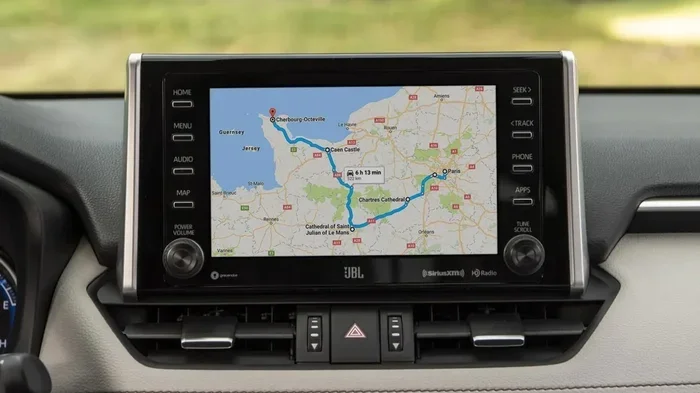
How Can I Update My Toyota Navigation System Today
Updating your Toyota navigation system keeps your maps accurate and your GPS running smoothly. You can update via USB, DVD, or at a Toyota dealer. This guide covers every method, including common troubleshooting steps for when your Toyota navigation isn’t working as it should.
Have you ever been driving and suddenly realized your Toyota GPS is sending you the wrong way? Maybe the map hasn’t been updated in years, or the navigation screen froze right when you needed it most. It’s frustrating, and it happens more often than you might think. The good news is that updating your Toyota navigation system is easier than most people believe. You don’t need to be a tech expert. You don’t even need to visit a dealer if you’d rather handle it yourself. This guide walks you through every method, every tip, and every troubleshooting trick you need to keep your Toyota GPS running perfectly.
Many Toyota owners don’t realize their navigation system needs regular updates. Map data changes constantly. Roads get rerouted. New businesses open and old ones close. If your maps are outdated, you’re basically driving blind. A simple update can save you time, fuel, and a lot of stress. Whether you drive a Camry, a Highlander, or a Corolla, the process is similar across most Toyota models. Let’s dive into how you can update your Toyota navigation system today.
Key Takeaways
- Multiple update methods exist: USB, DVD, and dealer visits all work for updating your Toyota navigation system.
- Regular updates matter: Outdated maps can lead to wrong directions, missed exits, and poor GPS accuracy.
- DIY updates are possible: You can update at home without visiting a dealer if you have the right tools.
- Toyota Entune plays a role: Understanding your system type helps you choose the right update method.
- Troubleshooting is simple: Most common issues like a frozen screen or error messages have easy fixes.
- Lexus owners have similar options: The process is comparable if you also drive a Lexus vehicle.
- Updates are usually free: Many Toyota dealers offer map updates at no cost during routine visits.
📑 Table of Contents
- Why Updating Your Toyota Navigation System Matters
- Understanding Your Toyota Navigation System
- How to Update Your Toyota Navigation System
- Which Update Method Is Best for You?
- Common Toyota Navigation Problems and How to Fix Them
- How Often Should You Update Your Toyota Navigation?
- Tips for a Smooth Update Process
- Can You Update Lexus Navigation the Same Way?
- Final Thoughts
Why Updating Your Toyota Navigation System Matters
Your Toyota navigation system relies on map data to guide you from point A to point B. That data has an expiration date. Just like your phone apps need updates, your car’s GPS needs fresh map information to work correctly. When the data gets old, your routes become unreliable.
Here’s why staying current is so important:
- Accurate directions: Updated maps know about new roads, highway changes, and rerouted streets.
- Better search results: New map data includes recently opened businesses and points of interest.
- Improved GPS accuracy: Software updates often improve how your system locks onto satellites.
- Fewer errors: Old maps cause wrong turns, missed exits, and confusing detours.
- Safety: Accurate navigation means fewer last-minute lane changes and risky maneuvers.
Think about it this way. You wouldn’t use a paper map from 2015 to navigate a new city. Your car’s navigation system deserves the same fresh approach. A Toyota navigation map update keeps your system as reliable as the day you bought it.
Understanding Your Toyota Navigation System
Before you update, it helps to know what system you’re working with. Toyota has used different navigation platforms over the years. Each one has its own update method.
Toyota Entune and Multimedia Systems
Toyota Entune is the brand’s infotainment platform. It comes in different versions depending on your model year. Older vehicles use basic CD-based systems. Newer models support USB updates and even wireless connectivity. Knowing which version you have determines how you’ll update your Toyota navigation software.
Here’s a quick way to check your system:
- Look for the “Entune” or “Multimedia” button on your touchscreen.
- Check your owner’s manual for the system version.
- Visit a Toyota dealer and ask them to read the system info.
Navigation Screen Types
Toyota uses several types of navigation screens across its lineup. The basic models use a pop-out navigation unit. Higher trims come with a built-in touchscreen. The update method may differ slightly depending on which type you have. But the core process remains the same across all of them.
If you’re unsure about your specific system, check our guide on how to start your Toyota Highlander with a key. Understanding your vehicle’s features helps you navigate these systems more confidently.
How to Update Your Toyota Navigation System
There are three main ways to update your Toyota navigation system. Each method has its pros and cons. Let’s break them all down so you can pick the one that works best for you.
Method 1: USB Update (DIY)
The USB method is the most popular way to update at home. You download the update files from Toyota’s website onto a USB flash drive, then plug it into your car.
Here’s how it works step by step:
- Visit the Toyota owner’s portal or your local dealer’s website.
- Enter your vehicle information (model, year, and VIN).
- Download the latest map update files.
- Transfer the files to a USB flash drive (usually FAT32 format).
- Plug the USB into your Toyota’s port.
- Follow the on-screen prompts to install the update.
The whole process usually takes about 15 to 30 minutes. Make sure your car is parked and the engine is running during the update. Never turn off the system while it’s installing. A power interruption can damage the navigation unit.
Method 2: DVD Update
Older Toyota models use DVD-based navigation updates. You order a map update disc from Toyota or your dealer. You pop it into your DVD player, and the system guides you through the installation.
This method works well for vehicles that don’t support USB updates. The downside is that you have to wait for the disc to arrive in the mail. It also costs a bit more than a free USB download. But it’s straightforward and reliable. Just pop in the disc and follow the prompts.
Method 3: Dealer Update
The easiest method is visiting a Toyota dealer. They have the tools and software to update your system quickly. Many dealers offer free map updates, especially if you’re already there for routine maintenance.
Here’s what to expect at the dealer:
- They’ll connect your vehicle to their diagnostic computer.
- The system checks for available updates.
- The technician installs the latest map and software files.
- The whole process usually takes less than an hour.
If you’re also wondering about other Toyota maintenance questions, like what oil to use, check out our article on using 5W-30 instead of 5W-20 in your Toyota Camry. It’s a common question that comes up during service visits.
Which Update Method Is Best for You?
Choosing the right method depends on your comfort level and your vehicle’s capabilities. Here’s a quick comparison:
| Method | Difficulty | Cost | Time |
|---|---|---|---|
| USB Update | Moderate | Free | 20-30 min |
| DVD Update | Easy | $25-$75 | 30-45 min |
| Dealer Update | Very Easy | Often Free | 30-60 min |
If you’re comfortable with technology, the USB method saves time and money. If you prefer someone else to handle it, the dealer route is your best bet. DVD updates work as a fallback for older models.
Common Toyota Navigation Problems and How to Fix Them
Even after updating, you might run into issues. Here are the most common problems Toyota owners face and how to solve them.
Navigation Screen Frozen or Unresponsive
A frozen screen is annoying but usually easy to fix. Try a soft reset first. Turn off the ignition, wait 30 seconds, and restart the system. If that doesn’t work, a hard reset often does the trick. Disconnect the negative battery terminal for five minutes, then reconnect it. This resets the entire electrical system.
If your screen stays frozen after a reset, the update files might be corrupted. Re-download them and try again. If the problem persists, visit your dealer. There could be a hardware issue with the navigation unit.
GPS Not Finding Satellites
If your Toyota navigation says “Searching for GPS signal,” don’t panic. This usually happens when the system can’t connect to satellites. Here’s what to check:
- Make sure you’re not in a tunnel or underground parking garage.
- Check that your antenna connection is secure (if accessible).
- Drive to an open area with a clear sky view.
- Restart the navigation system and let it search for a few minutes.
Sometimes a GPS issue is caused by outdated software, not a hardware problem. That’s another reason keeping your system updated matters so much.
Map Data Shows Incorrect Routes
This is the most common sign that your maps are outdated. If your Toyota GPS is routing you through construction zones or roads that no longer exist, it’s time for an update. Map data changes every year. Major highway projects, new interchanges, and road closures all get missed if your system isn’t current.
Touchscreen Not Responding to Inputs
A non-responsive touchscreen can make navigation impossible. Try cleaning the screen with a microfiber cloth. Sometimes grease and dirt interfere with touch sensitivity. If cleaning doesn’t help, restart the system. A full power cycle often resolves temporary glitches.
For more Toyota troubleshooting tips, check our guide on how to clear a check engine code. Many owners find that learning basic diagnostics saves time and money.
How Often Should You Update Your Toyota Navigation?
Toyota recommends updating your navigation maps at least once a year. Some updates come out twice a year for newer models. If you drive frequently or rely on your GPS daily, consider checking for updates every six months.
Signs that you need an update right away include:
- Your GPS routes you down roads that don’t exist anymore.
- New highways or interstates are missing from your maps.
- The system can’t find businesses or addresses that opened recently.
- You see a “Map Data Outdated” warning on your screen.
- Your GPS accuracy has noticeably declined.
Staying on top of updates keeps your driving experience smooth and stress-free. It’s a small task that pays off every time you get behind the wheel.
Tips for a Smooth Update Process
Follow these quick tips to make your Toyota navigation update go smoothly:
- Use a high-quality USB drive: A reliable flash drive prevents file transfer errors.
- Keep your engine running: Don’t update with the engine off. A dead battery mid-update can cause problems.
- Don’t touch the screen during installation: Let the system do its thing without interruption.
- Back up your favorites: Some updates reset your saved locations. Save them beforehand if possible.
- Check your model year: Not all Toyota models support the same update methods. Verify compatibility first.
- Ask your dealer about free updates: Many Toyota dealers offer complimentary map updates with any service visit.
Can You Update Lexus Navigation the Same Way?
Lexus is Toyota’s luxury division, and many systems share the same foundation. If you also own a Lexus, the update process is very similar. You can use USB, DVD, or dealer methods for Lexus models as well. The file formats and procedures are nearly identical. If you want a detailed breakdown specifically for Lexus, check our guide on updating your Lexus navigation system. It covers the same steps with Lexus-specific details.
Final Thoughts
Updating your Toyota navigation system is one of the easiest ways to keep your daily drives smooth and stress-free. Whether you choose the USB method, the DVD route, or a quick trip to the dealer, the result is the same: accurate maps, reliable directions, and peace of mind on the road.
Don’t wait until your GPS is sending you in circles. A simple update today can save you from hours of frustration tomorrow. Make it part of your regular car maintenance routine, just like checking your oil or rotating your tires. Your Toyota navigation system works hard for you. Give it the update it deserves.
Remember, if you run into any issues during the process, your local Toyota dealer is always there to help. They deal with navigation updates every single day. There’s no shame in letting the professionals handle it. The most important thing is that your maps stay fresh and your GPS stays accurate.
Frequently Asked Questions
Can I update my Toyota navigation system for free?
Yes, in most cases map updates are free. Many Toyota dealers offer complimentary map updates, especially if you’re already visiting for routine service. You can also download USB update files from Toyota’s website at no cost.
How long does a Toyota navigation update take?
A typical update takes between 15 and 45 minutes. USB and dealer updates are usually faster, while DVD updates may take a bit longer. The exact time depends on your model and the size of the update file.
What do I need to update my Toyota navigation system at home?
You need a USB flash drive (FAT32 format), a computer with internet access, and your vehicle information (model year and VIN). Download the update files from Toyota’s website, transfer them to the USB drive, and follow the on-screen prompts in your car.
Why is my Toyota GPS showing the wrong location after an update?
This can happen if the update didn’t install properly or if the files were corrupted. Try restarting the system or performing a full reset. If the problem continues, re-download the update files and install them again. Contact your dealer if the issue persists.
Can I update my Toyota navigation system without going to a dealer?
Absolutely. You can update at home using the USB method or a DVD update. Both methods are designed for DIY installation and don’t require a dealer visit. Just follow the instructions carefully and make sure your car is running during the process.
How do I know if my Toyota navigation system needs an update?
Look for signs like incorrect routes, missing roads, outdated business listings, or a “Map Data Outdated” warning on your screen. Toyota recommends updating your maps at least once a year to keep the data current and accurate.