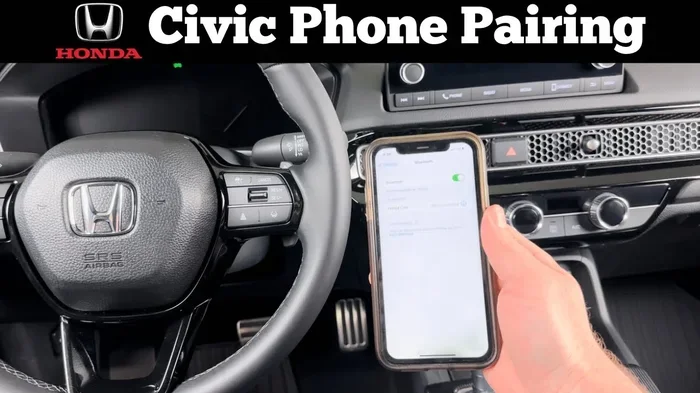
Simple Guide to Connect Your Phone to a Honda Civic
Connecting your phone to a Honda Civic is easier than you think. This guide walks you through Bluetooth pairing, USB setup, Apple CarPlay, and Android Auto in simple steps. You will learn how to stream music, make hands-free calls, and use navigation without taking your eyes off the road.
Let us be honest. We all rely on our phones way too much to just leave them in the glove box while driving. Whether you need music, navigation, or just want to take calls hands-free, connecting your phone to your Honda Civic makes life so much easier. The good news is that Honda has made this process pretty straightforward across most model years. In this guide, we will walk you through every method step by step. You will learn how to connect via Bluetooth, USB cable, and even wirelessly using Apple CarPlay and Android Auto. By the end, you will feel confident making the connection every single time.
The Honda Civic has long been one of the most popular compact sedans on the road. Part of the reason is the smart technology packed into the cabin. Honda’s infotainment system supports multiple ways to link your smartphone. Whether you drive a newer model with a crisp touchscreen or an older trim with a basic radio, there is a connection method that works for you. How to Connect Your Phone to a Honda Civic does not have to be confusing. We have broken it all down into simple, easy-to-follow sections. Let us get started.
Key Takeaways
- Bluetooth pairing is the fastest wireless option for connecting your phone to a Honda Civic without any cables.
- USB connections offer more stable performance and faster data transfer for Apple CarPlay and Android Auto.
- Apple CarPlay and Android Auto transform your Honda Civic’s touchscreen into a powerful smartphone hub.
- Wireless CarPlay is available on newer Honda Civic models, giving you a cable-free experience.
- Proper battery management matters when keeping your phone connected for long drives.
- A quality phone mount improves safety and makes your connected experience much more convenient.
- Troubleshooting is simple for most common connection issues with a few easy steps.
📑 Table of Contents
- Understanding Your Honda Civic’s Connectivity Options
- Step-by-Step Guide to Connect Your Phone to a Honda Civic via Bluetooth
- Connecting via USB Cable for Better Performance
- Using Apple CarPlay and Android Auto in Your Honda Civic
- Wireless Connection Options and Tips
- Getting the Most Out of Your Honda Civic Phone Connection
Understanding Your Honda Civic’s Connectivity Options
Before you dive into the setup process, it helps to understand what options are available. Honda Civics come with different infotainment systems depending on the trim level and model year. Newer models offer full smartphone integration. Older models may only support basic Bluetooth audio streaming. Knowing what your car supports will save you a lot of frustration.
Bluetooth vs USB Connection: What Is the Difference
Bluetooth is a wireless connection that lets your phone talk to your car without any cables. It is great for hands-free calling and basic music streaming. USB connections use a physical cable to link your phone to the car’s system. USB gives you faster data transfer and more stable performance. It is especially important for Apple CarPlay and Android Auto, which need a solid data connection to work well.
Most Honda Civic owners use a combination of both. Bluetooth handles quick calls and short trips. USB is better for long drives when you want navigation and continuous music streaming. Honda Civic connectivity is designed to be flexible so you can choose what works best for your situation.
Which Honda Civic Models Support Phone Connection
Nearly every Honda Civic made after 2006 has some form of Bluetooth capability. However, the features vary a lot. Models from 2016 and newer typically come with a touchscreen infotainment system that supports Apple CarPlay and Android Auto. If your Civic has a basic radio without a screen, you can still use Bluetooth for calls and audio. The Honda Civic technology features have improved significantly over the years, making phone integration smoother with each new generation.
Here is a quick look at what to expect by era:
- 2006-2011 models: Basic Bluetooth for calls and audio streaming
- 2012-2015 models: Improved Bluetooth with steering wheel controls
- 2016-2021 models: Touchscreen with Apple CarPlay and Android Auto support
- 2022 and newer models: Wireless CarPlay, wireless Android Auto, and enhanced infotainment
Step-by-Step Guide to Connect Your Phone to a Honda Civic via Bluetooth
Bluetooth is the most common way to connect a phone to a Honda Civic. It takes less than a minute and requires no cables. Here is exactly how to do it.
Pairing Your Phone for the First Time
Start by turning on your Honda Civic’s infotainment system. Press the button on the center console or touch the screen to wake it up. Next, go to the Settings menu and look for Bluetooth. On most models, you will find it under the Audio or Phone section. Select the option to add a new device.
Now go to your phone. Open your Bluetooth settings and make sure Bluetooth is turned on. Your phone will start searching for nearby devices. Look for your Honda Civic’s name on the list. It usually shows up as “Honda Civic” or “Honda Audio System.” Tap on it to begin pairing.
You may see a passkey displayed on your car’s screen. Type this number into your phone to confirm the connection. Once paired, your Honda Civic should show “Connected” on the display. You can now make calls, stream music, and access your phone contacts through the car’s system.
Troubleshooting Common Bluetooth Issues
Sometimes Bluetooth pairing does not work the first time. This is normal and easy to fix. If your phone does not find the car, make sure Bluetooth is turned on in both places. Try turning the car’s infotainment system off and back on. You can also restart your phone to refresh the connection.
If the connection keeps dropping, delete the paired device from both your phone and the car, then pair them again from scratch. Honda Civic Bluetooth setup issues are usually solved by a fresh pairing. If problems persist, you might want to check your car battery health, since a weak battery can affect electronic systems. For guidance, look at How Do I Check My Car Battery.
Connecting via USB Cable for Better Performance
While Bluetooth is convenient, a USB connection delivers a more reliable experience. This is especially true if you use Apple CarPlay or Android Auto. The USB cable provides a direct data link between your phone and the car’s system.
Setting Up a USB Connection
Find the USB port in your Honda Civic. Most models have at least one USB port in the center console. Some newer models also have a port in the armrest or under the dashboard. Plug your USB cable into your phone and then into the car’s port.
Your Honda Civic’s screen should recognize the phone automatically. A prompt may appear asking what you want to do. Choose Apple CarPlay, Android Auto, or just file transfer depending on your needs. If nothing happens, try a different USB port or a different cable. Some cables are charging-only and do not support data transfer.
Best USB Cables and Adapters for Honda Civic
Not all USB cables are created equal. For the best Honda Civic USB port performance, use a high-quality cable that supports data transfer. Brands like Anker, Belkin, and Apple make reliable options. If your phone uses USB-C, make sure the cable is rated for fast data. Avoid cheap, no-name cables as they often fail to transfer data properly.
Keep in mind that constantly charging your phone through the USB port can put a strain on your car battery over time. If you notice any electrical issues, it is worth checking your battery health. You can learn more at How Do I Check My Car Battery.
Using Apple CarPlay and Android Auto in Your Honda Civic
Apple CarPlay and Android Auto are game-changers for smartphone integration. They mirror your phone’s screen onto the car’s display, giving you access to maps, music, messages, and more. Both systems work beautifully in the Honda Civic.
Setting Up Apple CarPlay
To set up Apple CarPlay, first make sure your iPhone is running iOS 12 or later. Plug your iPhone into the Honda Civic’s USB port using a Lightning or USB-C cable. Your car’s screen should display the Apple CarPlay icon. Tap it to launch the interface.
Apple CarPlay gives you access to Siri, Apple Maps, Spotify, Messages, and many other apps. You can use voice commands to send texts, make calls, or get directions without touching your phone. The Honda Civic wireless CarPlay feature on newer models eliminates the need for a cable entirely. Just make sure wireless CarPlay is enabled in your iPhone settings.
Setting Up Android Auto
Android Auto works similarly but is designed for Android phones. Plug your phone into the USB port and follow the on-screen prompts. You will need to download the Android Auto app from the Google Play Store if it is not already installed.
Android Auto gives you access to Google Maps, Spotify, podcasts, and messaging apps. Google Assistant is built in for hands-free control. The Honda Civic multimedia system supports both Apple CarPlay and Android Auto on models from 2016 onward. Some trims may require an upgrade to the infotainment system for full compatibility.
Wireless Connection Options and Tips
Wireless connections are the future of in-car phone integration. Newer Honda Civic models offer wireless Apple CarPlay and wireless Android Auto. These features let you connect your phone without any cables at all.
Wireless CarPlay and Android Auto Setup
To use wireless CarPlay or Android Auto, make sure your phone and car are both compatible. On supported Honda Civic models, go to the infotainment settings and look for the wireless connection option. Your phone will need to be on the same Wi-Fi network or use a direct Wi-Fi connection to the car.
Once set up, your phone connects automatically when you get in the car. This is incredibly convenient and eliminates cable clutter. The Honda Civic wireless CarPlay experience is smooth and responsive on models from 2022 and newer.
Keeping Your Phone Charged While Connected
When you use your phone for navigation and music for hours, the battery drains fast. A wireless connection still charges your phone if the car supports it. With a USB connection, charging is automatic. For the best results, consider a phone mount Honda Civic setup with a built-in wireless charger. These mounts hold your phone securely and keep it powered up throughout your drive.
If you use your phone for GPS navigation during cold winter months, you might also deal with foggy windows. Learning How to Defog a Car Windshield Fast can help you stay safe and see clearly on those chilly mornings.
Getting the Most Out of Your Honda Civic Phone Connection
Now that your phone is connected, let us make sure you are getting the best experience possible. A few small adjustments can make a big difference in how your phone and car work together.
Phone Mount Recommendations
A good phone mount keeps your screen visible and your hands on the wheel. For the Honda Civic, a vent-mounted phone holder works great because it does not block the dashboard. Suction cup mounts are another option and hold the phone firmly in place. Wireless charging mounts are a premium choice that keeps your phone powered without cables.
Make sure the mount does not block your view of the road or interfere with airbag deployment. Position it where you can easily see the screen without taking your eyes off the highway for too long.
Managing Battery and Connectivity
Leaving your phone connected for long periods can drain both your phone battery and your car battery. If you notice your car struggles to start, it may be time to check the battery. You can learn more about this at How Do I Check My Car Battery. Also, if your Honda’s connectivity system starts acting up, a factory reset often fixes the issue. Check out How Do I Factory Reset Hybrid Connect for instructions on resetting the system.
Here are some quick tips to keep everything running smoothly:
- Update your phone’s software regularly for the best compatibility
- Keep your Honda’s infotainment system updated with the latest firmware
- Use a high-quality USB cable to avoid connection drops
- Restart both your phone and the car’s system if you notice lag
- Limit the number of paired devices to reduce connection conflicts
- Turn off Bluetooth when not in use to save battery on both devices
The Honda Civic phone connection experience is designed to be seamless. With the right setup and a little maintenance, you will enjoy hands-free calling, streaming music, and GPS navigation every time you drive. Honda has done a great job making smartphone integration simple and reliable across the Civic lineup.
Whether you prefer the convenience of Bluetooth, the stability of a USB cable, or the freedom of wireless CarPlay, there is a method that fits your needs. Start with the setup that works best for your car and your phone. Once you experience the convenience of a connected Honda Civic, you will wonder how you ever drove without it.
Take a few minutes today to go through the setup process. It only takes a couple of minutes and the payoff is huge. Safe driving, clear audio, and easy navigation are all just a connection away. Your Honda Civic is ready to work with your phone. All you have to do is make the link.
Frequently Asked Questions
Can I connect my phone to a Honda Civic without Bluetooth?
Yes, you can use a USB cable to connect your phone directly to the car’s infotainment system. USB connections work for Apple CarPlay, Android Auto, and basic file transfer. This is actually the most reliable method for accessing phone features through the car’s display.
Why does my phone keep disconnecting from my Honda Civic’s Bluetooth?
Bluetooth disconnections are usually caused by software glitches or low battery on either device. Try deleting the paired device from both your phone and the car, then reconnect. Also make sure both your phone and the car’s infotainment system are running the latest software updates.
Does every Honda Civic have Apple CarPlay and Android Auto?
Most Honda Civics from 2016 onward support Apple CarPlay and Android Auto. However, some base trim levels may not include a touchscreen, which is required for these features. Check your specific model year and trim to confirm compatibility.
Can I connect more than one phone to my Honda Civic via Bluetooth?
Yes, Honda Civics can store multiple paired Bluetooth devices. When multiple phones are in the car, the system usually connects to the last phone that was used. You can manually switch between devices through the infotainment settings menu.
Is wireless CarPlay available on all Honda Civic models?
Wireless CarPlay is available on Honda Civic models from 2022 and newer with the latest infotainment system. Older models require a USB cable for CarPlay. Check your owner’s manual or consult your dealer to confirm if your specific model supports wireless connection.
Will connecting my phone drain my Honda Civic’s battery?
Using your phone through the car’s USB port for short periods should not noticeably drain the battery. However, leaving your phone connected for extended periods when the engine is off can drain the battery over time. If you experience battery issues, refer to How Do I Check My Car Battery for helpful tips.
=== CONCLUSION ===
How to Connect Your Phone to a Honda Civic is a straightforward process that anyone can do in just a few minutes. Whether you choose Bluetooth for simplicity, USB for reliability, or wireless CarPlay for the ultimate convenience, your Honda Civic is built to work seamlessly with your smartphone. The key is to know your specific model’s capabilities and pick the right connection method for your needs.
Take the time to set up your phone connection properly today. A well-connected Honda Civic makes every drive safer, more entertaining, and more convenient. With hands-free calling, streaming music, and real-time navigation at your fingertips, you will wonder how you ever drove without it. Enjoy the ride and stay connected on the road.