Why Is My Android Device Not Connecting to Bluetooth
Your Android device not connecting to Bluetooth is a common frustration that can usually be solved with a few quick steps. Bluetooth connection issues often stem from simple causes like turned-off settings, outdated software, or cached data glitches. Whether you are trying to pair your phone with your car, a headset, or a speaker, this guide walks you through every fix that actually works. We cover car Bluetooth problems in detail since this falls under car care, helping you get back on the road with hands-free calling and music streaming.
You are about to hit the road. You grab your phone. You go to connect to your car’s Bluetooth. And then it happens. Nothing. Your screen shows no available devices or your phone simply refuses to pair. This is one of the most annoying moments in modern life. Your Android device not connecting to Bluetooth can turn a simple drive into a frustrating experience.
The good news is that you are not alone. Thousands of Android users face Bluetooth connection problems every single day. The fix is often simpler than you think. In this article, we will walk you through every possible reason your phone will not connect and every solution that works. We will especially focus on car Bluetooth problems since staying connected while driving matters for safety and convenience.
Key Takeaways
- Restart and toggle Bluetooth: The simplest fix—turning Bluetooth off and on or restarting your device resolves most connection problems.
- Clear Bluetooth cache and data: Corrupted cached files are a hidden cause of pairing failures that many users overlook.
- Check device compatibility and range: Older Bluetooth versions and physical distance can prevent successful connections.
- Update your Android software: Outdated operating systems often cause Bluetooth driver conflicts and pairing errors.
- Car Bluetooth issues need special attention: Clearing paired device lists and checking your car’s infotainment system solves most vehicle connection problems.
- Factory reset as a last resort: When nothing else works, a factory reset can eliminate deep software conflicts affecting Bluetooth.
- Prevent future issues: Regular maintenance like software updates and cache clearing keeps your wireless connection stable.
📑 Table of Contents
Quick Check: Is Bluetooth Actually Turned On?
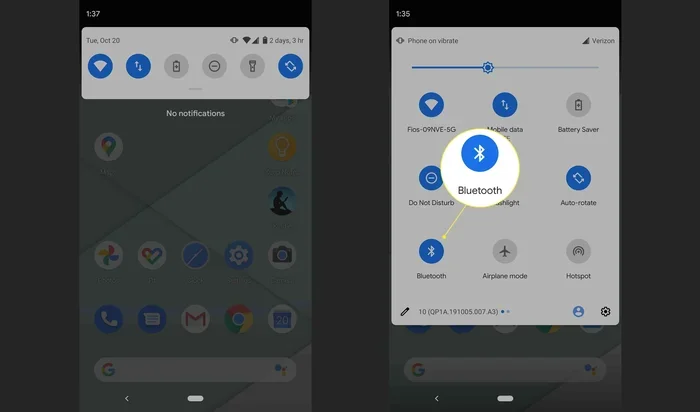
Before you dive into complex fixes, let us start with the basics. It sounds silly, but you would be surprised how many people skip this step. Swipe down from the top of your screen. Look for the Bluetooth icon. Is it highlighted or grayed out? If it is gray, tap it to turn it on.
Sometimes the Bluetooth toggle gets stuck. Your phone might show it is on, but it is not actually broadcasting a signal. This is a common glitch in the Android operating system. To force it on properly, go to your Settings app. Tap Connected Devices. Then tap Connection Preferences. Finally, tap Bluetooth and make sure the switch is flipped to the on position.
Another quick check is to see if your phone is trying to connect to a different device. Sometimes your Android will auto-connect to a previously paired device that is out of range. This creates confusion because your phone appears connected but is not actually communicating with anything. Go to your paired devices list and disconnect from any device you are not currently using.
Common Reasons Your Android Will Not Pair with Bluetooth
Bluetooth Cache Corruption
Your Android phone stores temporary data for every Bluetooth device you have ever paired with. This is called the Bluetooth cache. Over time, this cache can become corrupted. When that happens, your phone struggles to form new connections or maintain existing ones. This is one of the most frequent causes of Bluetooth connection problems.
Clearing the Bluetooth cache forces your phone to start fresh. Go to Settings. Tap Apps. Scroll down and find Bluetooth. Tap Storage. Then tap Clear Cache. Do not tap Clear Data yet. Start with the cache first. This simple step fixes Bluetooth issues for a surprising number of users.
Outdated Android Software
Your phone runs on the Android operating system. Like all software, it needs regular updates. These updates often include bug fixes for Bluetooth connectivity. If you have not updated your phone in a while, an outdated system could be the culprit behind your wireless connection troubles.
Go to Settings. Tap Software Update. If an update is available, download and install it. This process can take a few minutes. Your phone will restart. After it comes back on, try connecting your Bluetooth device again. Many users report that a simple software update solved their pairing issues instantly.
Device Compatibility Issues
Not all Bluetooth devices play nicely together. Your phone uses a specific Bluetooth version. Your car stereo, headset, or speaker uses another version. When these versions are too far apart, compatibility problems arise. For example, an older Bluetooth 3.0 device may struggle to connect with a phone running Bluetooth 5.0.
Check the Bluetooth version on both devices if possible. Look at the manufacturer specifications online. If you find a version mismatch, the problem might be a compatibility gap rather than a software bug. In these cases, a Bluetooth adapter or firmware update on the receiving device can help bridge the gap.
Physical Distance and Interference
Bluetooth has a limited range. Most devices work within 30 feet of each other. If your phone is in your pocket and your car’s Bluetooth module is across the vehicle, the signal might be too weak. Walls, metal bodies, and electronic interference from other devices can also weaken the Bluetooth signal.
Try moving your phone closer to the device you are trying to pair with. If you are in your car, place the phone on the dashboard or the passenger seat. Remove other electronic devices from the area that might be causing interference. Sometimes simply moving a few feet makes the difference between a failed and successful connection.
Too Many Connected Devices
Your Android phone can only handle so many active Bluetooth connections at once. If you have a dozen devices in your paired list, your phone might struggle to manage them all. This is especially true for older Android phones with limited processing power.
Go through your paired devices list and remove any devices you no longer use. This declutters your Bluetooth memory and gives your phone room to breathe. A clean paired devices list often results in faster and more reliable connections.
Step-by-Step Fixes to Restore Your Bluetooth Connection
Now that you understand the common causes, let us get into the fixes. Follow these steps in order. Most people find their Bluetooth working again by step three or four.
Step 1: Toggle Bluetooth Off and On
This is the simplest fix and it works more often than you would expect. Swipe down from the top of your screen. Tap the Bluetooth icon to turn it off. Wait 10 seconds. Tap it again to turn it back on. This resets the Bluetooth module and clears minor glitches.
Step 2: Restart Your Android Device
A restart clears temporary files and refreshes all system processes. Hold down your power button. Tap Restart. Wait for your phone to fully boot back up. Then try connecting your Bluetooth device again. This is one of the most effective troubleshooting steps for any tech problem.
Step 3: Forget the Device and Re-Pair
Sometimes the pairing data between your phone and a device gets corrupted. Forgetting the device and pairing it fresh can fix this. Go to Settings. Tap Connected Devices. Tap Bluetooth. Find the device causing trouble. Tap the gear icon next to it. Tap Forget. Now go back to your Bluetooth settings. Search for the device again. Pair it as if it were the first time. This fresh start often solves stubborn connection issues.
Step 4: Clear the Bluetooth App Cache
We mentioned this earlier but it deserves its own step. Go to Settings. Tap Apps. Find Bluetooth. Tap Storage. Tap Clear Cache. If that does not work, you can also tap Clear Data. This resets the Bluetooth app to its default state. Your paired devices list will be cleared, so you will need to re-pair your devices after this.
Step 5: Check for App Conflicts
Some apps can interfere with Bluetooth connections. Third-party apps that manage audio output or device connections might conflict with your phone’s built-in Bluetooth system. Try closing all background apps. Then try connecting again. If it works, you have found a problematic app. Uninstall or update that app to prevent future conflicts.
Step 6: Reset Network Settings
If none of the above steps work, resetting your network settings is the next move. Go to Settings. Tap System. Tap Reset Options. Tap Reset Wi-Fi, Mobile, and Bluetooth. This will erase all saved networks and paired Bluetooth devices. You will need to reconnect to your Wi-Fi and re-pair your Bluetooth devices afterward. But this deep reset often eliminates hidden network conflicts.
Car Bluetooth Problems: A Closer Look
Since this article falls under car care, we need to talk about car Bluetooth issues specifically. Your car’s infotainment system is a complex piece of technology. It relies on Bluetooth to handle hands-free calling, audio streaming, and navigation prompts from your phone. When this connection fails, it affects your driving experience and safety.
Why Car Bluetooth Fails to Connect
Car Bluetooth systems are different from home speakers or wireless headsets. They have to deal with engine interference, multiple paired phones, and the quirks of different car manufacturers. Here are the most common reasons your car Bluetooth will not connect.
- Your car has too many paired phones. Most car systems remember up to five or ten phones. If the list is full, your new phone cannot pair. Delete old phone entries from your car’s Bluetooth settings.
- The car’s Bluetooth module is outdated. Older cars may not support the latest Bluetooth profiles. Your newer Android phone might use features the car system does not understand.
- Electrical interference from the engine. Some car models have known issues with Bluetooth signal interference from the engine block or the electrical system.
- The car needs a firmware update. Many modern cars receive over-the-air updates. A missing update can cause Bluetooth pairing failures.
How to Fix Car Bluetooth Connection Issues
Start by turning off your car’s infotainment system. Wait 30 seconds. Turn it back on. This is the car equivalent of restarting your phone. Next, delete the car’s Bluetooth entry from your phone and vice versa. Re-pair both devices from scratch.
If you have multiple phones in the car, make sure only one phone is trying to connect at a time. Some cars prioritize the first phone that pairs. If your phone is not the primary device, it might get pushed to the background automatically.
Check your car’s manual for Bluetooth troubleshooting steps. Many manufacturers have specific procedures for resetting the infotainment system. Some cars require you to hold a button on the steering wheel for 10 seconds to reset the Bluetooth module.
Hands-Free Calling and Audio Streaming Issues
Bluetooth supports multiple profiles. The most common are HFP for hands-free calling and A2DP for audio streaming. Sometimes your phone connects for calls but not for music. Or it connects for music but not for calls. This happens when one profile is disabled or misconfigured.
Go to your Bluetooth settings. Tap the gear icon next to your car. Check which profiles are enabled. Make sure both HFP and A2DP are turned on. If one is off, toggle it on and see if the connection improves.
When to Seek Professional Help
Most Bluetooth connection issues are software-related and fixable at home. But sometimes the problem is hardware-related. If you have tried every fix in this article and your Bluetooth still does not work, it is time to consider professional help.
For your Android phone, visit an authorized service center. A technician can check if your Bluetooth module is physically damaged. This is rare but it does happen, especially after drops or water exposure. For your car, take it to a certified auto electronics shop. They can diagnose issues with the car’s Bluetooth module or infotainment system.
Do not attempt to open your phone or car’s Bluetooth hardware yourself. This can void warranties and cause further damage. Professional diagnosis saves time and money in the long run.
Preventing Future Bluetooth Connection Problems
The best way to deal with Bluetooth issues is to prevent them from happening in the first place. Here are simple habits that keep your wireless connection stable.
- Keep your Android software updated. Updates fix known bugs and improve Bluetooth performance.
- Regularly clean your paired devices list. Remove devices you no longer use.
- Restart your phone weekly. This clears temporary files and refreshes system processes.
- Keep your phone and car firmware updated. Check for car software updates at your dealer or through the manufacturer’s app.
- Avoid pairing in crowded Bluetooth environments. Airports, malls, and busy parking lots have many Bluetooth signals competing for space.
- Turn off Bluetooth when not in use. This saves battery and reduces the chance of accidental connections to wrong devices.
Final Thoughts
Your Android device not connecting to Bluetooth does not have to ruin your day. Most of the time, the fix is quick and easy. Start with the simple steps like toggling Bluetooth, restarting your phone, and clearing the cache. Move on to more advanced fixes like resetting network settings if needed. For car Bluetooth problems, remember to clear paired device lists on both your phone and your car’s infotainment system.
Stay proactive with software updates and regular maintenance. These habits keep your Bluetooth connection strong and reliable. Now that you have all the tools to fix and prevent Bluetooth issues, you can get back to enjoying hands-free calling, streaming music, and navigating your routes without interruption. Your wireless connection should be the last thing on your mind when you are driving. Follow the steps in this guide and you will be back up and running in no time.
Frequently Asked Questions
Why does my Android phone keep disconnecting from Bluetooth?
Frequent disconnections are often caused by a corrupted Bluetooth cache or an outdated Android software version. Try clearing the Bluetooth cache and updating your phone. If the problem continues, remove the device from your paired list and pair it again. Interference from other electronic devices can also cause repeated disconnections.
How do I force my Android phone to connect to Bluetooth?
Go to Settings, tap Connected Devices, and select Pair New Device. Make sure Bluetooth is turned on and your target device is in pairing mode. If your phone still refuses to connect, restart both devices and try again. Forgetting the device and re-pairing it fresh often forces a successful connection.
Can too many paired devices cause Bluetooth problems on Android?
Yes, having too many devices in your paired list can slow down your Bluetooth connection and cause pairing failures. Go through your list and remove devices you no longer use. Keeping your paired devices list clean helps your phone manage connections more efficiently.
Why does my car Bluetooth connect for calls but not for music?
This happens when the A2DP audio streaming profile is disabled or misconfigured. Go to your Bluetooth settings, tap the gear icon next to your car, and check which profiles are enabled. Make sure both the hands-free calling profile and the audio streaming profile are turned on.
Is there a way to update the Bluetooth driver on my Android phone?
Android does not let you update individual Bluetooth drivers separately. Instead, system updates through Settings, Software Update include Bluetooth driver fixes. Keeping your phone updated is the best way to ensure your Bluetooth driver stays current and functional.
Will a factory reset fix Bluetooth connection issues on my Android device?
A factory reset can fix deep software conflicts that affect Bluetooth, but it should be your last resort. This erases all data on your phone. Before going this route, try clearing the Bluetooth cache, resetting network settings, and updating your software. Always back up your data before performing a factory reset.