How Do I Get Bluetooth to Recognize My Device Easily
Getting Bluetooth to recognize your device doesn’t have to be frustrating. This guide walks you through simple steps to fix Bluetooth pairing problems, reset connections, and get your car audio working smoothly again. Whether you’re dealing with a phone that won’t connect or a car system that won’t detect devices, we’ve got you covered.
We’ve all been there. You get into your car, ready to stream music or take a hands-free call, and your Bluetooth to recognize my device just… doesn’t work. The screen shows nothing. Or worse, it finds the device but refuses to connect. It’s annoying, right?
The good news is that fixing Bluetooth connectivity issues is usually straightforward. Most problems come down to a few common culprits: visibility settings, old pairings, outdated software, or simple signal interference. In this guide, we’ll walk you through every step to get your Bluetooth pairing working again. Whether you’re trying to connect a phone to your car or sync a tablet with a speaker, you’ll find the solution here.
Let’s dive in and get your wireless connection back on track. No tech degree required.
Key Takeaways
- Turn on Bluetooth and make your device visible: This is the first and most important step for any successful pairing.
- Restart both devices: A simple reboot fixes the majority of Bluetooth recognition problems.
- Remove old pairings and start fresh: Clearing old connections prevents conflicts and discovery issues.
- Check for software updates: Outdated firmware or drivers are a common cause of Bluetooth not working.
- Reset network settings when all else fails: This clears deeper connection glitches that a simple restart won’t fix.
- Distance and interference matter: Keep devices within range and away from Wi-Fi routers or other signal blockers.
- Car-specific tips help too: Ignition mode, factory resets, and Bluetooth module checks solve most car Bluetooth issues.
📑 Table of Contents
- Why Bluetooth Won’t Recognize Your Device
- Step-by-Step Fixes to Get Bluetooth to Recognize Your Device
- Car Bluetooth: Specific Tips for Vehicle Connections
- Common Bluetooth Recognition Problems and How to Fix Them
- Advanced Troubleshooting for Stubborn Bluetooth Issues
- Quick Tips for Smooth Bluetooth Pairing
- When to Seek Professional Help
- Conclusion
Why Bluetooth Won’t Recognize Your Device
Before we fix the problem, it helps to understand why it happens. Bluetooth device recognition relies on a process called discovery. When you turn on Bluetooth, your device sends out a signal saying “I’m here.” Other nearby devices listen for that signal and respond. If something interrupts this process, recognition fails.
Here are the most common reasons your Bluetooth connection won’t work:
- Bluetooth is turned off on one or both devices.
- Device visibility is disabled. Your phone or car isn’t broadcasting its presence.
- Old paired devices are causing conflicts. The system tries to connect to a previous device instead.
- Software is outdated. Firmware or drivers need a refresh.
- You’re too far away. Bluetooth has a limited range, usually about 30 feet.
- Interference from other devices. Wi-Fi routers, microwaves, and even USB 3.0 ports can disrupt the signal.
- The Bluetooth module has a glitch. A temporary software error blocks recognition.
Understanding Bluetooth Discovery Mode
When your device is in discovery mode, it actively searches for other Bluetooth devices and allows them to find it. Think of it like shouting “I’m here!” in a crowded room. If your device isn’t shouting, nobody can hear it. Most phones and car systems have a toggle for this. Make sure it’s turned on before you start pairing.
In car systems, discovery mode often activates automatically when you select “Add New Device” in the Bluetooth settings. On phones, you typically need to go to Bluetooth settings and ensure the “Visible to All” option is enabled.
Step-by-Step Fixes to Get Bluetooth to Recognize Your Device
Now let’s get into the meat of it. These steps work for phones, tablets, and car infotainment systems. Try them in order, and stop when the problem is solved.
Step 1: Turn Bluetooth On and Off
This sounds too simple, but it works more often than you’d think. Toggle Bluetooth off on both your phone and your car (or speaker). Wait about 10 seconds. Then turn it back on. This refreshes the Bluetooth signal and clears minor glitches.
On most phones, you can swipe down from the top of the screen and tap the Bluetooth icon. On your car, go to the settings menu and find the Bluetooth option.
Step 2: Make Your Device Discoverable
Your phone or tablet needs to be visible to other devices. Here’s how to do it:
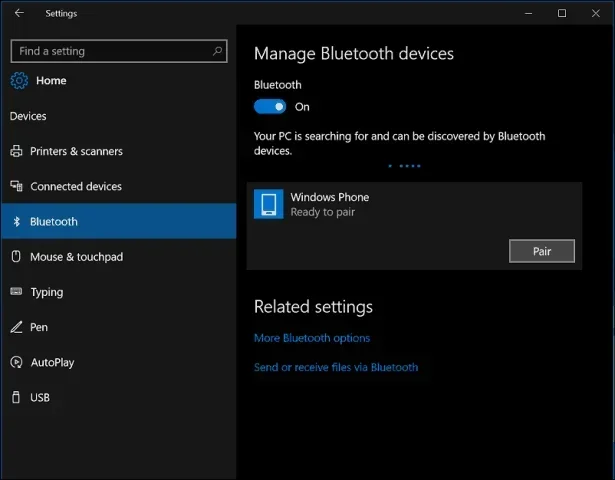
- Open Settings on your phone.
- Tap Bluetooth.
- Look for “Visible to All Devices” or “Discoverable.”
- Turn it on.
On some phones, this option only appears when Bluetooth is turned on. Make sure you’re in the Bluetooth menu before looking for it.
Step 3: Restart Both Devices
A restart clears temporary bugs and refreshes all wireless connections. Power off your phone completely. Do the same with your car’s infotainment system (or the Bluetooth device you’re trying to connect). Wait 15 to 30 seconds. Then power them back on and try pairing again.
This step alone resolves the issue for a surprising number of people. Don’t skip it.
Step 4: Remove Old Pairings
Sometimes your car or phone remembers a previous paired device and gets confused. It tries to connect to the old device instead of the new one. Here’s how to clear the list:
- On your phone, go to Bluetooth settings.
- Find the car or device name.
- Tap “Forget This Device” or “Unpair.”
- Do the same on the car or speaker side.
- Now start the pairing process fresh.
Starting clean gives both devices a blank slate to find each other without confusion.
Step 5: Check for Software Updates
Outdated software is a sneaky cause of Bluetooth not working. Both your phone and your car system may need updates. Here’s what to check:
- Phone updates: Go to Settings > General > Software Update (on iPhone) or Settings > System > Software Update (on Android).
- Car infotainment updates: Check your car manufacturer’s website or visit a dealership. Many newer cars support over-the-air updates now.
- Bluetooth driver updates: On Windows PCs, go to Device Manager > Bluetooth > right-click your adapter > Update Driver.
Keeping everything up to date ensures Bluetooth compatibility and squashes known bugs.
Step 6: Reset Network Settings
If none of the above steps worked, resetting your network settings can help. This clears all saved Wi-Fi passwords, Bluetooth pairings, and cellular settings. Here’s how:
- iPhone: Settings > General > Transfer or Reset iPhone > Reset > Reset Network Settings.
- Android: Settings > System > Reset Options > Reset Wi-Fi, Mobile & Bluetooth.
Don’t worry. This won’t delete your photos, apps, or personal data. You’ll just need to re-enter your Wi-Fi passwords afterward.
Car Bluetooth: Specific Tips for Vehicle Connections
Connecting a phone to your car’s Bluetooth system has its own set of quirks. Car infotainment systems can be stubborn. Here are tips that specifically help with car Bluetooth pairing.
Make Sure the Car Is in the Right Mode
Some car systems only allow Bluetooth discovery when the ignition is in accessory or run mode. Turn the key to “On” or press the start button without pressing the brake. Then go to the car’s Bluetooth settings and select “Search for New Devices.”
If your car has a dedicated “Phone” or “Connect” button on the steering wheel, try pressing that. It often triggers the discovery process directly.
Check the Bluetooth Module
Every car has a Bluetooth module that handles wireless connections. If this module has an error, no device will be recognized. Signs of a faulty Bluetooth module include:
- The car’s Bluetooth menu won’t open at all.
- You see the Bluetooth icon but it never searches for devices.
- Paired devices connect but there’s no audio.
If you suspect a hardware issue, a visit to a mechanic or dealership may be needed. They can run diagnostics on the Bluetooth module and replace it if necessary.
Clear the Car’s Bluetooth Cache
Just like phones, car infotainment systems store cached data from previous connections. Over time, this cache can become corrupted and cause Bluetooth error messages. Here’s how to clear it:
- Go to the car’s Settings menu.
- Find the Bluetooth or Phone section.
- Look for “Clear Cache” or “Reset Bluetooth.”
- Confirm the reset.
- Restart the car’s system by turning it off and back on.
Not all car systems show a clear cache option. In that case, a full factory reset of the infotainment system may be necessary. Check your car’s manual for instructions.
Keep Your Phone Charged
This one sounds odd, but a low battery can cause your phone to disable Bluetooth to save power. Make sure your phone has at least 20% charge before attempting to pair. Better yet, plug it into the car’s charger while connecting.
Common Bluetooth Recognition Problems and How to Fix Them
Let’s tackle some specific problems you might run into. Each one has a targeted fix.
Phone Finds the Car but Won’t Connect
This usually means the pairing was successful before but something changed. Try unpairing both sides and pairing again. If that doesn’t work, check if your phone has a “Background Data” restriction for the car’s app. Go to Settings > Apps > find your car’s app > Data Usage > make sure “Allow Background Data” is on.
Car Finds the Phone but No Audio
Sometimes the Bluetooth connection is there, but audio doesn’t route to the car’s speakers. Check these things:
- On your phone, go to Bluetooth settings and tap the gear icon next to the car.
- Make sure “Audio” and “Contacts” are toggled on.
- On the car, check that the audio source is set to Bluetooth, not radio or aux.
- Lower the car’s volume before connecting. Some systems need a low starting volume for Bluetooth audio to work.
Bluetooth Works Sometimes but Not Always
Intermittent Bluetooth signal drops are often caused by distance or interference. Here’s what to do:
- Keep your phone in the center console or on the passenger seat, not in the back seat or glovebox.
- Move away from Wi-Fi routers or other wireless devices that might cause interference.
- Avoid placing your phone near USB 3.0 ports, which can emit signals that disrupt Bluetooth.
- If you have a phone case with a metal plate or magnetic mount, remove it during pairing. Metal can block the signal.
Multiple Devices Connected but Only One Works
Most car systems support multiple paired devices, but they can only stream audio from one at a time. If your passenger’s phone is connected and your calls are routing to their phone, you need to manually switch the audio source. On the car’s display, look for an “Audio Source” or “Phone” option and select your device.
Advanced Troubleshooting for Stubborn Bluetooth Issues
If you’ve tried everything above and Bluetooth still won’t recognize your device, it’s time for deeper troubleshooting.
Factory Reset the Car Infotainment System
A factory reset wipes the car’s system back to its original settings. This is a big step, but it solves deep software issues. Warning: this will erase all your saved stations, paired devices, and settings. You’ll need to set everything up again.
To do this, go to Settings > System > Factory Reset (the exact path varies by car brand). Some cars require you to hold a button combination on the infotainment screen. Check your owner’s manual for the exact steps.
Try a Different Device
This helps you figure out if the problem is with the car or the phone. Try pairing a friend’s phone with your car. If their phone connects fine, the issue is with your phone. If no phone connects, the problem is likely with the car’s Bluetooth system.
Use a Bluetooth Adapter or Receiver
If your car’s Bluetooth system is old or broken, a Bluetooth adapter can breathe new life into it. These small devices plug into the car’s AUX port or cigarette lighter and create a new Bluetooth connection point. They’re affordable and easy to install. Popular options include brands like Belkin, Anker, and GOgroove.
Check for Hardware Damage
Sometimes the issue is physical. If your car was in an accident or exposed to moisture, the Bluetooth antenna or module could be damaged. Look for signs of water damage inside the dashboard or center console. A professional diagnostic at a dealership can confirm hardware issues.
Quick Tips for Smooth Bluetooth Pairing
Follow these habits and you’ll avoid most Bluetooth pairing headaches:
- Always pair with the car parked and stationary. Moving vehicles can interfere with the discovery process.
- Keep your phone’s Bluetooth list clean. Remove old devices you no longer use.
- Restart your phone once a week. This keeps the Bluetooth stack running smoothly.
- Update your car’s software when prompted. Manufacturers regularly fix Bluetooth bugs in updates.
- Use the official car app if one exists. Brands like Ford, BMW, and Toyota have companion apps that make pairing easier.
When to Seek Professional Help
Most Bluetooth issues are fixable at home. But sometimes you need a pro. Consider seeing a mechanic or visiting a dealership if:
- The Bluetooth module shows error codes on the diagnostic screen.
- Your car’s infotainment system freezes or crashes whenever you open Bluetooth settings.
- You’ve tried a factory reset and the problem persists.
- You suspect physical damage to the car’s wireless hardware.
A professional can run diagnostic tools that check the Bluetooth antenna, module, and software stack. This saves you time and frustration, especially if the problem is hardware-related.
Conclusion
Getting Bluetooth to recognize my device is almost always solvable with the right steps. Start simple: turn Bluetooth on, make your device discoverable, and restart both devices. If that doesn’t work, remove old pairings, update your software, and reset network settings. For car-specific issues, check the ignition mode, clear the Bluetooth cache, and consider a factory reset of the infotainment system.
The key takeaway is patience. Work through the steps in order. Most Bluetooth connectivity problems are minor and fixable at home. With a little effort, you’ll be streaming music and taking hands-free calls in no time. Don’t let a stubborn Bluetooth connection ruin your drive.
Frequently Asked Questions
Why won’t my car find my phone when I try to pair via Bluetooth?
Most of the time, this happens because your phone isn’t in discovery mode or the car isn’t searching for new devices. Make sure Bluetooth is on for both, and that your phone is set to “Visible to All.” Then start the search from the car’s Bluetooth menu, not the phone. If it still doesn’t work, try unpairing all old devices and starting fresh.
How do I make my phone visible for Bluetooth pairing?
On iPhone, go to Settings > Bluetooth and make sure it’s turned on. iPhones are automatically visible when the Bluetooth settings screen is open. On Android, go to Settings > Bluetooth, tap “Pair New Device” or “Search,” and make sure “Visible to All Nearby Devices” is toggled on. Keep this setting on while you’re trying to pair.
Why does my Bluetooth connect but there’s no sound in the car?
This is usually an audio routing issue. Check that your phone’s Bluetooth settings show the car as connected for both “Calls” and “Audio.” On the car side, make sure the audio source is set to Bluetooth. Also check that the volume isn’t muted or turned all the way down on either device. Lowering the car volume before connecting often fixes this.
Can too many paired devices cause Bluetooth recognition problems?
Yes, it can. Most car systems handle between 5 and 20 paired devices, but having a long list can slow down the discovery process and cause conflicts. Go through your paired devices list and delete any you no longer use. This keeps the Bluetooth system running smoothly and helps it find new devices faster.
Does phone interference from other apps affect Bluetooth pairing?
It can. Some apps, especially VPNs, battery savers, and security apps, can interfere with Bluetooth connections. Try closing background apps or turning off VPNs while pairing. Also, make sure “Background Data” is allowed for your car’s app if your phone has that setting.
What should I do if Bluetooth works in the car but not at home (or vice versa)?h3>
This suggests the problem is specific to one device or environment, not the Bluetooth itself. Try resetting network settings on your phone, moving closer to the device you’re connecting to, and checking for Wi-Fi or USB device interference. If it works in one place but not another, the issue is likely signal range or local interference, not a hardware problem.