How Do I Get to the QR Code on Your Phone or Tablet
Finding the QR code on your phone or tablet is easier than you think. Whether you need the QR code location for automotive services, digital menus, or quick payments, this guide walks you through every step. Learn how to scan QR code on iPhone and Android, discover where QR codes appear in the automotive world, and fix common issues in minutes.
Have you ever been in a parking lot, staring at a small square pattern on a vehicle or a sign, wondering how to pull it up on your phone? You are not alone. Millions of people search for how do I get to the QR code every single day. The good news is that finding and scanning a QR code on your phone or tablet takes just a few seconds once you know where to look.
In this guide, we will walk you through everything you need to know. From locating the QR code scanner on your iPhone to finding the hidden QR code settings on your Android device, we have you covered. We will also explore how automotive QR code usage has grown in the car industry and why vehicle information QR code systems are changing the way we interact with our cars.
By the end of this article, you will never struggle to find a QR code on screen again. Let us dive in and make this simple for you.
Key Takeaways
- iPhone users: The QR code scanner lives inside your Camera app — no extra download needed.
- Android users: Most modern phones have a built-in QR code reader in the notification panel or camera.
- Automotive connection: QR codes on vehicles and at dealerships link to vehicle information, service records, and digital menus.
- Troubleshooting tips: Restart your phone, update your camera app, or adjust settings to fix common QR code troubleshooting issues.
- Safety first: Always verify the source before scanning a digital QR code while driving or parked.
- Quick access: You can add a QR code shortcut to your home screen for faster QR code access anytime.
📑 Table of Contents
- What Is a QR Code and Why Does It Matter for Your Vehicle?
- How to Get to the QR Code on Your iPhone
- How to Get to the QR Code on Your Android Device
- Where You Will Find QR Codes in the Automotive World
- Troubleshooting When You Cannot Find the QR Code
- Quick Tips for Using QR Codes Safely on the Road
- Final Thoughts
What Is a QR Code and Why Does It Matter for Your Vehicle?
A QR code is a quick response code — a small square pattern made of black dots on a white background. Think of it as a super-powered barcode. When your phone camera reads it, it instantly takes you to a website, a payment page, a contact card, or a digital QR code menu. The technology has been around since 1994, but it has exploded in popularity over the last few years.
In the automotive world, QR codes are everywhere now. You will find them on new car windshields, service center counters, dealership brochures, and even on tire pressure stickers. They link directly to vehicle information, warranty details, recall notices, and digital service menus. Understanding how to find QR code on phone and scan it quickly can save you time at the dealership, the mechanic, or even at a toll booth.
Here are some common ways QR codes are used in the automotive space:
- Vehicle info access: Scan a code on the driver-side door jamb to pull up specs and warranty data.
- Service bookings: Many service centers use a QR code menu to let you schedule appointments instantly.
- Payment processing: Some toll roads and parking garages use QR code payment systems for quick, contactless transactions.
- Recall and safety notices: Manufacturers place QR codes on vehicles to direct owners to important safety updates.
- Digital brochures: Car dealerships use QR codes on display vehicles to link to feature videos and pricing pages.
Now that you understand why QR codes matter for your car, let us look at how to actually get to them on your device.
How to Get to the QR Code on Your iPhone
If you own an iPhone, you are in luck. Apple built a QR code scanner right into your device. You do not need to download any extra app. Here is exactly how to find and use it.
Step 1: Open Your Camera App
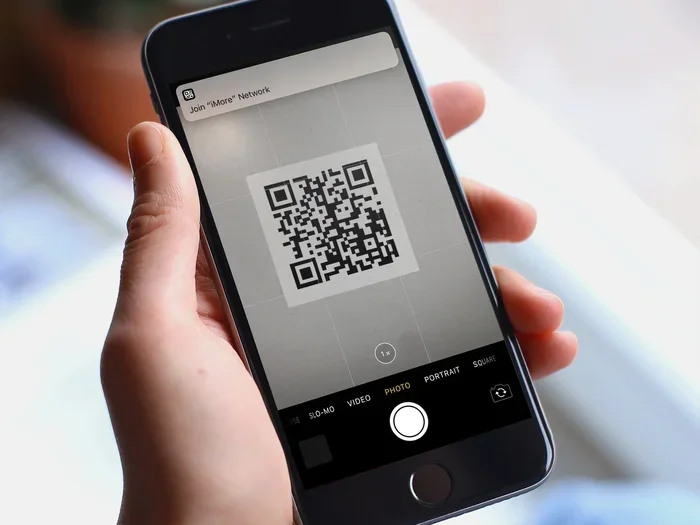
Unlock your iPhone and locate the Camera app. It is the green icon with a white camera on your home screen. Tap it to open. Point your camera at the QR code you want to scan. Make sure the code fits inside the frame on your screen.
Your iPhone will automatically detect the code. A notification banner will pop up at the top of the display. Tap the banner to open the link. That is it — no buttons to press, no menus to navigate.
Step 2: Check Your QR Code Settings
Sometimes the QR code scanner does not work because the setting is turned off. Here is how to check:
- Open the Settings app on your iPhone.
- Scroll down and tap Camera.
- Look for the toggle labeled Scan QR Codes.
- Make sure it is switched ON (green).
If it was off, turn it on and try again. This is one of the most common reasons people cannot find QR code on phone even when the code is right in front of them.
Step 3: Use the Control Center Shortcut
On newer iPhones running iOS 11 or later, you can also access the QR code reader from the Control Center. Swipe down from the top-right corner of your screen. If the QR code scanner icon is there, tap it. If not, you can add it through your Settings under Control Center customization.
Quick Tip: Keep your phone steady and about 8 to 12 inches from the QR code. Too close or too far, and your camera may not detect it. Good lighting also helps a lot.
How to Get to the QR Code on Your Android Device
Android phones are a little different because there are many brands and models. But most modern Android devices make it easy to scan QR code without installing anything extra.
Method 1: Use the Built-In Camera App
Open your Camera app just like you would on an iPhone. Point it at the QR code. Most Android phones running Android 9 or later will recognize the code automatically. A pop-up will appear with a link or action. Tap it to open.
If nothing happens, your phone might need a little help. Try these steps:
- Clean your camera lens with a soft cloth.
- Hold your phone steady and keep it about a foot from the code.
- Make sure the room is well-lit.
- Tap the screen gently to focus the camera on the QR code.
Method 2: Check the Notification Panel
Many Android phones have a QR code reader built into the notification shade. Swipe down from the top of your screen. Look for a tile or shortcut labeled QR code or Scan. If you see it, tap it and point your camera at the code.
Method 3: Download a QR Code Reader App
Some older Android phones or budget models do not have a built-in QR code scanner. In that case, you can download a free QR code reader app from the Google Play Store. Look for apps with good reviews and high download counts. Popular options include Google Lens, QR & Barcode Scanner, and Kaspersky QR Scanner.
Quick Tip: Before downloading any app, check the permissions it requests. A trustworthy QR code reader app should only need access to your camera — nothing more. Avoid apps that ask for contacts, location, or storage access unless absolutely necessary.
Where to Find QR Code Settings on Android
On some Android phones, QR code scanning needs to be enabled in settings. Here is a general path:
- Open Settings.
- Tap Apps or Applications.
- Find your Camera app in the list.
- Look for permissions and make sure Camera permission is allowed.
- Some brands like Samsung also have a QR code settings toggle in the Camera app itself — look for a QR icon or a settings gear within the camera view.
Once you have everything set up, finding QR code on phone becomes second nature. You will scan codes in seconds without even thinking about it.
Where You Will Find QR Codes in the Automotive World
The automotive industry has embraced QR codes faster than almost any other sector. From the moment you buy a car to the day you sell it, you will encounter these little squares more often than you might expect. Let us explore the most common places you will run into them.
QR Codes on Your Vehicle
Your car itself is full of QR codes. Check the driver-side door jamb for a sticker with a code. This links to your vehicle’s VIN-specific information, including specs, warranty details, and recall data. Some manufacturers place a QR code on the windshield or on the sun visor for quick access to the owner’s manual or roadside assistance.
New electric vehicles (EVs) are especially QR-code-heavy. You might find codes near the charging port that link to charging station maps, or codes on the dashboard that connect to the infotainment system setup page.
QR Codes at the Dealership
When you visit a car dealership, look around. Every display vehicle usually has a QR code on the window or a small tag hanging from the mirror. Scan it, and you get instant access to:
- Full vehicle specifications and trim details
- Video walkarounds and feature demonstrations
- Financing and lease offer pages
- Trade-in value estimators
- Service history for used vehicles
Sales representatives also use QR code access to pull up your trade-in data or pre-approval offers on the spot. It makes the buying process faster and more transparent.
QR Codes for Service and Maintenance
Your local mechanic or dealership service center likely uses QR codes for quick check-ins. A QR code menu at the service desk lets you book appointments, check service status, or view your repair estimate without waiting on hold.
Some service centers place a QR code on your windshield after maintenance is complete. Scanning it takes you directly to your digital service report, including photos of work done and next-service recommendations.
QR Codes for Tolls and Parking
If you have ever driven through a toll booth or parked in a smart garage, you have probably used a QR code payment system without realizing it. These codes appear on parking meters, garage entry signs, and toll road signage. Scanning them takes you to a payment page where you can pay with your phone — no cash, no coins, no waiting.
Quick Tip: Always make sure the QR code you are scanning is legitimate, especially for payments. Look for official branding or ask the attendant to confirm the code before you scan.
Troubleshooting When You Cannot Find the QR Code
Sometimes things do not work as smoothly as we hope. If you are struggling with QR code troubleshooting, do not worry. Most issues have simple fixes.
Your Camera Will Not Focus on the Code
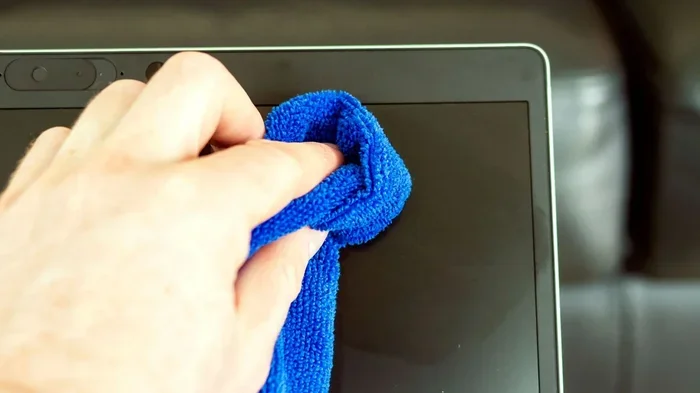
This is the most common problem. Try moving your phone closer or farther from the QR code. Clean your camera lens with a microfiber cloth. Make sure there is enough light — dim lighting can confuse the scanner.
The QR Code Scanner Does Not Appear
If your phone does not recognize the code, check a few things first:
- Is the QR code scanner setting turned on? Go to Settings and check.
- Is your camera app up to date? Visit your app store and check for updates.
- Is your phone’s operating system current? Older software may not support newer QR code display formats.
- Are you trying to scan a damaged or faded code? Print a fresh copy or display it on a brighter screen.
The Link Opens but Shows an Error
This usually means the QR code is outdated or the destination website is down. Try scanning the code again. If it still fails, contact the source — a dealership, a service center, or the product manufacturer — and ask them to resend or regenerate the code.
Quick Tip: If you frequently need to scan QR code for automotive purposes, consider saving a reliable QR code reader app as a backup. Even if your built-in scanner works fine, having a second option saves time when something goes wrong.
Quick Tips for Using QR Codes Safely on the Road
While QR codes are incredibly convenient, safety should always come first — especially when you are near or in a vehicle.
- Pull over before scanning: Never scan a QR code while driving. Pull into a parking spot or rest area first.
- Verify the source: Only scan codes from trusted sources like dealerships, manufacturers, or official service centers.
- Watch for fake codes: Scammers sometimes place fake stickers over legitimate codes on vehicles or parking meters. If a code looks tampered with, do not scan it.
- Use your judgment: If a link looks suspicious after scanning, do not enter personal or payment information.
- Keep your phone secure: Make sure your QR code reader app or camera app is from a trusted developer.
Following these simple rules keeps you safe while still letting you enjoy the speed and convenience that digital QR code technology offers.
Final Thoughts
Now you know exactly how do I get to the QR code on both iPhone and Android devices. You also understand where QR codes appear in the automotive world and how to troubleshoot common issues. The next time you see a QR code on vehicle or a QR code on screen at a service center, you will know exactly what to do.
Finding and scanning a QR code should take just a few seconds. With the tips in this guide, it will become automatic. Whether you are checking your vehicle’s service history, paying for parking, or booking a dealership appointment, the QR code access is always just a camera tap away.
Keep this guide bookmarked for the next time you are unsure. And remember — a little knowledge goes a long way when it comes to QR code scanning and staying connected in the modern automotive experience.
Frequently Asked Questions
Can I scan a QR code on my phone’s screen?
Yes, absolutely. You can scan a QR code on screen just like a printed one. Simply open your camera app, point it at the display, and wait for the notification to appear. Make sure your screen brightness is up and the code is clearly visible for the best results.
Do I need a special app to scan QR codes?
Most modern phones do not need a separate app. Both iPhones and newer Android devices have a built-in QR code scanner in the Camera app. However, older or budget phones may benefit from a free QR code reader app downloaded from the App Store or Google Play.
Are QR codes safe to scan at car dealerships and service centers?
Yes, QR codes from trusted sources like dealerships, manufacturers, and authorized service centers are safe. Always make sure the code has not been tampered with or covered by a sticker. If something looks off, ask the staff to confirm before scanning.
Why does my phone not recognize some QR codes?
Several things can cause this. The code may be damaged, too small, or printed in low contrast. Your camera lens might be dirty, or the QR code settings on your phone might be turned off. Try cleaning your lens, adjusting your distance, and checking your settings before assuming the code is bad.
Can QR codes be used for vehicle payments?
Yes, many toll roads, parking garages, and even some gas stations now use QR code payment systems. Scanning the code takes you to a secure payment page where you can pay using your phone. Always verify the code belongs to an official source before entering payment details.
Where is the QR code on a new car?
On most new vehicles, you will find a QR code on the driver-side door jamb sticker. Some manufacturers also place codes on the windshield, the sun visor, or in the owner’s manual pocket. These codes link to vehicle-specific information like specs, warranty details, and recall notices.
=== CONCLUSION ===
Knowing how do I get to the QR code is a small skill that makes a big difference in your daily life — especially when you are dealing with vehicles, service centers, and automotive technology. Whether you are on an iPhone or an Android device, the process is quick, simple, and requires no technical expertise.
Keep your QR code scanner settings checked, your camera lens clean, and a reliable reader app handy as a backup. With these habits in place, you will never fumble when a QR code appears in front of you. From the dealership to the service bay to the parking meter, you are now equipped to handle every QR code encounter with confidence.
Start using these tips today, and you will wonder how you ever managed without them.