How Do I Connect My Phone to My Car Screen Step by Step
Learning how to connect your phone to your car screen is easier than you think. Whether you use Bluetooth, a USB cable, or wireless systems like Android Auto and Apple CarPlay, this step-by-step guide walks you through every method. You will get clear instructions, practical tips, and troubleshooting advice to enjoy hands-free calling, music, and navigation on your car’s display.
Have you ever hopped into your car and wished you could see your phone screen on the big display in front of you? Maybe you want to play music, get directions, or take calls without digging through your pocket. How Do I Connect My Phone to My Car Screen? The good news is that it is much simpler than most people think.
Whether your car is brand new or a few years old, there is a way to link your phone to the infotainment system. You can use Bluetooth, a USB cable, or even wireless casting technologies. This guide breaks down every method into easy steps. By the end, you will know exactly what to do and how to enjoy a smarter, safer driving experience.
Connecting your phone to the car screen is not just about convenience. It is about safety too. When your phone is mirrored on the dashboard display, you can keep your eyes on the road and your hands on the wheel. Let us dive into every option and get you connected.
Key Takeaways
- Bluetooth is the most common wireless method and works with nearly every car and phone.
- A USB cable offers a stable connection with better charging and fewer audio interruptions.
- Android Auto and Apple CarPlay unlock smart features like navigation, voice commands, and app access.
- Wireless screen mirroring lets you cast your phone display without any cables at all.
- Troubleshooting steps fix most connection problems quickly, including resetting Bluetooth and updating software.
- Using your phone on the car screen is safer because it keeps your hands on the wheel and eyes on the road.
📑 Table of Contents
- Why Connecting Your Phone to Your Car Screen Makes Driving Better
- How to Connect Your Phone to Your Car Screen Using Bluetooth
- How to Connect Your Phone to Your Car Screen Using a USB Cable
- Wireless Connection Options: Android Auto and Apple CarPlay
- What to Do When Your Phone Won’t Connect to Your Car Screen
- Tips to Get the Best Experience from Your Car Screen Connection
- Key Takeaways
- Conclusion
Why Connecting Your Phone to Your Car Screen Makes Driving Better
Before we get into the how, let us talk about the why. A phone-to-car connection changes the way you drive. It brings your favorite apps, music, and contacts right to the center console. You do not need to hold your phone or squint at a small screen anymore.
Here are some of the biggest benefits of phone mirroring car setups:
- Hands-free calling lets you answer calls without touching your phone.
- Bigger screen navigation makes GPS directions easier to follow.
- Music streaming from apps like Spotify and Apple Music plays through your car speakers.
- Voice commands let you control your phone with just your voice.
- Safer driving because you keep your attention on the road.
When you understand these benefits, it is easy to see why smartphone integration vehicle has become a must-have feature. Even older cars can gain these abilities with a simple adapter or Bluetooth connection. The key is finding the right method that works for your car model and phone type.
How to Connect Your Phone to Your Car Screen Using Bluetooth
Bluetooth is the most popular way to connect phone to car screen wirelessly. Nearly every car made after 2012 has Bluetooth built in. And almost all modern phones support it too. This method is perfect for audio streaming and hands-free calls.
Step-by-Step Bluetooth Pairing Guide
Follow these simple steps to pair your phone with your car using Bluetooth:
- Turn on your car and go to the settings or infotainment menu on the display.
- Select Bluetooth from the menu. It may be listed as “Phone” or “Connections.”
- Make your car discoverable. This means it is ready to be found by other devices.
- Go to your phone settings. Turn on Bluetooth and look for available devices.
- Tap your car’s name when it appears on your phone screen.
- Enter the PIN if your car asks for one. It is often 0000 or 1234.
- Accept the pairing request on both devices.
That is it! Your phone is now connected. You should see a confirmation on both your car screen and phone. You can now play music, make calls, and use other audio features through your car speakers.
Common Bluetooth Problems and Quick Fixes
Sometimes Bluetooth pairing does not work the first time. Do not worry. Here are quick fixes for the most common issues:
- Phone not showing up? Turn Bluetooth off and back on. Restart both devices.
- Audio sounds choppy? Move your phone closer to the car’s antenna, usually near the rearview mirror.
- Paired but no sound? Check that the car audio source is set to Bluetooth.
- Connection drops often? Delete the old pairing and pair again from scratch.
For a reliable Bluetooth connection car experience, make sure both your phone and car software are up to date. Updates fix bugs and improve compatibility.
How to Connect Your Phone to Your Car Screen Using a USB Cable
A USB cable connection is the most stable way to screen mirror phone to car. It provides better audio quality, faster charging, and a more reliable link than Bluetooth. Most cars have a USB port somewhere in the center console or glove box.
What You Need for a USB Connection
Before you start, make sure you have the right cable. Here is what you need:
- A compatible USB cable. Most phones use USB-C or Lightning cables.
- A car with a USB port. Some older cars may need a USB adapter.
- Your phone. Make sure it is unlocked and awake.
Step-by-Step USB Connection Guide
Follow these steps to connect your phone using a USB cable:
- Plug one end of the cable into your phone.
- Plug the other end into the car’s USB port. Wait a few seconds.
- Check the car display. It should show a notification or a phone icon.
- Select the right mode on your phone if prompted. Choose “File Transfer” or “Media.”
- Open the car’s media source and select USB.
Your phone screen should now be visible on the car display. You can browse your music library, view photos, and use navigation apps. The USB cable also charges your phone while you drive, which is a huge bonus on long trips.
USB vs Bluetooth: Which Is Better?
Both options have their strengths. Here is a quick comparison to help you decide:
| Feature | USB Cable | Bluetooth |
|---|---|---|
| Connection Stability | Very Stable | Good |
| Audio Quality | Excellent | Good |
| Charging | Yes | No |
| Wireless Freedom | No | Yes |
| Setup Speed | Fast | Fast |
| Screen Mirroring | Full Support | Limited |
If you want the best audio quality and a rock-solid connection, go with USB. If you want freedom from cables, Bluetooth wins. Many drivers use both depending on the situation.
Wireless Connection Options: Android Auto and Apple CarPlay
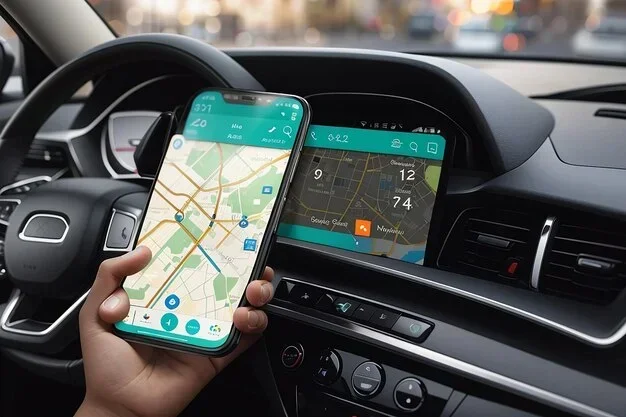
If you want the full smart experience, Android Auto and Apple CarPlay are the best options. These systems turn your car screen into an extension of your phone. You get access to maps, music, messages, and more, all with a simple and safe interface.
How to Set Up Android Auto
Android Auto works with most Android phones. Here is how to get it running:
- Download Android Auto from the Google Play Store on your phone.
- Open the app and follow the setup prompts.
- Connect via USB or wirelessly. For wireless, make sure your car supports it.
- Allow permissions for location, contacts, and media.
- Start using it! Your car screen will now show the Android Auto home screen.
Android Auto gives you access to Google Maps, Spotify, YouTube Music, WhatsApp, and many more apps. The interface is designed to be simple and driver-friendly. You can use voice commands through Google Assistant to make calls, send texts, and get directions without touching your phone.
How to Set Up Apple CarPlay
Apple CarPlay works with iPhones and offers a similar smart experience. Here is how to set it up:
- Make sure your iPhone is updated to the latest iOS version.
- Plug your iPhone into the car using a Lightning or USB-C cable.
- Tap CarPlay on your car display when the prompt appears.
- Allow permissions for Siri, location, and media.
- Start using CarPlay! Your car screen will show the CarPlay home screen.
With CarPlay setup complete, you get Siri voice control, Apple Maps, Apple Music, Podcasts, and many third-party apps. CarPlay also supports wireless connections on newer car models. This means no cable is needed once the initial pairing is done.
Wireless vs Wired Android Auto and CarPlay
Both Android Auto and Apple CarPlay offer wireless options now. Here is what you should know:
- Wired connections are more reliable and work with more car models.
- Wireless connections are more convenient but may need a stronger Wi-Fi signal.
- Wireless CarPlay requires a compatible car stereo or adapter.
- Wireless Android Auto works best on newer phones and car systems.
For the smoothest wireless screen mirror experience, make sure your car’s firmware and your phone’s operating system are both updated. This eliminates most compatibility issues.
What to Do When Your Phone Won’t Connect to Your Car Screen
Even with clear instructions, things can go wrong. A phone that refuses to connect to the car screen is frustrating, but it is almost always fixable. Here are the most common reasons and how to solve them.
Reason 1: Bluetooth Is Not Discoverable
If your car does not show up on your phone, Bluetooth may not be set to discoverable mode. Go into your car’s infotainment settings and make sure Bluetooth is turned on and visible. On your phone, turn Bluetooth off and back on to refresh the search.
Reason 2: Old Software
Outdated phone software or car firmware can cause pairing failures. Check for updates on both devices. On your phone, go to Settings, then Software Update. For your car, check the manufacturer’s website or visit a dealer.
Reason 3: Too Many Paired Devices
Some car systems only remember a few paired devices. If your car has paired with too many phones, delete old ones. Keep only the devices you use regularly. This frees up memory and often fixes connection issues.
Reason 4: Cable or Port Problems
If you are using a USB cable, try a different cable or a different USB port. Damaged cables are a very common cause of connection failures. A cable that charges your phone may not transfer data properly. Use the cable that came with your phone for the best results.
Reason 5: App Conflicts
Sometimes apps on your phone interfere with the car connection. Close all background apps before connecting. If you use mirror link car apps, make sure they are updated to the latest version.
If none of these fixes work, try a full reset. Turn off the car, disconnect the phone, wait 30 seconds, and start again. This simple step solves the majority of connection problems.
Tips to Get the Best Experience from Your Car Screen Connection
Once you are connected, a few smart habits will make the experience much better. These tips help you get the most out of your smartphone integration vehicle setup.
Keep Your Phone Charged
Screen mirroring uses a lot of battery. Plug your phone into the car charger while driving. A USB connection handles both charging and data transfer, which is ideal.
Use Voice Commands
Both Android Auto and CarPlay support voice commands. Use Siri or Google Assistant to make calls, send texts, and change music. This keeps your hands on the wheel and your focus on the road.
Organize Your Apps
Not all phone apps work well on a car screen. Stick to driving-friendly apps like maps, music, and podcasts. Remove distracting apps from the car display home screen to keep things clean and simple.
Update Regularly
Software updates improve performance and fix bugs. Set a reminder to check for updates on both your phone and car system every few weeks. This keeps everything running smoothly.
Clean Your Screen
A dirty car screen makes everything harder to read. Wipe the display with a microfiber cloth before driving. This small habit makes a big difference in usability.
Use Quality Accessories
If you need an adapter or cable, invest in quality brands. Cheap accessories can cause dropped connections, poor audio quality, and even damage your devices. Look for certified products from trusted manufacturers.
Key Takeaways
- Bluetooth is the easiest wireless method for basic audio and calling needs.
- A USB cable gives the most stable and highest-quality connection for music, navigation, and charging.
- Android Auto and Apple CarPlay transform your car screen into a smart, app-friendly display.
- Wireless screen mirroring is available on newer car models and eliminates the need for cables.
- Most connection problems are simple to fix by resetting Bluetooth, updating software, or changing cables.
- Regular maintenance like software updates and clean screens keeps your setup running at its best.
- Using your phone safely on the car screen keeps you focused on driving and reduces distractions.
Conclusion
How Do I Connect My Phone to My Car Screen? Now you have the complete answer. Whether you choose Bluetooth, USB, Android Auto, or Apple CarPlay, the process is straightforward and well worth the effort. A connected car screen makes every drive more enjoyable, safer, and more convenient.
Start with the method that fits your car and phone best. If you have a newer car, wireless CarPlay or Android Auto will feel like a game changer. If your car is older, a simple Bluetooth connection or USB cable will still bring great value. The important thing is to get connected and start enjoying the benefits today.
Try each method, see what works for you, and stick with it. Once you experience the convenience of having your phone right on the car screen, you will wonder how you ever drove without it. Safe travels and happy connecting!
Frequently Asked Questions
Can I connect any phone to any car screen?
Most modern phones and cars support Bluetooth and USB connections. However, advanced features like Android Auto and Apple CarPlay require compatible car systems. Check your car manual or the manufacturer’s website to see what your car supports.
Is it safe to use my phone on the car screen while driving?
Yes, it is much safer than holding your phone. Car screen setups allow you to use voice commands, answer calls, and get directions without taking your hands off the wheel. Always use hands-free mode and keep your focus on the road.
Do I need an expensive adapter to mirror my phone to the car?
Not usually. Most cars made after 2015 have built-in Bluetooth and USB ports that work with any phone. If your car is older, a basic Bluetooth adapter or USB cable is all you need. Expensive adapters are only necessary for advanced wireless features.
Why does my phone disconnect from the car screen automatically?
This usually happens when another device tries to connect, or when the Bluetooth signal is weak. Make sure your phone is close to the car’s antenna. Also check that no other devices are trying to pair with your car system.
Can I use Apple CarPlay on an Android phone?
No, Apple CarPlay is exclusive to iPhones. Android phone users should use Android Auto instead. Both systems offer similar features like navigation, music, and voice commands, but they are designed for their respective operating systems.
How do I disconnect my phone from the car screen?
To disconnect, go to your car’s Bluetooth settings and unpair your phone. You can also turn off Bluetooth on your phone. For a USB connection, simply unplug the cable. Your phone will remember the car and reconnect automatically next time if you want it to.