Why Isnt My Car Detecting My Phone Try These Fixes
Why isn’t my car detecting my phone? This frustrating issue usually stems from Bluetooth glitches, software mismatches, or simple settings errors. Whether you use Apple CarPlay, Android Auto, or just need hands-free calling, a phone that won’t connect ruins the driving experience. The good news is that most fixes are quick, free, and easy to try at home. This guide walks you through every common cause and the best solution for each one. By the end, you will know exactly how to get your phone paired and working again.
There is nothing more annoying than getting into your car, ready to hit the road, only to realize your phone is not connecting. You tap the screen. You check the Bluetooth icon. Nothing happens. The question why isn’t my car detecting my phone starts spinning in your head, especially when you need navigation, music, or just a hands-free call.
The good news is that this problem is incredibly common and usually easy to fix. Most of the time, it is not a hardware issue at all. It is a simple settings glitch, a software mismatch, or a minor Bluetooth hiccup that a few quick steps can resolve. This article covers every major reason your phone might not be connecting and gives you the exact fix for each one.
Whether you drive a Toyota, Honda, Ford, BMW, or any other brand, the connection process relies on the same core technology. Bluetooth pairing between your phone and the car infotainment system is what makes it all work. When that link breaks, your music stops, your calls drop, and your GPS goes dark. Let us dive into the reasons and solutions so you can get back on the road with full connectivity.
Key Takeaways
- Restart both devices first: A simple reboot fixes the majority of Bluetooth detection problems.
- Check Bluetooth settings carefully: Sometimes the phone or car system needs a manual reset or unpairing.
- Keep software updated: Outdated phone or infotainment software is a leading cause of pairing failures.
- Clear Bluetooth cache on Android: This hidden fix resolves many persistent connection issues.
- Distance and interference matter: Physical barriers and other wireless signals can block detection.
- Factory reset as a last resort: When nothing else works, a full reset on either device often solves the problem.
📑 Table of Contents
- Common Reasons Your Car Is Not Detecting Your Phone
- Step-by-Step Fixes to Get Your Phone Detected
- Apple CarPlay and Android Auto Connection Issues
- When the Problem Is with the Car System Itself
- Quick Tips to Prevent Future Connection Problems
- Comparison Table: Common Fixes and How Long They Take
- Expert Insights on Bluetooth Detection Problems
- Key Takeaways
Common Reasons Your Car Is Not Detecting Your Phone
Before you start troubleshooting, it helps to understand what might be going wrong. Several factors can prevent your car from finding your phone. Here are the most common culprits.
Bluetooth Is Turned Off or Disabled
This sounds obvious, but it happens more often than you think. Bluetooth might be disabled on your phone, or the car system might have it turned off too. A quick toggle check on both devices takes just a few seconds and eliminates this as a possibility.
Your Phone Is Already Paired to Another Device
Modern phones connect to multiple devices throughout the day. If your phone is still connected to your headphones, smartwatch, or another car system, it may not search for a new device. The phone prioritizes active connections, which can block detection.
Software Is Outdated
Both your phone and your car infotainment system run on software. When either one falls behind on updates, compatibility issues arise. An outdated Bluetooth driver on your phone or an old firmware version in your car can break the connection entirely.
Too Many Paired Devices in Memory
Car systems have limited memory for stored Bluetooth devices. If you have paired dozens of phones, tablets, or devices over the years, the system can slow down or fail to recognize new ones. Clearing old pairings frees up space and often fixes detection issues.
Physical Distance or Interference
Bluetooth has a limited range, typically around 30 feet. If your phone is buried in a bag, tucked in a back pocket, or blocked by metal surfaces, the signal may not reach the car system. Other wireless devices like Wi-Fi routers or microwaves can also create interference.
Step-by-Step Fixes to Get Your Phone Detected
Now that you know the common causes, let us walk through the fixes. Try these in order, starting with the simplest solution.
Fix 1: Restart Both Your Phone and Your Car
The number one fix for most Bluetooth problems is a fresh restart. This clears temporary glitches and resets the wireless modules on both devices.
Here is what to do:
- Turn off your car engine and remove the key or press the start button to shut down the infotainment system.
- Power off your phone completely.
- Wait at least 30 seconds.
- Turn your car back on and let the infotainment system fully boot up.
- Power on your phone and wait for it to reconnect.
This simple restart solves the problem for a large percentage of users. It takes less than two minutes and requires no technical skill.
Fix 2: Toggle Bluetooth Off and On
If a full restart did not work, try toggling Bluetooth manually. This forces both devices to re-establish the connection from scratch.
On your phone, go to Settings, find Bluetooth, and turn it off. Wait 10 seconds, then turn it back on. On your car, navigate to the Bluetooth settings and turn the system Bluetooth off and then back on. This often triggers a fresh search and detection cycle.
Fix 3: Delete Old Pairings and Re-Pair
Sometimes the stored pairing data becomes corrupted. Deleting the old connection and creating a new one can restore a clean link between your devices.
Follow these steps:
- On your car infotainment screen, go to the Bluetooth settings menu.
- Find your phone in the list of paired devices.
- Select the option to delete or forget the device.
- Do the same on your phone by going to Bluetooth settings and removing the car from the list.
- Restart both devices.
- Put your car in pairing mode and search for new devices from your phone.
- Select your car and confirm the pairing request on both screens.
After re-pairing, test your connection by playing music or making a call. The detection should work smoothly now.
Fix 4: Clear Bluetooth Cache on Android
If you use an Android phone, there is a hidden fix that many people do not know about. Clearing the Bluetooth cache removes corrupted data that can block detection.
Go to Settings, then Apps, find the Bluetooth Share app, and tap Storage. Select Clear Cache and then Clear Data. Restart your phone and try pairing again. This fix is especially helpful when your Android phone keeps failing to detect the car even though Bluetooth is on.
Fix 5: Update Your Phone and Car Software
Software updates often include bug fixes for Bluetooth connectivity. An outdated phone operating system or car firmware can cause compatibility problems.
On your phone, go to Settings and check for system updates. Install any pending updates and restart. For your car, check the manufacturer website or consult your dealer about available infotainment updates. Some newer cars support over-the-air updates, while older models may require a visit to a service center.
Fix 6: Check for Interference from Other Devices
Wireless interference is a sneaky cause of Bluetooth detection problems. If you have multiple Bluetooth devices active in the car, they can compete for the same signal. USB cables that are not fully seated, aftermarket electronics, or even a phone case with metal components can block the connection.
Try removing unnecessary Bluetooth devices from the car. Unplug USB cables that are not in use. Take off any metal phone cases and place your phone in a visible, unobstructed location near the center console. These small changes can make a big difference.
Apple CarPlay and Android Auto Connection Issues
If you rely on Apple CarPlay or Android Auto, a detection failure is even more frustrating because you lose access to navigation, messaging, and your favorite apps. These systems add an extra layer of complexity to the Bluetooth connection process.
Why Apple CarPlay Might Not Connect
Apple CarPlay requires a stable Bluetooth connection and, in many cars, a USB cable as well. If your car does not detect your iPhone, try these steps:
- Use a certified Lightning or USB-C cable. Cheap or damaged cables are a frequent cause of CarPlay failures.
- Make sure Siri is enabled on your iPhone. CarPlay relies on Siri for initial setup and voice commands.
- Restart your iPhone and the car infotainment system.
- On your iPhone, go to Settings, then General, then CarPlay, and remove the car. Re-pair from scratch.
- Check that CarPlay is enabled in your car settings by looking for the CarPlay icon or menu option.
Why Android Auto Might Not Connect
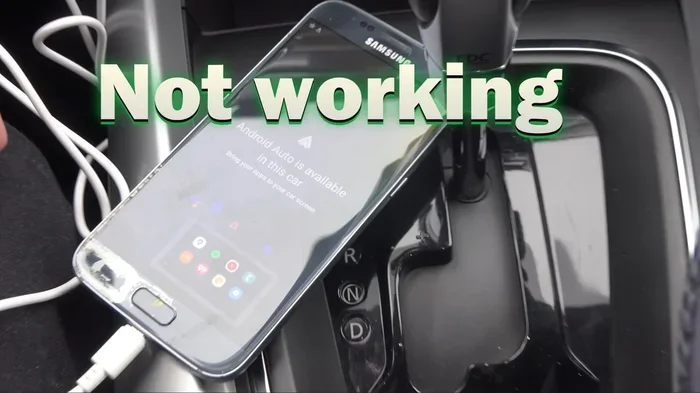
Android Auto works similarly but has its own set of requirements. If your car is not detecting your Android phone for Android Auto, here is what to try:
- Update the Android Auto app from the Google Play Store.
- Make sure Google Play Services is up to date on your phone.
- Use a high-quality USB cable and plug it directly into the car USB port, not an adapter or extension.
- On your phone, go to Settings, then Apps, find Android Auto, and clear its cache and data.
- Restart both your phone and your car system.
Both Apple CarPlay and Android Auto depend on a solid Bluetooth foundation. If the basic Bluetooth connection is broken, these smart features will not work either. Always fix the underlying Bluetooth issue first before troubleshooting the smart system.
When the Problem Is with the Car System Itself
Sometimes the issue is not your phone at all. The car infotainment system may have a problem that prevents it from detecting any device. Here are signs that the car is the source of the problem.
Signs the Car Infotainment System Is at Fault
- The Bluetooth menu is grayed out or unresponsive.
- The car will not enter pairing mode at all.
- Other phones also fail to connect to the car.
- The infotainment system freezes or crashes when you try to access Bluetooth settings.
How to Reset the Car Infotainment System
Most car systems have a reset option. The method varies by brand, but here is a general approach:
- Press and hold the power button on the infotainment screen for 10 to 15 seconds.
- The screen should go black and then restart.
- Once the system is back on, check if Bluetooth is working.
If a simple reset does not work, you may need to perform a factory reset. This erases all saved settings, including paired devices. You will need to re-pair your phone and reconfigure your preferences. Always consult your car owner manual before performing a factory reset to avoid accidentally deleting important settings.
Quick Tips to Prevent Future Connection Problems
Prevention is always better than cure. A few simple habits can keep your phone and car connected reliably every time you get behind the wheel.
- Keep both devices updated: Regular software updates patch Bluetooth bugs and improve compatibility.
- Limit paired devices: Only keep the devices you actually use in your car system memory. Delete old pairings you no longer need.
- Use quality cables: If your car requires a USB cable for CarPlay or Android Auto, invest in a good cable from a reputable brand.
- Restart weekly: A quick restart of both your phone and car system once a week keeps everything running smoothly.
- Avoid phone cases with metal plates: Magnetic mounts and metal plates can block Bluetooth signals.
- Keep your phone visible: Place your phone in a phone mount or the center console where it has a clear line of sight to the car antenna.
Comparison Table: Common Fixes and How Long They Take
| Fix | Difficulty | Time Required | Success Rate |
|---|---|---|---|
| Restart both devices | Easy | 1 minute | High |
| Toggle Bluetooth off and on | Easy | 30 seconds | Moderate |
| Delete and re-pair devices | Medium | 3 to 5 minutes | High |
| Clear Bluetooth cache (Android) | Medium | 2 minutes | High |
| Update software | Easy | 5 to 15 minutes | Moderate |
| Factory reset car system | Hard | 15 to 30 minutes | Very High |
Start with the quick fixes at the top of the table. If those do not work, move down the list. Most users resolve the problem within the first two or three steps.
Expert Insights on Bluetooth Detection Problems
Automotive technicians and electronics specialists see this issue constantly. Here is what the experts want you to know.
Bluetooth version matters. Older car systems may use Bluetooth 3.0 or 4.0, while modern phones support Bluetooth 5.0 and above. The version mismatch does not prevent detection in most cases, but it can cause unstable connections and audio dropouts even when the phone is initially detected.
Signal interference is real. Experts warn that aftermarket electronics like dash cams, radar detectors, and even LED light bars can emit signals that interfere with Bluetooth. If you recently installed any new electronic device in your car, try disconnecting it temporarily to see if your phone connects.
Phone compatibility is not guaranteed. Not all phones work perfectly with all car systems. Some older car infotainment units struggle with newer phone models, and vice versa. Checking your car manufacturer compatibility list before purchasing a new phone can save you headaches.
Key Takeaways
- Restart both devices first: A simple reboot fixes the majority of Bluetooth detection problems.
- Check Bluetooth settings carefully: Sometimes the phone or car system needs a manual reset or unpairing.
- Keep software updated: Outdated phone or infotainment software is a leading cause of pairing failures.
- Clear Bluetooth cache on Android: This hidden fix resolves many persistent connection issues.
- Distance and interference matter: Physical barriers and other wireless signals can block detection.
- Factory reset as a last resort: When nothing else works, a full reset on either device often solves the problem.
Frequently Asked Questions
Why is my phone not showing up on my car Bluetooth even though Bluetooth is on?
This usually happens when your phone is connected to another device nearby or the pairing list on your car is full. Try turning off Bluetooth on other devices, deleting old pairings from your car, and then restarting both your phone and car system before attempting to pair again.
Can a phone case prevent my car from detecting my phone?
Yes, phone cases with metal components, magnetic plates, or thick metallic covers can block Bluetooth signals. Remove the case and try pairing again to see if detection improves. A slim, non-metallic case is best for maintaining a strong Bluetooth connection.
Why does my car detect my phone but will not connect?
Detection without connection usually means the pairing data is corrupted or the software versions are incompatible. Delete the old pairing from both devices, update your phone software and car firmware, and then create a fresh connection. This resolves the issue in most cases.
How do I know if my car infotainment system needs a reset?
If your car Bluetooth menu is frozen, grayed out, or unresponsive, a system reset is likely needed. Try a soft reset by holding the power button for 10 to 15 seconds. If that does not work, consult your owner manual for a factory reset procedure specific to your car model.
Is it normal for Bluetooth connection to drop frequently in the car?
Occasional drops can happen, but frequent disconnections are not normal. They are often caused by software bugs, interference from other electronics, or outdated firmware. Updating both your phone and car software and reducing the number of active Bluetooth devices in the car usually fixes frequent drops.
Will updating my car software fix Bluetooth detection issues?
Yes, software updates frequently include Bluetooth bug fixes and compatibility improvements. Check with your car dealer or manufacturer website for available updates. If your car supports over-the-air updates, you can check for them directly in the infotainment settings menu.
=== CONCLUSION ===
Dealing with a car that will not detect your phone is frustrating, but it is almost always fixable. The most common causes are simple Bluetooth glitches, outdated software, corrupted pairing data, or interference from other devices. By following the steps in this guide, you can diagnose the problem and get your connection working again in just a few minutes.
Start with the easiest fixes like restarting both devices and toggling Bluetooth. Move on to deleting old pairings and clearing caches if those do not work. And remember that keeping your phone and car software updated is the best way to prevent these issues from happening in the first place.
The next time you ask yourself why is not my car detecting my phone, you will know exactly what to do. Try these fixes, get back to your music, your calls, and your navigation, and enjoy a seamless driving experience every time you get behind the wheel.