Why Isnt My iPhone Connecting to My Toyota Car Today
Your iPhone may not be connecting to your Toyota because of Bluetooth glitches, outdated software, or incorrect car settings. The good news is that most connection problems are quick and easy to fix at home. This guide walks you through every proven solution so you can get back to using Apple CarPlay, making hands-free calls, and streaming music without frustration.
Key Takeaways
- Bluetooth conflicts are the #1 cause: Old paired devices or software glitches often block new connections between your iPhone and Toyota.
- Software updates matter: Keeping both your iPhone and Toyota infotainment system up to date solves many connectivity problems.
- Resetting network settings is powerful: This simple step clears hidden bugs that prevent your iPhone from pairing with your Toyota.
- Check your car settings first: Many people miss simple toggles like Bluetooth being turned off or the wrong audio source selected.
- Hardware issues are rare but real: A faulty USB cable, damaged port, or weak signal can also cause connection failures.
- Apple CarPlay compatibility depends on your Toyota model and year: Older models may need an adapter or update to support wireless CarPlay.
- When all else fails, a dealer visit helps: Toyota dealerships have diagnostic tools that can identify deeper system issues.
📑 Table of Contents
- Why Isn’t My iPhone Connecting to My Toyota?
- Understanding How iPhone and Toyota Connectivity Works
- Common Reasons Your iPhone Won’t Connect to Your Toyota
- Step-by-Step Fixes to Restore iPhone Toyota Connection
- Quick Tips to Prevent iPhone Toyota Connection Problems
- When to Visit a Toyota Dealer for Help
- How iPhone Compatibility Varies Across Toyota Models
- Can I Use My iPhone While Driving with Toyota Connected?
- Key Takeaways
- Conclusion
Why Isn’t My iPhone Connecting to My Toyota?
You hop into your Toyota, grab your iPhone, and expect everything to just work. You tap Bluetooth. You look for Apple CarPlay. Nothing happens. It is frustrating, especially when you rely on hands-free calling, navigation, and music during every drive.
The truth is that iPhone and Toyota connectivity problems are more common than you think. They happen across every model, from the Camry to the RAV4 to the Highlander. The good news is that the fix is usually simpler than you expect.
In this guide, we will walk through every reason your iPhone might not be connecting to your Toyota. We will also give you step-by-step solutions that actually work. Whether it is a quick toggle or a deeper reset, you will find the answer here.
Let us get your phone and car talking again.
Understanding How iPhone and Toyota Connectivity Works
Before we dive into fixes, it helps to understand what is happening behind the scenes. Your Toyota uses a built-in infotainment system to communicate with your iPhone. This system handles Bluetooth audio, phone calls, Apple CarPlay, and sometimes even wireless charging.
When you pair your iPhone with your Toyota, the two devices exchange digital handshakes. They agree on a connection protocol. They share data like contacts and playlists. When one side of this process breaks, the whole connection fails.
Bluetooth vs. Apple CarPlay
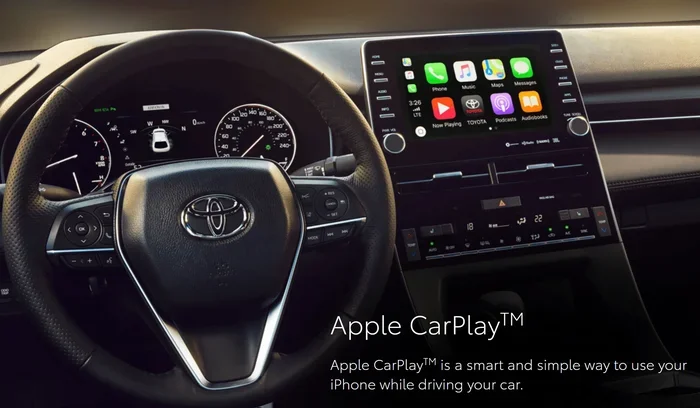
It is important to know the difference between Bluetooth and Apple CarPlay. Bluetooth handles calls and basic audio streaming. Apple CarPlay takes it further by mirroring your iPhone screen onto the Toyota display. Both use Bluetooth, but CarPlay also needs a data connection through USB or wirelessly.
If your calls work but CarPlay does not, the problem is specific to the CarPlay handshake. If nothing connects at all, the Bluetooth layer itself is likely the issue.
What Toyota Models Support iPhone Connectivity?
Most Toyota models from the last decade support some form of iPhone connectivity. However, older models may not support wireless Apple CarPlay. Models like the Toyota Camry, RAV4, Highlander, and Sienna generally have strong iPhone support. If you own a 2018 or newer Toyota, wireless CarPlay is likely built in. Older models may need a USB cable or an adapter.
Common Reasons Your iPhone Won’t Connect to Your Toyota
Now let us get into the real meat of the issue. Here are the most common reasons your iPhone Toyota connection keeps failing.
Reason 1: Bluetooth Is Turned Off or Stuck
This sounds obvious, but it happens all the time. Your Bluetooth might be off on the iPhone, or it might be stuck in a pairing loop on the Toyota side. Sometimes the car’s Bluetooth system simply freezes after a long drive or a battery drain.
Check that Bluetooth is enabled on your iPhone first. Then check the Toyota infotainment screen. Make sure Bluetooth is toggled on there too. If it still does not work, move to the next step.
Reason 2: Your iPhone and Toyota Software Are Outdated
Software updates fix bugs. They also improve compatibility between devices. If your iPhone is running an older iOS version or your Toyota infotainment system has not been updated, the two might not communicate properly.
Apple releases iOS updates regularly. Toyota also pushes infotainment updates through dealerships or over-the-air for newer models. Updating both devices is one of the easiest and most overlooked fixes.
Reason 3: Too Many Paired Devices
Your Toyota’s Bluetooth system can only handle a limited number of paired devices at once. If you have previously connected phones, tablets, or headphones still listed in the car’s memory, they can create conflicts. The car gets confused about which device to connect to first.
Go into your Toyota Bluetooth settings and delete old devices you no longer use. Then try pairing your iPhone again from scratch. A clean slate often solves the problem immediately.
Reason 4: Apple CarPlay Is Disabled or Not Supported
Not every Toyota trim level comes with Apple CarPlay. Some older models only offer it as an optional package. If your Toyota does not have CarPlay built in, you will need a compatible aftermarket adapter. Also, CarPlay can be accidentally disabled in your iPhone settings.
On your iPhone, go to Settings, then General, then CarPlay. Make sure it is turned on. If your Toyota supports wireless CarPlay, also check that the wireless toggle is enabled in the car’s settings menu.
Reason 5: Network Settings Are Corrupted
Your iPhone stores network data for every device it has ever connected to. Over time, this cache can become corrupted. When this happens, your iPhone might refuse to connect to your Toyota even though everything looks correct on the surface.
Resetting your network settings clears all this stored data. It is safe and does not delete your photos, apps, or personal data. You will just need to reconnect to your Wi-Fi and Bluetooth devices afterward.
Reason 6: USB Cable or Port Issues
If you are using a cable to connect your iPhone to your Toyota, the cable itself might be the problem. Damaged cables, loose connections, or non-certified cables often cause CarPlay to fail. The Toyota USB port might also be dirty or damaged from regular use.
Try a different cable. Try a different USB port in the car. Use only MFi-certified (Made for iPhone) cables for the best results. This one simple swap fixes the issue for many drivers.
Reason 7: Your Toyota Battery Is Low or Weak
Your Toyota’s infotainment system runs on the car battery. If your battery is weak or your car has been sitting for a while, the system might not have enough power to maintain Bluetooth connections properly. A low battery can also cause the system to reset randomly, wiping temporary connection data.
If your Toyota has been sitting idle or you notice other electrical issues, get the battery tested. A simple battery replacement can restore full connectivity.
Step-by-Step Fixes to Restore iPhone Toyota Connection
Here is the order I recommend trying these fixes. Start from the top and work your way down. Most people find success within the first few steps.
Step 1: Toggle Bluetooth Off and On
On your iPhone, turn Bluetooth off. Wait 10 seconds. Turn it back on. On your Toyota, turn the infotainment system off and back on. This clears temporary glitches and forces both devices to re-negotiate the connection.
Step 2: Delete Old Paired Devices
Go to your Toyota Bluetooth settings. Remove all previously paired devices. On your iPhone, forget the Toyota from your Bluetooth list too. Then pair them fresh. This eliminates conflicts from old connections.
Step 3: Update Your iPhone and Toyota Software
Go to Settings on your iPhone, then General, then Software Update. Install any pending updates. For your Toyota, check the owner’s manual or visit a dealer for infotainment updates. Keeping both devices current is one of the best long-term solutions.
Step 4: Reset Network Settings on Your iPhone
Go to Settings, then General, then Transfer or Reset iPhone, then Reset, then Reset Network Settings. Confirm the action. Your iPhone will restart. Reconnect to Wi-Fi, then try pairing with your Toyota again.
Step 5: Try a Different USB Cable and Port
If CarPlay specifically is not working, swap the cable first. Use a high-quality, MFi-certified Lightning or USB-C cable. Then try a different USB port in the car. Sometimes the port you have been using is simply worn out or dirty.
Step 6: Restart Both Devices
Turn off your Toyota completely. Power off your iPhone. Wait one minute. Start the Toyota first, then turn on your iPhone. This full restart clears deep system caches and often resolves stubborn connection issues.
Step 7: Factory Reset the Toyota Infotainment System
If nothing else works, a factory reset of the Toyota infotainment system can clear deep-rooted software bugs. Check your owner’s manual for the exact steps, as the process varies by model. This should be a last resort since it erases all your saved radio presets and settings.
Quick Tips to Prevent iPhone Toyota Connection Problems
Prevention is always easier than fixing. Here are some habits that keep your iPhone Toyota Bluetooth running smoothly:
- Restart your Toyota’s infotainment system weekly. A simple reboot clears temporary data buildup that can slow down connections.
- Keep your iPhone updated. Always install the latest iOS version as soon as it becomes available.
- Use only certified cables. Cheap, non-certified USB cables are one of the top causes of CarPlay failures.
- Clean your USB ports regularly. Dust and debris can block the connection. Use a soft brush or compressed air.
- Limit paired devices. Keep only the devices you actively use in your Toyota’s Bluetooth memory.
- Turn off Bluetooth when not in use. This saves battery and reduces the chance of connection conflicts.
- Visit a Toyota dealer annually for software updates. Many dealers will update your infotainment system for free during routine service visits.
When to Visit a Toyota Dealer for Help
Most iPhone connection issues are software-related and fixable at home. But sometimes the problem runs deeper. If you have tried every step above and your iPhone still will not connect to your Toyota, it might be time to see a professional.
Here are signs that point to a hardware or deeper software problem:
- The Toyota Bluetooth system completely fails to turn on.
- You notice other electrical issues in the car, like flickering lights or power window problems.
- The USB ports are physically damaged or loose.
- Your iPhone connects fine to other devices but never to the Toyota.
- The infotainment screen freezes or crashes frequently.
A Toyota dealer has diagnostic tools that can read the car’s internal systems and pinpoint the exact issue. They can also flash the infotainment software to the latest version if needed. If your Toyota is still under warranty, these services may be covered at no cost to you.
And if you are wondering whether you can get your Toyota serviced at any dealership or if you need to go to the one you bought it from, check out our guide on whether you can take your Toyota to any dealership for warranty work. It is a great resource if you are traveling or have moved since purchasing your vehicle.
How iPhone Compatibility Varies Across Toyota Models
Not all Toyotas are created equal when it comes to iPhone connectivity. Here is a quick look at how compatibility varies:
- Toyota Camry (2018+): Full Apple CarPlay support, both wired and wireless on higher trims.
- Toyota RAV4 (2019+): Wireless CarPlay available on most trims. Bluetooth connectivity is strong and reliable.
- Toyota Highlander (2020+): Excellent iPhone integration. Wireless CarPlay standard on newer models.
- Toyota Sienna (2021+): Full CarPlay support. The minivan lineup has some of the best infotainment features in the Toyota lineup.
- Toyota Corolla (2019+): Apple CarPlay available but may require a wired connection on base trims.
- Older Toyota Models (pre-2017): May only support basic Bluetooth for calls and audio. CarPlay might not be available without an aftermarket adapter.
If your Toyota model is older and does not natively support CarPlay, you can still get many of the same features through an aftermarket adapter. These plug into the USB port and mirror your iPhone screen. They are affordable and easy to install.
For drivers who also use accessories like tow hitches or want to explore upgrades, check out our article on adding a tow hitch to your Toyota Sienna for compatible accessories and installation tips.
Can I Use My iPhone While Driving with Toyota Connected?
Yes, but with some limits. Apple CarPlay and Bluetooth allow you to make calls, send voice-activated texts, and listen to music. However, Apple does block most interactive features while the car is in motion. This is a safety feature designed to keep your eyes on the road.
You can still use Siri for voice commands. You can listen to podcasts and Spotify through the car’s speakers. You can get turn-by-turn navigation directions on the Toyota display. The key is to set everything up before you start driving.
Some drivers also ask whether they can switch between different driving modes on their Toyota while their iPhone is connected. The answer is yes. You can switch to sport mode or change other driving settings without disconnecting your phone. Check out our guide on switching to sport mode while driving a Toyota for more details on this topic.
Key Takeaways
- Bluetooth conflicts are the #1 cause: Old paired devices or software glitches often block new connections between your iPhone and Toyota.
- Software updates matter: Keeping both your iPhone and Toyota infotainment system up to date solves many connectivity problems.
- Resetting network settings is powerful: This simple step clears hidden bugs that prevent your iPhone from pairing with your Toyota.
- Check your car settings first: Many people miss simple toggles like Bluetooth being turned off or the wrong audio source selected.
- Hardware issues are rare but real: A faulty USB cable, damaged port, or weak signal can also cause connection failures.
- Apple CarPlay compatibility depends on your Toyota model and year: Older models may need an adapter or update to support wireless CarPlay.
- When all else fails, a dealer visit helps: Toyota dealerships have diagnostic tools that can identify deeper system issues.
Conclusion
Dealing with a Toyota iPhone connection problem is annoying, but it is almost always fixable. Start with the simple stuff. Toggle Bluetooth. Delete old pairings. Update your software. Reset network settings. Nine times out of ten, one of these steps will get your connection back up and running.
If the problem persists, do not assume the worst. It might be a cable, a port, or a simple setting you overlooked. And if you do need professional help, a Toyota dealer can run diagnostics and get to the bottom of it quickly.
The most important thing is to stay patient and work through the steps in order. Your iPhone and Toyota are designed to work together seamlessly. Once you get the connection restored, you will wonder why you ever worried.
Keep your iPhone updated, keep your Toyota maintained, and you will enjoy a smooth, connected driving experience every time you hit the road.
Frequently Asked Questions
Why does my iPhone keep disconnecting from my Toyota Bluetooth?
Frequent disconnections are usually caused by an overloaded Bluetooth memory, outdated software, or a weak car battery. Try deleting old paired devices and updating both your iPhone and Toyota infotainment system. If the problem continues, resetting your network settings often resolves it.
Can I use Apple CarPlay wirelessly with my Toyota?
Yes, but only on Toyota models that support wireless CarPlay. Most Toyotas from 2019 and newer offer this feature, especially on higher trim levels. Check your owner’s manual or ask a Toyota dealer to confirm whether your specific model has wireless CarPlay capability.
What should I do if my Toyota screen freezes when I connect my iPhone?
A frozen screen usually means the infotainment system is overloaded or has a software glitch. Restart the Toyota system by holding the power button for 10 seconds. Also try restarting your iPhone. If this happens often, check for Toyota infotainment software updates or visit a dealer.
Do I need a special cable to connect my iPhone to my Toyota?
You need an MFi-certified (Made for iPhone) cable for reliable CarPlay connectivity. Non-certified cables often cause connection drops or fail to charge properly. A high-quality Lightning or USB-C cable from a reputable brand will give you the best results.
Why does my iPhone connect to my Toyota for calls but not for CarPlay?
This means Bluetooth is working but CarPlay is not. Check that CarPlay is enabled in your iPhone settings under General, then CarPlay. Also make sure your Toyota supports CarPlay and that it is turned on in the car’s infotainment settings. A faulty cable is another common cause.
How do I remove a previously paired iPhone from my Toyota?
Go to your Toyota infotainment settings, find the Bluetooth menu, and select the iPhone you want to remove. Choose the delete or forget option. Then on your iPhone, go to Bluetooth settings, find your Toyota, and tap forget this device. Pair them fresh from scratch.