How Do I Put My Toyota Sienna in Pairing Mode Easy Steps
Putting your Toyota Sienna in pairing mode is quick and easy once you know the right steps. This guide walks you through the Toyota Sienna Bluetooth pairing process, troubleshooting tips, and expert advice to keep your Toyota Sienna infotainment system running smoothly.
Have you ever hopped into your Toyota Sienna and wanted to connect your phone right away? Maybe you need to stream music on a long road trip or make a hands-free call while driving. The good news is that putting your Toyota Sienna in pairing mode is much simpler than most people think. You do not need to be a tech expert to get it done.
In this guide, we will walk you through every step of the Toyota Sienna Bluetooth pairing process. We will also cover common problems and share tips to make your experience better. Whether you are new to the Toyota Sienna infotainment system or just need a refresher, this article has you covered.
By the end, you will know exactly how to connect phone Toyota Sienna in seconds. Let us get started.
Key Takeaways
- Easy Access: You can put your Toyota Sienna in pairing mode in just a few simple steps using the touchscreen or voice commands.
- Multiple Methods: There are different ways to pair, including Bluetooth, USB, and wireless Android Auto or Apple CarPlay.
- Common Issues Have Fixes: Most pairing problems come from simple issues like outdated software or distance from the vehicle.
- Hands-Free Calling: Once paired, you can make calls, stream music, and use navigation safely while driving.
- Multiple Devices: The Toyota Sienna supports pairing with more than one phone at a time.
- Keep It Updated: Regular system updates help prevent connection problems and improve performance.
📑 Table of Contents
- What Is Pairing Mode on a Toyota Sienna?
- How to Put Your Toyota Sienna in Pairing Mode
- Toyota Sienna Pairing Mode by Model Year
- Troubleshooting Toyota Sienna Pairing Problems
- Tips for a Better Bluetooth Experience in Your Toyota Sienna
- How to Unpair and Re-Pair Your Phone
- Common Mistakes to Avoid When Pairing Your Toyota Sienna
- Can You Use the Toyota Sienna Pairing for More Than Just Phones?
- Final Thoughts on Pairing Your Toyota Sienna
What Is Pairing Mode on a Toyota Sienna?
Pairing mode is a special setting on your Toyota Sienna that lets your phone connect to the car’s system. When the car is in pairing mode, it becomes visible to nearby devices. This is how your phone and your car find each other and create a wireless link.
Once paired, you can do a lot of cool things. You can stream music through the car speakers. You can make and receive calls without touching your phone. You can even use navigation apps on the big Toyota Sienna touchscreen. All of this works without you holding your phone, which makes driving much safer.
The Toyota Sienna uses Bluetooth as its main wireless connection method. Some newer models also support wireless Android Auto and Apple CarPlay. These options give you even more ways to stay connected on the road.
Why Pairing Mode Matters
Think of pairing mode like opening a door. Your car opens the door and waits for your phone to walk through. Once the connection is made, the two devices talk to each other automatically. You do not need to repeat the process every time you get in the car.
Without pairing mode, your car and phone cannot communicate wirelessly. That means no music, no calls, and no voice commands. So knowing how to turn it on is the first and most important step.
How to Put Your Toyota Sienna in Pairing Mode
Now let us get into the steps. The process is straightforward, and you can do it in just a few minutes. Here is exactly how to put your Toyota Sienna in pairing mode.
Step 1: Start Your Vehicle
First, start your Toyota Sienna and make sure it is in park. The engine does not need to be running, but the electrical system must be on. Press the start button or turn the key to the “ON” position.
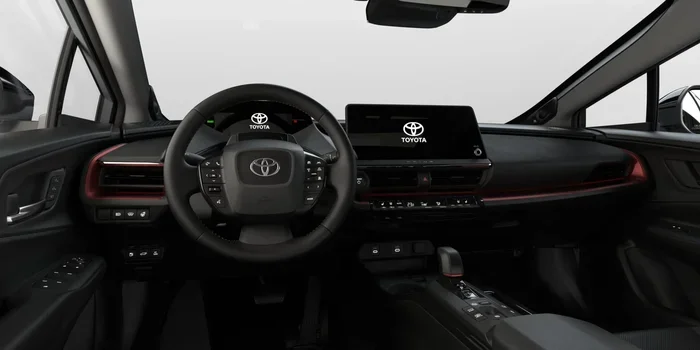
Wait a few seconds for the Toyota Sienna infotainment system to fully boot up. You will see the home screen appear on the display. This tells you the system is ready for input.
Step 2: Go to the Settings Menu
On the home screen, look for the “Settings” icon. It usually looks like a gear. Tap on it to open the settings menu. This is where you control all the connections on your Toyota Sienna.
If you are not sure where Settings is, try looking at the bottom or top of the screen. Toyota places it in a consistent spot across most model years.
Step 3: Select Bluetooth or Phone Settings
Inside the Settings menu, find the “Bluetooth” option. On some models, this might be listed under “Phone” or “Connections.” Tap on it to open the Bluetooth menu.
You should see an option that says “Add New Device” or “Pair New Phone.” Tap this option. Your Toyota Sienna is now in pairing mode and ready to be found by your phone.
Step 4: Turn on Bluetooth on Your Phone
Now go to your phone. Open the Settings app and turn on Bluetooth. Make sure your phone is visible to all nearby devices. On most phones, you will find this under “Bluetooth Settings” or “Device Visibility.”
Your phone should start searching for available devices. After a few seconds, your Toyota Sienna should appear on the list. It might show up as “Toyota Sienna” or “TOYOTA” followed by a few letters.
Step 5: Complete the Pairing Process
Tap on your car’s name on your phone. Both devices will now exchange a pairing code. You may see a code on your car’s screen. Check that the code on your phone matches the one on the car.
If the codes match, tap “Pair” or “Connect” on both devices. The connection should happen within a few seconds. You will hear a confirmation chime in the car, and the Bluetooth icon will appear on the display.
Step 6: Test Your Connection
Once paired, play some music on your phone. It should come through the car speakers. Try making a test call to make sure hands-free calling works. If both work, you are all set.
Pro Tip: If you want to know more about other Toyota features like unlocking your car with your phone, check out Can I Unlock My Tundra With My Phone for related connectivity tips that also apply to the Sienna.
Toyota Sienna Pairing Mode by Model Year
The steps above work for most Toyota Sienna models. But there are slight differences depending on your model year. Let us break it down.
Toyota Sienna Models Before 2021
Older Toyota Sienna models use a slightly different menu layout. Instead of a touchscreen, some models have a knob and buttons. You would use the knob to navigate to Settings, then Bluetooth, then Add Device.
The pairing process itself is the same. Your phone finds the car, you confirm the code, and the connection is made. The only difference is how you navigate the menus.
Toyota Sienna Models 2021 and Newer
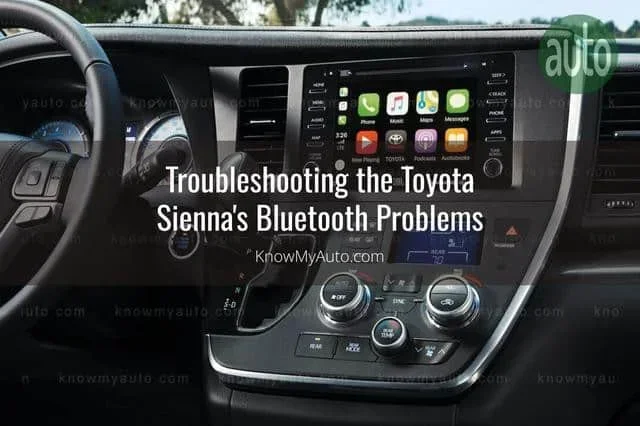
Newer models have a bigger and more responsive touchscreen. The process is more intuitive. You tap through the icons instead of using a knob. The home screen is also more customizable, so you might need to swipe to find the Settings icon.
These newer models also support wireless Android Auto and Apple CarPlay. This means you can mirror your phone screen on the car display without plugging in a cable. It is a great feature for people who use navigation apps a lot.
Comparison Table: Pairing Methods by Model Year
| Feature | Pre-2021 Models | 2021 and Newer Models |
|---|---|---|
| Screen Type | Smaller touchscreen or knob | Larger touchscreen |
| Bluetooth Pairing | Yes | Yes |
| Wireless Android Auto | No | Yes (some trims) |
| Wireless Apple CarPlay | No | Yes (some trims) |
| USB Connection | Yes | Yes |
| Voice Commands | Basic | Advanced |
Troubleshooting Toyota Sienna Pairing Problems
Sometimes things do not go as planned. Your phone might not find the car, or the connection might drop after pairing. Do not worry. Most Toyota Sienna Bluetooth pairing problems have simple fixes.
Phone Not Finding the Car
If your phone does not see the Toyota Sienna in the Bluetooth list, try these steps. First, make sure the car is in pairing mode. Go back to Settings, Bluetooth, and confirm that “Visible” or “Discoverable” is turned on.
Next, turn Bluetooth off and back on your phone. Sometimes a simple refresh solves the problem. You can also try restarting your phone entirely. This clears out any temporary glitches that might be blocking the connection.
Connection Keeps Dropping
If the connection works at first but keeps disconnecting, there are a few things to check. Make sure your phone is not too far from the car. Bluetooth works best within about 30 feet. If you have your phone in the back seat or in a bag, move it closer to the front.
Also check if other devices are interfering. Some wireless devices use the same frequency as Bluetooth. Turn off other Bluetooth devices temporarily and see if that helps.
Another common fix is to delete the old pairing and start fresh. Go to your phone’s Bluetooth settings, find the Toyota Sienna, and choose “Forget This Device.” Then go back to the car and pair again from scratch.
Paired But No Audio
If your phone connects but you cannot hear music or calls through the speakers, check a few things. First, make sure the media audio option is turned on in your phone’s Bluetooth settings. It is easy to miss this setting.
Also check the car’s audio source. Make sure the radio is set to Bluetooth or Aux mode. Sometimes the system defaults to the radio and does not switch automatically.
Software Updates Can Help
Older software can cause pairing problems. Toyota releases updates that fix bugs and improve Bluetooth performance. Check if your Toyota Sienna infotainment system needs an update. You can do this through the Settings menu or by visiting a Toyota dealership.
Expert Insight: For more tips on keeping your Toyota connected, read about How Do I Factory Reset Hybrid Connect, which covers system resets that can also fix connectivity issues.
Tips for a Better Bluetooth Experience in Your Toyota Sienna
Once you have your Toyota Sienna paired and working, there are some easy things you can do to make the experience even better. These small changes add up to a big improvement.
Keep Your Phone Charged
Bluetooth uses battery power. If your phone is low on charge, the connection might be weaker or drop more often. Keep a charger in your Toyota Sienna so your phone stays powered during long drives.
Limit the Number of Paired Devices
The Toyota Sienna can remember several paired phones. But too many devices can slow things down. Keep only the phones you use regularly in the list. Delete old pairings you no longer need.
Use Voice Commands for Safety
One of the best parts of pairing your phone is using voice commands. You can ask your Toyota Sienna to make calls, send texts, or play music. This keeps your eyes on the road and your hands on the wheel.
Press the voice command button on the steering wheel and speak clearly. Try commands like “Call Mom” or “Play jazz music.” The system learns your voice over time and gets more accurate.
Use a USB Cable for Music
Bluetooth is great for calls, but a USB cable gives you better sound quality for music. Plug your phone into the USB port in the center console. The Toyota Sienna will recognize it and play music through the car speakers with less interference.
If you are curious about what else you can fit in your Toyota Sienna, check out How Much Stuff Can I Put In My Car for helpful cargo and storage tips.
Check Your Car Battery Health
A weak car battery can cause all kinds of electrical problems, including Bluetooth connection issues. If you notice your Toyota Sienna acting up, it might be time to check the battery. Learn more in our guide on How Do I Check My Car Battery.
How to Unpair and Re-Pair Your Phone
There may come a time when you need to remove a phone from your Toyota Sienna and pair a new one. Maybe you bought a new phone, or maybe you sold your old one. Either way, the process is simple.
Go to the Bluetooth settings on your car’s display. Find the phone you want to remove and select “Delete” or “Unpair.” Confirm the action. The phone will no longer connect automatically when you get in the car.
To pair a new phone, just follow the steps we covered earlier. Put the car in pairing mode, turn on Bluetooth on the new phone, and complete the connection. It takes less than two minutes.
Quick Tip: If you have multiple family members who drive the Toyota Sienna, each person can pair their own phone. The car remembers up to several devices and lets you switch between them easily.
Common Mistakes to Avoid When Pairing Your Toyota Sienna
Even though the process is simple, people still make mistakes. Here are the most common ones and how to avoid them.
- Skipping the car’s pairing mode: You must put the car in pairing mode first. If you skip this, your phone will not find it.
- Not making the phone visible: Your phone needs to be set to “Visible” or “Discoverable.” Otherwise, the car cannot see it either.
- Ignoring the pairing code: Always check that the codes match on both devices. This is a security feature and should not be skipped.
- Pairing too many devices: Keep your paired device list clean. Too many devices can slow down the system.
- Forgetting to update software: Old software causes most connection problems. Keep both your phone and car system updated.
- Placing the phone too far away: Bluetooth has a limited range. Keep your phone within 30 feet of the car for the best connection.
Can You Use the Toyota Sienna Pairing for More Than Just Phones?
Yes! The Toyota Sienna pairing feature is not just for phones. You can also connect tablets, MP3 players, and even laptops. Any device with Bluetooth can potentially connect to your car.
Some people even use their Toyota Sienna as a portable hotspot. If you have a device that can connect to a mobile hotspot, the car’s infotainment system can use it for navigation and streaming. This is especially useful on road trips where you do not have Wi-Fi.
Just remember that the car’s Bluetooth is designed for audio streaming and hands-free calling. It is not meant for large file transfers or high-speed data. Keep your expectations reasonable and you will be happy with the results.
If you are interested in learning more about the Toyota Sienna and its features, you might also want to check out Can I Start My Toyota Highlander With A Key for related Toyota key and start system information.
Final Thoughts on Pairing Your Toyota Sienna
Putting your Toyota Sienna in pairing mode is one of the easiest and most useful things you can do. In just a few minutes, you can connect your phone, stream your favorite music, and make safe hands-free calls. The process works the same way whether you have an older model or the latest 2024 version.
Remember to keep your software updated, limit your paired devices, and use voice commands for safer driving. If you run into problems, the troubleshooting tips in this guide should help you fix them quickly.
The Toyota Sienna is a versatile family vehicle, and staying connected on the road makes it even better. Now that you know how to pair your devices, you are ready to enjoy a smarter, safer driving experience every time you hit the road.
Frequently Asked Questions
How long does it take to put a Toyota Sienna in pairing mode?
It takes less than two minutes to put your Toyota Sienna in pairing mode and connect your phone. The car boots up quickly, and the Bluetooth search on your phone only takes a few seconds. Once you tap “Pair,” the connection is made almost instantly.
Can I pair more than one phone to my Toyota Sienna?
Yes, the Toyota Sienna can remember multiple paired phones. This is great for families. Each person can connect their own device and switch between them easily. The car will remember the last phone that connected and prioritize it.
Why won’t my phone find my Toyota Sienna when pairing?
If your phone cannot find the car, make sure the car is in pairing mode and that your phone’s Bluetooth is set to visible. Also try turning Bluetooth off and back on your phone. Restarting both devices often fixes the issue. Check for software updates on both your phone and the car’s system.
Do I need a USB cable to pair my phone with a Toyota Sienna?
No, you do not need a USB cable for Bluetooth pairing. The Toyota Sienna supports wireless Bluetooth connections. However, using a USB cable gives you better audio quality for music and can charge your phone at the same time. Bluetooth is best for hands-free calls and general connectivity.
Can I use Android Auto or Apple CarPlay with my Toyota Sienna?
Yes, newer Toyota Sienna models support both Android Auto and Apple CarPlay. Some models support wireless versions, while others require a USB cable. Check your specific model year to see which options are available. These features give you a mirrored phone screen on the car’s display.
How do I delete a paired device from my Toyota Sienna?
Go to the Bluetooth settings on your car’s display. Find the device you want to remove and select “Delete” or “Unpair.” Confirm the action. The device will no longer connect automatically. You can then pair a new device in its place if needed.
=== CONCLUSION ===
Putting your Toyota Sienna in pairing mode is a simple process that anyone can do. Whether you are connecting your phone for the first time or troubleshooting a connection issue, the steps are clear and easy to follow. You now know how to navigate the settings menu, complete the pairing process, and fix common problems.
Take a few minutes to practice the steps. Once you have done it a couple of times, it will become second nature. The Toyota Sienna Bluetooth pairing system is designed to be user-friendly, and with the tips in this guide, you will get the most out of it.
Stay connected, stay safe, and enjoy the ride in your Toyota Sienna. Happy pairing!