How to Delete a Bluetooth Device From a 2016 Honda Civic
Deleting a Bluetooth device from your 2016 Honda Civic is simple and takes just a few minutes. This guide walks you through every step, from accessing the Bluetooth menu to confirming the removal. You will also find troubleshooting tips and expert advice to keep your Honda Civic Bluetooth system running smoothly.
If you own a 2016 Honda Civic, you probably rely on Bluetooth to stream music, take calls, and use hands-free features while driving. Over time, you may need to delete a Bluetooth device from your car. Maybe you sold an old phone, switched to a new one, or simply want to clean up your paired device list. Whatever the reason, the process is straightforward and quick.
In this guide, we walk you through every step to remove a Bluetooth device from your 2016 Honda Civic. We also cover common problems, helpful tips, and answers to frequently asked questions. By the end, you will feel confident managing your Honda Civic Bluetooth settings like a pro.
The 2016 Honda Civic comes with a built-in infotainment system that supports Bluetooth pairing. This system lets you connect your phone for audio streaming and phone calls. The Bluetooth feature is part of the Honda Civic audio system, and it works with most smartphones. Whether you use an iPhone or an Android device, the process stays the same. Knowing how to manage your paired devices keeps the system running clean and efficient.
Key Takeaways
- Easy Process: Removing a Bluetooth device from a 2016 Honda Civic only takes a few simple steps.
- No Tools Needed: You can do this entirely through the car’s infotainment system.
- Troubleshooting Available: If the device won’t delete, we have solutions for common issues.
- Re-Pairing Is Easy: After deletion, you can pair a new device in minutes.
- Multiple Devices: The 2016 Honda Civic supports several paired devices at once.
📑 Table of Contents
Understanding the Bluetooth System in a 2016 Honda Civic
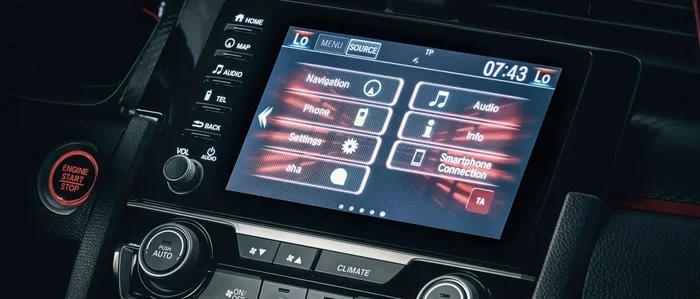
Before you start deleting a device, it helps to understand how the Honda Civic Bluetooth system works. The infotainment screen on your dashboard controls all Bluetooth connections. You can view paired devices, change settings, and manage connections from this central hub.
What the Bluetooth System Can Do
The Bluetooth system in the 2016 Honda Civic offers several useful features. You can stream audio from your phone through the car speakers. You can make and receive phone calls hands-free. The system also supports voice commands in some models. Bluetooth connectivity lets you keep your phone in your pocket or bag while staying connected.
The car can store multiple paired devices at the same time. This means you and a passenger can both have your phones connected. The system remembers each device and switches between them easily. However, over time, this list can get cluttered with old or unused devices.
Why You Might Need to Delete a Bluetooth Device
There are several reasons you might want to remove a paired Bluetooth device from your 2016 Honda Civic. Here are the most common ones:
- You bought a new phone: Your old phone no longer needs to be connected.
- You sold or gave away a device: You do not want that phone to have access anymore.
- Connection problems: A stuck or glitchy device can cause Bluetooth issues.
- Memory full: The system has a limit on how many devices it stores.
- You want a fresh start: Cleaning up the list makes it easier to find your current device.
No matter the reason, deleting a device is a quick fix. It does not erase anything from your phone. It only removes the car’s memory of that device. Think of it like forgetting a Wi-Fi network on your laptop. The network is still out there, but your device no longer auto-connects to it.
Step-by-Step Guide to Deleting a Bluetooth Device
Now let us get into the actual steps. The process is simple and does not require any special tools. You will use the infotainment screen and the controls on your dashboard.
Step 1: Access the Bluetooth Menu
Start by turning on your 2016 Honda Civic. You do not need to start the engine. Just press the power button to wake up the infotainment system. Look for the Bluetooth icon on the home screen. It usually looks like a phone with curved waves.
Press the Bluetooth button on the screen. This opens the Bluetooth settings menu. Here you will see all the devices currently paired with your car. The list may show names like “iPhone,” “John’s Phone,” or the model name of an Android device.
Step 2: Select the Device You Want to Delete
Scroll through the list of paired devices using the tune knob or touchscreen. Find the device you want to remove. Once you highlight it, press the enter or select button.
You will see a menu with options for that device. Look for an option that says “Delete” or “Remove Device.” On some Honda Civic models, you may need to press and hold the device name to access this option. The Honda Civic infotainment system makes it easy to navigate once you know where to look.
Step 3: Confirm the Deletion
The system will ask you to confirm. This is a safety feature to prevent accidental deletions. Press “Yes” or “Confirm” to proceed. The screen may flash briefly while it removes the device from memory.
Once confirmed, the device disappears from the paired list. You can now close the Bluetooth menu. The deleted device will no longer auto-connect when it comes within range of your car. That is all it takes to remove a Bluetooth device from your 2016 Honda Civic.
Step 4: Verify the Deletion
Go back to the main Bluetooth screen to make sure the device is gone. Scroll through the list again. If you do not see the deleted device, the removal was successful. If it still appears, try the process again or check the troubleshooting section below.
Troubleshooting Common Bluetooth Issues
Sometimes things do not go as planned. Here are the most common problems people face when trying to delete a Bluetooth device from a 2016 Honda Civic and how to fix them.
Device Won’t Delete
If the system will not let you delete a device, try these steps. First, make sure you are on the correct menu. The Bluetooth settings screen has different tabs. Make sure you are on the “Paired Devices” tab, not the “Search for Devices” tab.
Second, try restarting the infotainment system. Turn the car off, wait 30 seconds, and turn it back on. This clears temporary glitches. If the problem persists, you may need to reset the entire Bluetooth system. You can do this by going to the Bluetooth settings and selecting “Initialize” or “Reset Bluetooth.” This removes all paired devices, so use it as a last resort.
If you have trouble with your car’s electronics, you might also check whether 2012 Honda Civics have Bluetooth for general Bluetooth troubleshooting tips that apply across Honda Civic models.
Bluetooth Not Showing Up on the Screen
If the Bluetooth option does not appear on your infotainment screen, the system may need a refresh. Try turning the car off and on again. You can also try pressing and holding the volume knob for about 10 seconds. This forces a system reset on most Honda Civic models.
Another possibility is that the Bluetooth function is turned off. Go to the settings menu and check the Bluetooth toggle. Make sure it is switched on. If it is already on and still not working, the issue may be with the car’s hardware. In that case, a visit to a Honda dealer or mechanic may be needed.
Paired Device Still Connects After Deletion
In rare cases, a deleted device may still try to connect. This happens when the phone has saved the car as a trusted device. To fix this, go to your phone’s Bluetooth settings and forget the car. Then try deleting the phone from the car again. This two-step process ensures both sides release the connection.
Tips for Managing Bluetooth Devices on Your Honda Civic
Keeping your Honda Civic Bluetooth system organized makes your daily driving experience better. Here are some practical tips to help you manage your paired devices.
- Clean up regularly: Every few months, go through your paired device list and remove old ones. This keeps the system fast and responsive.
- Name your devices clearly: When you first pair a phone, give it a recognizable name. This makes it easy to identify later.
- Limit the number of paired devices: The 2016 Honda Civic can store several devices, but keeping the list short prevents confusion.
- Update your infotainment system: Honda occasionally releases updates for the infotainment software. Check with your dealer to see if an update is available.
- Turn off Bluetooth when not in use: If you do not need Bluetooth for a trip, turn it off. This saves battery life and reduces interference.
Another great tip is to reset your Bluetooth settings once a year. This clears out any cached data and gives the system a fresh start. Think of it like restarting your phone. It keeps everything running smoothly and prevents weird connection issues.
How to Pair a New Device After Deletion
Once you have deleted an old device, you might want to pair a new one. Here is how to do it quickly. Go to the Bluetooth menu and select “Search for Devices” or “Add New Device.” Put your phone in pairing mode. The car should detect it within a few seconds. Select the phone from the list and follow the on-screen prompts. Confirm the pairing code if asked. Within a minute, your new device is connected and ready to use.
If you want to learn more about Honda Civic features and how they work, you can also read about what to do after replacing a key fob battery for more Honda Civic maintenance tips.
Expert Insights on Honda Civic Bluetooth Management
Managing Bluetooth on your 2016 Honda Civic is not just about deletion. It is about keeping the entire system healthy. Honda designed the Civic’s infotainment system to be user-friendly, but it does need occasional maintenance. Just like you would clean out your phone’s storage, you should clean out your car’s Bluetooth memory.
Bluetooth technology has come a long way since the early days. The 2016 Honda Civic uses Bluetooth 4.0 or later, which offers better range and faster connections. However, older devices may not connect as smoothly. If you pair a very old phone, it might cause the system to lag. Removing unused devices helps keep the Bluetooth system responsive.
One thing many people do not realize is that deleting a paired device does not affect your phone’s data or contacts. It only removes the car’s memory of that phone. Your photos, messages, and apps stay exactly as they are. This makes the process safe and worry-free.
If you ever sell or trade in your 2016 Honda Civic, make sure to delete all paired devices before handing it over. This protects your privacy and ensures the next owner starts with a clean slate. It is a simple step that many people forget.
Key Takeaways
- Simple Process: Deleting a Bluetooth device from your 2016 Honda Civic takes just a few minutes and requires no special tools.
- Navigate to Bluetooth Settings: Use the infotainment screen to access paired devices and select the one you want to remove.
- Troubleshooting Works: If a device will not delete, try restarting the system or resetting Bluetooth settings.
- Regular Maintenance Helps: Cleaning up paired devices regularly keeps your Honda Civic Bluetooth system running smoothly.
- Safe and Reversible: Deleting a device does not harm your phone, and you can always pair it again later.
- Privacy Matters: Always delete all paired devices before selling or trading in your car.
Managing Bluetooth devices on your 2016 Honda Civic is an essential part of car ownership. Whether you are deleting an old phone, fixing a connection problem, or just tidying up your paired device list, the process is easy and quick. The steps outlined in this guide give you full control over your Honda Civic Bluetooth system.
Remember to clean up your paired devices every few months. It takes just a couple of minutes and keeps everything running smoothly. If you run into issues, the troubleshooting tips will help you get back on track. Your 2016 Honda Civic is a great car, and keeping its technology in good shape makes every drive better.
Now that you know how to delete a Bluetooth device from your Honda Civic, you can manage your connections with confidence. Share this guide with friends or family who own a 2016 Honda Civic. It is a simple skill that saves time and frustration. Happy driving!
Frequently Asked Questions
Can I delete all Bluetooth devices from my 2016 Honda Civic at once?
Yes, you can. Go to the Bluetooth settings menu and look for an option to “Initialize” or “Reset Bluetooth.” This will remove all paired devices from your car’s memory. You will need to re-pair any devices you want to use afterward.
Will deleting a Bluetooth device erase anything from my phone?
No, deleting a Bluetooth device from your car does not erase anything from your phone. It only removes the car’s memory of that phone. Your contacts, photos, and apps stay safe on your device.
How many Bluetooth devices can a 2016 Honda Civic store?
The 2016 Honda Civic can store multiple paired devices, usually up to six or eight depending on the trim level. Keeping the list clean helps the system run faster and prevents connection conflicts.
Why does my deleted Bluetooth device still show up on my phone?
This is normal. When you delete a device from your car, the phone still remembers it. To fully remove it, go to your phone’s Bluetooth settings and select “Forget This Device” or “Remove.” This clears the connection from both sides.
Can I delete a Bluetooth device while the car is off?
No, the infotainment system needs to be powered on to access Bluetooth settings. Turn the car on or press the power button without starting the engine. This wakes up the screen and lets you manage your paired devices.
What should I do if the Bluetooth menu is not responding?
Try turning the car off and back on. If that does not work, press and hold the volume knob for 10 seconds to force a system reset. You can also check if there is a software update available for your infotainment system at a Honda dealer.